%20(1).png)
ServiceBoard (Nexus) - v1.0.2509.985 - English
The service pack can be downloaded from our c-ftp or downloaded via River.
The following adjustments were made in this version:
New
Ticket overview – improved overview and new filter options
The ticket overview has been enhanced with various useful features that allow you to navigate more easily and work more efficiently.
1 - Mentions & Notification Filters
If you use a mention in a comment—for example, @John Doe – it now appears clearly highlighted with a at sign in the notifications. This allows you to see immediately when you have been addressed directly.
In addition, notifications can now be filtered by different categories:
Mentions and comments on mentions
General comments
Emails
This allows you to view the type of feedback that is currently relevant to you.
2 - Icons for activities in the ticket
The "Icons" column in the ticket overview now displays not only the familiar "Favorites" stars, but also new icons for:
New comment
New email
These icons appear whenever new content has been added since you last opened a ticket. This allows you to see at a glance whether anything has changed without having to open the ticket.
3 - Preview function in the ticket list
When you click on a ticket in the ticket overview (except directly on the ticket name or ticket number), a Preview with the following information:
The detailed description of the ticket
The internal memo (if available)
The latest comments (max. 10)
4 - Info when there are more than 10 comments in preview
If there are more than ten comments, this is indicated by a small info icon. A tooltip informs you that only the last ten comments are displayed.
(See also Preview function in the ticket list)
5- Advanced search function
The search bar now also searches the detailed description of a ticket. You can enter multiple terms at once or put exact word sequences in quotation marks.
Examples:
Input:
Potato salad with tomato→ Hits when both terms appearInput:
"Potato salad with cucumber"→ Hits only with exact word order
The search function works similarly to Outlook or other search systems you may already be familiar with.
Ticket details – new features in the open ticket
Direct access to customer data
In the open ticket, you will now find two helpful links:
Direct link to the customer area of the respective ticket customer
A Display of open tickets this customer – clicking on it opens a new tab with the "Tickets" section within the customer profile
This means you always have all relevant customer data and support history at your fingertips.
New "Highlights" tab
In the ticket view, there is a new tab called "Highlights"this section provides a better overview of the most important entries in the ticket. You can use a filter to customize your view what types of entries should be displayed, e.g.:
Comments only
Time entries only
Combinations of different entry types
This allows you to decide for yourself which information is most important to you without having to click through all the content.
Automatic status change when sending emails
When sending an email directly from the ticket, a suitable subject line is now automatically generated new status preselected. This function accesses the globally stored rules for automatic status changes back. This updates the processing status faster and more consistently without you having to intervene manually.
Create ticket – optimized process with templates and required fields
Create internal tickets using quick access
When you click on the button "New" you can now use the small arrow icon to new internal ticket create. A selection will then open from which you can choose a suitable internal ticket template this saves time and ensures structured processes for internal communication or task allocation.
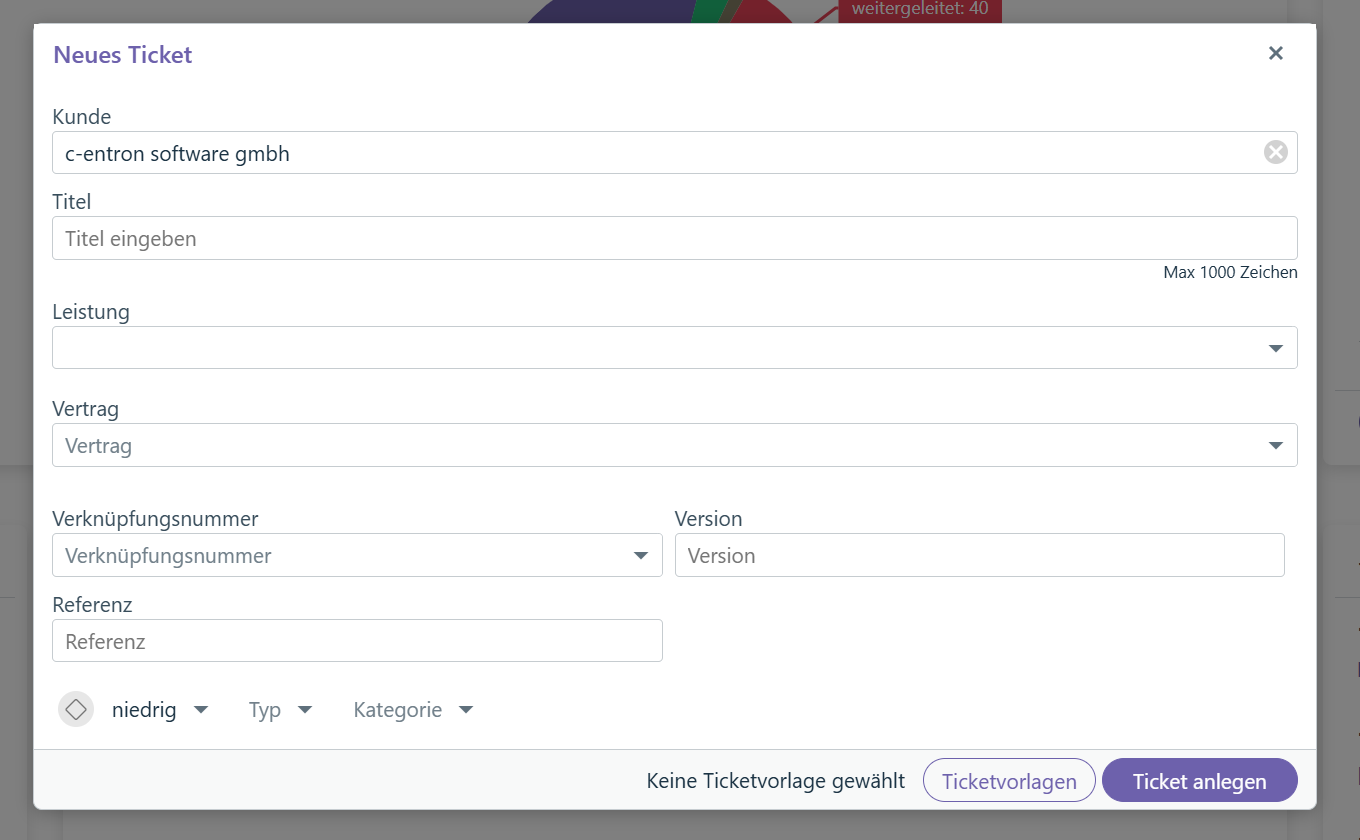
Required fields when creating tickets
An important validation function has been added to ticket creation: From now on, Mandatory fields displayed and checked when creating a ticket. This means:
When you click on "Create ticket," the system checks whether all mandatory fields have been filled in
These mandatory fields are displayed before saving
Important: First, a customer must be selected be – only then can mandatory fields or templates work correctly
Optional: Ignore required fields
.png?inst-v=f50ad907-06af-450f-af4d-3de914effef4)
If you would like to continue creating tickets without filling in the required fields, you can do so in the SBnexus > Required fields the option "Ignore required fields" . The required fields will then be displayed, but do not have to be filled in to create the ticket.
Fixed bugs
General
the memory usage of CentronNexus.exe has been optimized so that memory consumption no longer increases as significantly.
Checklists
Old, deactivated checklist templates are no longer displayed in Nexus and c-entron when moving a checklist to another category.
My day
The "working time" specified in the http://c-entron.NET can be defined under "Global settings -> MyCentron -> My Day -> Working hours" is now also displayed correctly in "My Day" on the ServiceBoard.
Ticket assignment in My Day is now working again. Ticket can be selected again.
Tickets
When sending an email to customers, the status preset in the settings is now automatically applied. This can be adjusted directly in the email if necessary.
If the same "default sender address" has been assigned multiple times in the global settings, it will only be displayed once in ServiceBoard when selecting the sender address in future.
In the "New Ticket" window, the number of search results is now limited to avoid an error message when there are too many hits.
Scheduling
In ServieBoard (Nexus), employee names were not displayed correctly as "assigned employees" in the scheduling for an appointment. This has been fixed.