%20(1).png)
Advanced document update
(available from release v2.0.2505.x)
When creating new documents using templates or address copies, item texts and retail and wholesale prices can now be updated in a targeted manner—either completely or on an item-by-item basis. Deviations are clearly marked, and individual price lists can be selected directly.
When is this function used?
The extended update is available if you:
A new document from a document template create
The function "Create copy at address" uses in the document overview
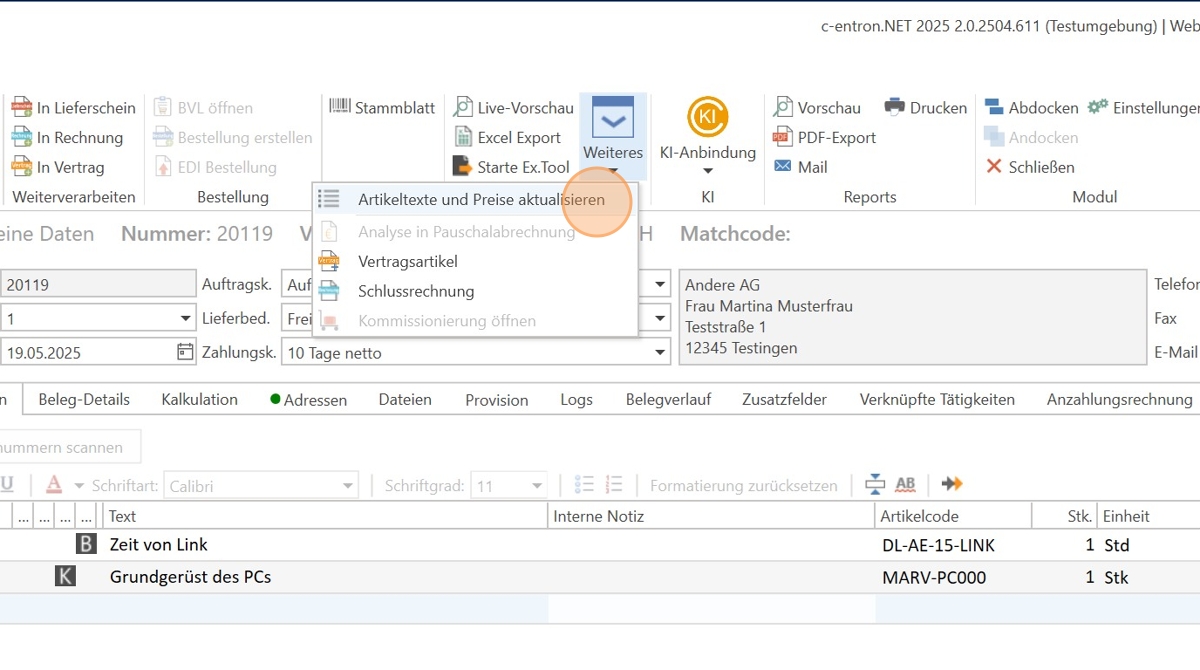
In the existing document on "Continue → Update article texts and prices" click
Step-by-step instructions
1. Create or copy a document
Start as usual:
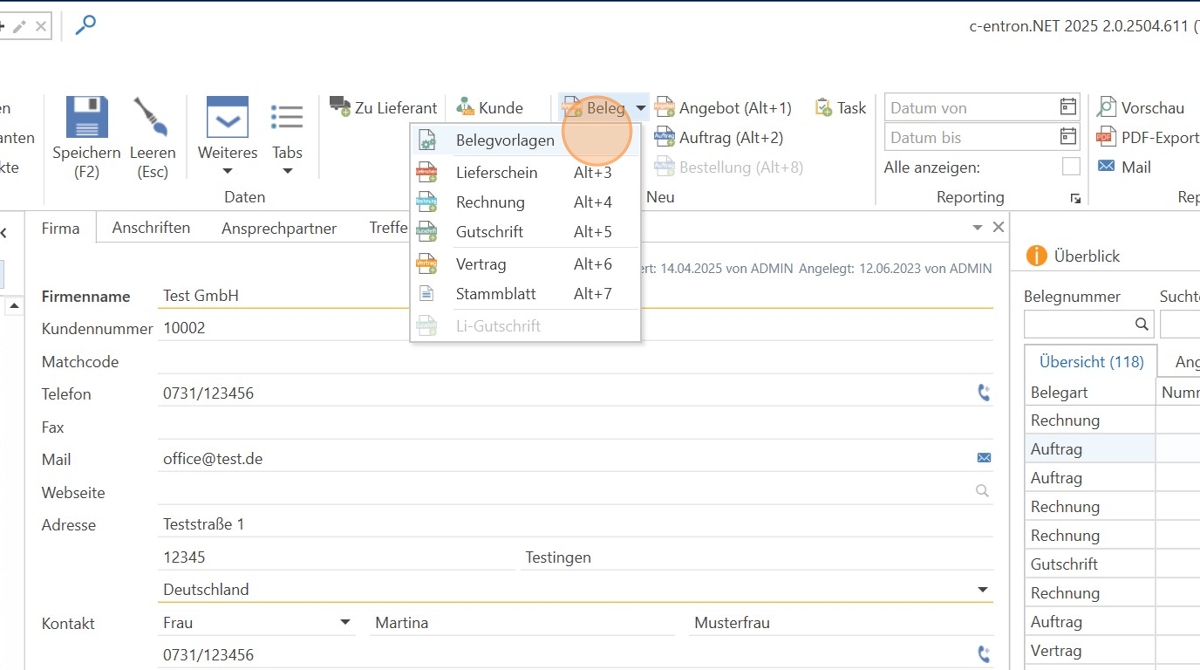
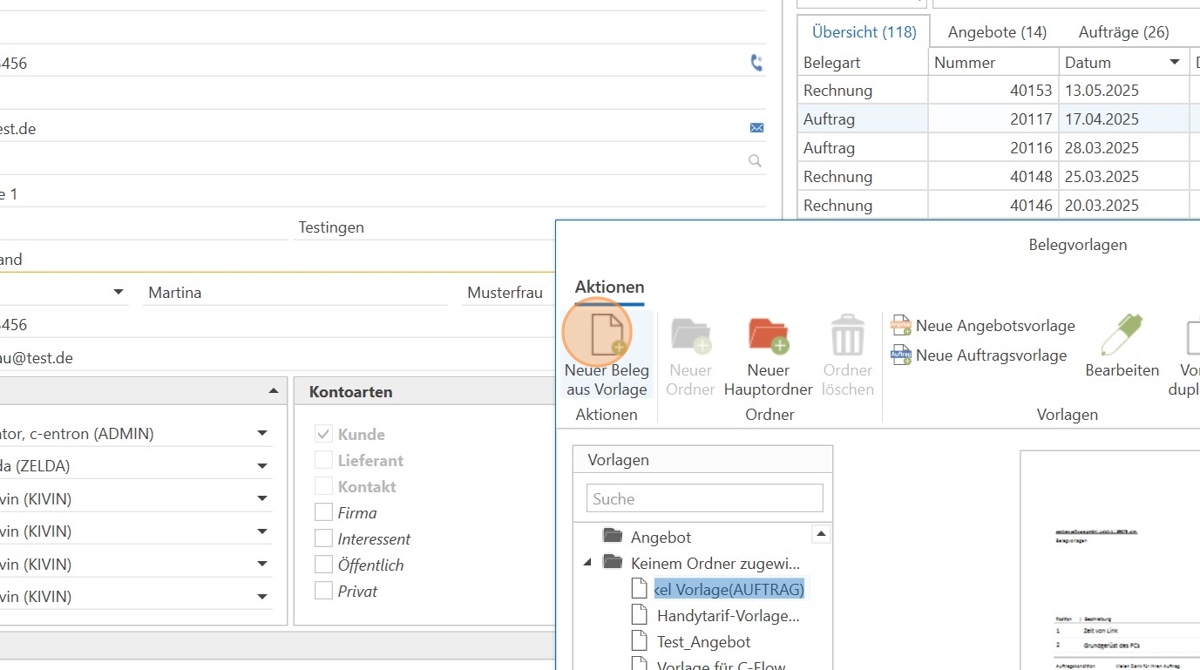
About an existing Document template
Or by right-clicking in the document overview → "Create copy at address"
Note: If you have already opened a document, you can also use the menu "More" → "Update item texts and prices" access the function.
When creating a new document template, there are now advanced settings
2. Select what you want to update
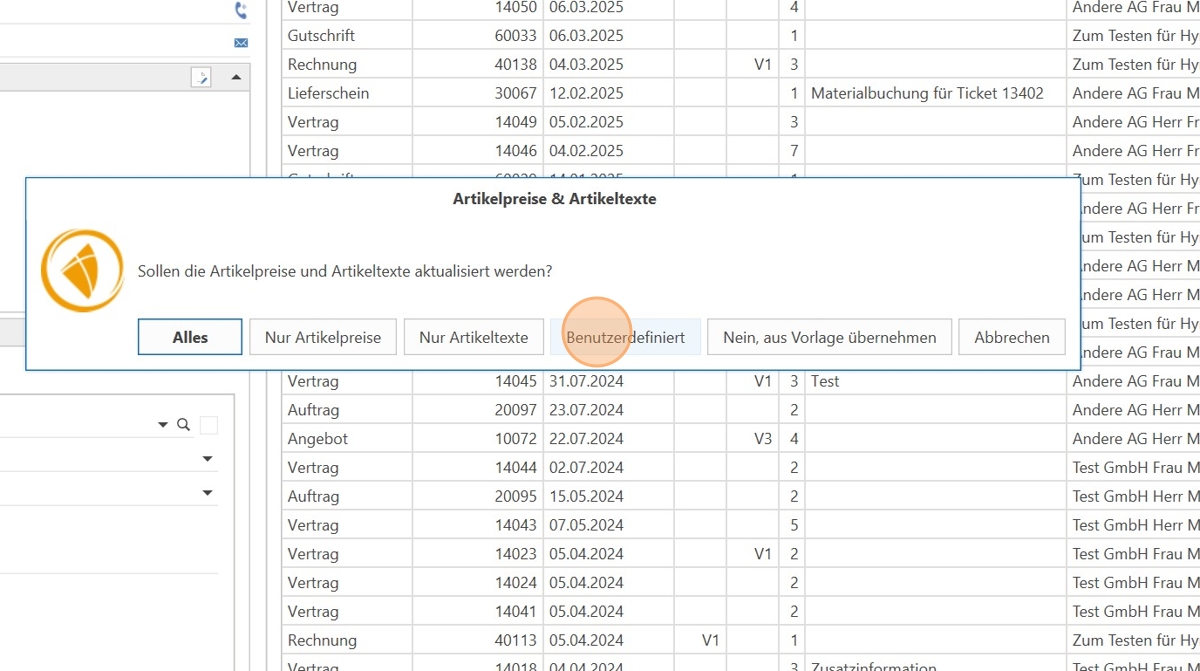
A dialog box appears with the following options: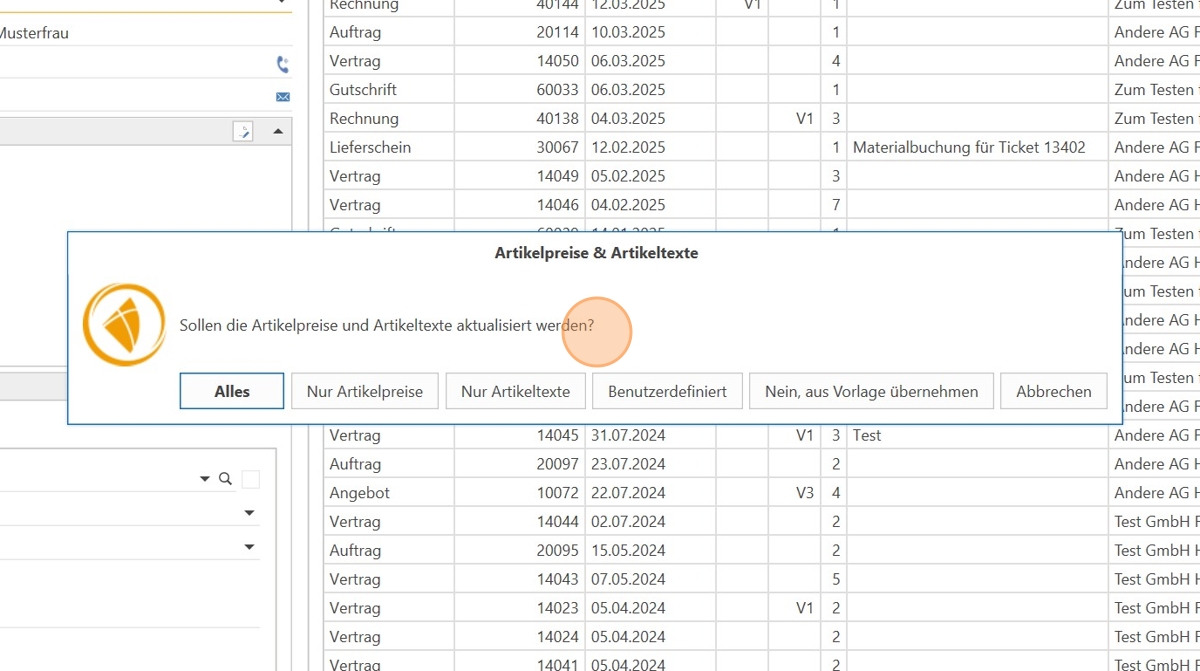
Option | Description |
Everything | Updates both texts and prices (retail and wholesale) |
Item prices only | Only sales prices and purchase prices are transferred |
Article texts only | Only the texts of the article items are updated |
Custom | You decide which fields are updated for which positions |
No, copy from template | Nothing is updated – everything remains as in the template/copy |
3. Custom? How the detailed view works
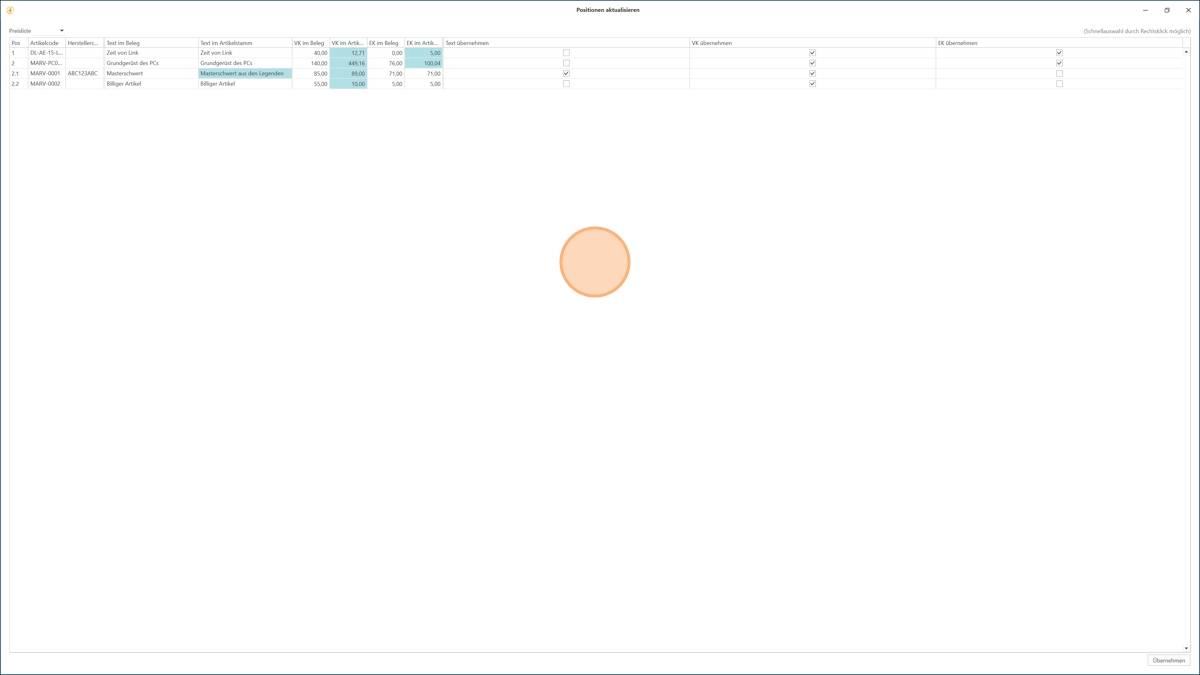
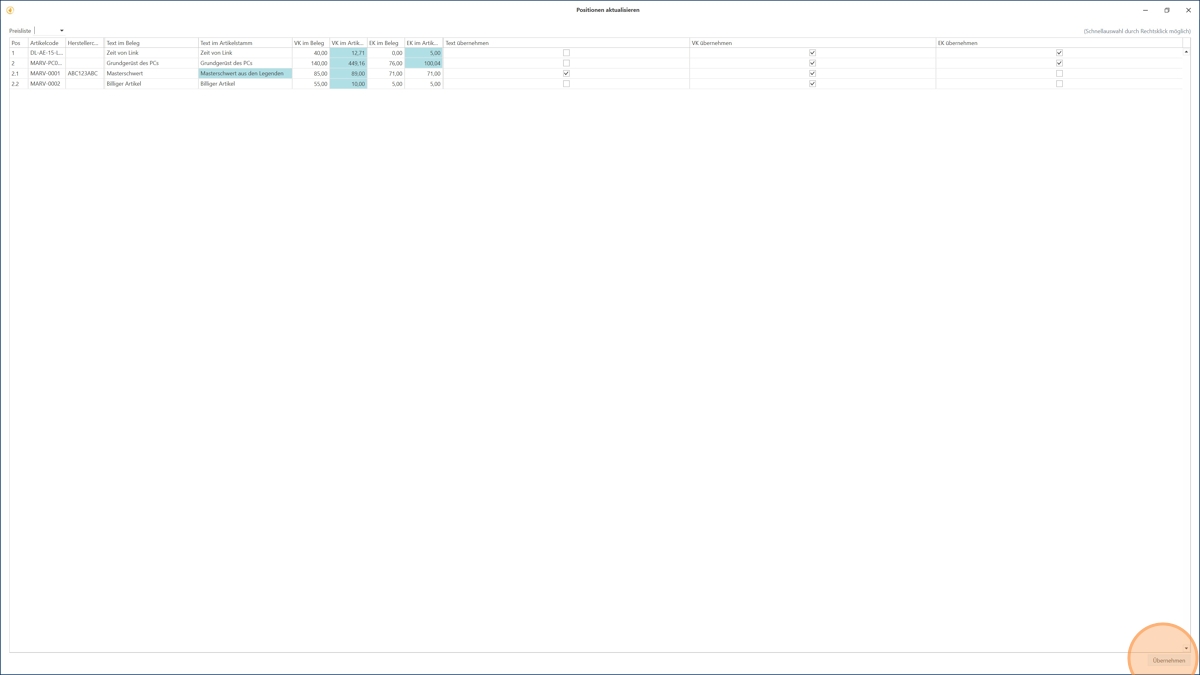
If you "Custom" selects, a new window opens with a tabular overview of all positions.
What you can do there:
Marked in blue: Shows you items with deviations (e.g., price or text changes)
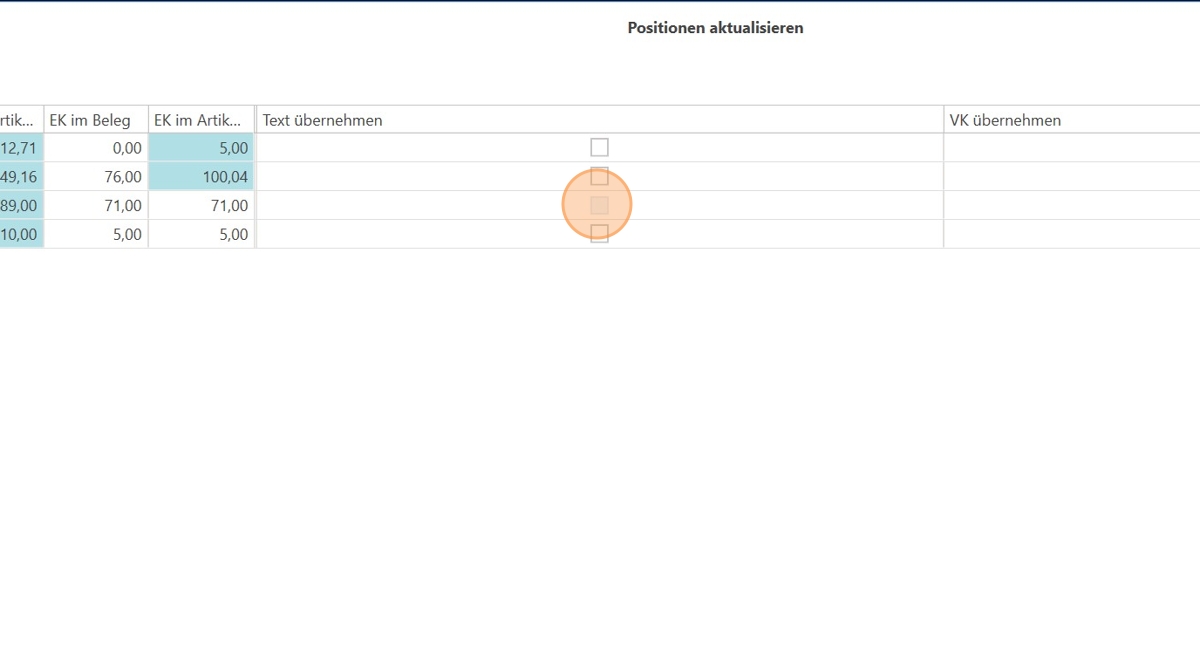
You can per position check:
Copy article text
Apply sales price (SP)
Apply purchase price (PP)
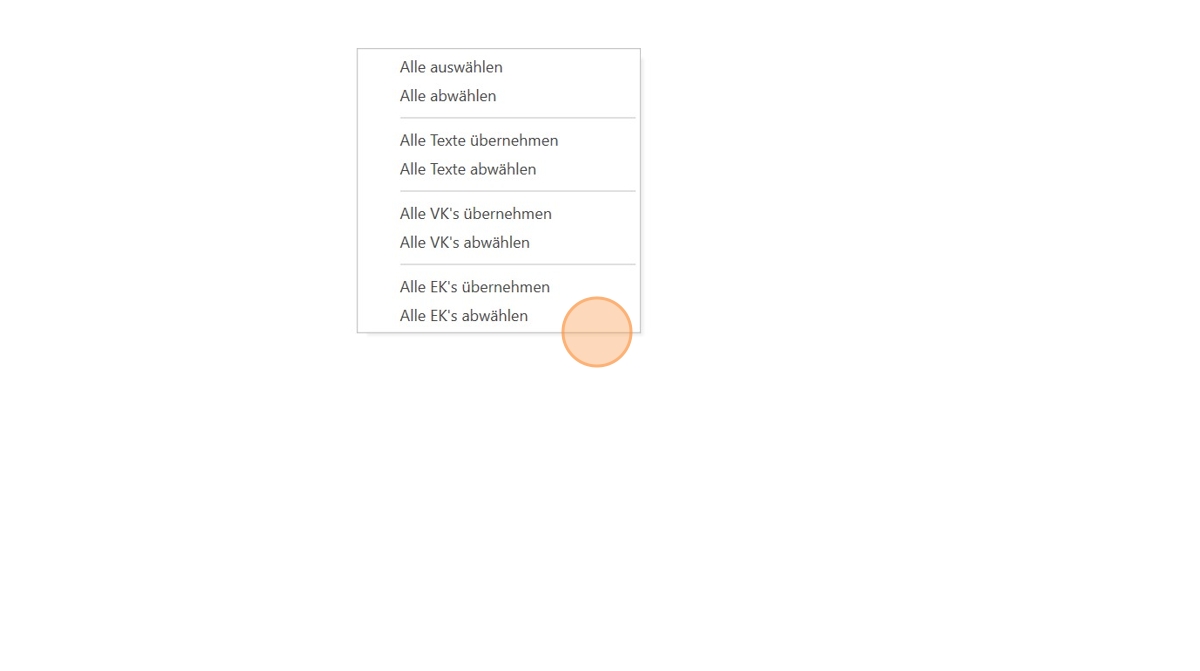
Right-click on a position opens a context menu with quick actions:
Select/deselect all
Activate only texts or only prices for all
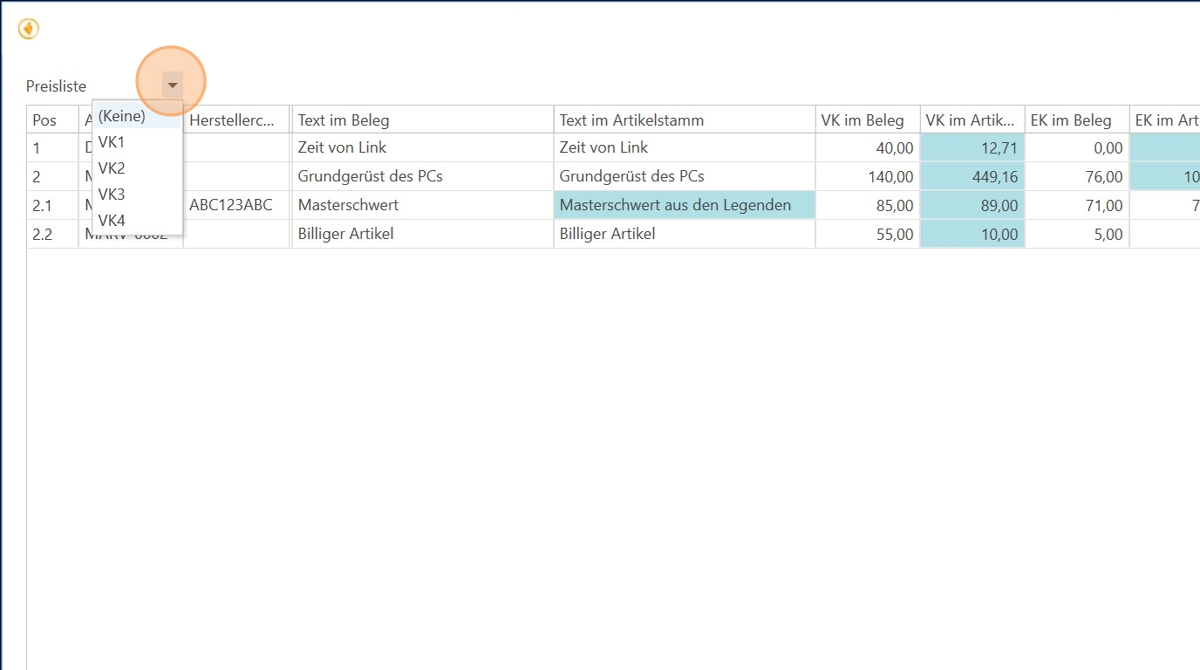
4. Change price list (optional)
At the top of the window, you will find the selection "Price list" – Here you can conveniently choose between the price lists stored in the article master.
The selected price list affects all item positions.
5. Apply
Once you have made your selection:
Click on "Apply"
The selected changes are transferred to the new document
This function has also been added to the document under "More" in "Update item texts and prices" and also in the document overview under "Create copy for address."
Practical tips
Situation | Recommendation |
There are many positions with deviations | Use the blue markings and the Quick selection via right-click |
You work with different price lists | Before applying, select the appropriate Price list from |
You want to stay in control | Use "Custom"to control exactly what is transferred |