%20(1).png)
Audit - English
Dynamic surveys and data collection with the new "Audit" module from c-entron .NET
Audit - Part 1
Settings
An Exchange (EWS) or SMTP is required to send an audit.
A new item has been created in the Personal Settings for this purpose.
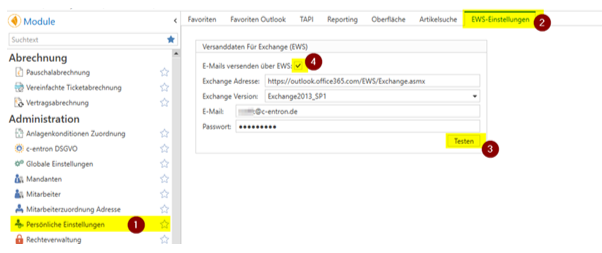
1.Select in the "Personal Settings" modules.
2.Fill in the data here in the "EWS settings" tab.
3.The [Test] button sends a test email to the email address you entered
4.The checkbox "Send emails via EWS" is selected after a successful test. If this is deactivated again, Audit SMTP is used.
Audit
The new Audit module can be found under the Addresses/CRM -> Audit module area.
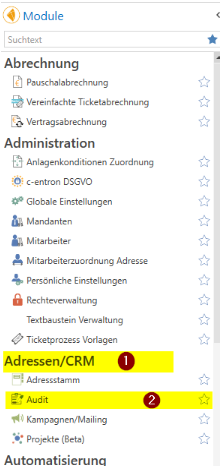
Various menu buttons are available in this module.

·[New Main Folder] creates a folder that serves as the top-level node. (It is recommended to create two main folders at the beginning: "Audits (Questions)" and "Send.")
·[New] creates a new survey (audit). Using the arrow below, you can create audits from templates (previously created audits) in the selected folder, essentially creating a copy.
·[Save] saves a new or existing survey.
·[Preview] displays a preview, provided there are no open connections in the survey.
·[Open template] should overwrite the content of the current survey with that from the template.
·[Save as Template] sets the survey as a template.
·[New Folder] creates a subfolder in the selected main folder.
·[Rename] renames the folder and the survey.
·[Delete] deletes a survey or the folder containing the surveys. (Query guaranteed) -> Sent copies are not taken into account when deleting.
• [New Question] opens a window in which the question type can be selected as in the toolbox and the question cannot be created graphically.
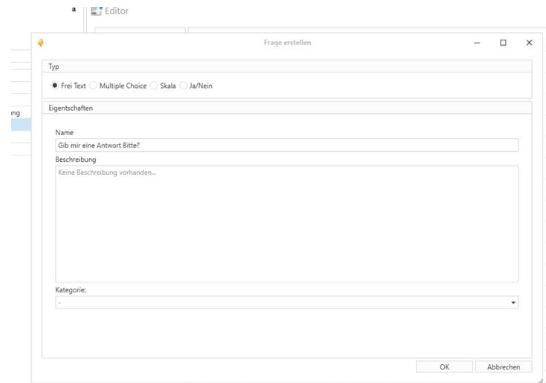
This is then converted into a graphical question element and added to the process graphic.
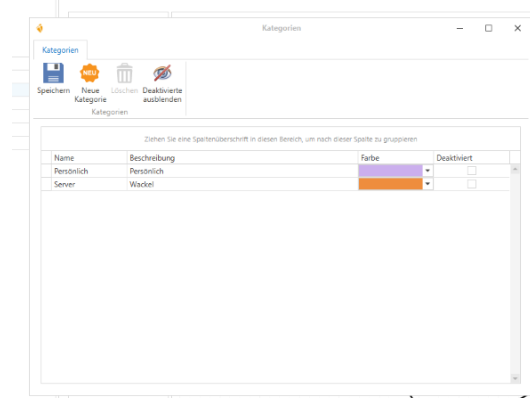
·[Categories] opens the categories window with category management.
These freely defined categories with name, description, and color can be created and managed individually. These categories can be stored in the properties of each questionnaire module, except for Info and Subsection.
·[Collapse area] collapses all areas except the editor to provide a better overview on small screens. (F11)
The audit tool with the audit tree and the editor
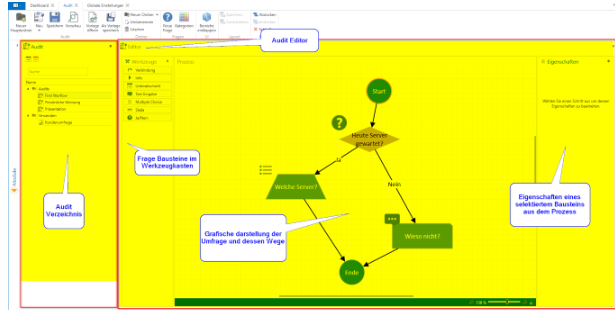
In the Audit section, you can see the tree directory, the main folders that have been created, and the surveys that have been created in the next hierarchy.
When you select a survey, it is displayed in graphical form in the middle section.
When creating a new audit, the "Start" and "End" points are generated automatically.
The toolbox offers all the questionnaire module types that are needed. These can be dragged and dropped into the graphic interface and then linked using the connection arrow.
The individual components and their properties:
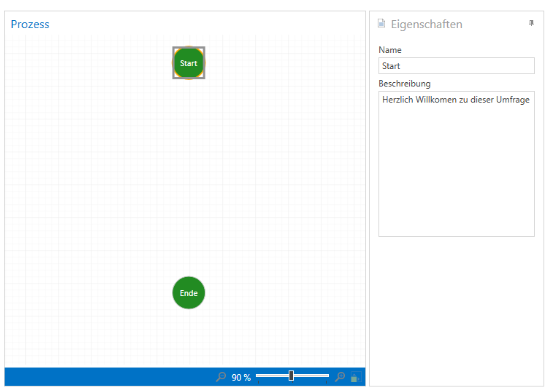
Start sets the entry point for the survey.
The start from subsections is ignored.
Its characteristics are:
Name: It makes sense to name it this way in order to distinguish between start and end.
Description: Reflects the welcome text in the survey on the website.
·Connection:
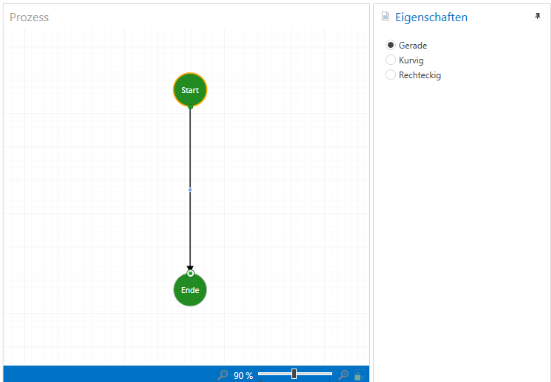
A connection links two components together.
This connection can be dropped manually onto a block at both the start and end points; the selected block will be outlined in green at this point.
Alternatively, hold down the CTRL key and select all the desired blocks in the desired order, then click on the connection arrow in the toolbox. This will automatically connect all the selected blocks in the desired order.
The properties of the compound are:
·Straight
·Curvy
·Rectangular
These connection arrow properties serve to improve the display if components get in the way, ensuring that the connection arrow does not cover the component or cross paths.
·Information
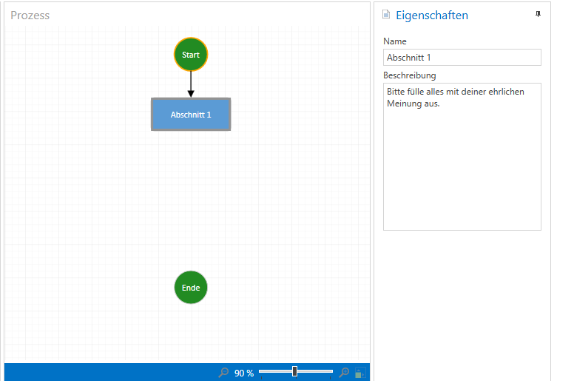
Info is a module that allows you to create sections in the survey and provide users with information or display notes in the description.
Its characteristics are:
·Name: This is where the info/section heading is defined.
·Description: Instruction texts or information are stored here.
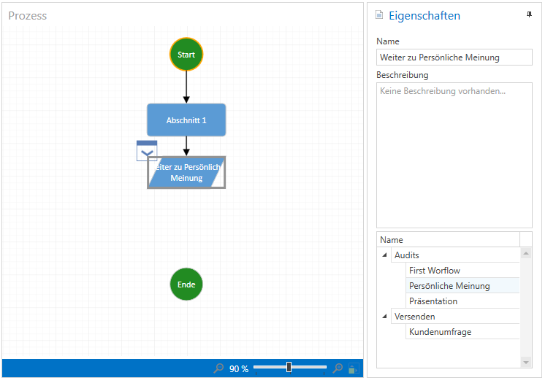
With the Subsection is it possible to embed other surveys (audits) at this point, which will be embedded here during the course of the survey?
It makes sense to create audits with a few questions and then create an audit and store the surveys there as sub-modules so that you can then send this survey to the customer. This means that question audits can be used more often and you don't have to type the same questions over and over again.
Or you can put together small surveys and combine them into one large one—there are no limits to your imagination.
The properties of the subsection are.
·Name: Enter the name of the survey here so that it is immediately clear from the graphic view which survey is being referred to.
·Description: Any description can be entered here.
·Tree: The tree reflects the audit tree with the existing surveys. Here, you can select the survey to which you want to be redirected.
Of course, the survey where the subsection itself is located must not be selected here, otherwise a circular reference will be created.
·Text input
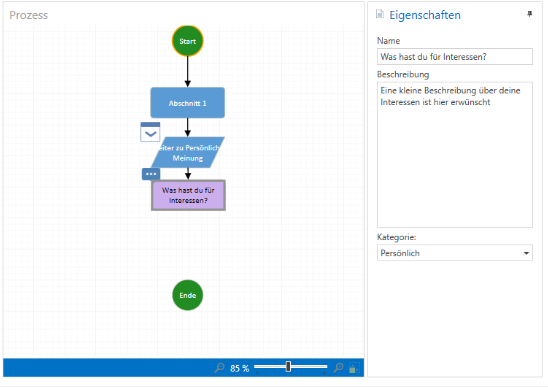
The text input field in the online survey requires respondents to enter their answers to the question manually.
Its characteristics are:
·Name: Enter the question to be asked here.
·Description: A somewhat detailed description or assistance for a better understanding of the question can be provided here.
·Category: Here you can select a category from the previously set category settings. The block will be colored with this color in the graphic, and this question will also be marked with this color on the web. (NOTE: The next blocks will now also be automatically assigned to this category until the next category.)
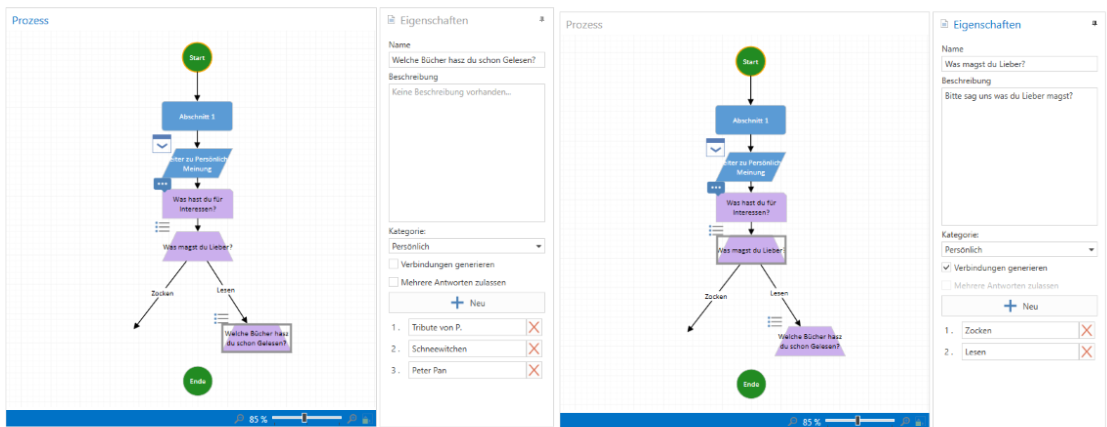
Multiple choice questions on the web require respondents to select from a set of possible answers, of which there are three different types.
Either he can only select one option and the survey path remains linear, or he can select multiple answers and the survey path remains linear, or he selects one answer option and the survey path changes.
The characteristics of multiple choice are:
·Name: Enter the question to be asked here.
·Description: A somewhat detailed description or assistance for a better understanding of the question can be provided here.
·Category: Here you can select a category from the previously set category settings. The block will be colored with this color in the graphic, and this question will also be marked with this color on the web. (NOTE: The next blocks will now also be automatically assigned to this category until the next category.)
·Default: Neither generate connections nor multiple answers is checked, so only one answer is possible.
·Generate connection: As with the question "What do you like better?", a connection is generated for each possible answer, which then takes a new path in the survey with each answer. This allows new paths to be created.
(Only one answer possible)
·Allow multiple answers: allows respondents on the web to select several of the suggested answers -> checkboxes instead of radio buttons. (Multiple answers possible)
·New button: This allows you to add new answer options
Tip: To create a possible answer with text input, simply select Generate connection, then follow with a text input, connect the others to the next point, and then refer the text input to the same point as the others.
·Scale
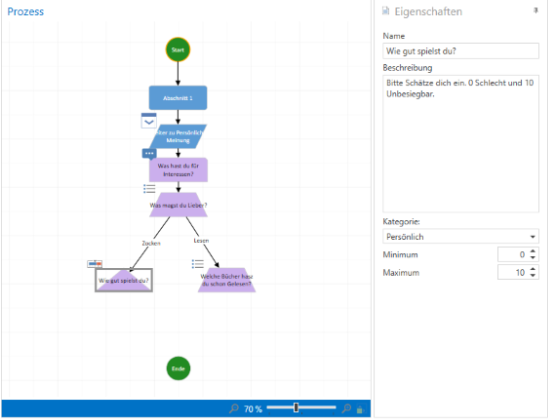
The scale requires respondents to the online survey to assign a score on the scale.
Its characteristics are:
·Name: Enter the question to be asked here.
·Description: A somewhat detailed description or assistance for a better understanding of the question can be provided here.
·Category: Here you can select a category from the previously set category settings. The block will be colored with this color in the graphic, and this question will also be marked with this color on the web. (NOTE: The next blocks will now also be automatically assigned to this category until the next category.)
·Minimum: This is the value on the far left and indicates the smallest value.
·Maximum: This is the value on the far right and indicates the highest value.
The respondent can choose between the values provided or the minimum and maximum values.
·Yes/No
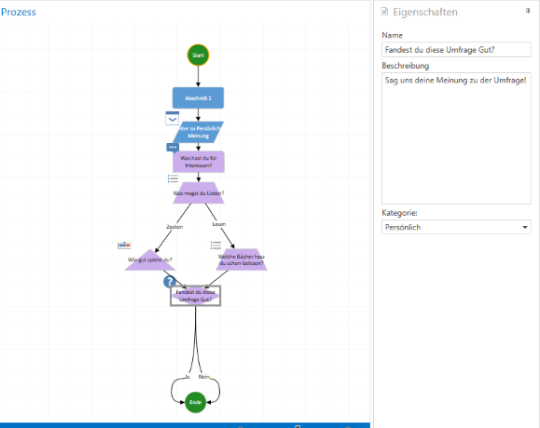
Yes/No requires respondents to make a selection in the web survey and can change the course of the survey. The connections are pre-generated when the survey is created. Only the endpoint needs to be set.
Its characteristics are:
·Name: Enter the question to be asked here.
·Description: A somewhat detailed description or assistance for a better understanding of the question can be provided here.
·Category: Here you can select a category from the previously set category settings. The block will be colored with this color in the graphic, and this question will also be marked with this color on the web. (NOTE: The next blocks will now also be automatically assigned to this category until the next category.)
End
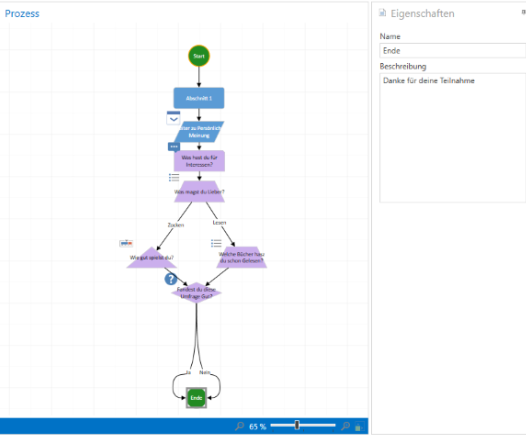
End initiates the completion of the survey.
The ends from subsections are ignored
Its characteristics are.
·Name: It makes sense to name it this way in order to distinguish between start and end.
·Description: Reflects the closing text in the survey on the website.
The survey can now be saved, whereby the system checks whether there are any open connections.
To view the preview, the Service Board Online link must be stored in Global Settings -> Administration -> Documents -> Order Processing Contract.