%20(1).png)
c-entron logs - English
Since release versions x.0.1907.x, logging in c-entron environments has been standardized and centralized. The aim of this change is to ensure consistent and low-maintenance log recording across all locally installed c-entron modules. The logs are automatically stored in the directory C:\ProgramData\c-entron software gmbh this directory is hidden by default, but can be accessed via the direct path or by enabling the display of hidden files in Windows.
Within the directory, there are separate subfolders for the respective c-entron components, in which the associated logs are stored for a period of approximately seven working days. Configuration files may also be located there. These should only be edited or deleted after explicit instructions from support or the system administrator.
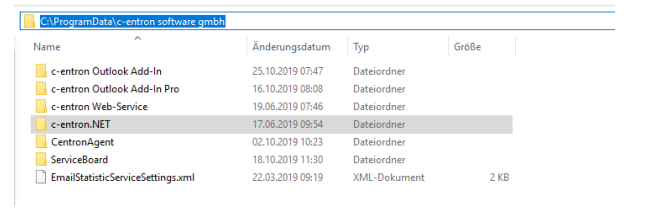
The directory is a special feature CentronAgent it contains not only logs from the agent itself, but also from other services controlled via the agent—including, for example, VirtualMailAssistant
Logging levels in .NET applications
c-entron modules based on the .NET platform use a tiered logging model. There are seven different logging levels that define the level of detail of the recorded information:
OFF: No logging
CRITICAL: Critical system errors
ERROR: Errors in program execution
WARNING: Warnings for non-serious problems
INFORMATION: General status messages
DEBUG: Detailed developer information
TRACE: Complete sequence log
By default, logging is set to the levels ERROR and WARN active. This is sufficient for most support requests, as errors and relevant warnings are adequately documented. In certain cases, such as errors that are difficult to reproduce, it may be necessary to temporarily set logging to TRACE to switch over in order to record all program steps.
Changing the logging level
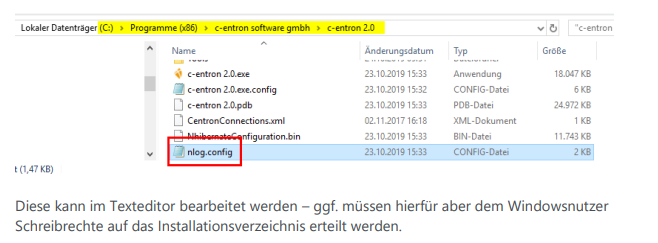
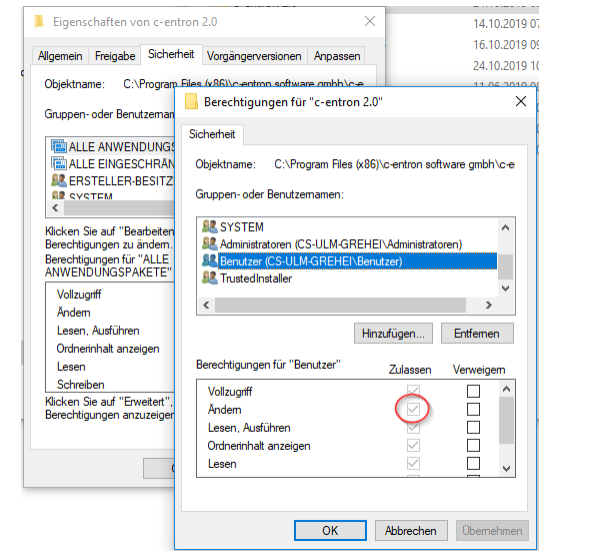
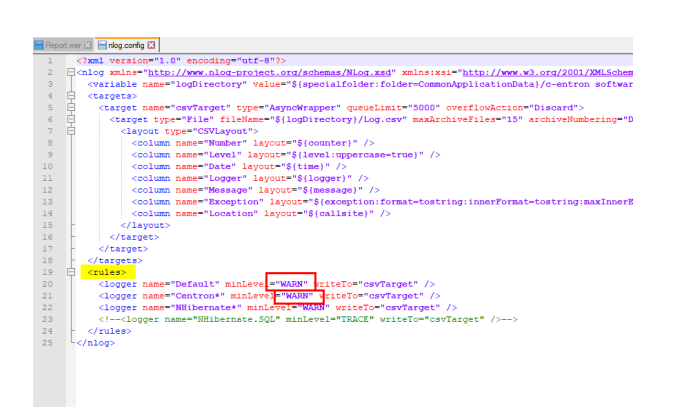
The logging level is adjusted via the file nlog.configlocated in the application's installation directory. For standard installations, this is located at C:\Program Files (x86)\c-entron software gmbh\....
About the changeover:
Open the file nlog.config in a text editor.
Find the line where the current logging level is defined (for example
<level value="Warn" />).Replace the value with the desired level, for example
Trace,ErrororDebug.Save the file. It is usually not necessary to restart the application, provided that no further structural changes have been made.
Once detailed logging is no longer required, the original logging level should be restored to avoid memory consumption and performance losses.
Storage behavior and performance
The higher the sensitivity of the logging level, the more extensive the log entries become. Especially with complex or resource-intensive programs, this can quickly lead to very large log files—even if no actual errors occur.
Large log files can:
Causing storage space problems
negatively impact the performance of the application
lead to longer loading and response times
If excessive utilization is detected, the logging level should be reduced and old log files should be deleted manually. This can be done by removing older files from the respective module directory under C:\ProgramData\c-entron software gmbh\ take place.
Structure and handling of log files
The log files in c-entron are automatically generated and named by the respective software component. The current log file usually has the simple name "Log", while older log files are automatically given a date suffix, e.g. "Log.2025-07-14"this naming scheme facilitates the chronological tracking and analysis of processes.
For support purposes, it is usually sufficient to send the current log file as an email attachment to c-entron support. If an analysis of several components in parallel is required—for example, for the Web service and that Service Board – It is advisable to rename the files for better differentiation (e.g., in "WS log" and "SB-Log") before they are shipped.
The respective components store their log files in the following directories by default:
c-entron.NET
C:\ProgramData\c-entron software gmbh\c-entron.NET\Logsc-entron web service
(on the web service server)C:\ProgramData\c-entron software gmbh\c-entron Web Service\LogsCentronNexus (including ServiceBoard Nexus)
C:\ProgramData\c-entron software gmbh\CentronNexus\LogsServiceBoard (Classic)
C:\ProgramData\c-entron software gmbh\ServiceBoard\LogsServiceBoard Online
(on the device on which ServiceBoard Online is installed)C:\inetpub\wwwroot\SB-Online\App_DataVirtual Mail Assistant (VMA)
C:\ProgramData\c-entron software gmbh\CentronAgent\Logs\MailScannerc-entron agent
C:\ProgramData\c-entron software gmbh\CentronAgent\Logs\AgentOutlook add-in
C:\ProgramData\c-entron software gmbh\c-entron Outlook Add-In\Log.csv
This clear structuring of storage locations enables targeted and rapid provision of relevant log data for error analysis. In the event of an error, it is always advisable to first locate the appropriate path to the affected component and check the current log file.
Logging directly from the .NET interface
If the regular logging mechanism does not work or a specific process needs to be analyzed in detail, the .NET interface of c-entron offers a temporary option for logging directly via the user interface.
Navigate within c-entron to the location where the error occurs.
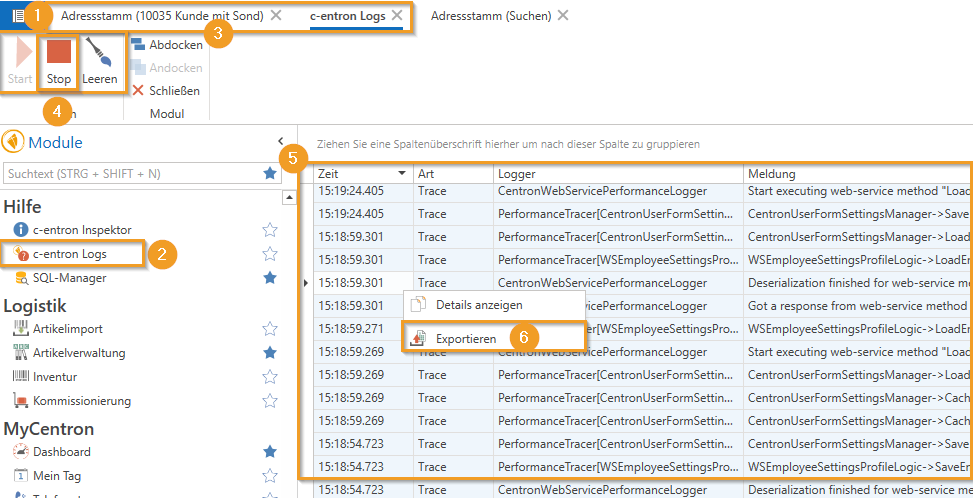
Open the module "c-entron Logs"(1), which in the area "Help" can be found under Modules.
First, click on "Empty"to ensure that there are no old log entries left in the list.
Then press the button "Stop" and afterwards "Start"to reinitialize logging (2).
Now return to the application section where the error reproduction was prepared and complete the relevant process (3).
After completing the process, stop logging again via "Stop" in the module.
Select all entries with the keyboard shortcut Ctrl + A.
Export the selected log entries via the Context menu in a Excel file.
The Excel file created in this way contains a structured overview of the recorded program steps and can be forwarded to support for targeted error analysis.