%20(1).png)
c-entron WebCart 2 - Shopping cart creation and approval via Nexus
(Available from Nexus Release 1.0.2305.x)
With the visually appealing "c-entron WebCart Pro," you can enable your customers to order selected items independently and without prior knowledge via web access, taking into account agreed special prices. With c-entron WebCart Pro, the focus is on making the ordering process as simple as possible.
Approval via Nexus
An approval system has been integrated into WebCart Pro (Nexus), so that a customer's employee can now create a shopping cart, which in turn can only be checked by a customer's reviewer and approved by the customer's purchaser.
You can now divide the customer's contact persons into three levels for approval purposes:
Employee (Level 1)
These do not require rights for the shopping cart
Every employee is allowed to put together a shopping cart.
Auditor (Level 2)
These require the WebAccount right "Check shopping cart."
The inspectors are responsible for checking the shopping baskets of the employees in stage 1. They check whether the selected goods are appropriate and whether all items are compatible with each other.
Buyer (Level 3)
These require the WebAccount right "Shop shopping cart."
After the shopping carts have been checked by the reviewers in stage 2, they are handed over to the purchaser, who orders them via the WebCart interface.
All web accounts with the "Check shopping carts" right are the checkers.
And all those with the right to "purchase warning baskets" are the purchasers.
Approval status
This results in the following different approval statuses for a shopping cart:
Created (default)
Ready for testing
Checked (when a reviewer has checked the shopping cart and everything is fine)
Ordered (if a buyer has ordered the shopping cart)
Rejection due to inspection (if an inspector has checked the shopping cart and there is a problem)
Rejection by purchasing (if a buyer has not ordered the shopping cart and there is a problem)
When the status of a shopping cart changes, certain people should receive a notification email. This can be defined in the Mail Templates module in c-entron
Shopping cart for review: All reviewers
Approved by: Creator of the shopping cart, All purchasers, Bohnen-IT
Rework: All inspectors
Buyer accepted: Shopping cart creator, All reviewers, All purchasers, Bohnen-IT
Purchaser rejects: Creator of the shopping cart, All reviewers
The flowchart shows you how the approval status changes and which employee is responsible for the change.
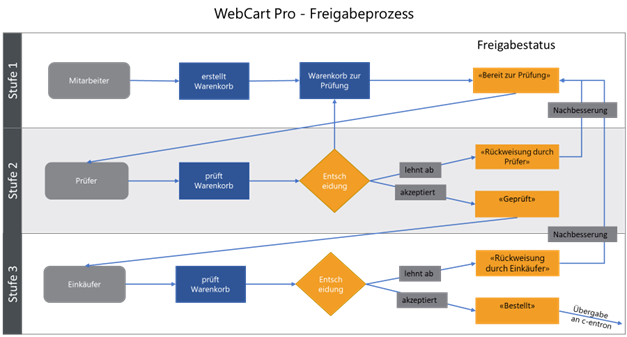
The rectangular orange elements on the right represent the various release statuses.
The gray fields represent the various people involved (employees, auditors, and purchasers).
And the arrows represent the various actions that users (employees, reviewers, and purchasers) can perform on the WebCart website.
Setting up WebCart 2 for a customer in c-entron
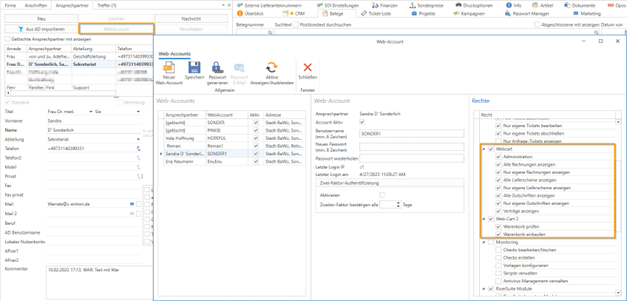
The "WebAccount" button can be used to create an account for each of a customer's contacts and to define their rights.
The following rights can be assigned for the WebCart Pro approval system:
Employees (Level 1)
These do not require rights for the shopping cart
Auditor (Level 2)
These require the WebAccount right "Check shopping cart."
Buyer (Level 3)
These require the WebAccount right "Shop shopping cart."
After confirming with "OK," the customer must be saved using the save icon.
Provide items for a customer in WebCart 2
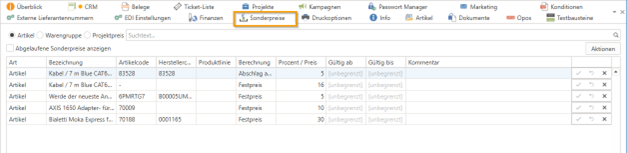
Enter the items and prices in the address master under the "Special prices" tab. (NOTE: For the "Special prices" tab to be displayed in the address master, the account must be a customer and the user must have the "Display customer finances" right.)
Only one special price can be stored per item. One reason for this is that special prices are applied "automatically" when items are added to the document.
Items created for the customer in the "Special Prices" tab are displayed in WebCart Pro.
You can also offer parts list items
With fixed retail prices
With variable retail prices
Restriction: The special price must not differ from the retail price of the item master.
Settings for WebCart 2
C-entron employees do not need to create an account. Employees log in using their c-entron login details.

As soon as a customer creates a shopping cart, it will be displayed in your c-entron. The offer will then be marked with a check mark "Is a shopping cart" set.
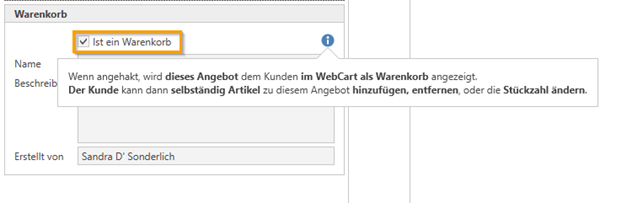
You also have the option of creating a quote in c-entron and then sending it as "Is a shopping cart" activate—this makes the offer available to the customer as a shopping cart, which can then be checked by the customer's reviewer, adjusted if necessary, and ordered via the purchaser.
To enable your customers to use WebCart 2, we have already created the following instructions for you (you can also send these instructions to your customers separately).
c-entron WebCart 2 - Shopping carts directly accessible via the web