%20(1).png)
c-Navigator - English
Available commands via CTRL+SHIFT+A in the individual areas
(As of 03-2025)
With the c-Navigator, you can use keyboard shortcuts to dive into a context-based search directly from the c-entron screen and jump directly to the desired tasks or menu items, making the c-entron even easier, faster, and more efficient to use.

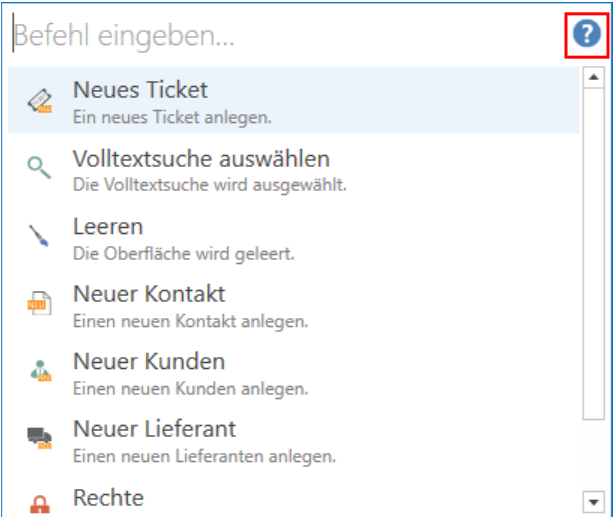
You can also access this overview by clicking on the "blue question mark" (?) in the open window/dialog box (open with CTRL+SHIFT+A):
c-entron DMS
Enter the prefix "dms" followed by a search text to open the document or perform other actions with it:
• Open details
• Edit document
Module list
Enter the name of a module to open the corresponding module.
General c-entron.NET commands
General functions of c-entron.NET, such as:
• Log out
• Exit c-entron.NET
• Close currently open module
• Change module (enter the name of the other module)
Customer search
Enter the prefix "k" followed by a search term to find all customers for that search term.
Customer or supplier number
Enter a customer or supplier number to open the corresponding customer or supplier.
Serial number
Enter the prefix "sn" (or alternatively "b") followed by a serial number to open this serial number or perform other actions with it:
• Open details
• Open related article
• Open related documents (order, delivery note, invoice)
Document number
Enter a document number to open this document or perform other actions with it:
• Create new version
• Show preview PDF
• Send to the customer by email
• Export PDF
• Edit document status
Ticket number
Enter a ticket number to open this ticket or perform other actions with it:
• Edit ticket (status, type, priority, category, etc.)
• Forward, transfer, or close a ticket
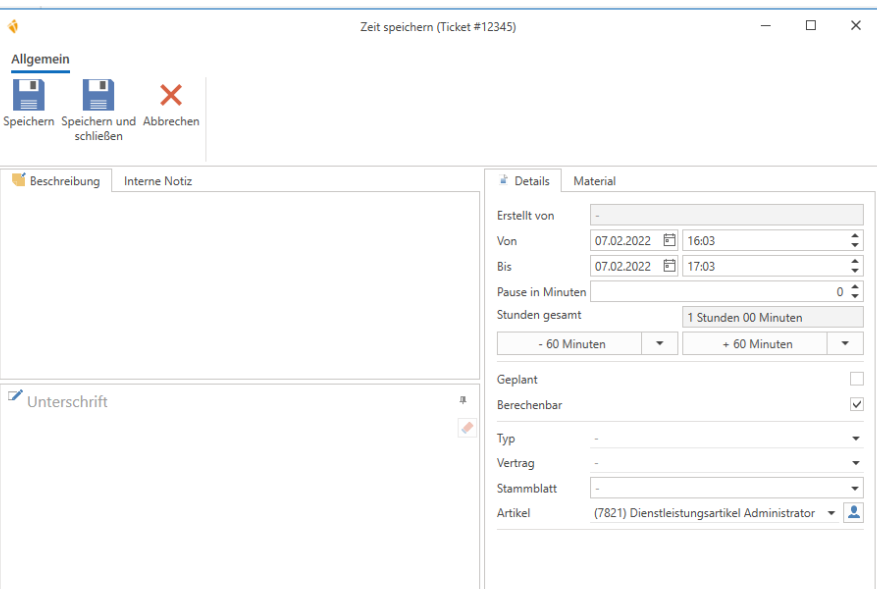
• Record the time for the ticket
• Enter a new action
• View ticket documents
• Start or stop the stopwatch
open article
Once you have opened an article, you can:
• Save, save and close, and copy the article
• set the EK
• Recalculate prices
• focus on a specific field
Item management
Once you have opened the item management screen, you can:
• Create an article
• Open the RMM item management
• Convert foreign or new items
• Focus on article search
• Switch the display between items and serial numbers
• Focus on serial number search
Address master module
When you have opened an address master, you can:
• Create a new customer document (a customer must be open)
• Create a new ticket
• Create a new activity
• Empty the module
• Select full-text search
• Create a new contact, customer, or supplier
• Save all changes
Customer receipt module
Once you have opened a customer document, you can perform actions directly in that document:
• Create new version
• Save receipt
"Open c-Navigator via link"
The idea is that you can send your colleague or employee a link.
They click on the link, and the ticket/offer/order/etc. opens in c-entron.NET.
How do you get the link?
Unfortunately, there is no button in .NET that allows you to copy this link or anything like that.
You must therefore assemble it yourself manually (or insert it into an email template, for example).
Structure of the link
The link is always structured as follows:
c-entron://c-entron/ShowQuickSearch?s=12345
The entire beginning is always the same; only the 12345 at the end is replaced with the search text that you want to transfer to the c-Navigator.
This is very useful for document numbers or ticket numbers.
In our example, you will then see the following displayed directly:
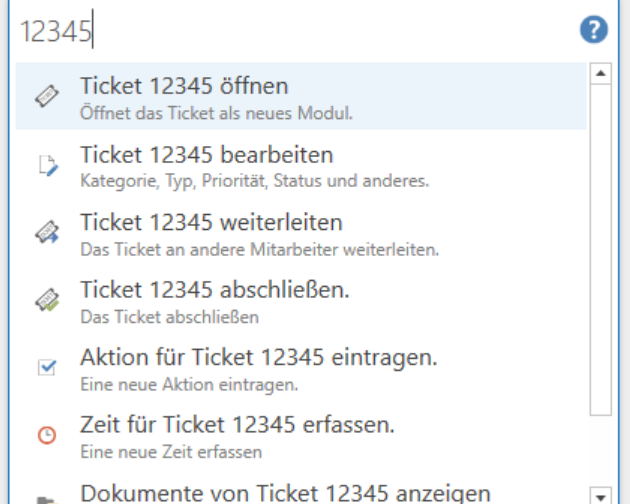
Alternatively, you can add &execute=true at the end, which will execute the first command found.
In this example, "Open ticket 12345."
c-entron://c-entron/ShowQuickSearch?s=12345&execute=true
Since the whole thing is a URL, it cannot contain any spaces.
This must be replaced with %20 (see example below).
Further examples
Open contract billing
Since the whole thing works via quick search, you can theoretically do other things with it as well.
for example, a link that opens the contract invoice directly:
c-entron://c-entron/ShowQuickSearch?s=ContractBilling&execute=true
Record time for a ticket
Or you can also do something like this:
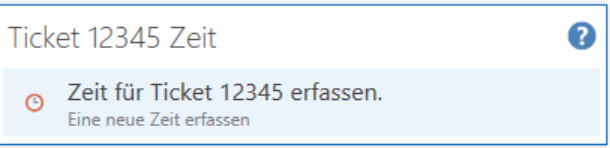
c-entron://c-entron/ShowQuickSearch?s=Ticket%2012345%20Time&execute=true
Please note that spaces are replaced with %20 here!
This means you only need to find this one command and can immediately create a new time for the ticket.