%20(1).png)
Client management
Client management is an essential part of the c-entron software, ensuring that all your company's data is stored correctly. This is usually maintained once and only updated when changes occur, such as changes to addresses or bank details.
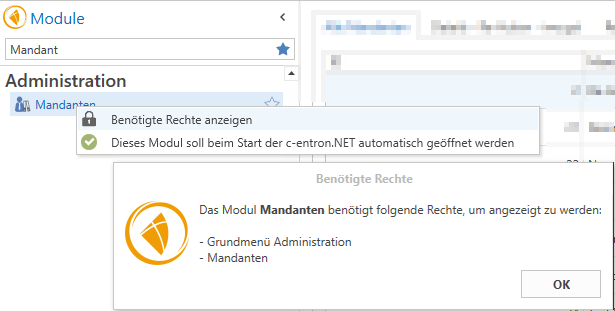
To access client management, you can enter "Client" in the module list area or scroll to the administration area and select "Clients" there.
It is important to note that no data can be saved while editing client management in c-entron. Changes should therefore be made outside of working hours, for example after work, and your colleagues should be informed in good time.
Rights:
The Clients module requires the following rights to be displayed:
- Basic Administration Menu
- Clients
All clients
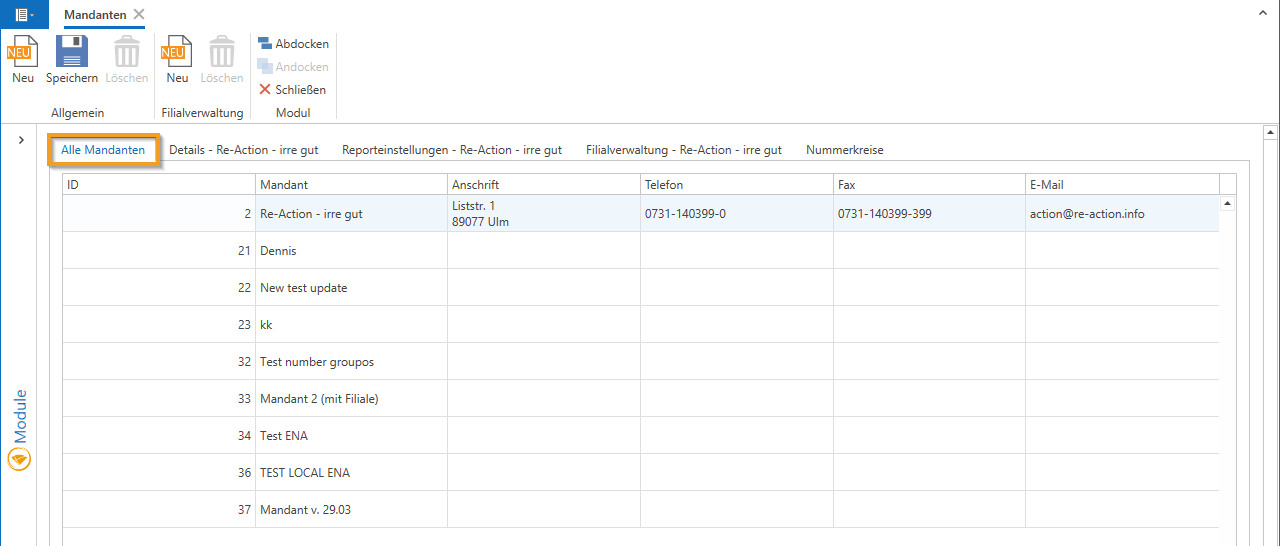
Multiple clients can be created in client management if you use branch management. (You will need a separate license for this. If you are interested, please contact our Sales.)
Without branch management, there is only a single client. To make getting started easier, we have already created the client "c-entron Software," which you can overwrite or replace with a new client.
Details
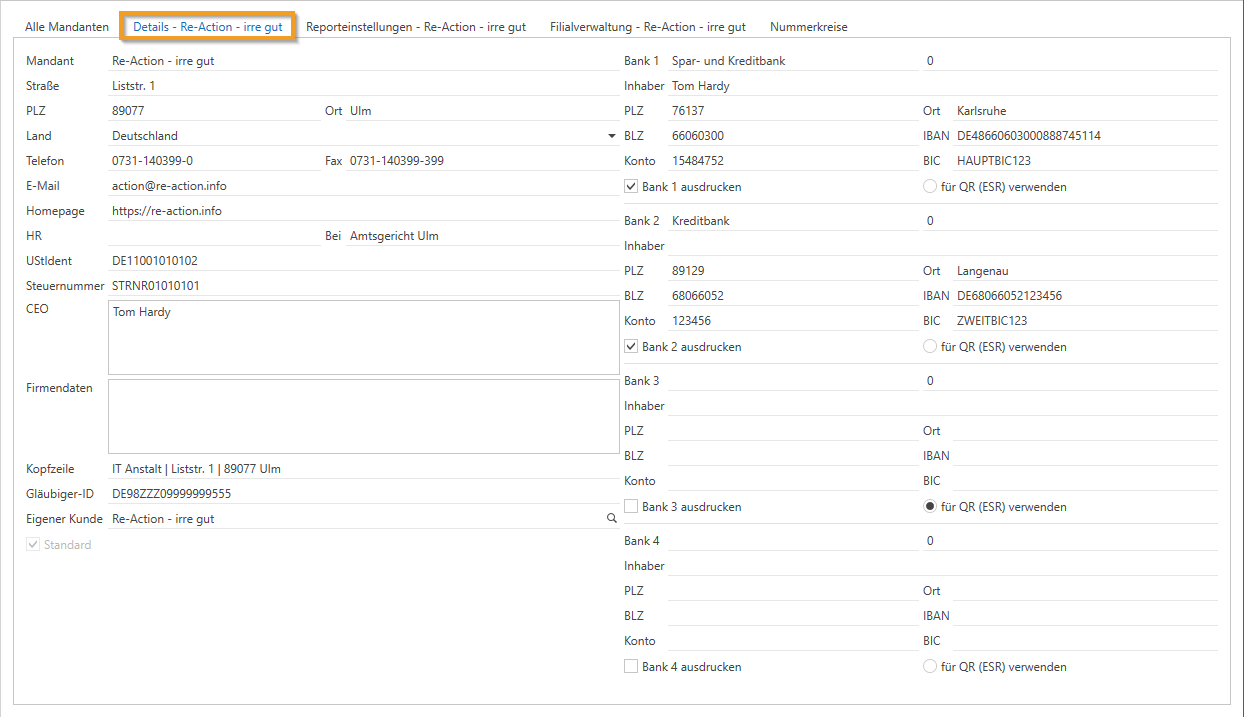
In the "Details" section, you can enter important company data such as name, email address, phone number, and bank details. This information will be automatically used on your receipts, so it is important to enter it correctly.
Legal information such as HR or HRB number, local court, VAT ID, and tax number can also be stored and are essential for accounting and accounting export. A separate customer for internal activities should be created in order to correctly record internal purchases and times.
By default, the first client is set as the default client. When using branch management, you can define a preferred client as the default. You can store up to four bank details and customize the reports that define the appearance of your documents.
Report settings
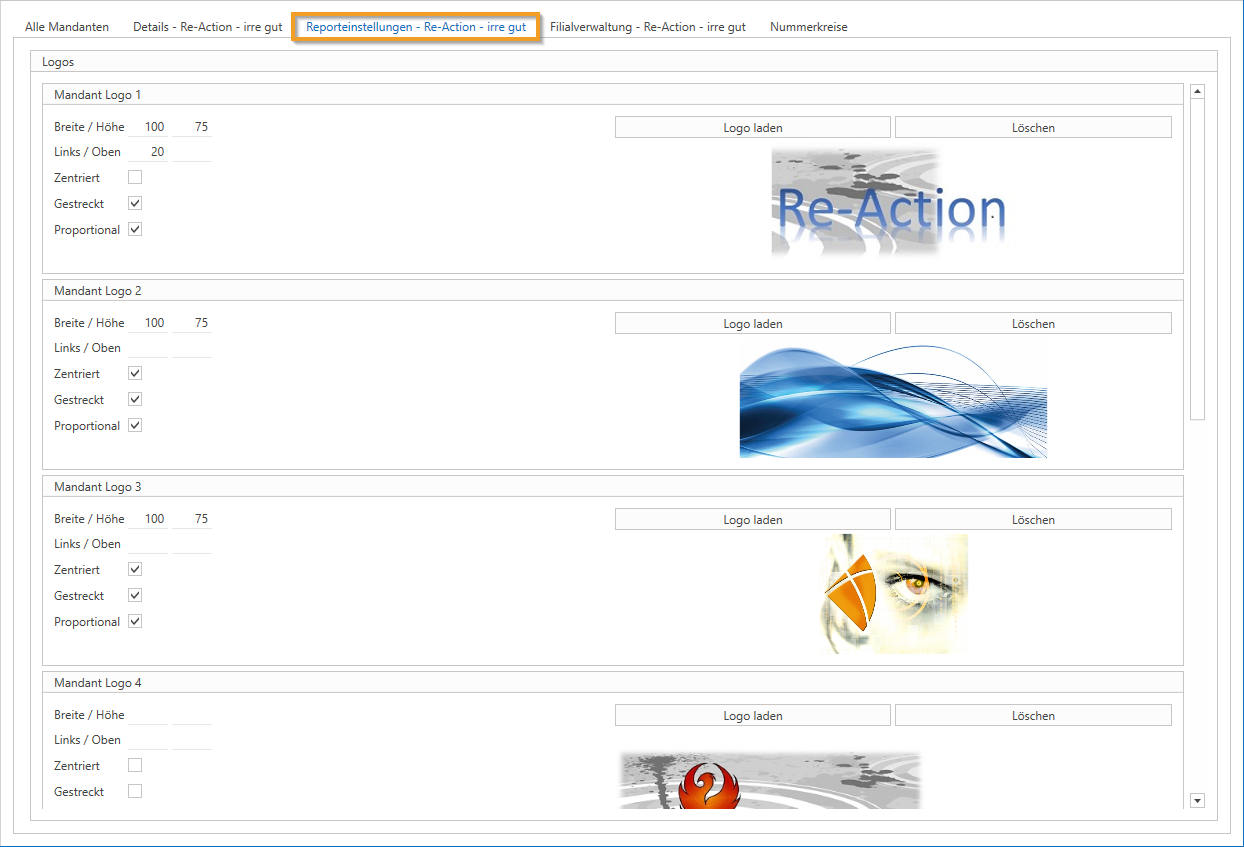
In the "Report Settings" tab, you can store your company logo in its original size. Enlargements or reductions should be avoided to ensure print quality. Additional logos for certifications or partnerships can also be added.
Branch management
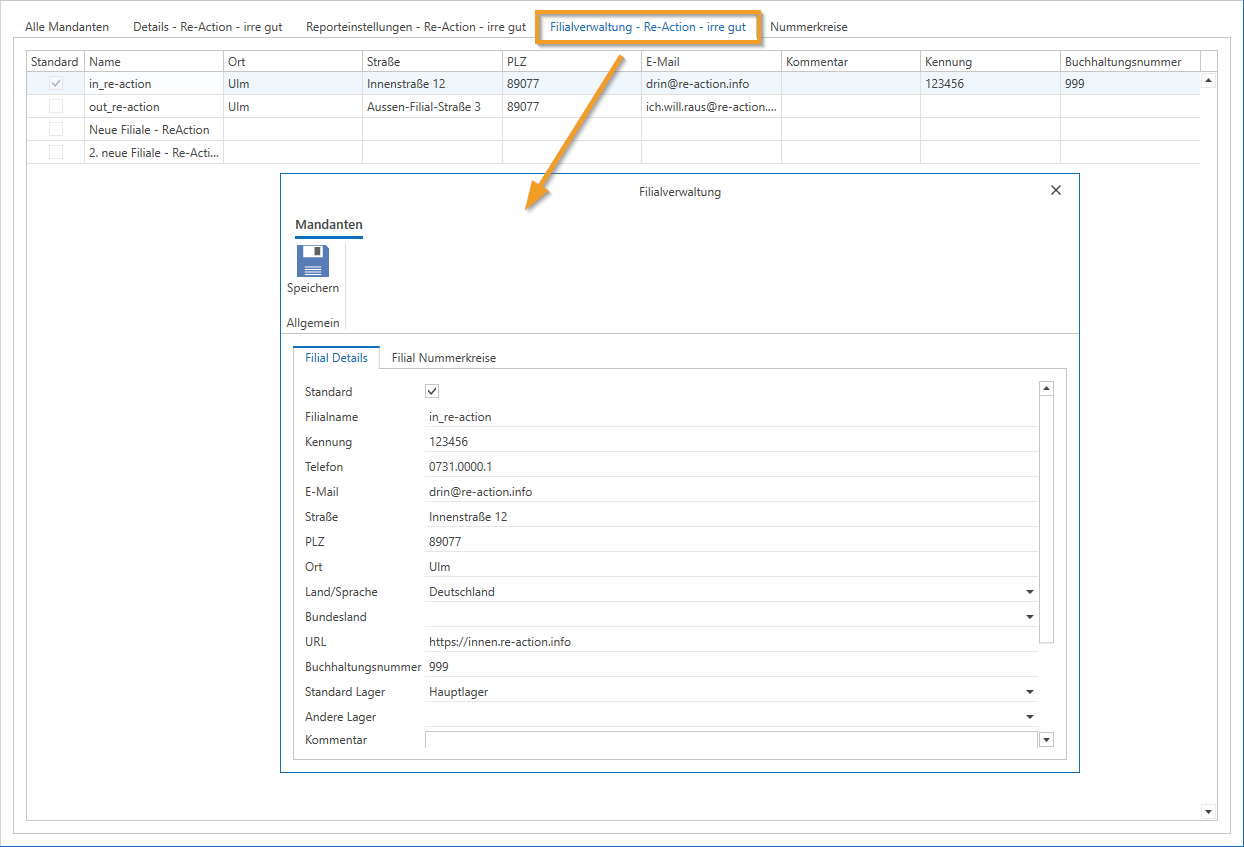
With the additional branch management module, you can create multiple clients or branches, which is particularly useful for accounting purposes.
(You will need a separate license for this. If you are interested, please contact our Sales.)
Number ranges
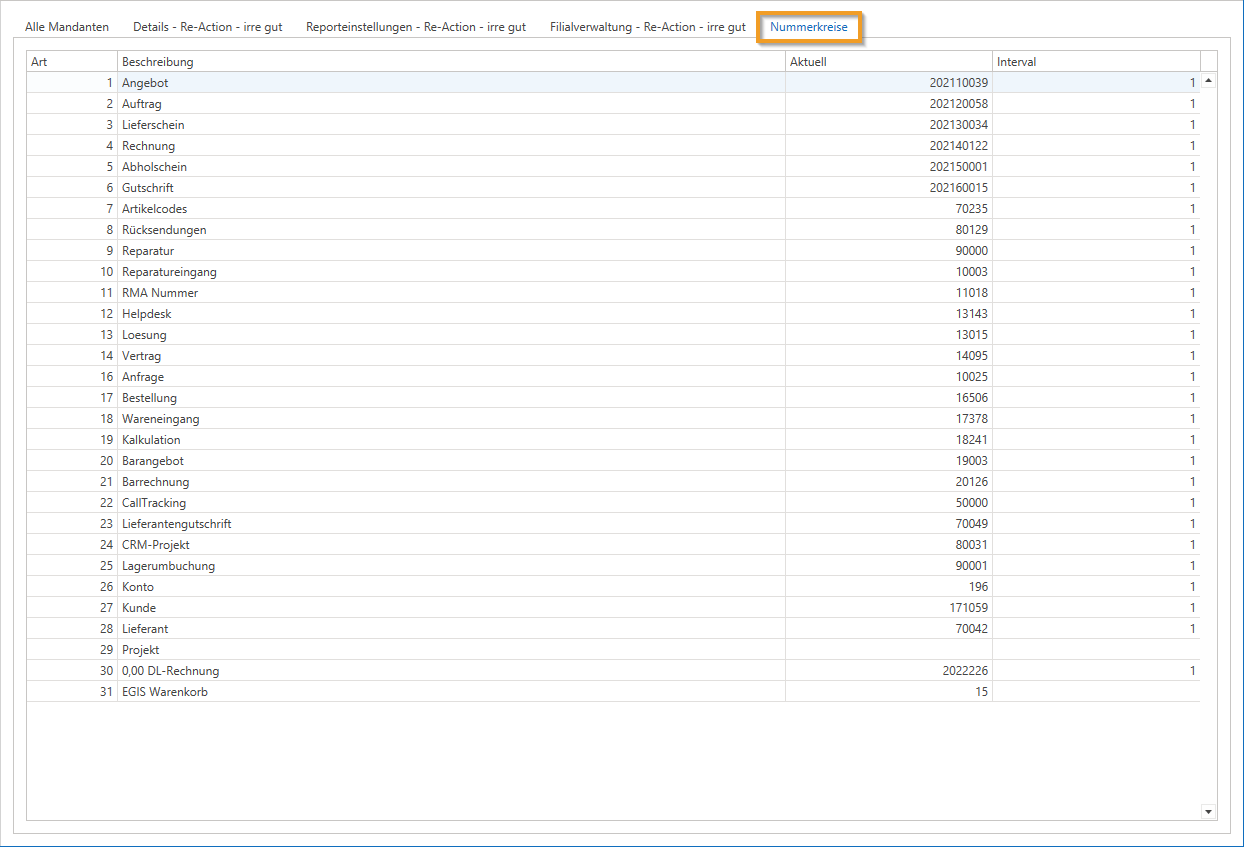
In the last tab, "Number ranges," you can set the number ranges for quotes, orders, credit notes, invoices, and tickets.
It is important that the number ranges are unique and have a maximum of nine digits to avoid duplication. When switching to c-entron, you should ensure that the new number ranges do not overlap with the previous ones.
Well-maintained client management enables smooth use of the c-entron software and ensures that all information is processed correctly and automatically in the documents and accounting.
Changing the number ranges in the c-entron
(Available from version 2.0.2011.x)
Changing the number ranges (for example, at the turn of the year) is possible in c-entron in "Client Management."
NOTE: While client management is open, no new documents can be created, even by colleagues. It is therefore advisable to make changes when no one is working on the c-entron (anymore), for example after "quitting time."
To change the number ranges, open the "Clients" module under Administration, select the desired client (if you have several in use when using branch management), and navigate to the last tab, "Number ranges."
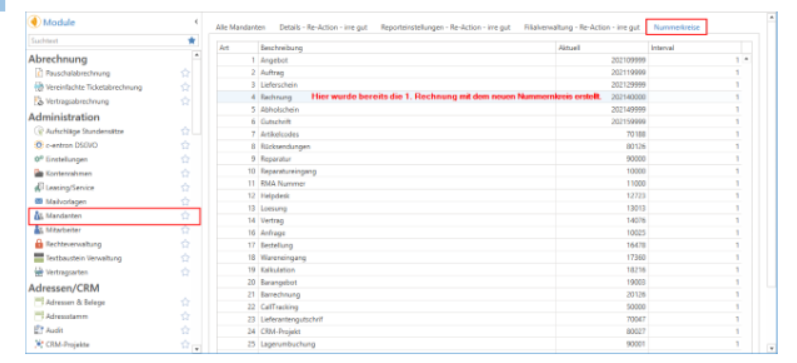
Enter the desired start value (-1) for the first "new" number for the respective document types.
For example, if you want the next invoice to start at 202140000, enter 202139999.
There are 10 possible numbers, no letters.
Once the number range has been activated and an invoice has been created, it is "naturally" no longer possible to set a lower number range (this is already blocked by the database).
Attention:
The value for item codes in the Current column must not be replaced by a smaller value under any circumstances, as otherwise it will no longer be possible to create item codes.
Background:
Unlike the other number ranges, the Item code field is an alphanumeric field so that letters can also be used when assigning item codes manually. The logic that normally prevents duplicate numbers from being assigned does not apply here—it only recognizes numeric fields.