%20(1).png)
Commission evaluation
Commission evaluation module
(available from release 2.0.2203.x)
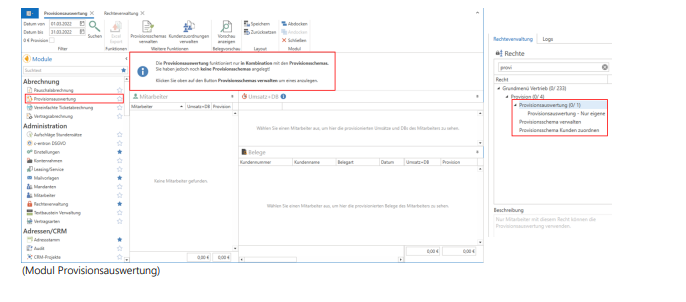
In the Commission Evaluation module, you can use various commission schemes to evaluate which employees receive how much commission
Only invoices and credit notes are evaluated. Offers, orders, etc. are not included in the commission evaluation. To view and access the "Commission Evaluation" module, you need the "Commission Evaluation" right and, depending on what the user is allowed to do here, the corresponding sub-rights.
IMPORTANT: New right to "view all commissions in receipts"
Starting with release version 2.0.2205.x, each employee will now only see their own commission in the documents by default. Only those who have the new "View all commissions in documents" right (which is automatically assigned to all administrators by default) can see all commissions in the documents. (Note: This ONLY affects the new commission calculation based on commission schemes. This right and this change in behavior does NOT affect the old commission calculation.)
1. Introduction
Various commission schemes can be defined for the new commission structure, specifying how employees are commissioned. These commission schemes can be kept general, e.g., document ADM always receives 5% commission on the service sold. Alternatively, you can also set that a specific employee, e.g., Mr. Müller, receives 7% commission on
all items in the server hardware product group. These commission schemes are automatically used for new documents and can be evaluated using the commission evaluation module
If you have been using the old commission structure, nothing will change for you at first. The old commission structure will continue to exist and function. Only when you create a commission scheme will the system switch to the new commission structure
2. Commission schemes
The commission schemes can be created, modified, and deleted in the commission scheme management.
To access commission scheme management, you need the right to manage commission schemes. Only then will the module be visible and can be accessed via the module list or commission evaluation
2.1 Create an initial commission scheme
When you open the commission scheme management for the first time, you will be greeted with the following message
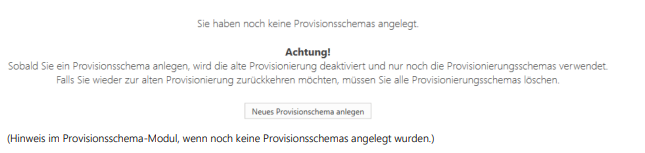
Click on the Create new commission scheme button to create your first commission scheme. The old commission scheme will only be deactivated once you save this commission scheme. If you want to revert to the old commission scheme, simply delete all commission schemes and the old commission scheme will be reactivated.
Now you can customize who receives commission. For example, change the type to ADM document and the commission to 7%, or add another commission recipient. In the Commission on column, you can select what the employee receives commission on: Everything in the invoice, Services only, Everything except services (goods), or only certain product groups.The Value column specifies whether the commission is calculated based on the contribution margin or on sales. There is also an additional Description column where you can enter a short description or note. Once you have defined the scheme according to your requirements, click on the Save button in the menu bar/ribbon
All changes are only saved when you save the file. Even if you have deleted an existing schema, it is only actually deleted when you save the file.
2.3 Additional settings for the commission scheme
Standard commission scheme
A single commission scheme can be selected as the default. This means that when you create a new document, this commission scheme will be used by default.
This allows you to switch from an old schema to a new schema on a specific date. For example, if you want to increase the commission from 5% to 6% on July 1, simply create a new schema with 6% and select it as the follow-up schema for the old schema. In addition, set the **Valid until** date for the old schema to June 30
ℹ️ Have you noticed the blue info icons? Move your mouse over them to get a detailed explanation of the setting or function directly in c-entron.NET.
2.4 Use multiple commission schemes
As you have probably already seen, you can create not just one commission scheme, but as many as you like. You can switch between the different commission schemes in the commission scheme management using the Selection field. However, you can only select one of them as the default. The other commission schemes can be used on demand in certain documents or assigned to selected customers
2.5 Assign commission scheme to customers
You can assign customers either in the address master (under Conditions → Customer → General → Commission scheme) or, even more easily, in Customer assignment
To assign a different commission scheme to a selected customer, you need the Assign commission scheme to customer right.
If a commission scheme is selected for the customer, it has a higher priority than the standard commission scheme. So if you create a new document for this customer, the commission scheme used will be the customer's, not the global standard commission scheme. All customers are listed in the customer assignment (with ADM, IDM, etc.), and you can select a different commission scheme for this customer
Be sure to save the commission schemes before opening the customer assignment. If the commission schemes have not yet been saved, they will not be displayed in the customer assignment.
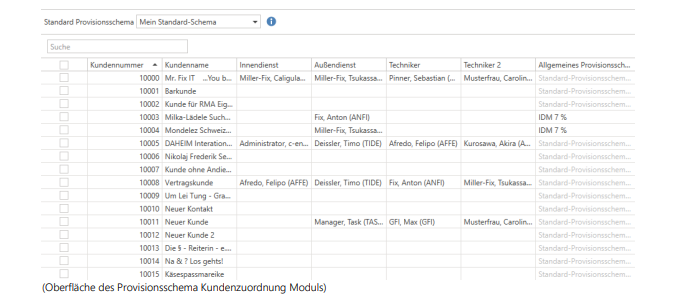
In the General commission scheme column, you can select a commission scheme that is specifically used for this customer
If no general commission scheme is selected for the customer, the text "Standard commission scheme is used" appears in the column. In this case, the standard commission scheme is used for this customer
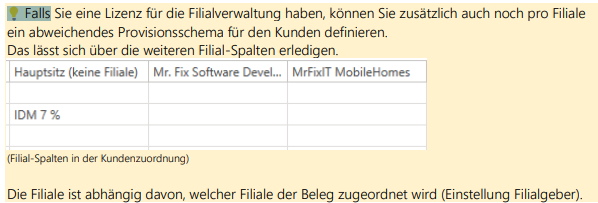
Multi-selection
You can select multiple customers at once using the checkbox in the first column and then change the commission scheme for all of them at the same time. So, if you have selected multiple customers, change the commission scheme for one of them and it will also be saved for all other selected customers.
You can also use the filter options in the table for this purpose. For example, to display all customers of a specific employee and then select the special commission scheme for that employee for all of them at once.

Customers are filtered and selected based on the sales representative. Now the commission scheme can be changed very easily for all customers
.ℹ️ Did you see the blue info icon here too? It explains in detail how to select the correct commission scheme for new documents
3. Commission in the documents
Once you have activated the new provisioning, it will be available in the documents
So, if you create a new quote, for example, the correct commission scheme is automatically selected and used for this quote
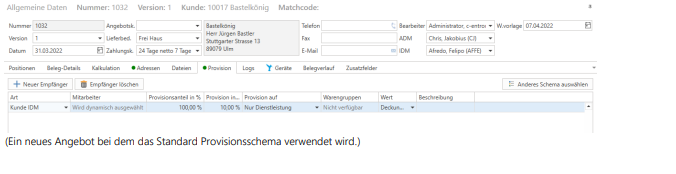
You can now also adjust the commission specifically for this offer. This has no effect on the commission scheme, but only affects this offer.
3.1 Continue processing documents
When you process a document (e.g., convert a quote into an order), the commission is transferred to the new document. This means that if you have customized the commission in the quote, it will also be transferred to the order (and later, of course, to the delivery note and invoice).
You also have the option of adjusting the commission again in the order. This has no effect on the commission scheme or the original offer, but only affects this order.
3.2 contracts
Contracts behave in exactly the same way as other customer documents with the new commission structure.
When you create a new contract, the correct commission scheme is automatically selected and used for that contract.
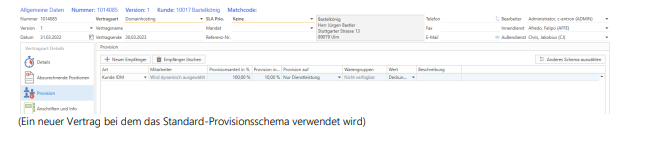
In the contract, you can adjust the commission specifically for this contract. And when you settle a contract with contract settlement, the commission for the contract is transferred to the invoice.
4. Commission evaluation
In the Commission Evaluation module, you can evaluate which employees receive how much commission
Only invoices and credit notes are evaluated. Offers, orders, etc. are not included in the commission evaluation
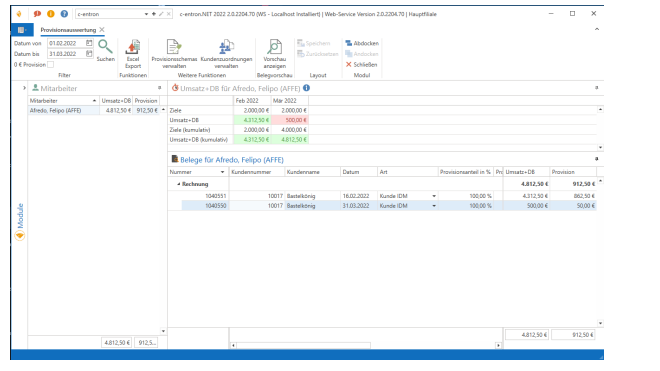
The commission evaluation in which an employee has generated sales of $500 and receives $50 in commission on this.
To use commission evaluation, you need the Commission evaluation right. There is another restrictive right: Commission evaluation - Only own. If you also have this right, you can only see your own commission in the commission evaluation
I
in the menu bar/ribbon of the commission evaluation, you can select a time period
in which the commission is to be evaluated. Only invoices and credit notes with dates within the period are taken into account.
4.1 Areas of commission evaluation
Menu bar/ribbon
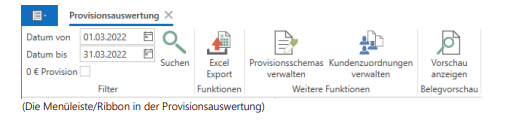
The menu bar/ribbon contains filters for selecting which documents are to be evaluated. These include the document period and a checkbox for also evaluating €0 commission.
This $0 commission occurs when, for example, a commission for services is specified in the invoice, but the invoice does not contain any services.
You can also export the commission data for all employees to Excel, or manage commission schemes or customer assignments. In addition, there is the option of activating a document preview.
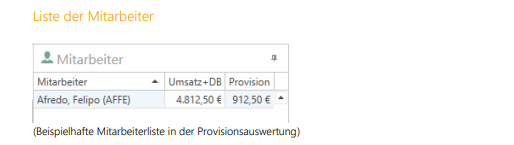
All employees who received commission on invoices or credit notes during the selected period are listed here.
The employee's sales + DB amount is displayed (depending on the value column in the commission), and of course the commission amount is also displayed.
Select an employee here to see further details about their commission in the other areas
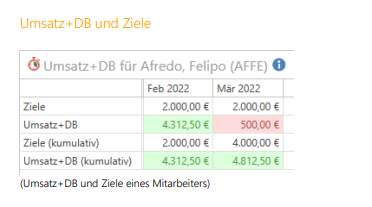
This shows how much revenue+DB the selected employee has generated per month. These revenues+DBs are compared with the employee's revenue targets
The targets and sales+DB are shown month by month (the first 2 lines) and also cumulatively (the last 2 lines).
In the screenshot above, the employee did not achieve the commission target in March 2022. He only achieved €500 in sales + DB out of the €2000 target.
But when you look at the cumulative total, he did achieve his goal. He generated so much revenue and DB in February that it was enough to cover March as well (€4,312.50 in February + €500 in March is more than the €2,000 + €2,000 target).
By coloring the cells, you can see immediately whether the target has been achieved or not
Sales targets can be configured in employee management

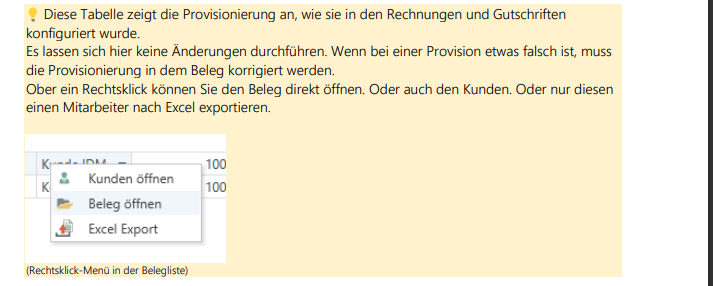
the document list displays all documents (invoices and credit notes) for which the selected employee receives commission.
The document number, document date, customer number, and customer name are displayed. In addition, the commission configuration for this document is also displayed, with everything we already know from the commission in the documents and from the commission schemes. And last but not least, of course, the sales + DB amount and how much commission the employee will ultimately receive.
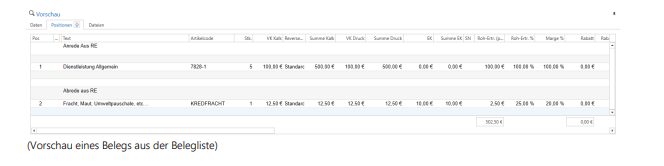
A preview of the currently selected document from the document list is displayed here. The document preview is disabled by default and can be enabled in the menu bar/ribbon
This is the same preview that is already familiar from the address master or document history. This means that no data can be changed there. Currently, it is also not possible to change the columns in the preview and save them with the layout.
4.2 employees Sales targets
Employee sales targets are configured in employee management and used by commission evaluation.
To define sales targets for an employee, open Employee Management and select the relevant employee.
Then click on the Commission Targets button
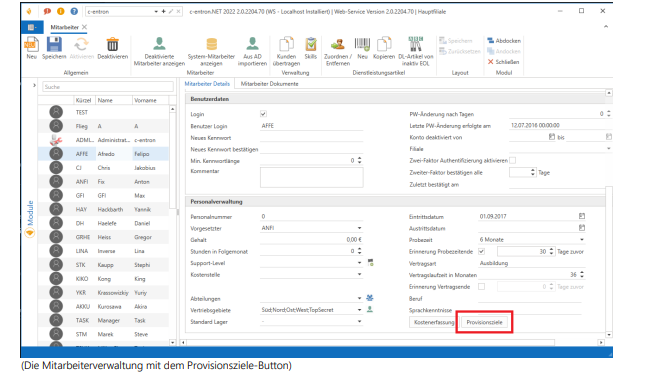
This opens a window where you can define the commission targets for the employee.
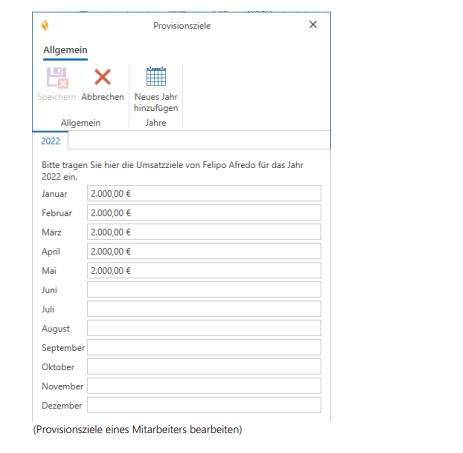
There you can now define a monthly sales target for this employee
To define sales targets for another year, click the Add New Year button and enter the corresponding year
Once you have defined the appropriate commission schemes for your commission structure, all newly created documents will be assigned a commission based on these commission schemes.
To use the commission schemes for existing documents as well, you can use the Apply commission to documents function from the commission scheme management
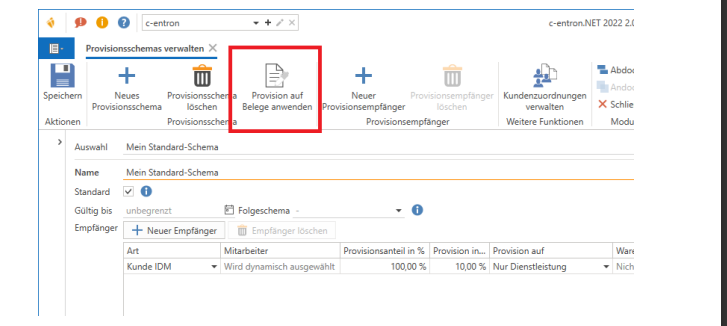
The "Apply commission to documents" button in commission scheme management.
When you click on this button, the following window will open.
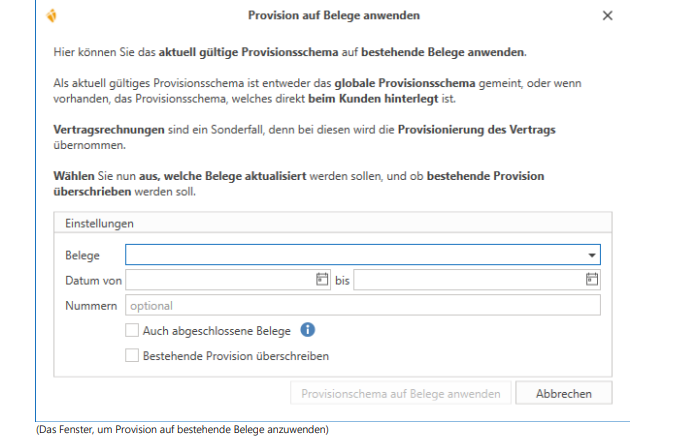
Here you can select which documents are to be updated, from which time period, whether completed documents are also to be updated, and whether the existing commission in the documents is to be overwritten.
Contract invoices are treated differently in this regard, as they do not use the currently valid commission scheme, but rather the commission currently specified in the contract.
The last checkbox, Overwrite existing commission, is particularly useful if you have had to make changes to your commission schemes. You can use this function to overwrite the commission in the documents so that the commission evaluation displays the correct values.
Clicking the Apply commission scheme to documents button updates all documents that match the settings.
Depending on how many hundreds or thousands of documents are being updated, this process may take a few minutes
The following list of results is displayed at the end
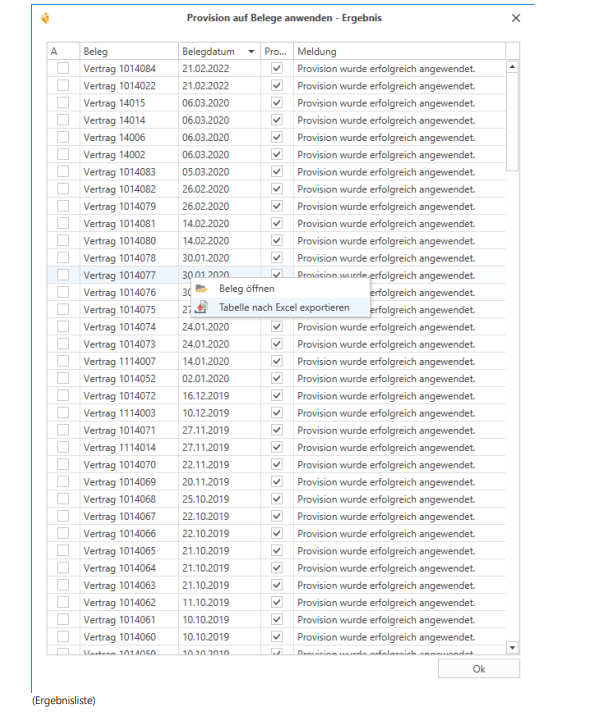
Here you can see exactly which receipts have been updated, whether the commission has been applied or not, and you can also export this list to Excel.
For documents where the commission has been successfully applied, an entry is also written to the log
5. Questions and answers
5.1 Quota compensation article
Quota compensation items are automatically offset against the corresponding service item during provisioning.
So, for example, if an invoice contains a service item worth €100 and there is a corresponding quota compensation item worth €100, the employee will not receive any commission on this.
In this case, the commission is calculated based on the contracts and contract billing. If the quota compensation item were only $30 because the customer has used up their available quota, the employee would receive commission on $100 - $30 = $70 in sales or DB.
5.2 Commission on collective receipts
If you process several documents simultaneously in a collective document (e.g., by selecting several orders in the document list and processing them in an invoice), the commission will only be transferred if the commission is absolutely identical in all documents (except for the description).
5.3 Commission based on service Employee articles
Currently, there is no option to assign commission to the relevant employees based on service employee articles. This feature is planned for a future update!
5.4 Update the commission for a single document
The Apply commission to documents function can be used to update the commission for existing documents. You can also update individual documents there by entering their number in the Numbers field.
This feature is new since the release of version 2.0.2203.175 of c-entron.NET and c-entron WebService.
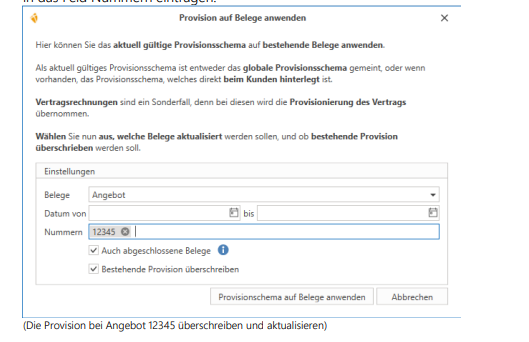
This feature is new since the release of version 2.0.2203.175 of c-entron.NET and c-entron WebService.
5.5 Can I see anywhere if there are receipts without commission?
Not currently. It would be conceivable to display a note in the commission evaluation if there are invoices or credit notes in the selected period that do not have a commission.
5.6 What is the commission percentage for?
The commission percentage is always set to 100% by default and therefore has no further effect on the commission.
You can adjust the commission share, for example, if two employees share a commission.
Let's assume that there is generally a 7% commission on the entire service for an invoice.
This commission is now to be divided between the trainee, Mr. Jung, and the technician, Mr. Müller, in a ratio of 30/70.
To do this, create two commission recipients in the invoice. One is Mr. Jung, with a commission share of 30% and a 7% commission on services. The other is Mr. Müller, with a commission share of 70% and also a 7% commission on services.
5.7 Are there reports for the report server?
No, not at the moment. But it's in the plans!
🛠 This feature is planned for an upcoming update