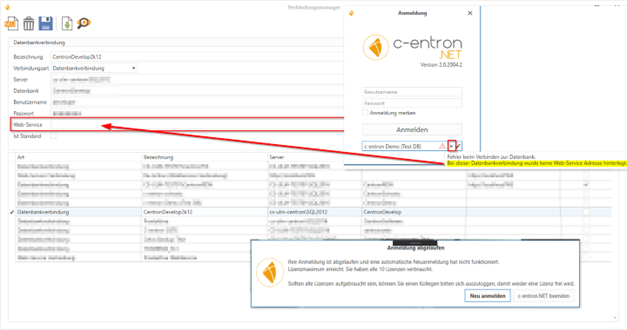
The connection data for the SQL database or web service is stored in the connection manager.
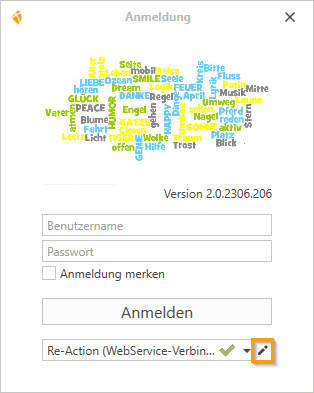
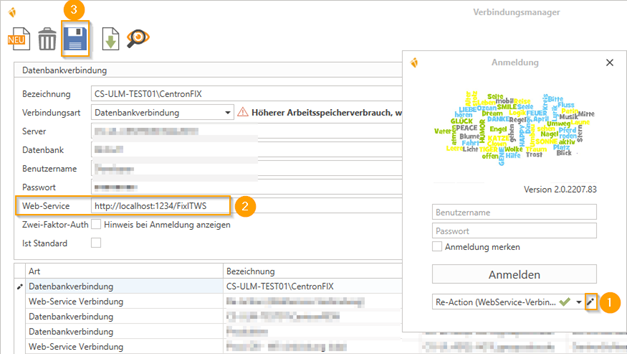
Since the c-entron 2.0 2.0.15.0 version, Centron.ini is no longer required in the c-entron directory. After starting c-entron .NET, the connection configuration can be opened using the small button (to the right of the connection selection—the pencil). ATTENTION: When starting for the first time, the connections must be specified by the Connection Manager.
The connections are no longer managed via Centron.ini. The connection manager creates the file "CentronConnections.xml" in the c-entron directory, which contains the connections.
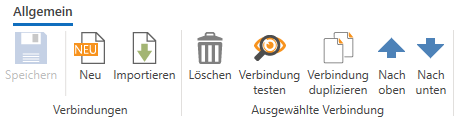
Ribbon/Menu bar
The following actions can be performed by the manager:
Under "Connections":
[Save] – saves changes, newly created/imported connections (Note: The pencil icon in the list indicates that changes have been made.)
[New] – a new connection can be created.
[Import] - Import connections from an existing Centron.ini file (in the c-entron .NET directory).
Under "Selected connection" - which is displayed in the lower area
[Delete] – deletes the selected connection
[Test connection] – Tests whether a connection to the database/web service has been established with the selected
Connection can be made
[Duplicate connection] – duplicates the selected connection
[up] – moves the selected connection up one position in the list
[down] – moves the selected connection down one position in the list
General:
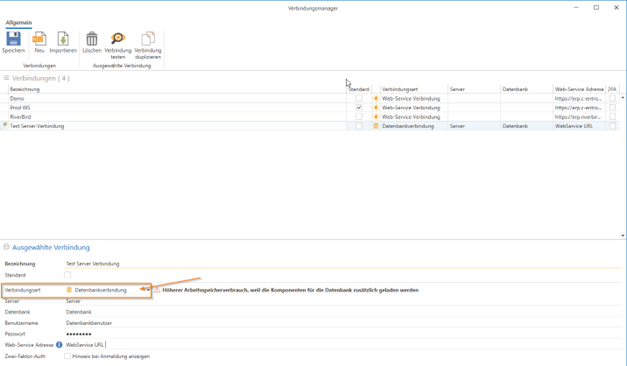
Pencil icon in the list – indicates that changes are available
Fields underlined in orange are mandatory fields that must be filled in
Connection types
Native database connection:
Designation: The name can be freely chosen and also changed; this caption is displayed in the mask. If you manage multiple databases, the name should be unique.
Standard: A connection should/can be declared as standard. This is then specified in the default login screen when c-entron.NET is started.
Connection type: The connection type can be either the native database connection or the connection via WebService. For the native database connection, select "Database connection."
Server: Here, the SQL server (server name or IP address) must be stored, specifying the instance if necessary. In the example above: CS-ULM-TEST01 = Server \SQL2022 = Instance
Database: The name of the database must be entered here; this is usually "Centron." Username: An SQL username with the appropriate permissions from SQL Management Studio must be entered here. By default, the user "bbo" is created during the initial installation, but this may vary from server environment to server environment.
Password: The corresponding password for the SQL user must be entered here.
Connection via the web service: This type can be used to configure a web service connection for c-entron .NET.
Designation: The name can be freely chosen and also changed; this caption is displayed in the login screen. If you manage multiple databases, the name should be unique.
Connection type: The connection type can be either the native database connection or the connection via WebService. For the connection via WebService, select "WebService connection."
Server: Enter the URI of your web service here, which c-ent-ron.NET should connect to.
NOTE: When connecting via WebService, not all functions in c-entron.NET that can be used with the native connection are available (currently commission evaluation and inventory).
(from release v2.0.2004.x)
Please note that this update requires you to install a c-entron web service.
IMPORTANTwith this release, it is now mandatory to store a web service for each database connection in c-entron.NET, just as in c-entron Delphi – regardless of whether a direct connection or a web service connection is opened.
If the number of licenses used has been exhausted, a notification message will appear.
When you click [New Registration], c-entron.NET attempts to reconnect to the web service and use a license. If none are available, the message window reappears.
When you select [Exit c-entron.NET], a security prompt will appear asking whether you really want to exit c-entron.NET, as any unsaved changes will be lost.
A password must now also be entered for AD authentication.
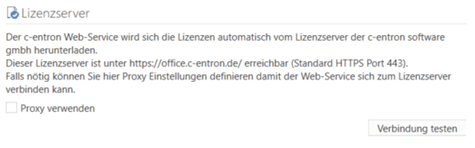
Starting with version 2.0.2003.600, WebService licenses can only be obtained via the license server, which means that License File can NO LONGER be selected in the Web Service Connection Manager.
Checking version numbers
(from release v2.0.2111.x)
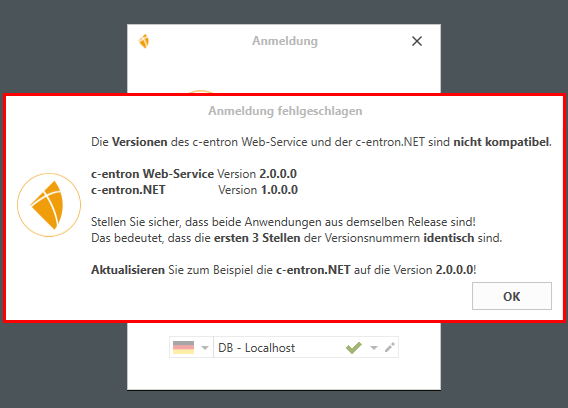
A small check of the version numbers was incorporated into the c-entron.NET login process, as errors often occurred when the versions differed.
The first three digits of the version numbers of the web service and c-entron.NET are now checked. If these differ, the user will receive this message when logging in and will not be able to log in.
"Remember login" function
The "Remember me" function does not mean that you will be logged in automatically.
You can choose from several existing connections, depending on how many connections you have stored in your connection manager (pencil icon next to the connection selection), e.g., productive database and test database and/or connection via database connection and web service connection.
If, for example, you have defined a connection as "default" here, it will always be preselected automatically and you will only need to enter your user name and password.
The "Remember login" function allows you to save and preselect the last connection you used and the login name you entered, regardless of the "default connection." This "overwrites" the preselected connection (regardless of whether a "default" connection exists or not) and also enters the login name you used. In any case, you must always enter your password manually for the selected user and connection.
JavaScript errors detected
Please note, these errors can depend on your browser setup.
If this problem persists, please contact our support.
%20(1).png)