%20(1).png)
Contracts Manual
Contracts / Billing templates
Areas of application
Contracts serve two primary purposes at c-entron: firstly, services are to be billed on a recurring basis at regular intervals or based on determinable parameters; in this case, the contract serves as a billing template.
On the other hand, price or service agreements that are linked to parameters should be recorded so that they can be directly integrated into service billing.
Both functions can be combined or displayed and used separately.
A classic example of cyclical billing would be a maintenance contract in which the customer pays for a service in advance and at a flat rate. In this case, an additional agreement could be included stipulating that services provided under the maintenance contract have a fixed price or are subject to a discount.
Parameters that could be used for non-cyclical billing would include, for example, the import of meter readings for devices that report consumption.
Note: Contracts are always used in c-entron as superordinate to general and customer-specific regulations. For example, special customer prices are overridden by special contract prices if the transaction is linked to the contract.
I. Contract templates
To simplify the creation of standard contracts, there are contract templates that you can customize according to your needs. If you want to store such a standard contract for a customer, use the contract template and adjust the parameters to suit the individual customer. All settings can therefore be set differently from the template used when creating the contract.
To create new contract templates or modify existing templates, open the module. Types of contracts (Administration group, requires the "Contract type management" right).
Create a new contract type
Edit a previously selected contract type (also possible by double-clicking on the contract type)
Delete a previously selected contract type
Display deleted contract types
Select a contract type here.
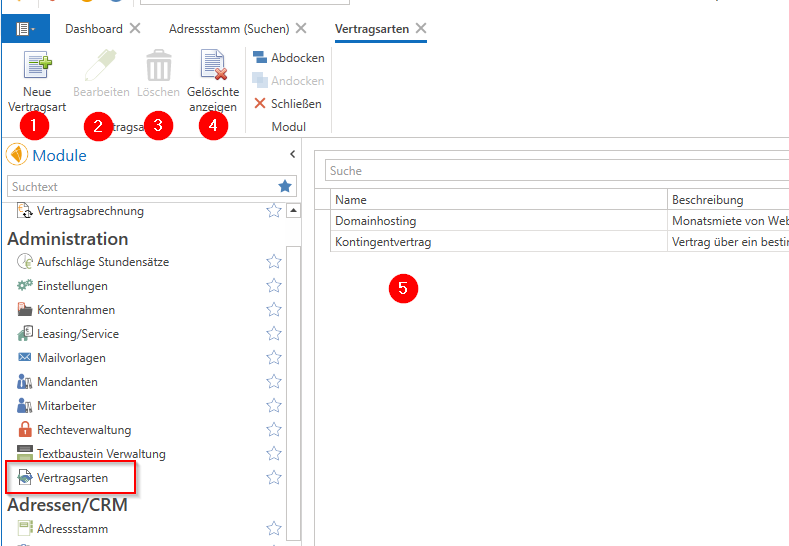
Create a new contract type
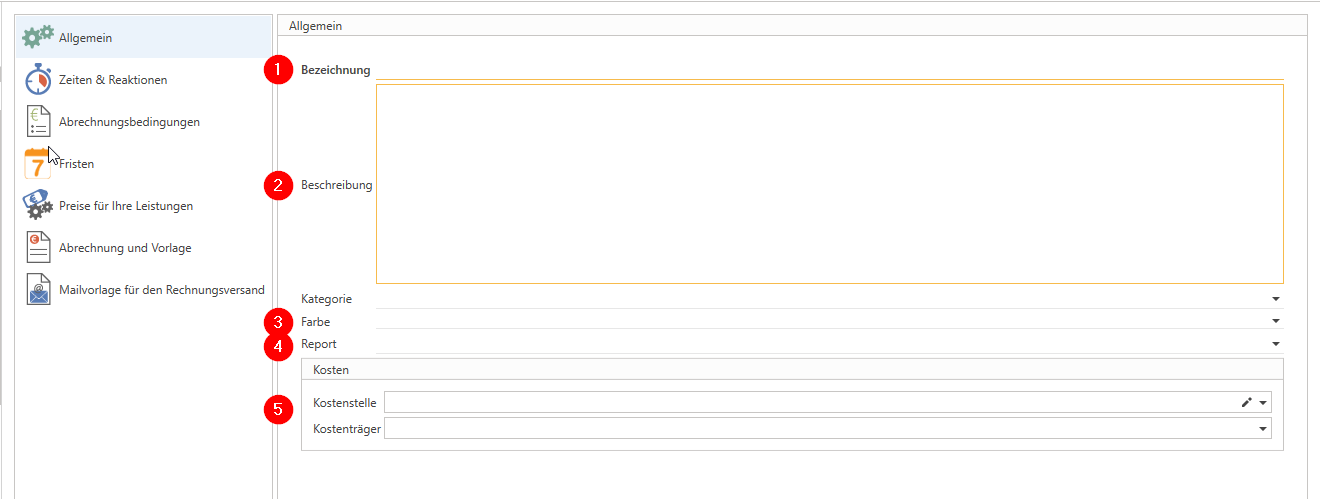
When you create a new contract type, a wizard guides you through the individual sections. Mandatory fields are highlighted with orange lines and frames.
General
Enter a name for the contract type. This will be used later for categorization, for example in evaluations or billing.
A description allows you to note down which features you want to cover with the template. This description is not shown to the customer.
The color you set is used in customer information to show which and how many contracts a customer has.
If the PDFs used for contract billing need to differ from those in the standard invoice report, you can set a different report for each contract type here, which will then be used when creating invoices.
If you use cost units and/or cost centers and want contract settlements to always target specific units/centers, you can store them here.
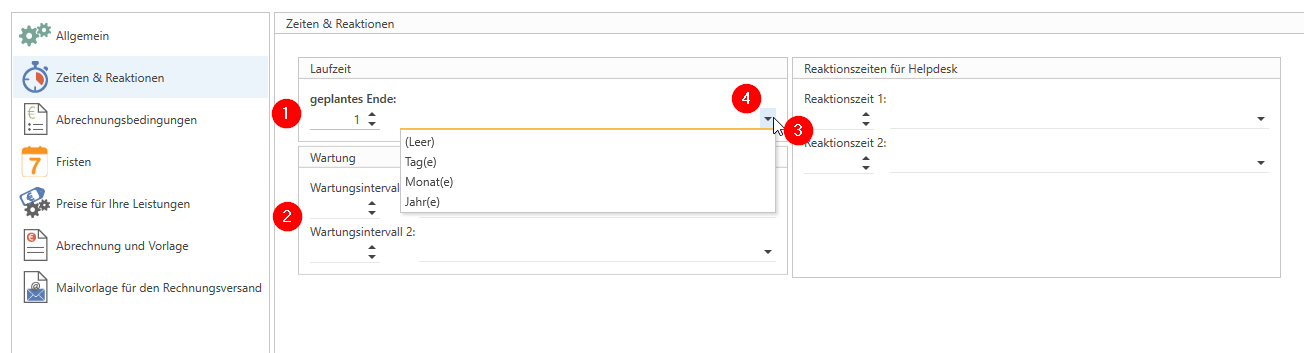
Times and reactions
Enter the standard term of a contract here. Use the drop-down menu (4) to select the term unit (days, months, or years).
If a contract refers to a single device or device unit for which maintenance intervals have been agreed, the maintenance intervals can be specified here. informative be specified.
After creating a contract, tasks for regular ticket creation can be linked to the contract to map maintenance intervals. This requires that you use the service board to which the task management license is linked.
Information about the agreed response time is also primarily informative.
If SLAs are to be mapped, this is also done after the contract has been created with the help of SLA priorities (see ticket system).
billing terms
Some options that can be set here do not work in all conceivable combinations. The billing conditions are divided into four areas:
billing method
Additionally
settlement
shipping method
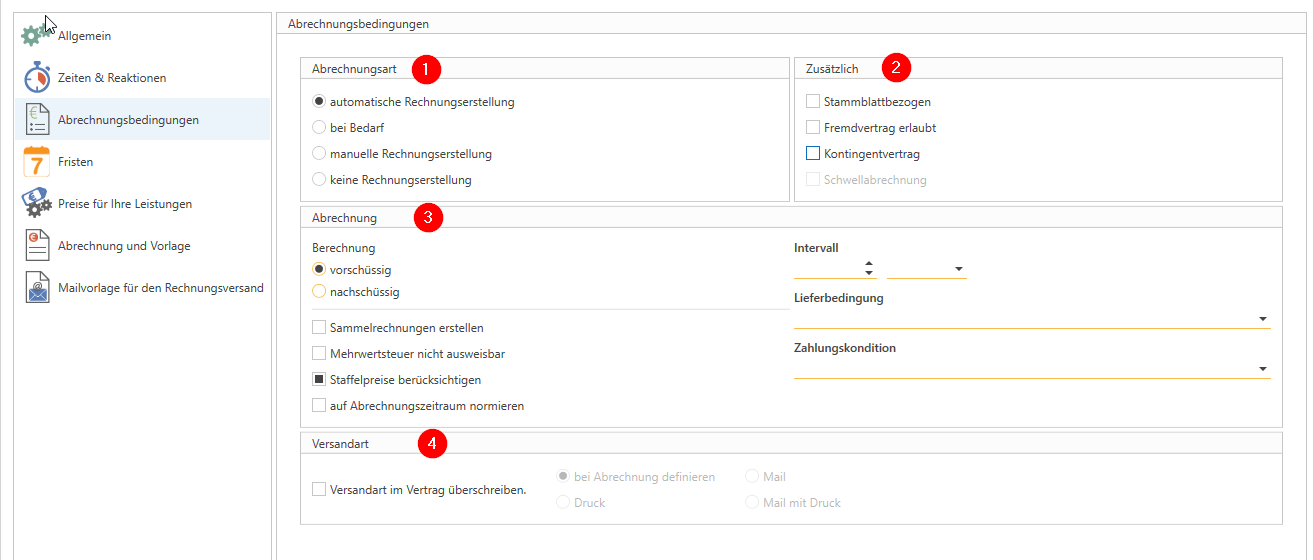
billing types
You use the billing types to define the frequency or characteristics according to which the contract is to be billed.
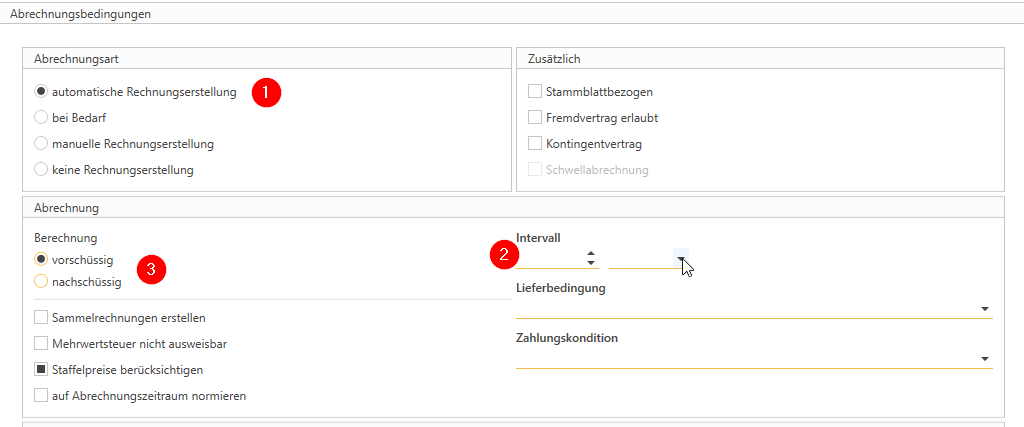
For automatic invoice creation (1), an interval (2) must be set, which can be in days, months, quarters, or years. For example, if a contract is to be billed every six months, set 6 months. You can choose between advance and deferred billing (3). The additional options Master sheet reference, External contract allowed, and Contingent contract are available.
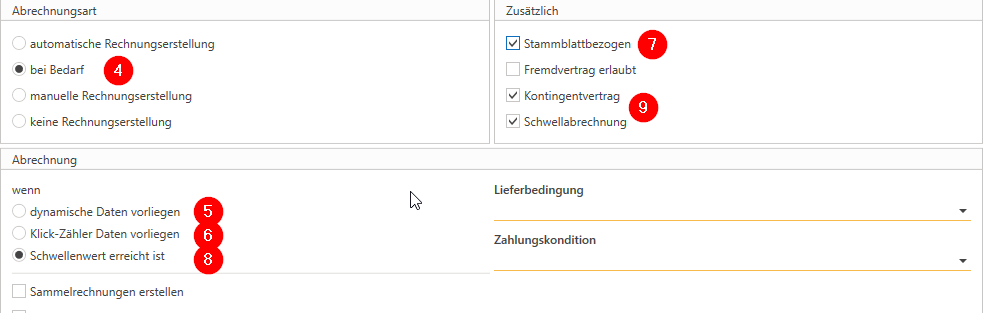
If a criterion can be created from which a requirements calculation can be derived, select As required (4). Then determine what the requirements are based on. These could be:
Dynamic data (5) that has been imported (see Dynamic contract data import)
Meter readings (6) were imported or scanned (requires master sheet reference (7); see click billing).
The quota reaches or falls below a certain threshold value (8) (sets quota contract and Threshold billing (9); see quota agreements)
Tip: Demand billing is no longer tied to a fixed cycle. If you want to combine cyclical billing with data imports (e.g., monthly maintenance fee plus meter reading billing), you can also use automatic billing and combine it with data imports. This means that the contract is due for billing in the set cycle; if data has been imported, it will also be billed.
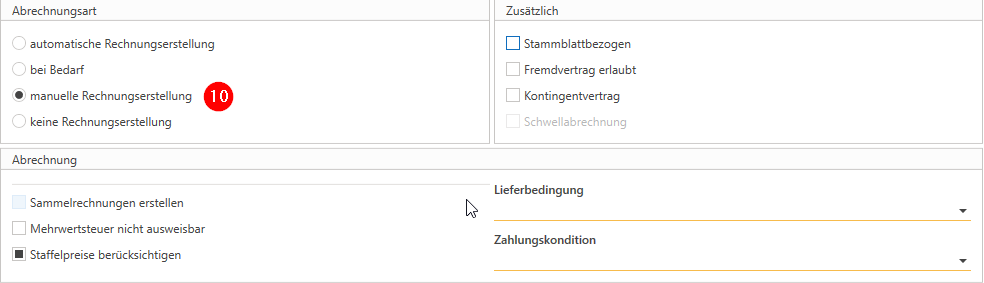
Manual invoicing should be selected if no fixed billing cycle can be specified and none of the above criteria for demand-based billing apply. In this case, you are entirely responsible for billing the contract. The contract could be billed several times within a week and then not at all for months.
Tip: This type of billing is suitable as a pure invoice template if the contract is not intended to trigger any further functions.
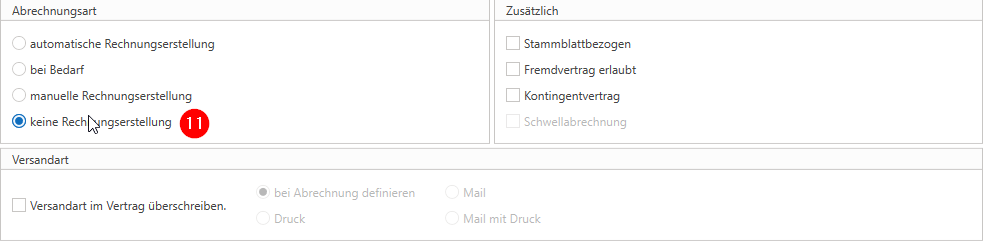
Select No invoicing (11) if, conversely, the contract is only to include functions but no separate invoicing is to be triggered.
Additionally
The additional options trigger specific functions of the contracts and, as described above, cannot be freely combined.
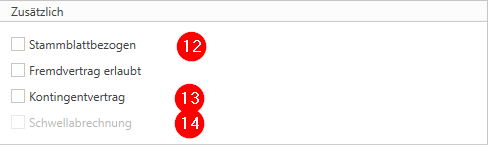
Master sheet-related: a contract refers to at least one main device for which you have created a master sheet. In particular, this option must enable the billing of meters. For more information, see the documentation on click contracts.
Quota contract: This option must be activated so that a quota can be stored for the contract when it is created. For more information, see the documentation on quota contracts.
Threshold billing: only possible in combination with the Quota Contract option (13) and the billing type As Needed (4).
settlement
Set additional options here that affect billing.
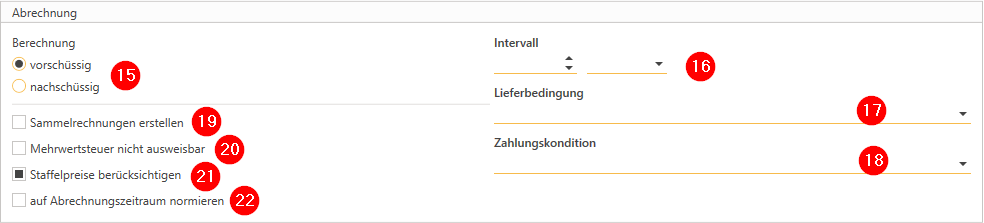
Choose between advance and deferred billing.
For example: a monthly contract paid in advance is billed at the beginning of the month for the current month, while a monthly contract paid in arrears is billed for the previous month.
The interval can be set using the interval units "days," "months," "quarters," and "years." This means that the invoice is created once per set interval, which also reflects the service period of the invoice.
Select the most frequently used delivery term to pass it on to contracts that will be created later.
Select a suitable payment term to pass on to the contracts to be created later.
If a customer has several contracts that are occasionally billed on the same date, c-entron can create a collective invoice, i.e., an invoice that includes the invoice components of all contracts to be billed to the customer. You can enable this behavior using this flag.
Be sure to define a separate invoice email template for collective invoices. (Mail Templates module, Contracts section) if you want to use this function.
If VAT is not to be shown on the contract invoice, this setting must be made.
If the graduated prices stored in article management are to be taken into account when billing the contract, this can be preset here.
Contracts are normalized to a billing period when a contract is to be recorded and billed at a current interval, but from the following interval onwards is always to be billed at the beginning (or end) of the interval. Example: a contract to be billed on a monthly basis is recorded on March 18. Without normalization, the contract is billed on the 18th of each subsequent month, and the billing and service period extends from the 18th of the billing month to the 17th of the following month. Normalization means that the first billing is only carried out until the end of the month, after which the contract is billed on the first day of the month.
Note: For standardization purposes, the calculation is performed for all months according to the following formula: the number of units is divided by 30 days (to obtain a consistent "1-day price") and then multiplied by the remaining number of days in the month.
If the item cannot be divided, c-entron will ask you to manually enter the desired whole number of items for this first billing.
shipping method
Check the box if you want to assign an invoice delivery method to the contract type, and then select the desired delivery method using the radio button.

deadlines
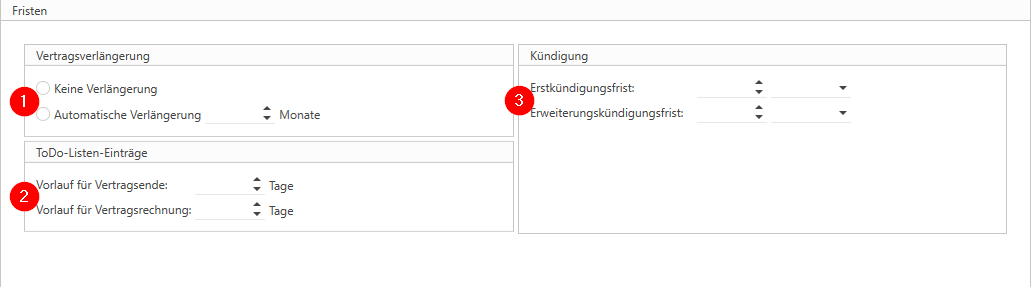
Here you can specify whether a contract with the selected contract type is automatically renewed after the standard term ("planned end" under >Times and reactions<) has expired – if so, by how many months – or not.
If desired, to-do list entries can be created in advance of the contract end date and for cyclical contract billing.
Specify here the notice period that the customer must observe for timely termination. The initial notice period refers to the planned end of the standard term; the extended notice period applies as soon as the standard term has been exceeded or the initial notice period has expired and the contract has been extended at least once.
Prices for your services
If certain special prices are permanently linked to a contract type, they are created here. These special prices are always applied when a transaction (quote, order, ticket, delivery note, invoice) is assigned to a contract.
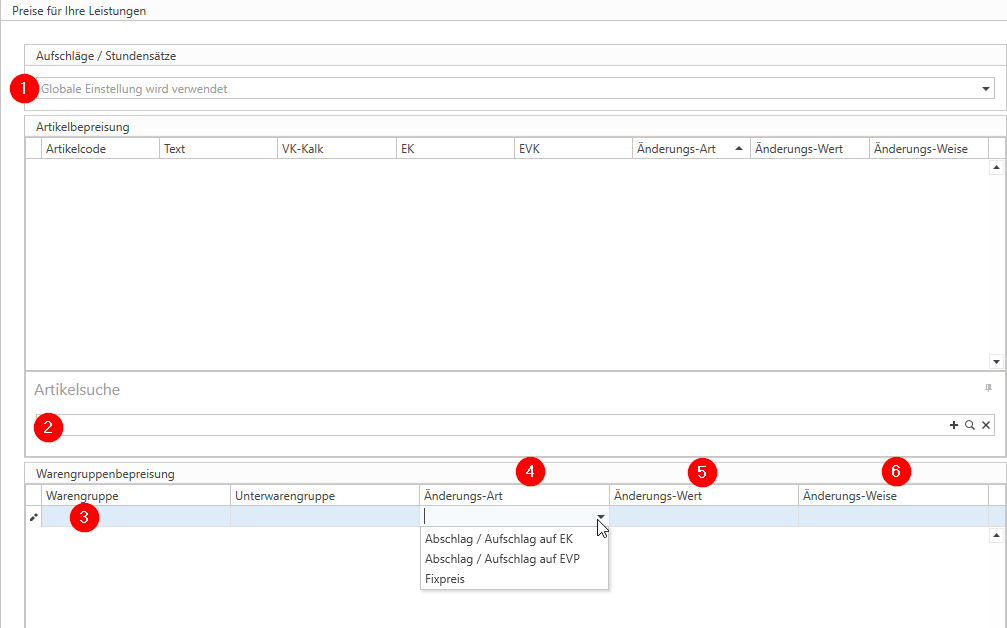
If you use surcharges for hourly rates (module "Surcharges for hourly rates"), you can link a surcharge model permanently to the contract type created here.
If special prices are to be maintained for individual items, you can find the individual items using the search bar; these are then inserted into the "Item pricing" area and you can make the respective settings (see below).
If, on the other hand, a regulation refers to a product group or subgroup, select it from the drop-down menu.
You must select a change type for both items and (sub)groups of goods. You have the option of applying a surcharge or discount to the purchase price or retail price, or setting a fixed price.
The change value logically presupposes the type of change and also a method of change. A numerical value is entered here, which is then used as a discount, surcharge, or fixed value. With a negative sign, you control in which direction the surcharge or discount changes the price.
The change method determines whether the change value is used as a percentage (%) or as an amount (€).
Examples:
When using a maintenance contract, all services provided under the maintenance contract should be included in the maintenance fee. In this case, a fixed price on the product group "Service" – limited to one or two sub-product groups, if applicable. The change value would be "0" (zero), the change type "€".
Under this maintenance contract, certain spare parts are charged at a 10% discount on the MSRP. Select the desired article via the article search and define the change type as "Discount/surcharge on EVPFill in the change value with "10" (ten) and the change method with "%".
For selected screens, you can offer customers a discount of $20 on the MSRP per device. Again, select the appropriate article , define the change type as "Discount/surcharge on EVP", the change value with "20", but the change method with "€".
Billing and submission
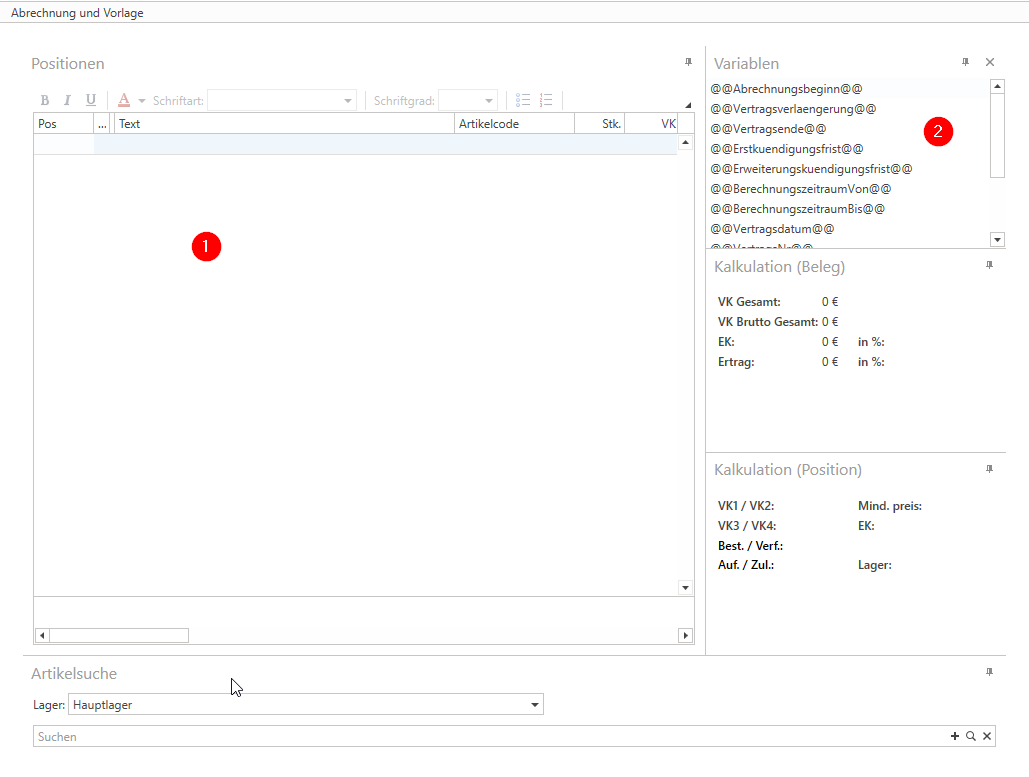
This is where you generate the actual invoice template. In principle, this contains the functions of a "normal" document, i.e. you use suitable items to put together your service package, which you then insert into the invoice and bill with each contract settlement.
In addition, variables are available that you can use to provide the customer with specific contract and billing details in each invoice. Examples include the variables @@BillingPeriodFrom@@ and @@BillingPeriodTo@@, which are used to inform the customer of the billing period to which the invoice relates.
Some variables are only to be used in connection with certain contract components and functions. A list of variables requiring explanation can be found at the end of this document.
When using variables, please ensure that you use the exact spelling, as each character in the variable is case-sensitive. An incorrectly spelled variable cannot be assigned and resolved and will therefore be treated as plain text in the best case scenario. In the worst case scenario, a logical error will be resolved and the invoice creation process will be terminated. Please feel free to use the copy & paste function.
Email template for sending invoices
A standard email can be defined using the email templates, which will be used for all contract settlements sent by email. If the contract type created is to use its own email template, this can be defined both in the contract type and via the email templates. As usual, specially defined variables are also available here.
The hierarchy of templates goes from individual contract > contract type > individual contract invoice > general invoice email.
For collective invoices (see above), a separate email template must be defined using the email template management function; this template is always used for collective invoices.
II. Contract Annex
After calling up a customer (and, if applicable, a contact person), you can use the address master to create a new contract for them. To do this, navigate to the "New customer document" area in the menu bar and click the "Contract" button.

This will open the Contract Wizard, which will guide you through the basic steps of creating a contract.
header data

The contract number is assigned by c-entron and is determined using a separate number range (see client management).
The date is preset with the creation date, but can be adjusted manually. Clarify internally whether this date should always remain the creation date or the manually set date when the contract is processed later, or whether it should be automatically set to the processing date. This can be preset via the settings (see below).
Set a contract type. Selecting a contract type triggers a pop-up prompt asking whether the settings from the selected contract type should be applied or not.
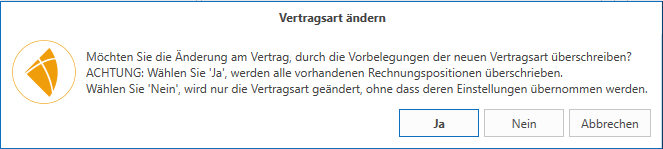
If you have already made settings, these will be overwritten by the contract type settings when you confirm the dialog box.
You can assign an individual name to the contract, which can be printed on the invoice and in the email using the corresponding variable.
c-entron calculates the end of the contract for you after you have set the planned term (see below) or this is set by selecting the contract type.
Each contract can be linked to an SLA priority, provided that this has been specified in the ticket priority settings. If a ticket is later linked to an SLA contract, it automatically receives the SLA priority specified here and can only be changed to other SLA priorities within the contract. SLA priorities can be evaluated separately.
If SEPA payment terms are set for the contract and at least one SEPA mandate is stored for the customer, this can be selected here. This information is passed on to the invoice when the contract is billed.
The reference number can be freely selected and printed on the invoice and in the email using the corresponding variable. This is useful, for example, for transferring contract numbers generated by an old system.
As with other documents, the contract is created for the active contact person of the selected customer—by default, the invoice resulting from the contract settlement is issued to this contact person. The configuration of the address field also corresponds to that of other documents. The fields for telephone, fax, e-mail, processor, internal sales, and external sales are filled in the same way.
details
Most fields are already pre-filled when using a contract template, but can be customized. New fields are explained here.
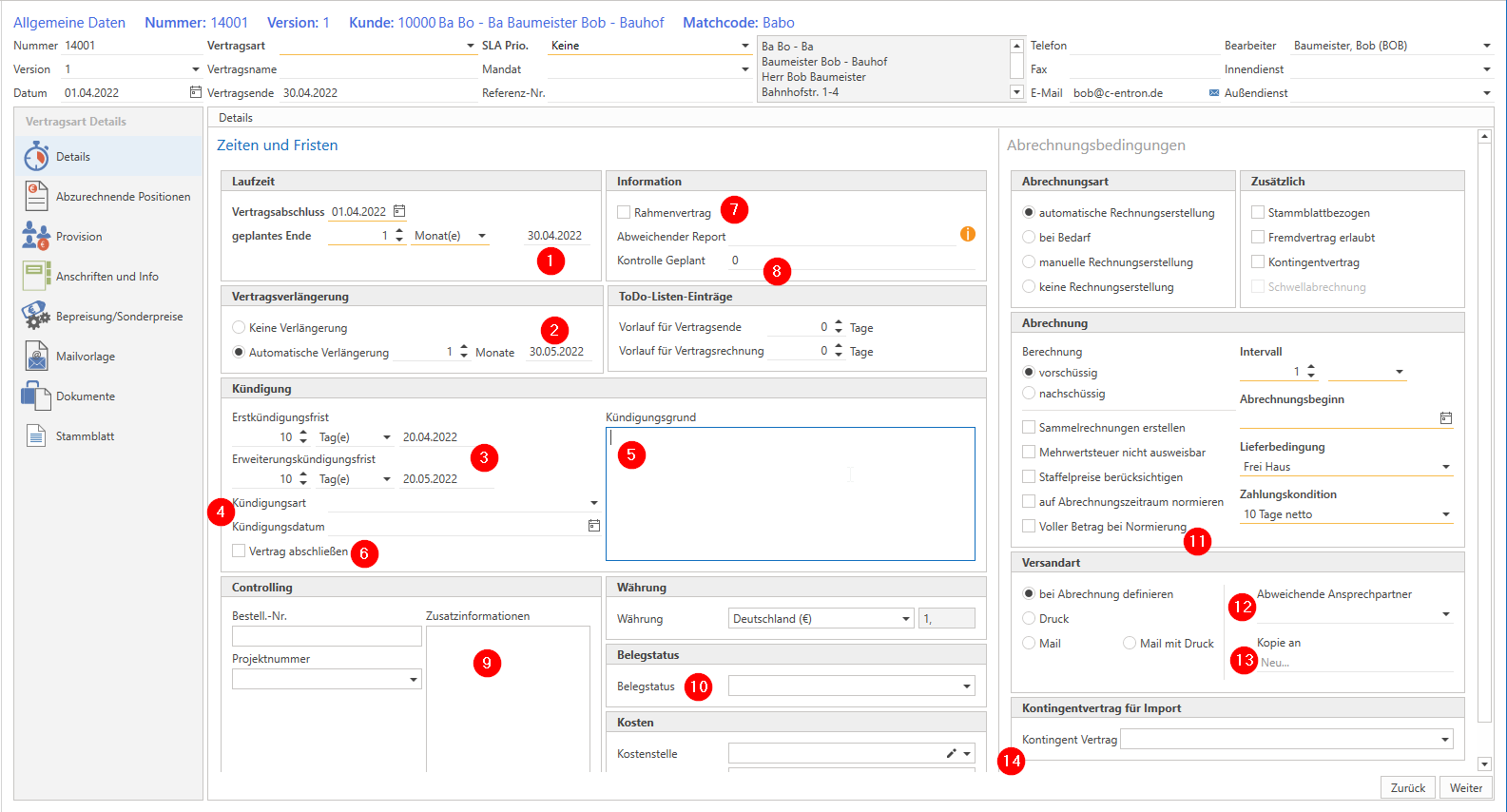
c-entron calculates the planned end date based on the set contract end date and the base term. If you want to set the contract end date to a specific date (e.g., December 31), we recommend adjusting the term accordingly, using the term unit "days" if necessary.
The c-entron also calculates the date of the next automatic renewal for you.
up to 6) c-entron calculates the data for the latest possible receipt of the termination for you in the same way. Further information on termination can be found in Section III. Contract Management.
If you activate the "Framework agreement" option, this agreement will be preset for all new transactions (documents and tickets) for the customer.
A target value in hours can be entered in the "Scheduled check" field, which is used to compare hours worked and hours calculated. For more information, see Section III. Contract management.
The "additional information" corresponds to the functionality of the document header. This information is transferred to the header field of the contract invoices.
A contract can be assigned a document status in the same way as any other document.
If a contract is standardized (see above), the first settlement is only proportional. If you want to calculate the full amount from the contract items instead of the proportional amount, activate the "Full amount for standardization" checkbox.
If the invoice emails are to be addressed to a different contact person, set the contact person here.
Please note that the corresponding setting in the address master (Finance tab) is not applied to contract settlements.
In addition, the email can be sent in CC to a freely definable email address.
If it is a contract that settles import data (see Dynamic Contract Settlement), the settlement can be calculated against a cash quota from another contract.
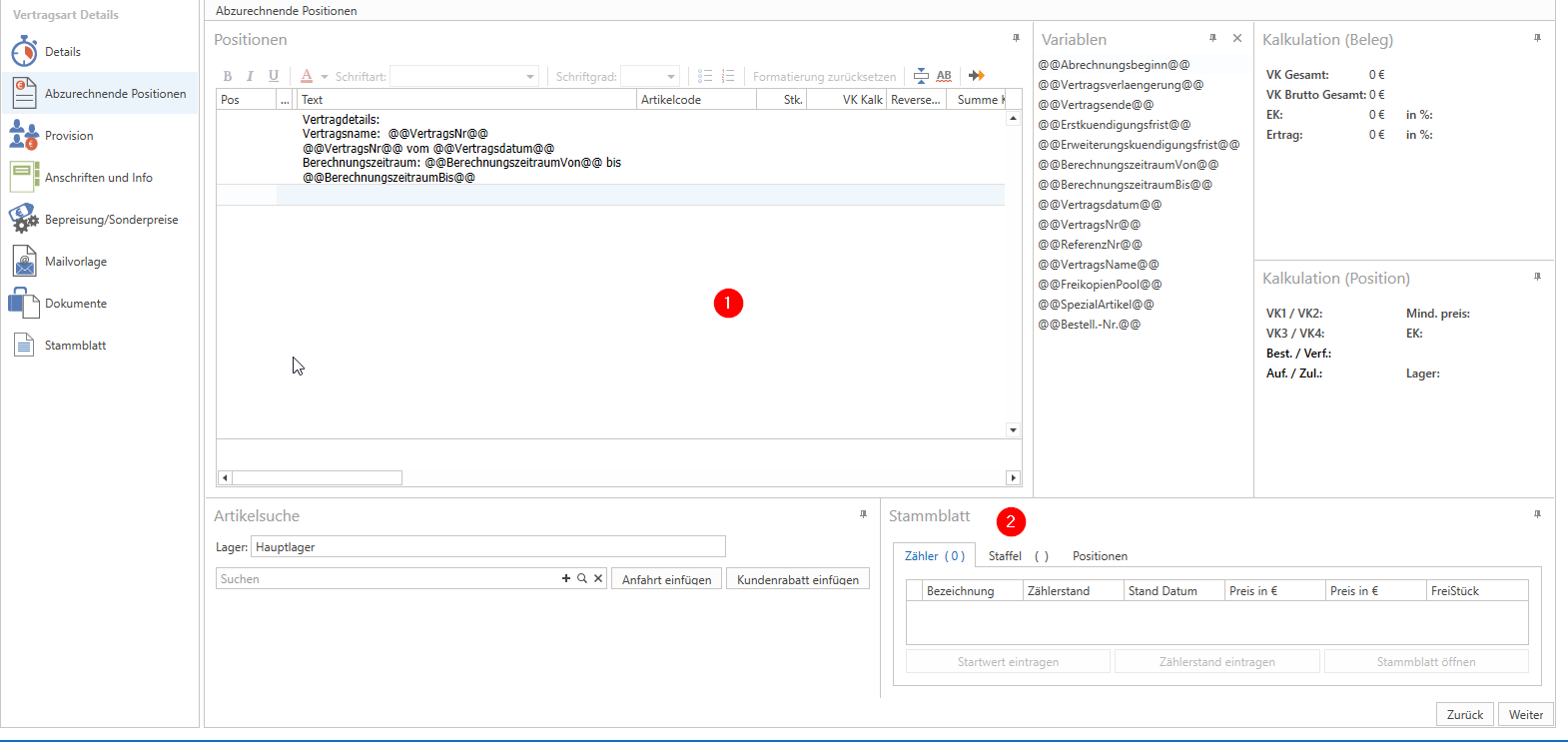
Items to be billed
This is where you generate the actual invoice template. In principle, this contains the functions of a "normal" document, i.e. you use suitable items to put together your service package, which you then insert into the invoice and bill with each contract settlement.
The "Master Sheet" section only applies to meter billing (see click contracts).
commission
Commission is calculated in accordance with the terms and conditions of the receipts and is passed on to the invoice when the contract is settled. Commission is therefore primarily calculated on the basis of the turnover shown in invoices.
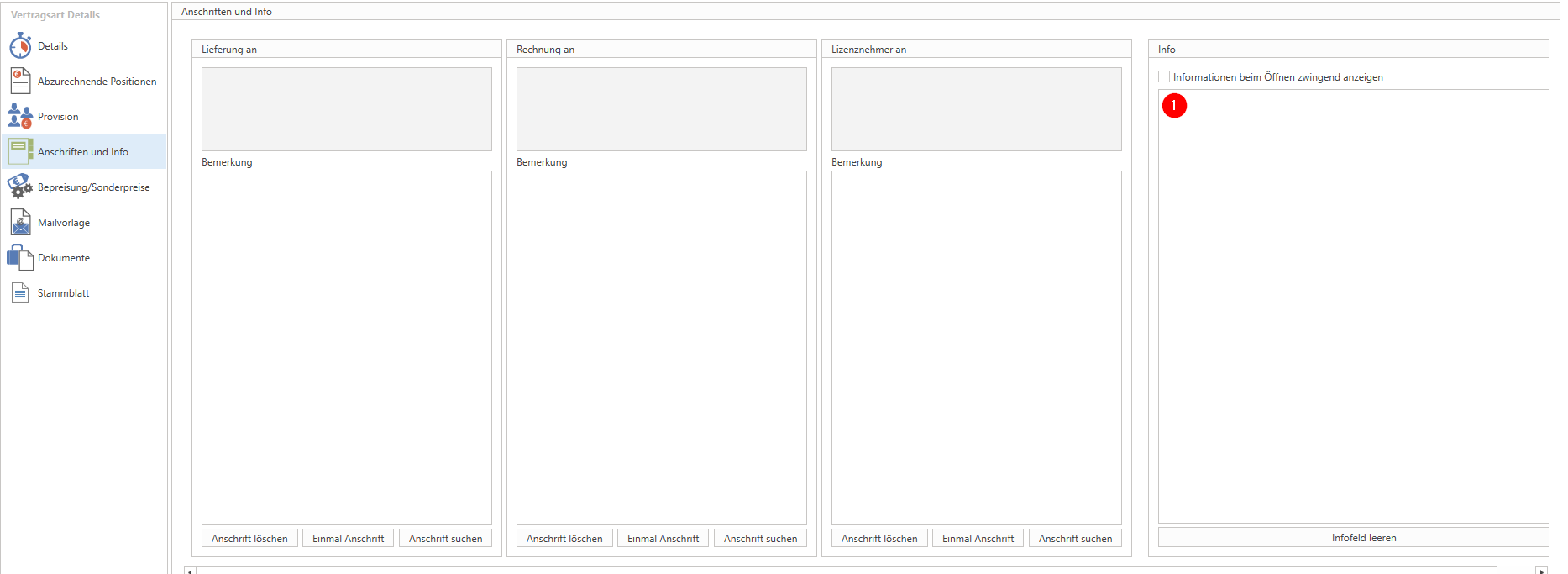
Addresses and information
This area also largely corresponds to the documents; the addresses entered are transferred to the invoice and printed accordingly.
The info field found in documents under "Document details" is located in this area for contracts. As with documents, you can use the checkbox to set the info to be displayed in a pop-up when the contract is opened.
Pricing/Special prices
If special prices are maintained in the contract template, they are used here. These can then also be edited, expanded, or removed.
email template
The email template for the contract is taken from the contract type used and is used for sending invoices by email. Changes to the email template in the contract type are passed on to the contracts, provided that no changes have been made to the contract.
To create a contract-specific email template, click on the "Custom template for contract" button and customize the email template. Then save the contract.

documents
Here you can store documents that belong to this contract, e.g., the PDF of the signed contract. The easiest way to upload documents is to drag and drop them into the interface.
Documents can only be filed once the contract has been saved for the first time, as the corresponding directory in the database is only created during the saving process.
master sheet
If you conclude a device-specific contract, you can store the corresponding master sheets here. For each master sheet, c-entron inserts a master sheet item into the items to be billed.
Linking a contract to one or more master sheets enables joint evaluation and additional functions, such as meter reading billing (see click contracts).
III. Contract management
Created contracts can be found in the address master as a document and opened for editing. As with documents, a new version must be created for editing.

In addition to the contract attachment, further areas are available for subsequent processing or contract viewing.

A report can be called up to print out the contract details, such as the term, items to be billed, and similar information. This must be set up in the report management section under Customer Equipment > Contract.
In the Monitoring References tab, you can match the monitoring items set up for RiverSuite with a contract and bill them to the customer for whom the contract was created (see Billing RMM items).
Important changes to the contract are logged; the logs can be viewed here.
If the contract content requires you to create tickets on a regular basis (e.g., as part of a maintenance agreement), you can configure one or more tasks and an associated ticket template within the contract. Checklist templates can extend the ticket configuration.
More information on this can be found in the ticket system section.
If services are booked against a contract, they are sorted by document type and compared with a target value. This function therefore allows you to compare a planned value with an actual value. The planned value is entered in the "Planned control" field under the contract details (see Contract attachment > Details > Point 8).
You can view a history of all contract invoices and any resulting credit notes in the Invoice History tab.
Here you can also see the date up to which the contract has been billed and when the next invoice is due.
If you would like to skip one or more billing cycles in the future (contract pause), you can also manually enter the date until which the contract should be considered settled. c-entron will then resume billing on the next date and will not perform any subsequent billing.

If a customer submits their cancellation within the specified period or you agree on an extraordinary cancellation on a specific date, enter the desired contract end date as "cancelled on date" (1). The contract will then no longer be included in the billing from the following day. If the end of the term is reached without contract renewal, the contract will also no longer be billed; in this case, a termination date does not need to be entered.
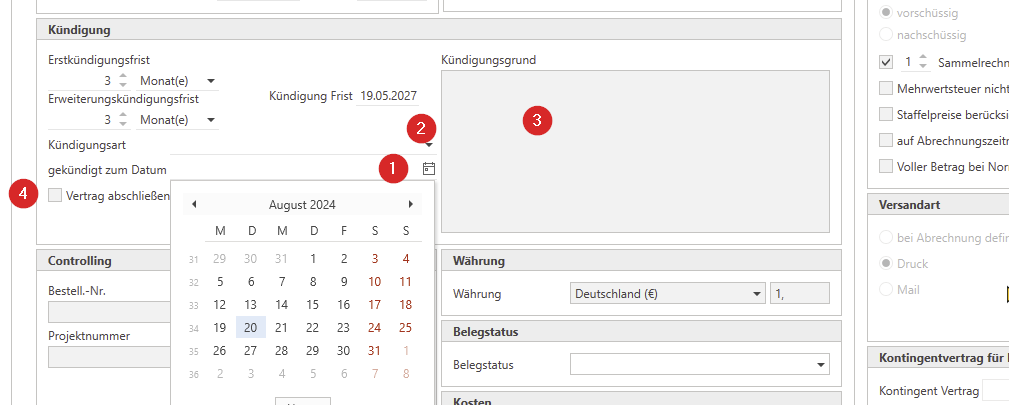
Note: The entries for the termination types can be managed in the contract billing module.
After termination or upon reaching the regular end of the contract, the contract remains open, can be accessed and edited normally via the grid, and can also be selected in the ticket system (e.g., to use up any remaining quota). In the grid, the contract is printed in italics to visually indicate that it has reached its end.
To conclude the contract, the "Conclude contract" checkbox (4) must be selected in the contract.
IV. Contract settlement
Contracts are billed exclusively via the Contract Billing module. Here, too, a wizard guides you through the logical steps.
Step 1: Select contracts – Billing date:
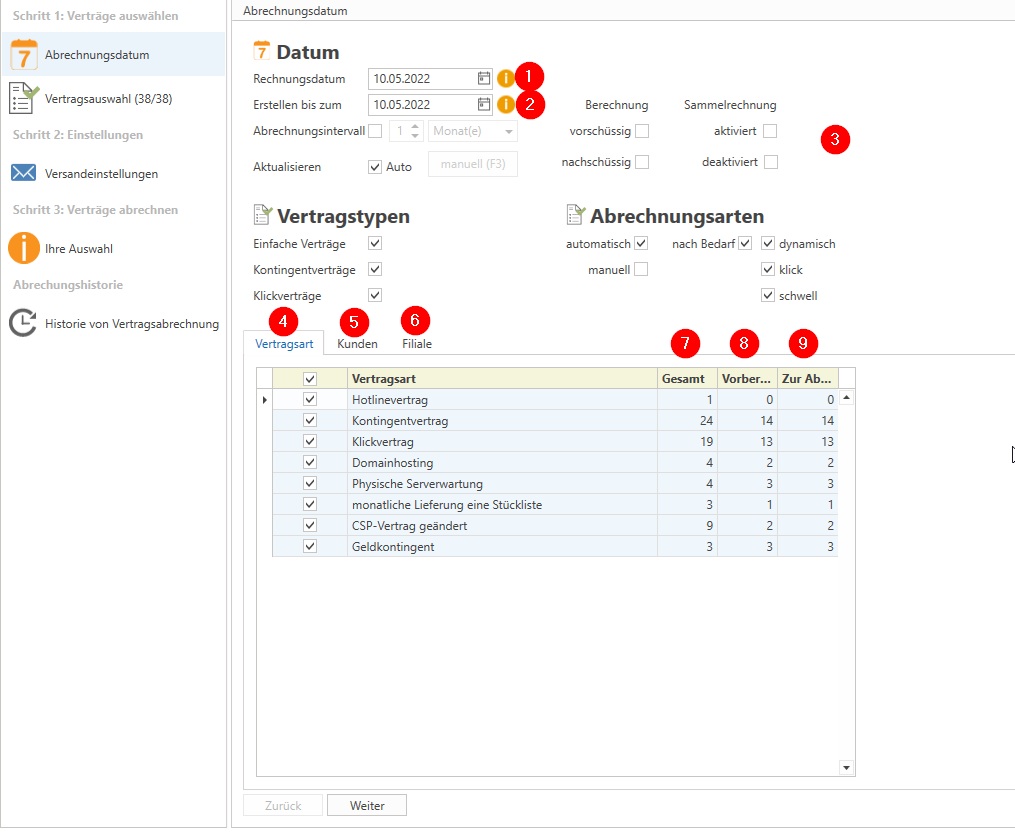
The set invoice date is printed as the billing date and transferred to accounting.
The second date field is used to define the billing period. The c-entron first suggests all contracts whose next billing date is on or before the set date and calculates the interval specified in the contract. If a contract was skipped during billing in the past, the skipped billing period is recalculated. This does not apply if the "billed to" date of the contract has been adjusted accordingly (see Contract Management, point 6).
This is followed by numerous filter options that you can use to narrow down an invoice run. For example, you can filter for advance contract billing or for contracts for which collective invoicing has been explicitly activated.
Please note: Contracts whose billing type has been set to "manual" will only be billed if the "manual" filter is active. Since the billing period for manually billed contracts always extends from the last billing date to the "create-by date," a manual contract can also be billed multiple times on the same date.
The contract types also serve as group filters, as do the...
... customers and, if applicable, the...
... assigned branch.
In the "Total" column, you can see how many contracts are active for each contract type.
Contracts that are reached by the "create by date" are considered "prepared," meaning they could be billed.
The number of contracts billed in the current billing run is determined by the remaining filter combinations.
Step 1: Select contracts – Contract selection:
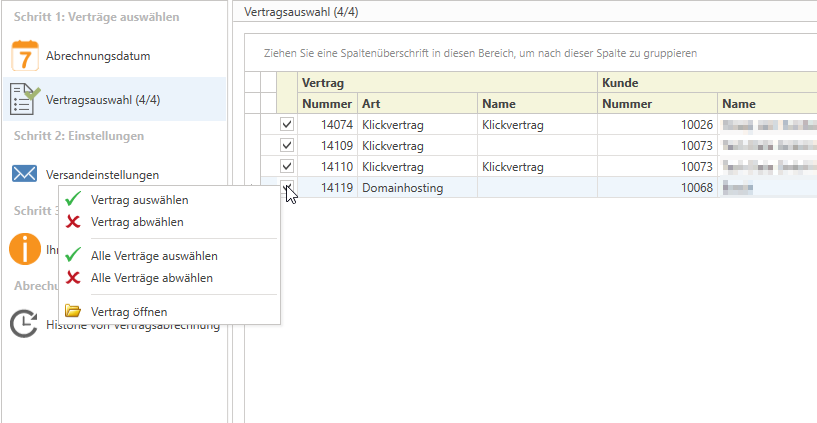
The filters you selected earlier generate a list of contracts that can be billed. Contract details relevant to billing are displayed in the columns, e.g., billing interval, payment terms, etc.
The checkboxes for each line can be used to manually filter individual contracts out of the billing run. The context menu for the checkboxes allows you to select multiple contracts and open a contract for editing.
Step 2: Settings - Shipping settings:
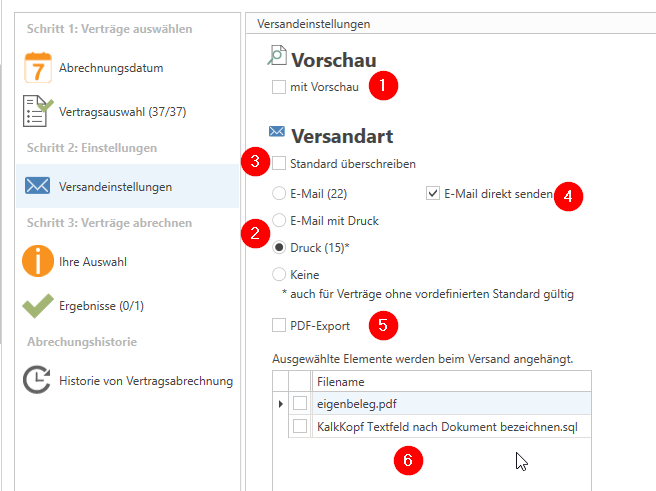
A preview of the PDF can be generated for each contract invoice before the invoice is saved. If you deactivate this preview option, the billing process will be significantly accelerated—however, you will be depriving yourself of a control function: c-entron creates and saves the contract invoice and, if necessary, also sends the invoice email directly (see below).
The four shipping options—email, email with printout, printout, and "none"—are primarily controlled by the contract setting for the shipping method. You can see how many contracts use each shipping method by looking at the number in parentheses after the respective shipping option.
The radio button allows you to control the shipping method for contracts where the shipping method is set to "Define during billing." Moving the radio button will therefore only affect contracts for which no shipping method has yet been set in the contract itself.
The "Override default" checkbox allows you to override the shipping method defined in the contract by selecting the radio button. If the checkbox were activated in the figure above, all 37 contract invoices scheduled for the billing run would generate a print job, and no emails would be sent.
The invoice emails are displayed in a separate window and can be edited before being transferred to Outlook or Exchange. If you want to skip this step (e.g., because you will open the email in Outlook anyway), you can activate the "Send email directly" option to skip the c-entron mail dialog.
The "PDF export" checkbox allows you to ignore all shipping settings and export the created invoices exclusively as PDF files.
You can control whether certain documents are attached to emails by selecting from the available standard attachments.
Step 3: Settle contracts – your options:
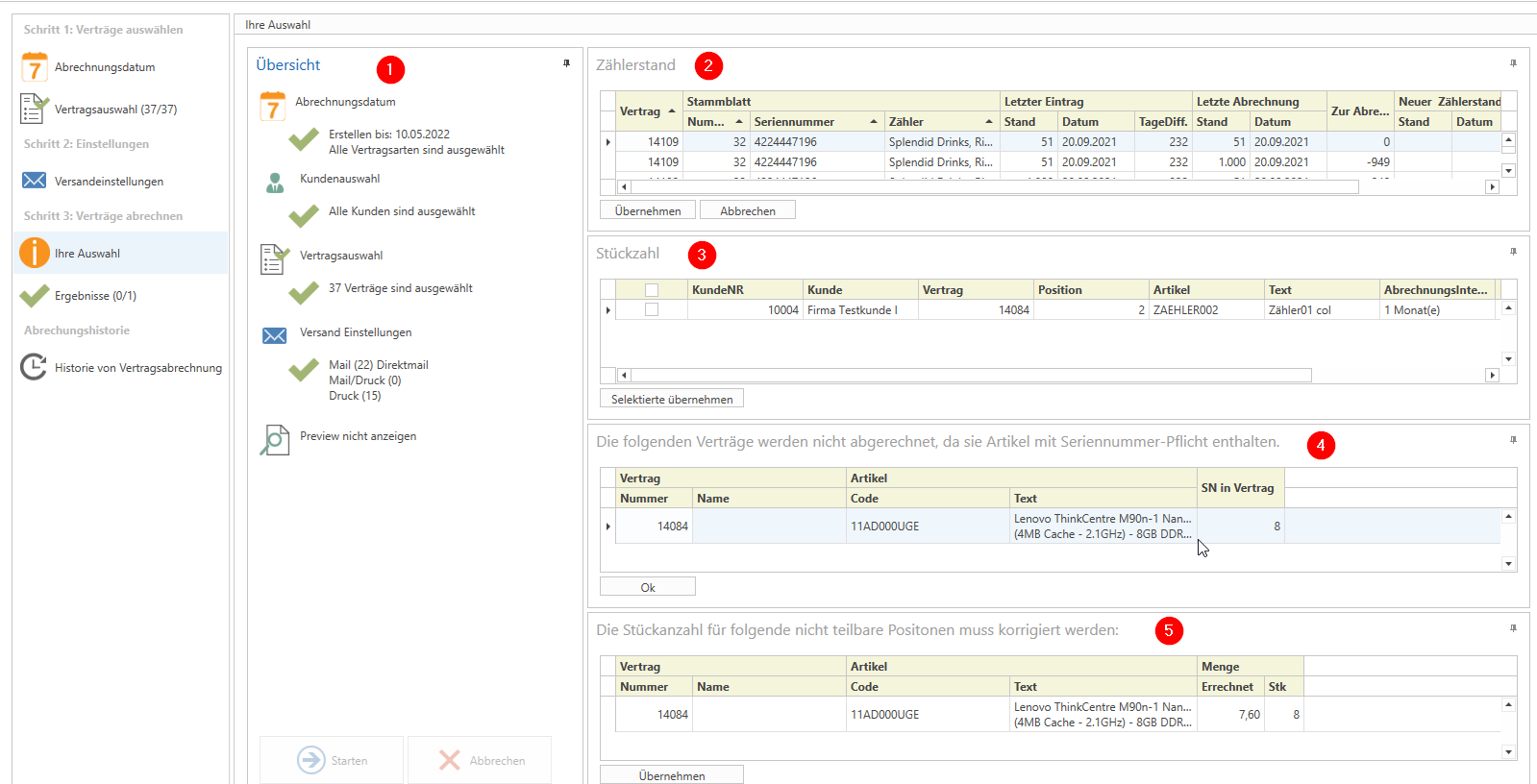
The billing wizard will now take you to a summary overview that aggregates the parameters you have set so far.
In addition, the contracts that still require manual checks or corrections are displayed on the right-hand side of the screen. If no action is required, this area remains empty.
The verification of meter readings is mandatory when meter readings are used for billing purposes.
It may be necessary to adjust quantities if contracts are only billed proportionally for a billing interval (see Standardization), especially if the items used cannot be billed proportionally due to the "non-divisible" item property (see also point 5). In this case, it is necessary to specify an integer quantity.
Since physical items with stock levels and serial numbers can also be billed using a contract as an invoice template, sufficient stock levels must be available at the time of billing in such cases, including serial numbers if necessary.
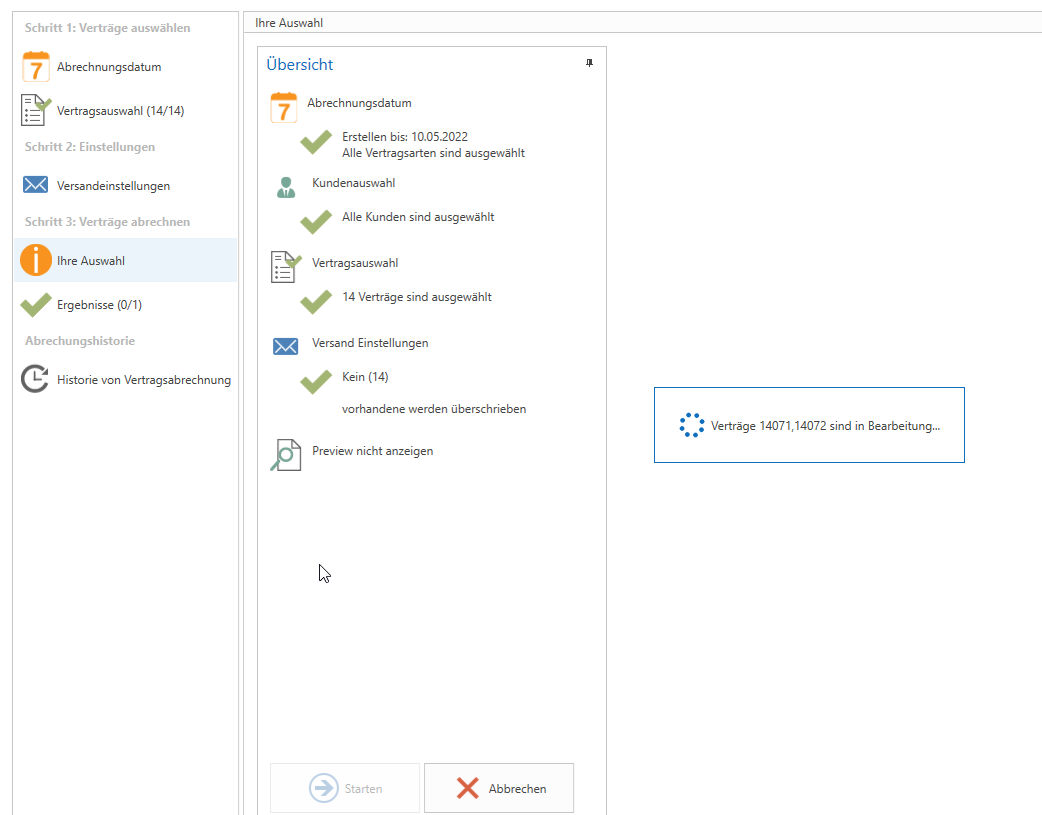
Once you have made and confirmed all necessary changes, contract billing can begin. You can see which contract, or in the case of active collective billing, which contracts are being processed by c-entron in the processing window that appears.
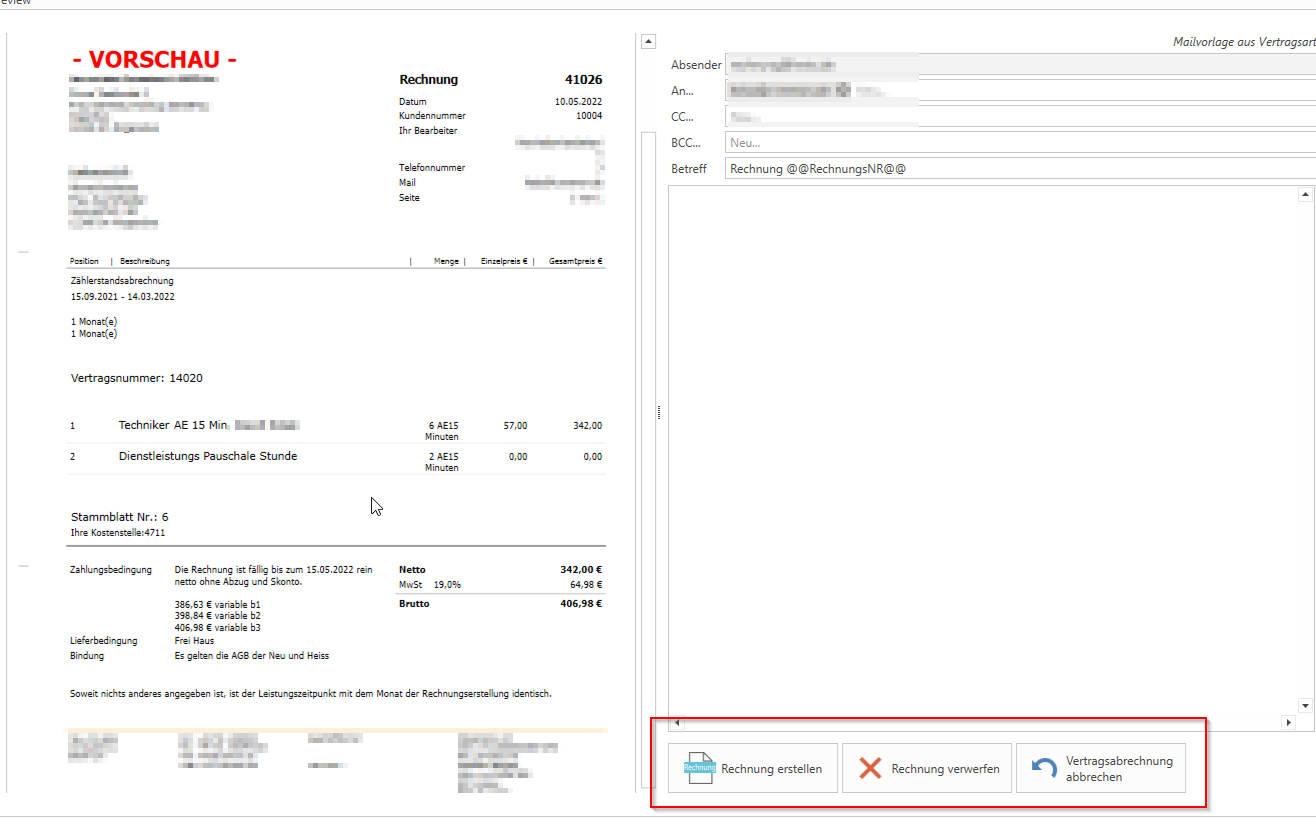
If you have activated the preview option, you will receive a preview of the PDF and, if applicable, the outgoing email for each invoice as requested, and you must confirm the invoice creation using the buttons. At the same time, however, you have the option of rejecting an individual invoice—the contract is then still considered unbilled—whereupon c-entron processes the next contract, or of canceling the entire contract billing.
Step 3: Settle contracts – Results:
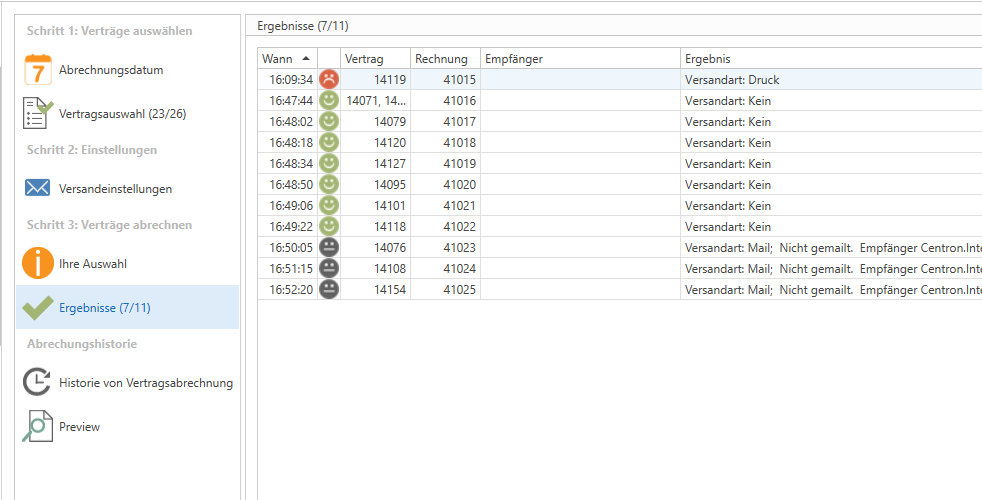
The result of the billing run is displayed in a table. Colored smileys distinguish between successful settlements (green), problematic ones (black), and faulty or uncompleted ones (red).
Successful means that billing has been carried out according to the parameters you selected.
From c-entron's point of view, invoices that have been processed but not sent are problematic. In other words, the invoice has been created but still needs to be sent to the customer or printed out.
Incorrect invoices are listed in case of termination or if c-entron was unable to generate an invoice for other reasons.
V. Quota agreements
General
Quota contracts are used to charge a customer in advance for certain services that can then be called up later. A contract in c-entron can include an hourly quota or a monetary quota. While hourly quotas can only be used to bill time-based items, a monetary quota can also be offset against other deliveries and services. For example, a monetary quota contract could also be used as a down payment invoice.
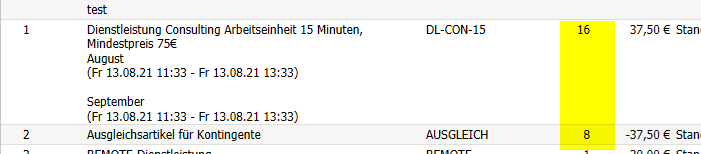
The quota applies when billing services per item. If the billed item can be posted against the quota, c-entron inserts a clearing item in the direct subsequent item that reflects the value of the original item negatively, thereby offsetting the two items in terms of value.

Even though the use of a quota is possible as an option in every contract, it is advisable to create separate contract types for quota contracts. To do this, simply select the "Quota contract" option for the desired contract type in the billing conditions in the contract type management.
Traditionally, a separate article is created for the quota, which is inserted into the items of the contract or contract template. However, this is not absolutely necessary.
Simple quotas
If the "Quota" option is activated in the contract, the extension for quotas is displayed under the details both when creating the contract in the wizard and in the edit view of the contract.
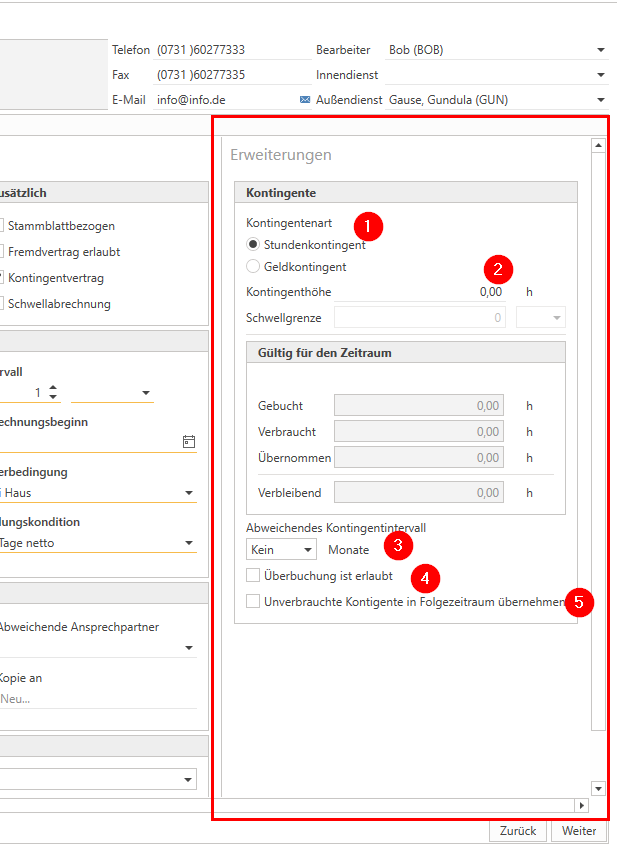
Choose between hourly and monetary allowances
The advantage of an hourly quota is that it provides clear information about how much power has already been used and how much is still available.
The advantages of the cash quota are:
Offset against other deliveries and services
Differentiation of services based on price
Application of the increased hourly rates from the "Surcharges Hourly Rates" module
Enter the desired quota amount. This quota is made available per billing interval. If your billing interval is monthly, the customer receives the specified quota for the billing period.
If desired, a quota interval that differs from the billing interval can be set, as long as the different quota interval larger than the billing interval.
It is therefore possible to grant a quota for 6 months, but to generate monthly invoices. Not possible is to create a half-yearly invoice with monthly quotas. This can only be achieved by setting the billing interval to monthly and billing half a year in advance for contract billing (contract billing: "Create until"). This creates a bill for 6 months and books a quota for each month individually.
If the quota has been used up by calling up services and further services are to be billed against the quota, the clearing item is used, but is given a quantity of 0 (or the number of item units still available that have not yet been used). These services are then billed accordingly.
By setting "Overbooking is permitted"The quota can be overbooked, i.e., booked into the red. This means that the service is now fully compensated, even though no quota is available anymore.
Attention: by default no offsetting this overbooking with future quotas!
The quota starts its interval at 0; when the contract is settled, the quota amount is added up to 0 and the quota is created. If a remaining quota from the previous interval is to be carried over so that it does not expire, this can be done with the setting "Transfer unused quotas to the following period" can be achieved.
If the setting "Overbooking is allowed" (see above) is active, a negative "remaining amount" can also be transferred.
Attention: If your customer regularly exceeds their quota and you combine the two settings, the contract can run into the red indefinitely without anyone noticing. It is essential that you use appropriate control instruments and agree on a follow-up calculation for such cases.
For managing and monitoring the quota, a quota contract also has an additional tab called "Quotas." On the left-hand side, you will find the quota management options as in the contract details. On the other hand, additional tabs contain evaluations and management options.
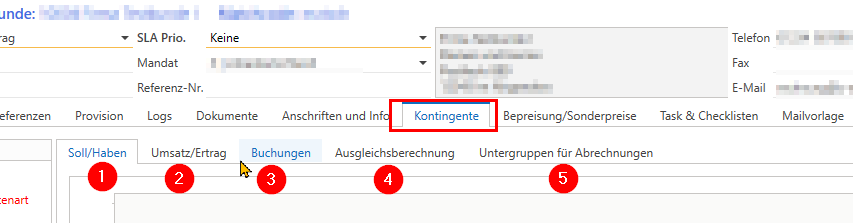
Under "Debit/Credit" (1), you will find a graphical view of the quota history.
The "Sales/Revenue" tab (2) also displays the sales and expenses associated with this quota agreement in graphical form.
A corresponding list of all quota bookings is displayed in the "Bookings" tab (3).
More detailed information on the current quota status can be found in the "Compensation calculation" tab (4). There you also have the option of booking additional quotas outside the billing cycle:
Would you simply like to make additional quota available? without charging for this, book a "free quota." Create a new version of the contract, enter the desired quota amount, and control the date on which the quota is allocated.
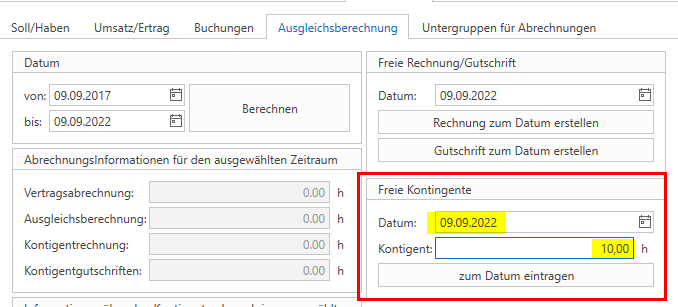
It is also possible to deduct quota by entering the quota amount with a minus sign in front of it.
If, on the other hand, additional quota is to be booked and invoiced to the customer (e.g., to recalculate a quota contract that has gone into the red), use the "Free invoice" function.
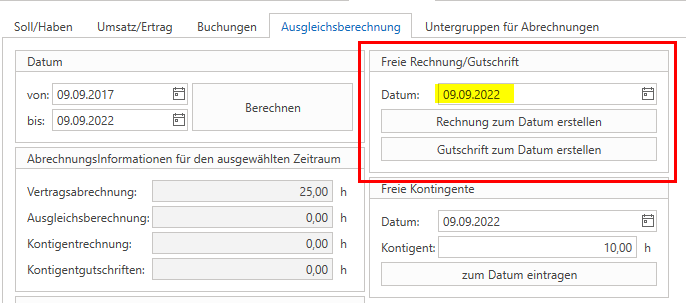
By clicking the "Create invoice by dateA new invoice is created. Here, the recalculation quota item be set. If this has not been configured, it must be done without fail—please contact your c-entron consultant for assistance.
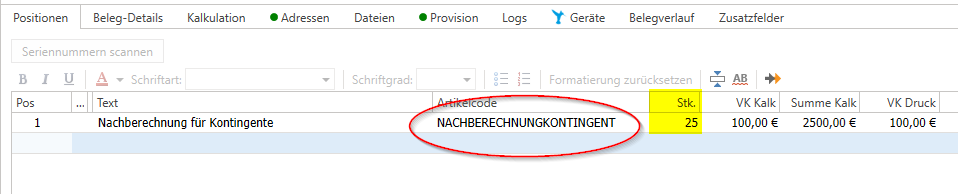
When using an hourly allowance, the specified number of hours is credited; when using a monetary allowance, the allowance is credited in the amount of the invoice total.
The opposite function "Create credit note on date" creates a credit note for the customer and deducts the corresponding quota.
The "Subgroups for billing" tab is also relevant for quota management. Here, you can use the (sub)product groups to control which items are allowed to occupy quotas and which are not. The default setting comes from the global settings and can then be adjusted in the contract.
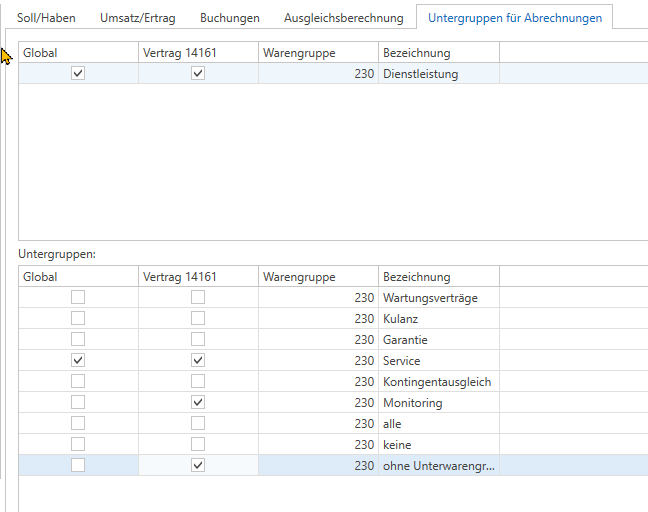
Only the service product group is available for hourly quotas.
You can use the subgroups to differentiate your services and, for example, set it up so that only services from the Monitoring subgroup are settled by the quota contract for a quota contract.
Traditionally, the settings are made in such a way that warranty and goodwill services are not quota-relevant.
One-time and threshold quotas
If the contract is not to be billed regularly and provided with a new quota, other billing rules can be set. Often, the manual invoicing If a quota contract is created with this billing type, the customer is credited with the quota amount when the contract is billed; this quota now has no interval, meaning it is valid indefinitely (no further transactions can be assigned when the contract ends).
This is often used for advance payments and projects.
About the billing type "if necessary" can be used in conjunction with the additional option "threshold billing" be represented in a kind of prepaid format.
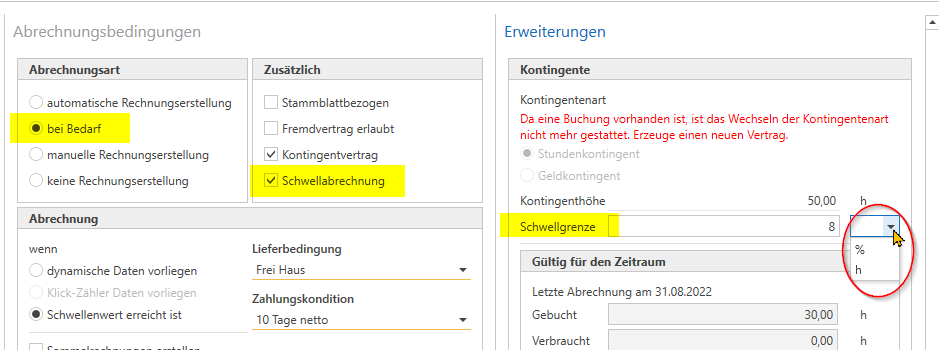
You now enter your quota amount and the threshold (as an absolute value or percentage). This defines the quota value that enables the contract to be billed again. If the threshold is reached or fallen below due to quota deductions, c-entron will suggest the contract for billing. During billing, a new interval is opened and a new quota is booked, as would be the case with a simple quota contract and cyclical billing.
VI. Settings
A. Global settings
General
Only a few settings are required for the contracts—the majority of the parameters are determined by the parameters of the contract or contract template.
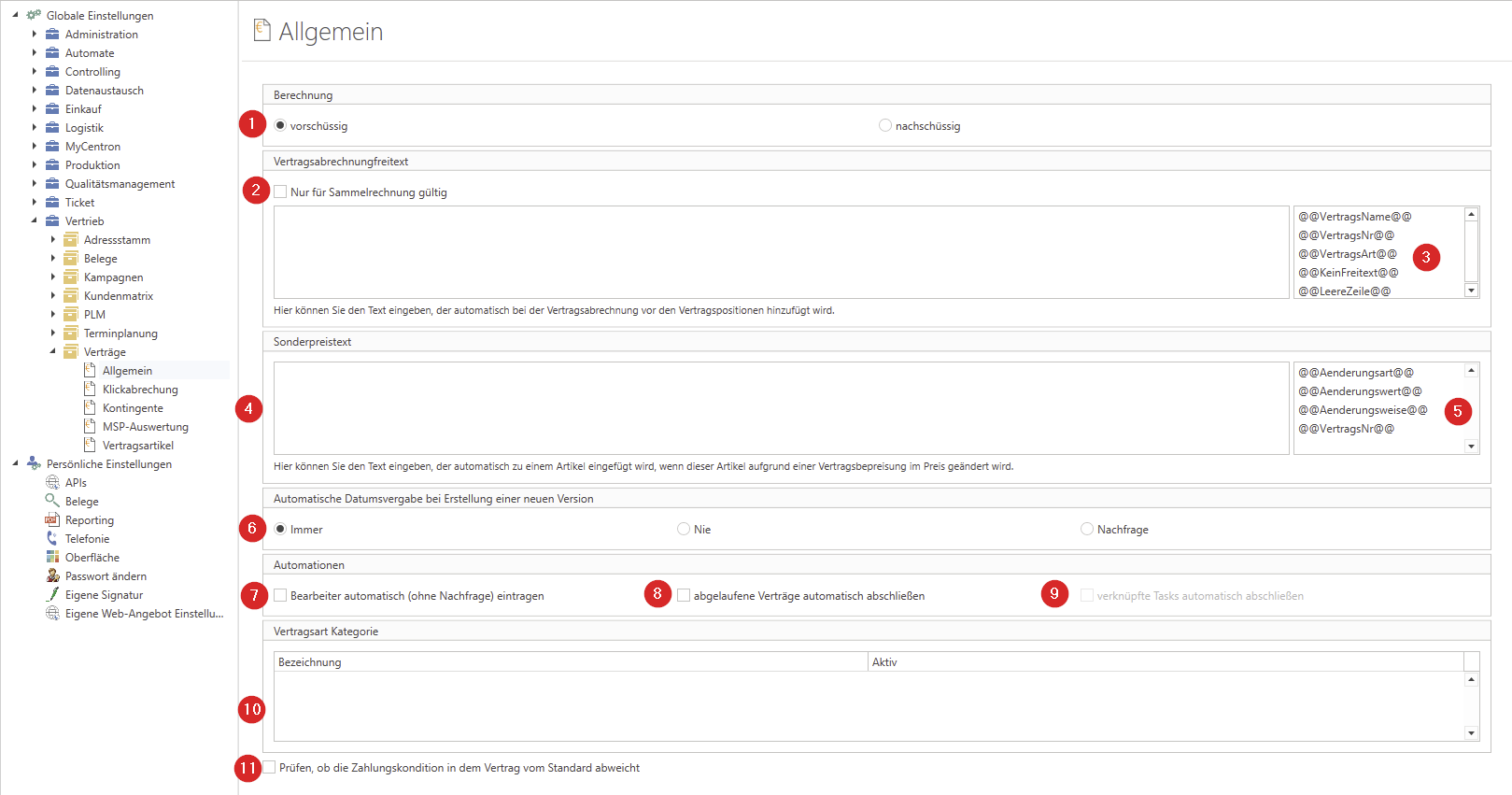
Specify whether the advance or subsequent calculation should be preset as soon as a new contract is created.
Define a free text that should be inserted by default when billing contracts. Use the checkbox to control whether this text should be inserted in general or only when collective invoices are created.
Note: For collective invoices, a free text item is always added for each contract inserted in order to distinguish the items from each other. The hard-coded text can be replaced with this setting.
Configure the billing text using the variables on the right.
If you use special contract prices, the resulting price change can be explained in a free text field. Configure this free text field here.
Configure the explanatory text using the variables on the right.
Control whether the contract date (see Contract attachment -> Header data -> 2) should be automatically set to the current date when a contract is re-versioned, or whether a query dialog should appear for this.
The automatic entry of the logged-in user as the editor when creating a new contract version can also be activated or deactivated.
If you want to automatically conclude contracts as soon as the contract end date or termination date has been reached, select the corresponding checkbox. This automatically selects the "Conclude contract" checkbox in the contract (see Contract Management, keyword Termination) and the contract disappears from the grid and can no longer be used in the ticket system.
In combination with automated completion, tasks linked to the contract can also be completed automatically.
Activate the classification of contract types by category and create appropriate categories.
c-entron can notify you if the payment terms specified in the contract differ from the customer's standard payment terms.
quotas
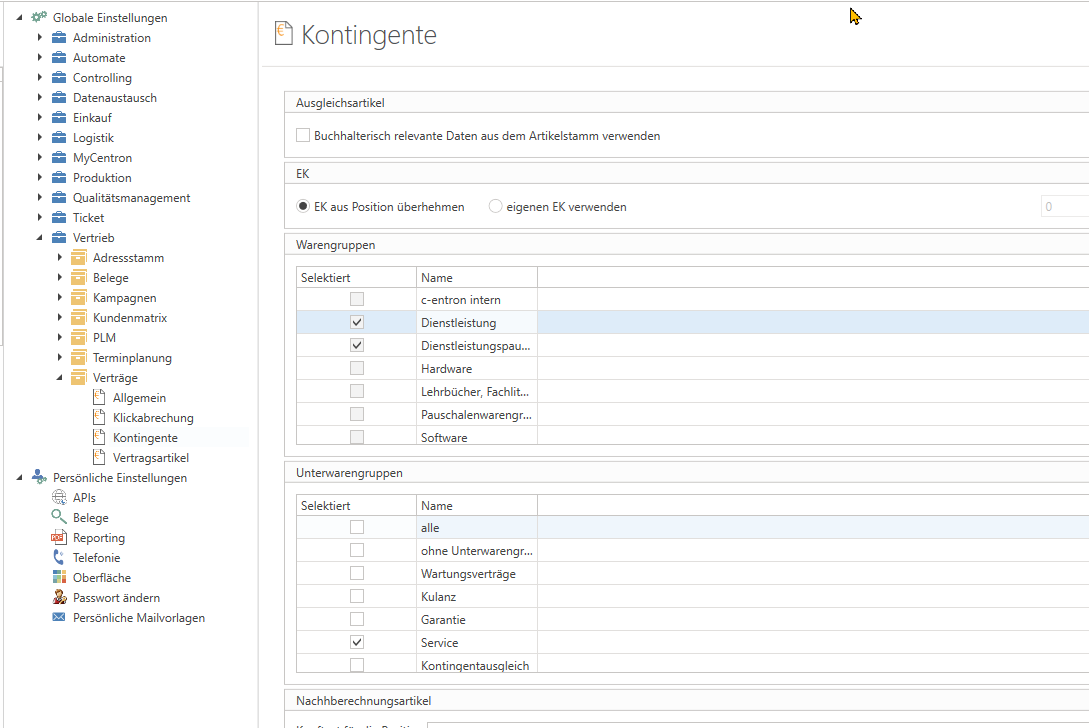
Set the global rule here that determines which services may use quotas. Contracts that use the "Global" setting are also subject to changes to this global setting.
You can also control whether the clearing item should also reflect the accounting-relevant data (revenue accounts, cost centers, etc.) of the items to be cleared or whether it should refer to specific data stored in the item master.
B. Email templates
The email templates used for invoice emails can be set up in the Email Templates module in the Contracts section or in the respective contract types themselves (see above). A separate email template can be defined for each contract type.
There is also a "single invoice" template, which is used if no template has been defined for the contract type. In addition, an email template for "collective invoices" must be defined if you use collective invoices (see above).
VII. Appendix
A. Text variables
The majority of variables are derived from the corresponding fields in the "Contract details" grid of the contract (billing start date, contract end date, etc.) and from the customer master data.
In our view, the following require explanation:
@@FreeCopiesPool@@ - this variable refers to any free copies that may be used when billing meter readings (see click contracts).
@@SpecialArticle@@ - this variable is replaced by the dynamic contract data imported into the contract (see Dynamic Contracts).