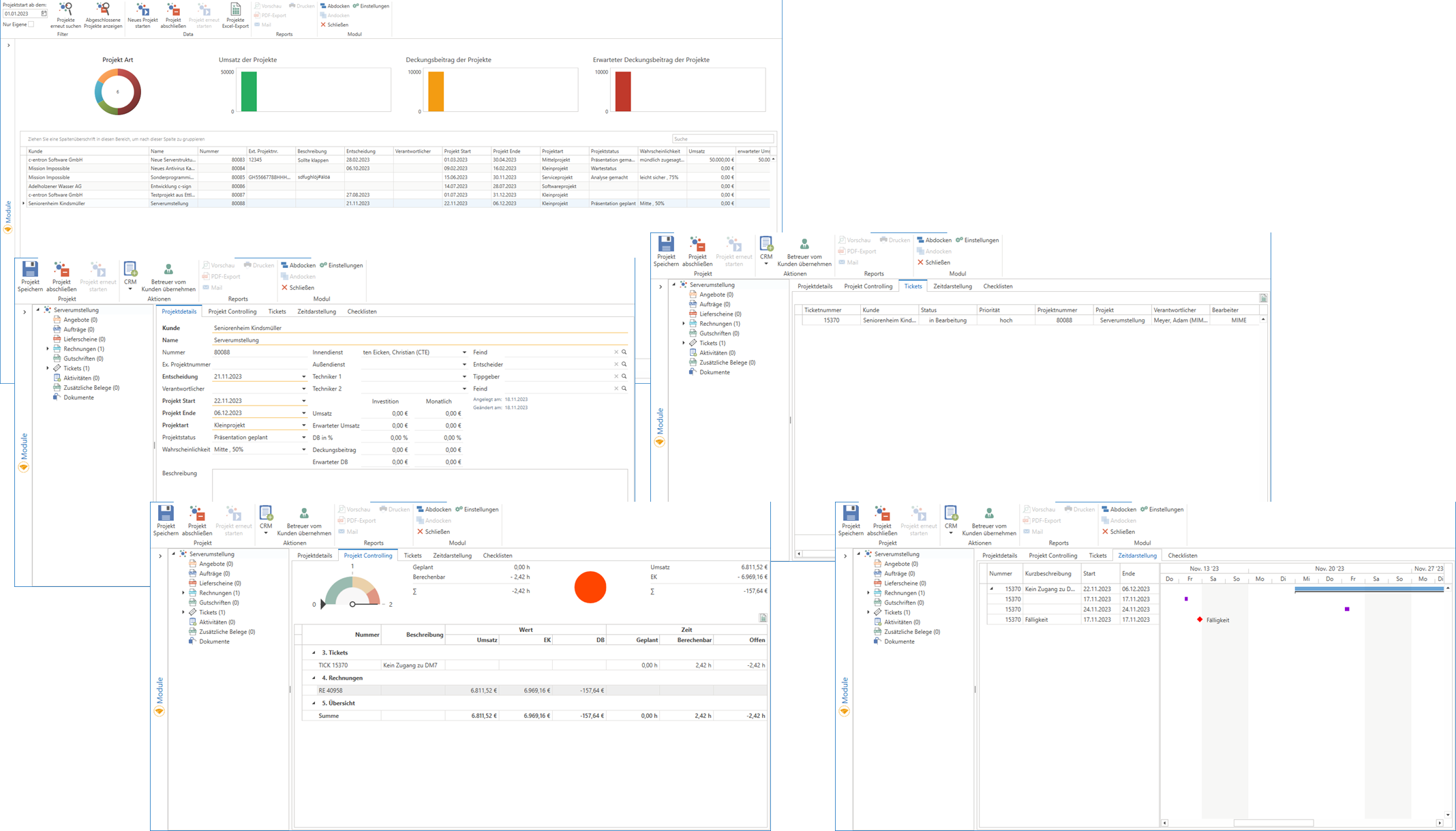
The module "CRM projectsoffers you numerous options for combining receipts and help desks (i.e., tickets). In addition, you can evaluate the CRM project to check the consumption of services, the use of services, and the project status.
Settings
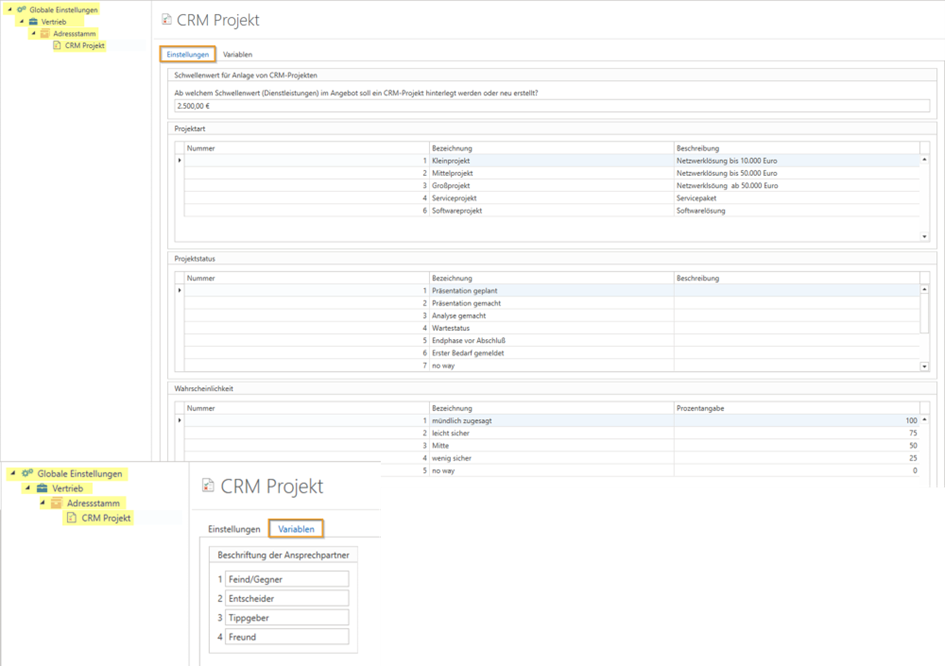
Start with the settings for the "CRM Projects" module. These can be found under Global Settings > Administration > Sales > Address Master > CRM Project. Here you can specify how the CRM project should be structured. Adjust the Project types, Project status and the Probabilities according to your requirements.
The settings shown are the default settings included in the empty database. You can add to or change them as needed. Add new project types, project statuses, or probabilities and use the Field variablesto add further information such as competitors, decision-makers, or tipsters. Then save this using the Save button in the top left corner.
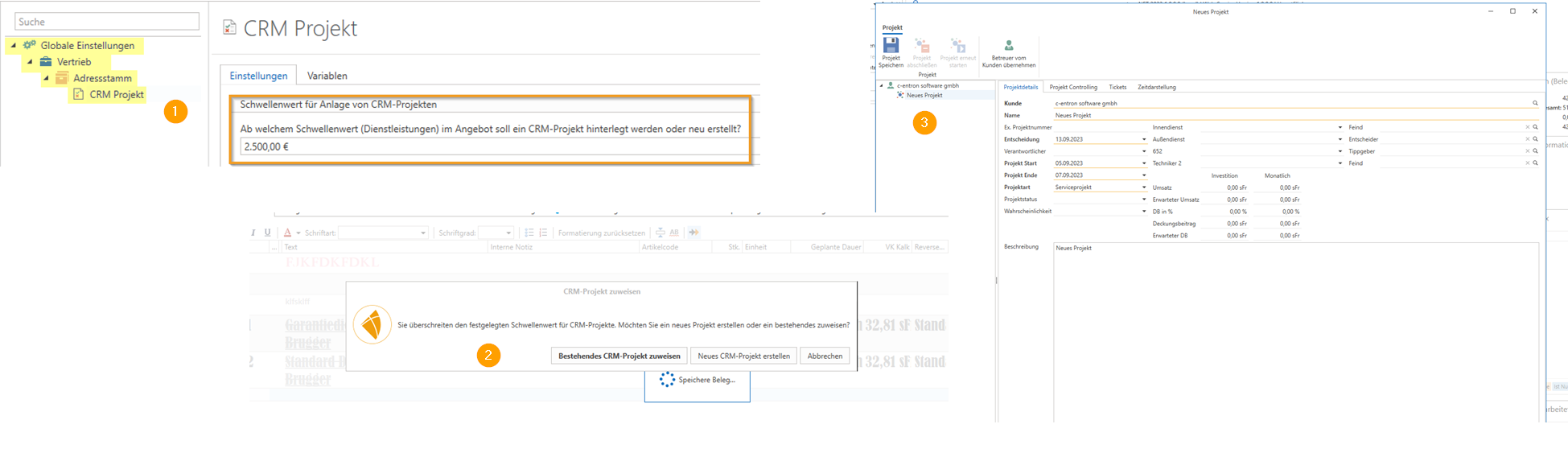
Starting with release v2.0.2401.x, you also have the option of creating a Threshold value for services if this value is exceeded, you will be prompted to either add an existing project to your quote or create and assign a new project.
Rights
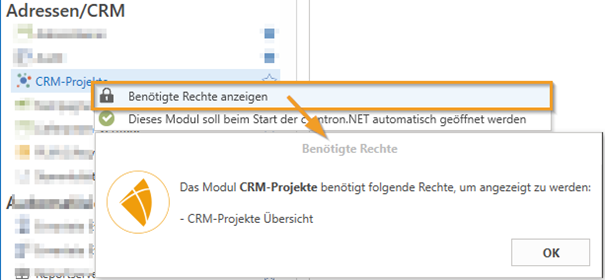
The "CRM Projects Overview" permission is required to display the "CRM Projects" module, which is located in the module bar under the Addresses/CRM area.
NOTE: You can always select "Right-click -> Show required rights" on the respective module. The rights required to display and start the displayed module will then be shown.
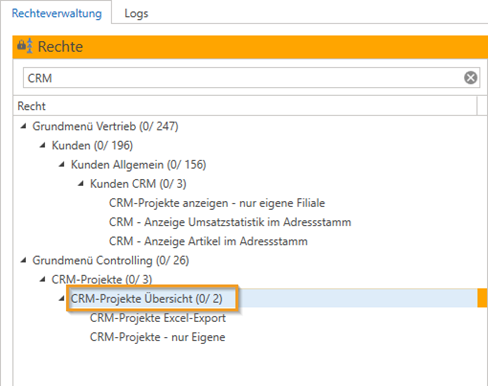
Additional access rights can be defined via rights management by assigning them to specific groups. This controls the extent to which a user can access CRM projects and whether they have the option of exporting CRM projects as Excel files.
Project facility:
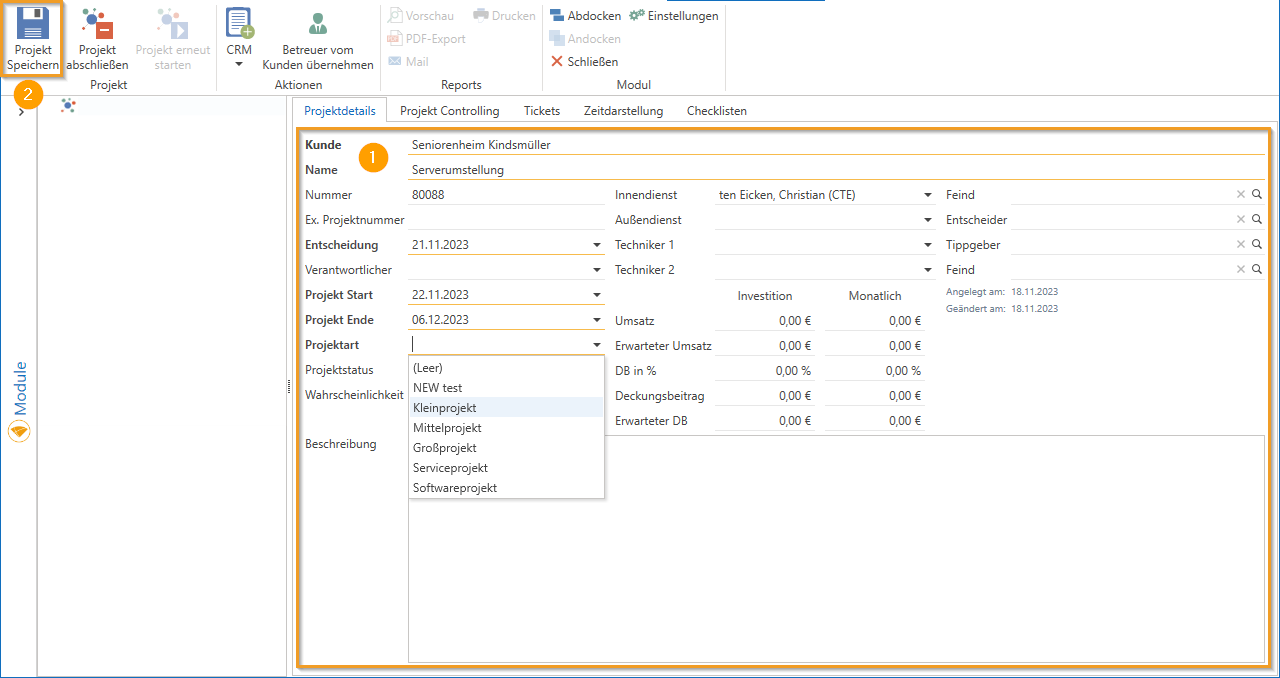
To create a new CRM project, click on "CRM Projects" in the module bar under Addresses/CRM. Select a customer and create a new project using the [Start New Project] button.
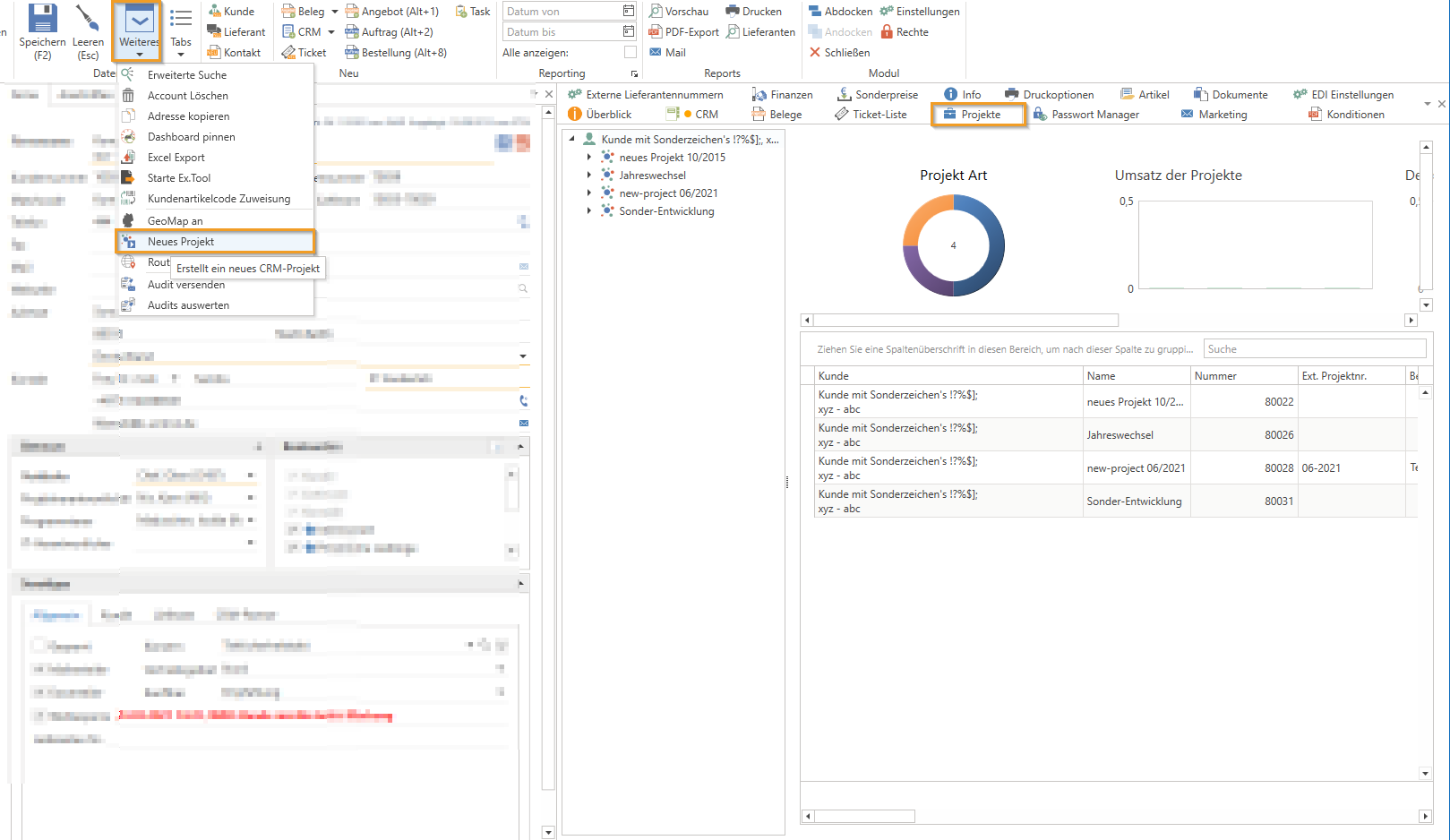
NOTE: You can also create customer-specific projects via the address master by selecting "More" > "New Project." Once saved, you can view these projects under the "Projects" tab. You also have the option of adding additional documents to the project folder via drag and drop under "Documents," e.g., building plans or server room details.
Enter the required information, such as project name, customer, external project number (if applicable), forecast decision, and project start and end dates. Define the project type, project status (which you can now easily select using the drop-down menu), and other relevant details. You can only save the information once all mandatory fields (underlined in orange) have been filled in.
Document processing
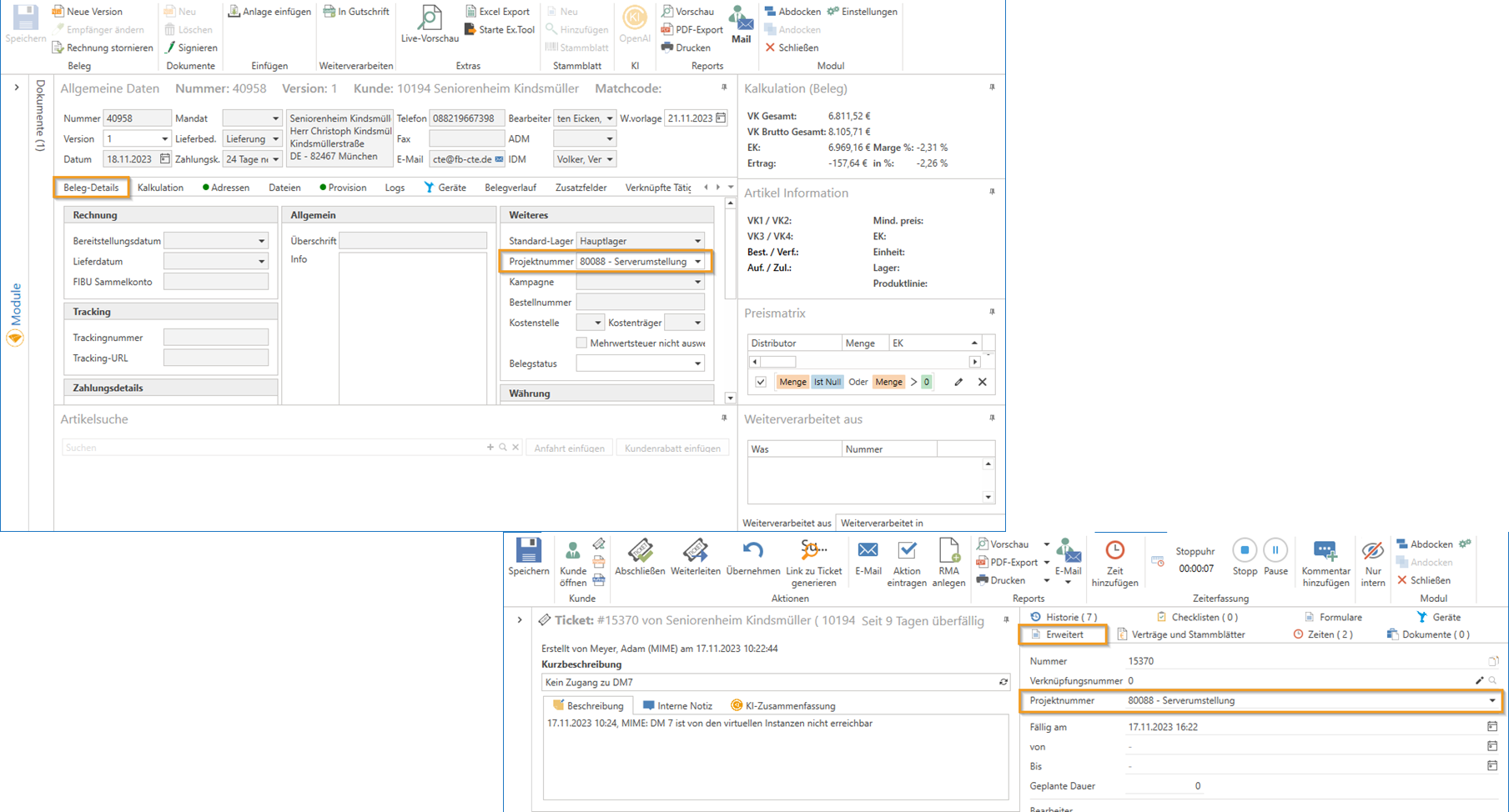
The project number can be linked in various documents such as quotes, orders (can be entered under the "Document Details" tab), and tickets (can be entered under the "Advanced" tab).
When you create a quote and convert it into an order, the project number is automatically transferred. This makes it easier to track and assign projects to different documents.
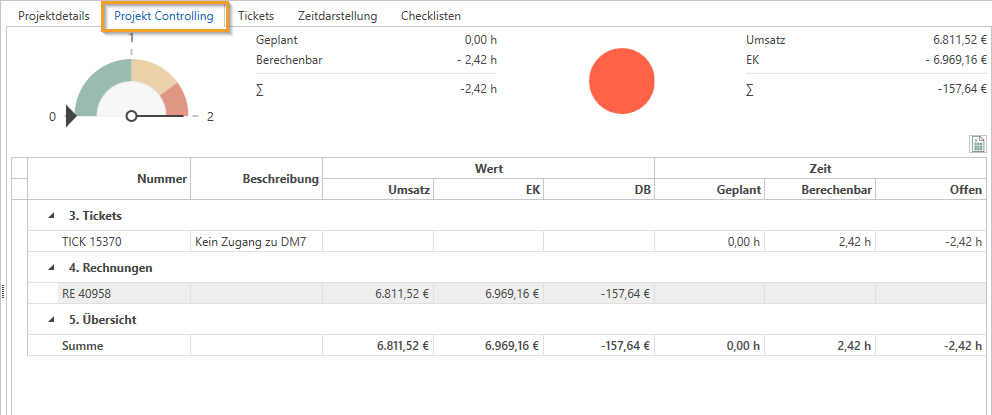
Tab "Project Controlling"
In the Controlling area, you can monitor the progress of the project. Record times for services to update the project status and progress. The recorded data affects the revenue and contribution margin of the project. You can also use the project number in other CRM products such as Notes.
Tabs/Tab "Tickets"
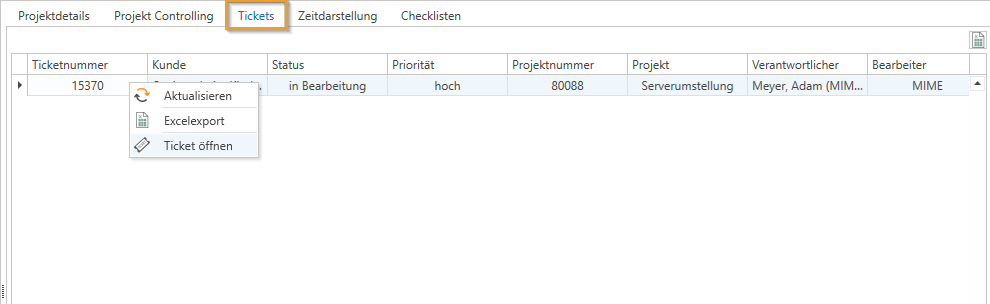
Here you can view and open the tickets recorded for this project and export them to Excel.
Tab "Time display"
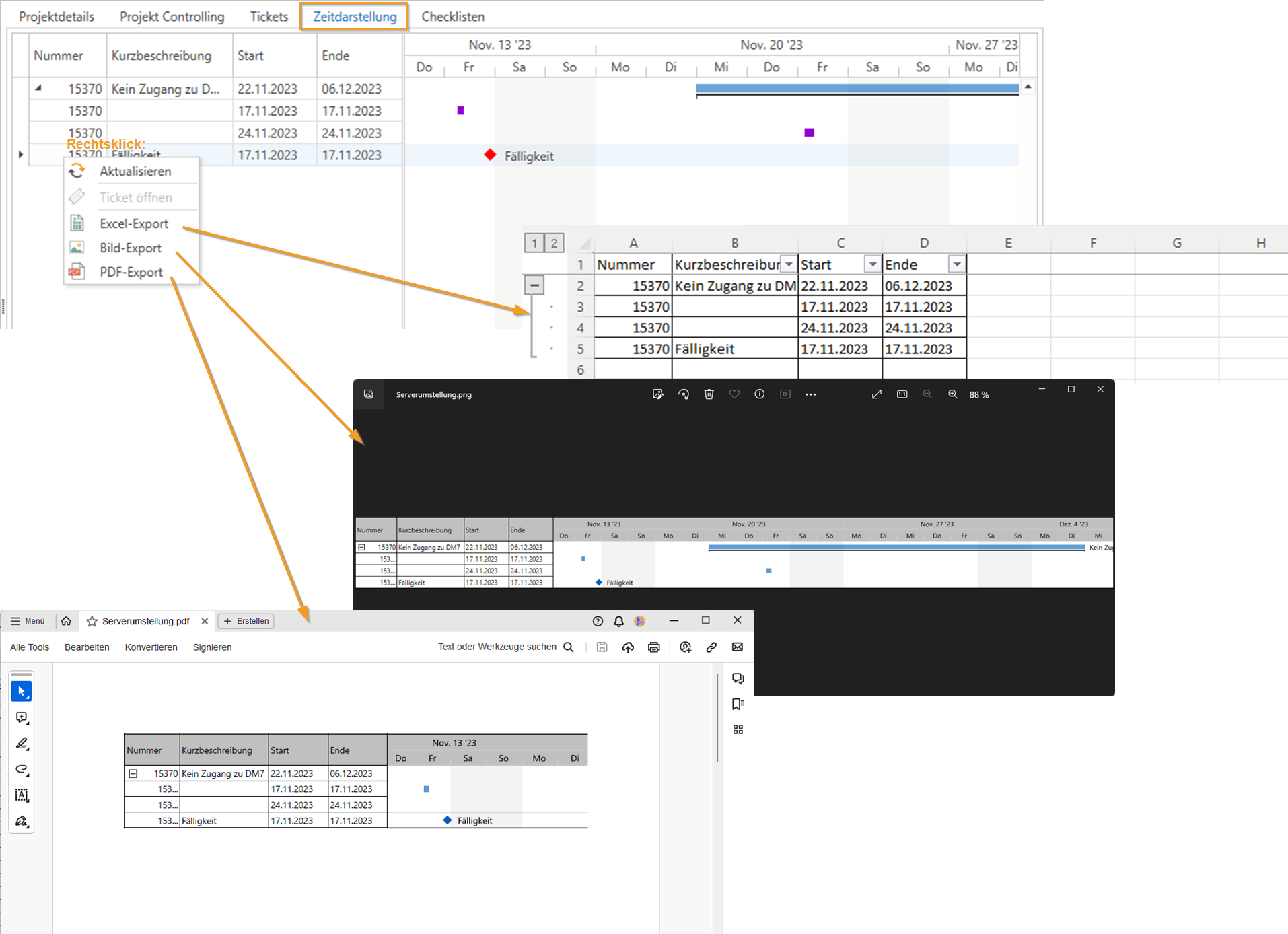
In the "Time representation" tab, you will find a Gantt chart (bar chart) that graphically displays the chronological sequence of project activities using bars on a timeline. By right-clicking, you can also export this as an Excel, image, or PDF file.
Project management:
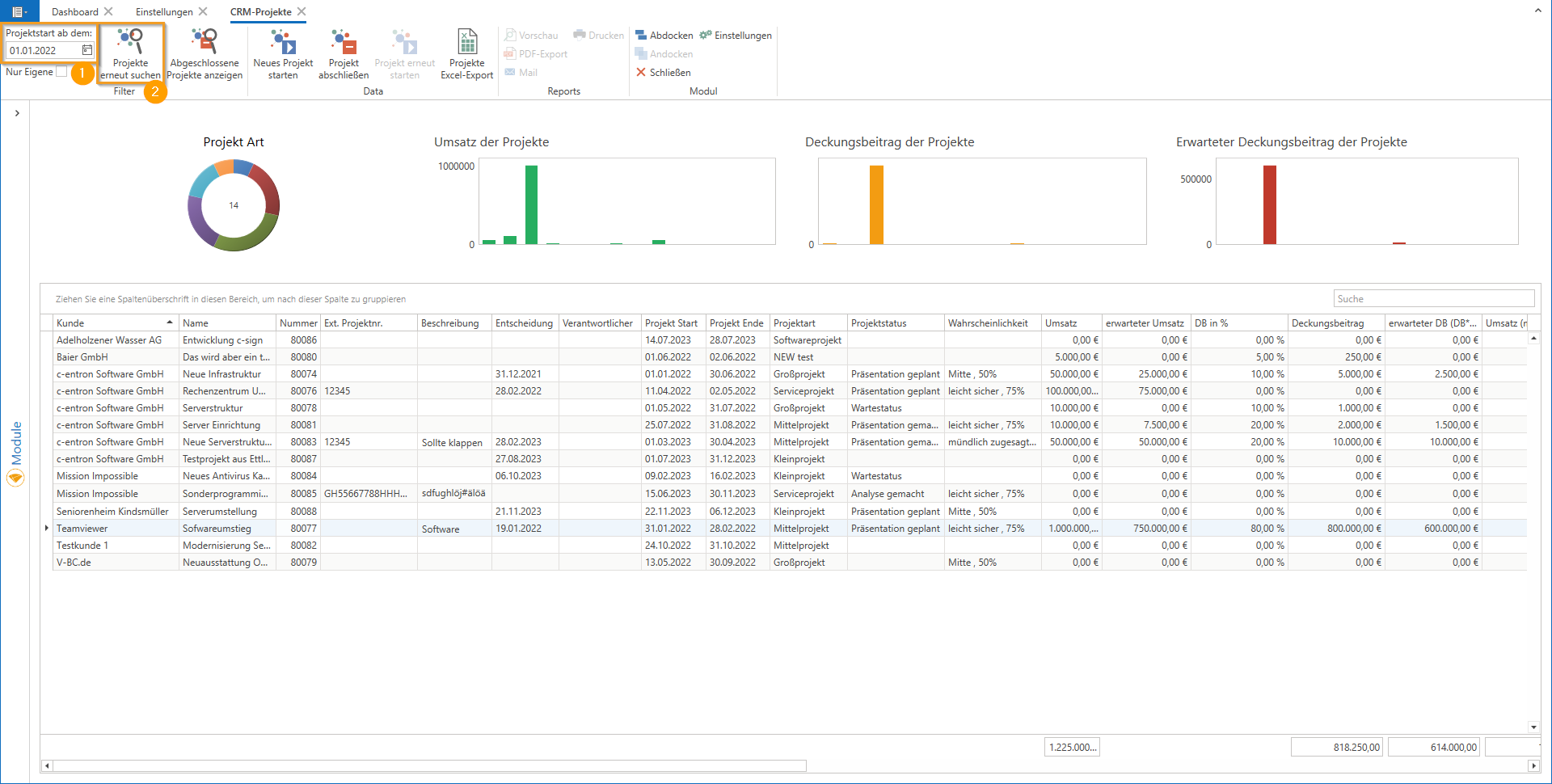
Use project management to get an overview of all projects. Filter by specific time periods to analyze planned revenue and contribution margin. The CRM project data can also be viewed under the customer in the CRM project tab.
The CRM project thus offers a comprehensive solution for managing and evaluating projects in customer relationship management (CRM).
Available from release v2.0.2312.x:
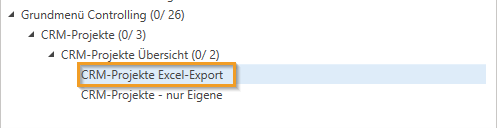
A new right has been added, which can be found under Rights Management -> CRM Projects -> CRM Projects Overview -> Export CRM Projects to Excel and only allows those with the right to export CRM projects to Excel. (Admins have the right to export the CRM project list by default. Other employees must now be explicitly assigned this right.)
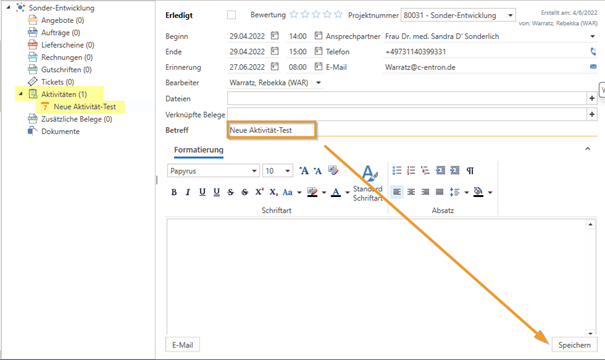
In the CRM project, you now have the option to edit the subject of an activity. The changes can be made by confirming with the Save button at the bottom right.
The option to set a threshold value for services has been integrated into the settings in the CRM area (under "Global Settings" -> "Sales" -> "Address Master" -> "CRM – Project"). If this value is exceeded, you will be prompted to either add an existing project to your quote or create and assign a new project.
JavaScript errors detected
Please note, these errors can depend on your browser setup.
If this problem persists, please contact our support.
%20(1).png)