%20(1).png)
Customer matrix
(WP 2020)
The customer matrix in c-entron.NET
Get a quick overview of which products a customer already has and the approximate utilization of these products.
Settings
Under Global Settings - Sales - Customer Matrix, categories and their products can be created in the "Customer Matrix Settings" area using the [New Category] and [New Product] buttons.
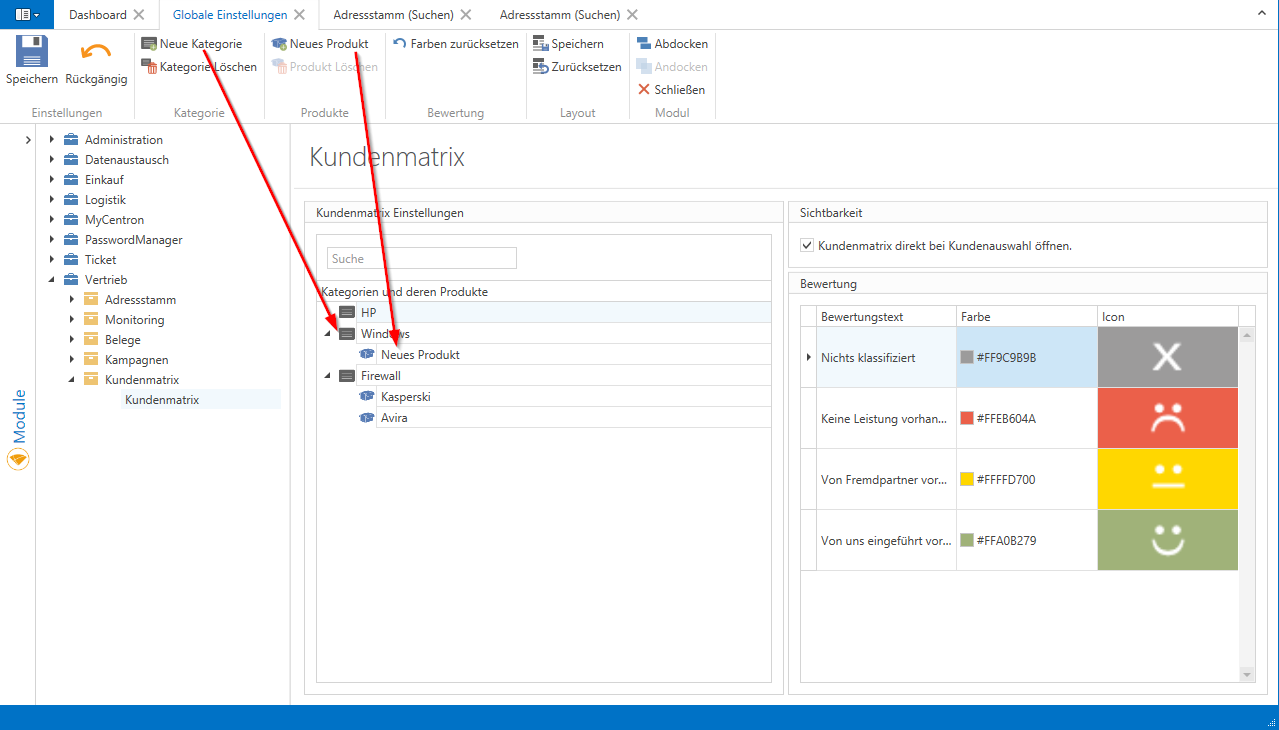
Several products can be created for a category (e.g., firewall, security, or infrastructure) and then saved by clicking [Save].
Using drag and drop, you can adjust the order of categories and move products to other categories, then save your changes.
When you delete a category, all products in it are also deleted, which is indicated by a message.
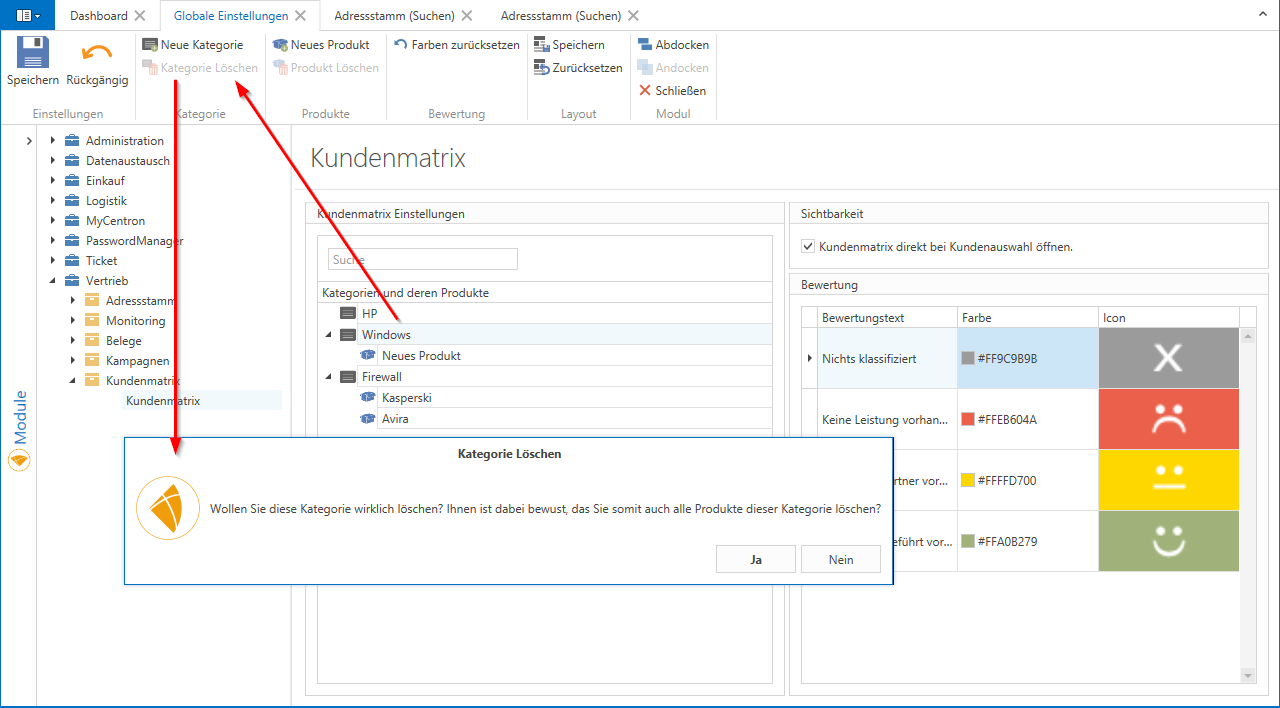
On the right-hand side under "Rating," you can only set the background color in which the products are displayed in the overview based on your rating.
These can also be reset to the default settings using the [Reset colors] button.
The customer matrix – overview of customers in the address master
When a customer is opened in the address master, the new customer matrix appears in the lower right corner
Overview showing the listed categories with a summary of the customer's rating based on rating smileys. A tooltip displays the product name and rating. If there are two open address masters and customers, the customer matrices must be distinguished by customer number.
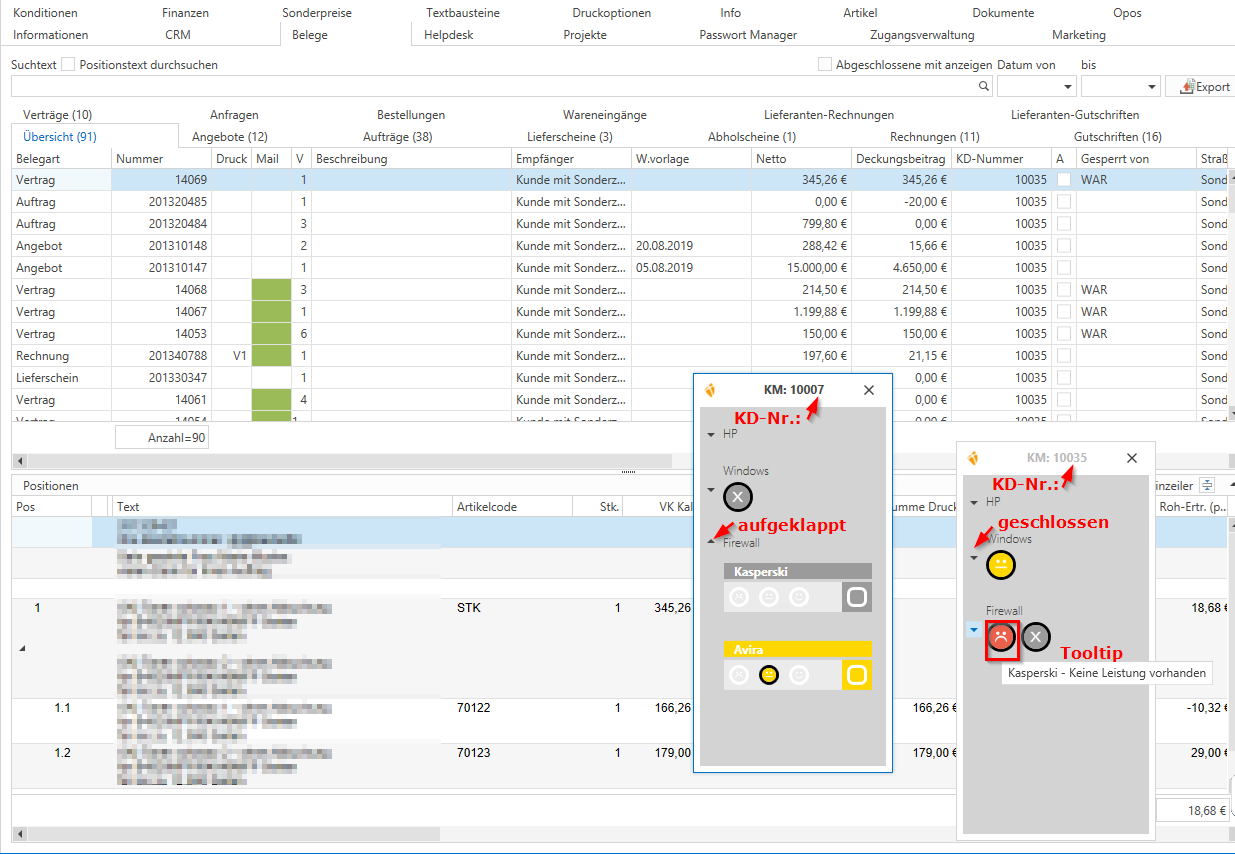
When the category is expanded, the products can be viewed in detail, and the background color and glowing smiley face make it easy to see the product's current rating among customers. The products are now released for rating and will be updated afterwards.
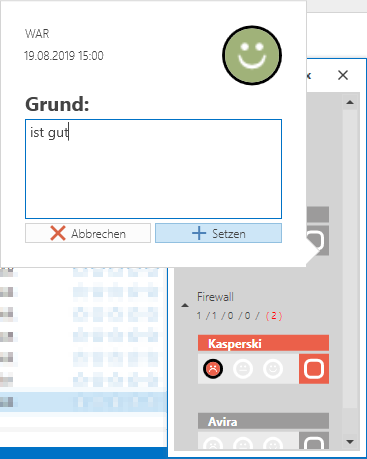
To evaluate the availability of the product at the customer's location, click on one of the smileys (depending on the availability of the product), enter a reason (optional), and confirm with [Set].
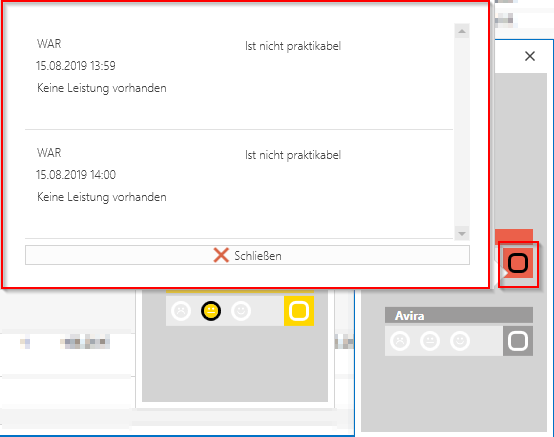
The course of the evaluations and the reasons entered by colleagues can be viewed by clicking on the History button (to the right of the smileys).
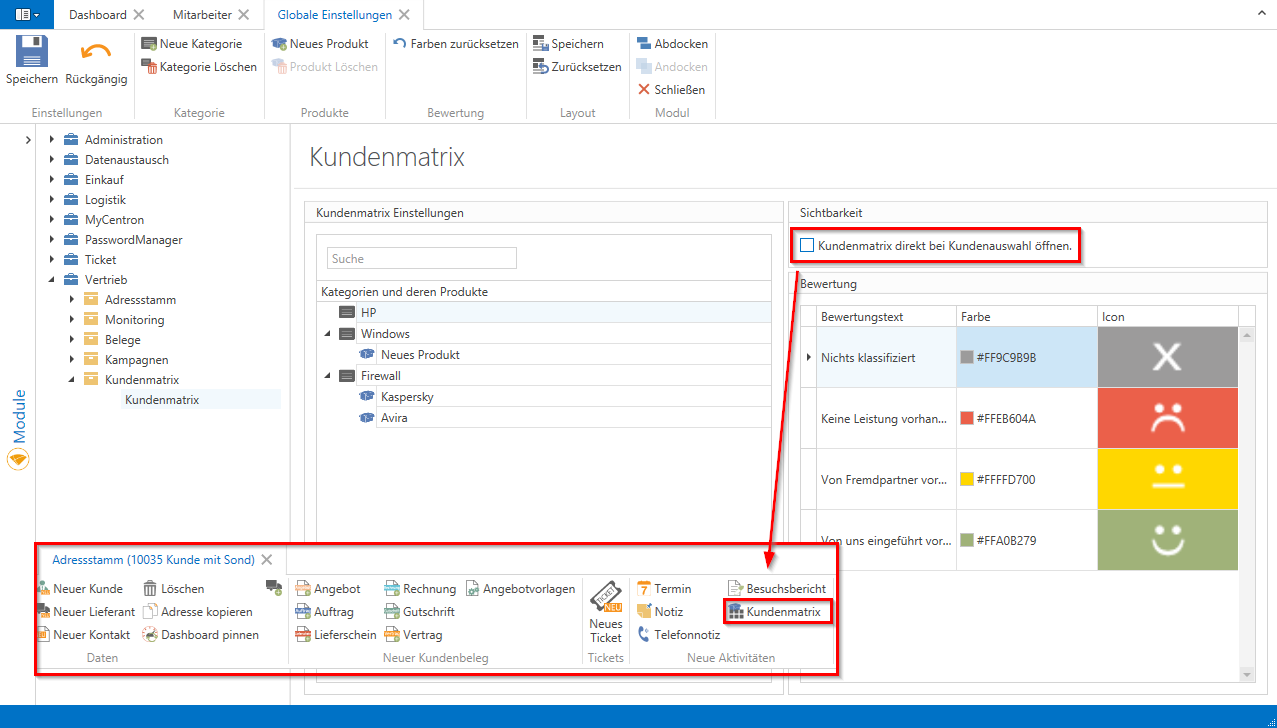
The customer matrix can be disabled globally in the settings for all customers so that it does not appear automatically when a customer is called up. If necessary, it can be activated in the customer via the [Customer Matrix] button.
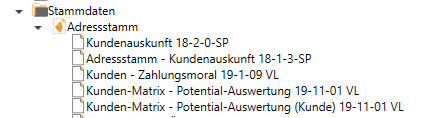
For evaluations, the reports "Customer Matrix – Potential Evaluation ..." and "Customer Matrix – Potential Evaluation (Customer) ..." are now also available in Report Management under Address Master after they have been downloaded from the Report Portal:
Evaluation using the advanced search:
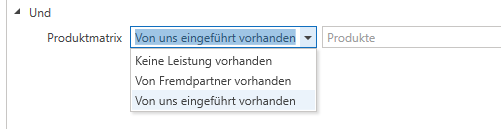
The product matrix can also be found in the advanced search:
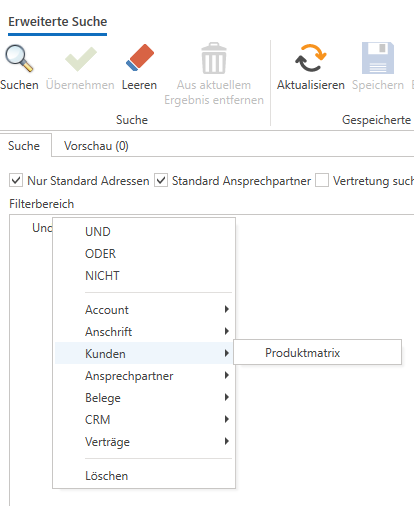
There, you can filter according to the criteria introduced, available from external partners, and introduced: