%20(1).png)
Datev Connect - English
DATEVconnect online
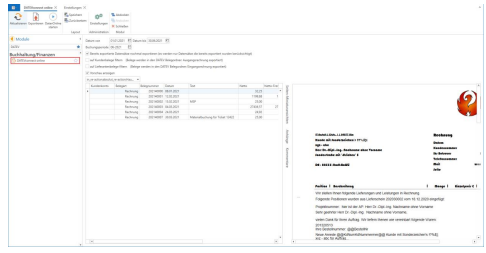
The "DATEVconnect online" module allows you to create .zip files from invoices for DatevOnline export. This requires the "Basic menu data exchange" and "Accounting export" rights.
In addition to the receipt PDF (receipt image), the .zip file contains two .xml files that contain the invoice data and the necessary assignments. Uploading the files to DatevOnline will NOT performed within the c-entron
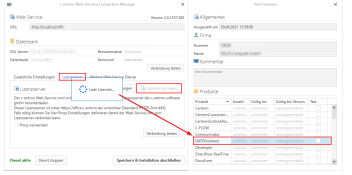
Licensed module DATEVconnect Online is a licensed module. To use it, you need the DATEVconnect Online license. (If you have any questions about this, please contact our sales team at sales@c-entron.de.) You can see which licenses are active or inactive via the c-entron Web Service Connection Manager
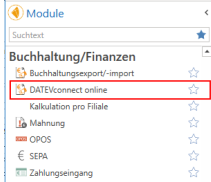
You can find the "DATEVconnect online" module in the modules under Accounting/Finance.
Rights
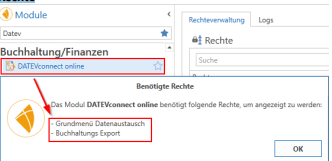
If this module is not displayed, please check whether your login has the required rights "Basic menu data exchange" and "Accounting export." To check these rights, please go to the rights management section and adjust them if necessary.
Settings
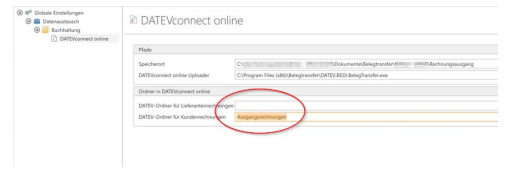
The necessary settings are made in the settings under Global Settings – Data Exchange – Accounting – DATEVconnect online. Storage location: Specify a directory where c-entron can store the ZiP files to be created. DATEVconnect online Uploader: If desired, enter the directory path of your BelegTransfer.exe so that you can call up the exe from the c-entron module. Folder in DATEVconnect online: Configure the DATEV internal directories for outgoing and, if applicable, incoming invoices. By default, these are called "Incoming invoices" and "Outgoing invoices." Please only use different names if you have configured your DATEV Online accordingly
The stored standard report is used for the preview.
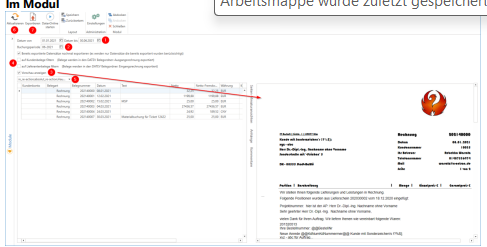
In the module, you can adjust the export period (1) and specify the booking period (2). You can also display a preview of the documents (3) and filter them by customer or supplier documents (4). Furthermore, the documents can also be restricted to branches (5). Once all settings have been made, press [Update] (6) at the top and start the export with the [Export] button (7). The .zip file is now stored in the folder specified in the settings and can now be transferred to DATEV.
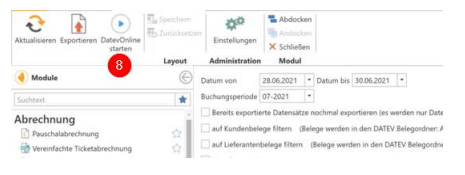
Now you can start BelegTransfer.exe to upload the data to DATEVonline. If you have specified the correct link under "DATEVconnect online Uploader," you can call up BelegTransfer.exe from c-entron using the "Start DatevOnline" button (7).
IMPORT to DATEVonline In DATEV document transfer, select the directories (9) where c-entron has stored the documents and from where you want to upload them.
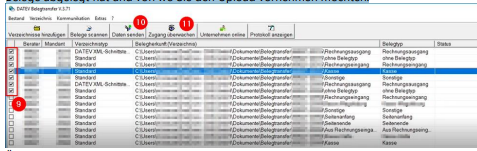
The Send data button (10) uploads the data and, if successful, also removes it directly from the export directory.
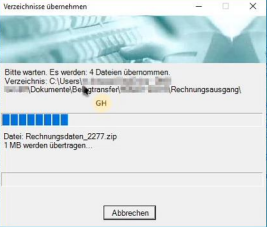
The "Monitor access" button (11) can be used to perform automatic uploads at regular intervals, i.e., BelegTransfer.exe cyclically checks the activated directories and uploads new files independently.
Now switch to your DATEVonline interface and refresh the home page.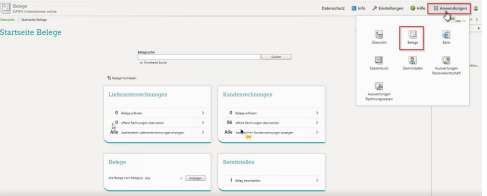
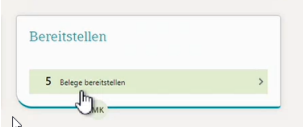
The uploaded documents will be listed there under "Provide."
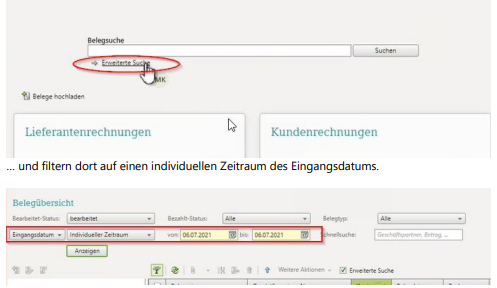
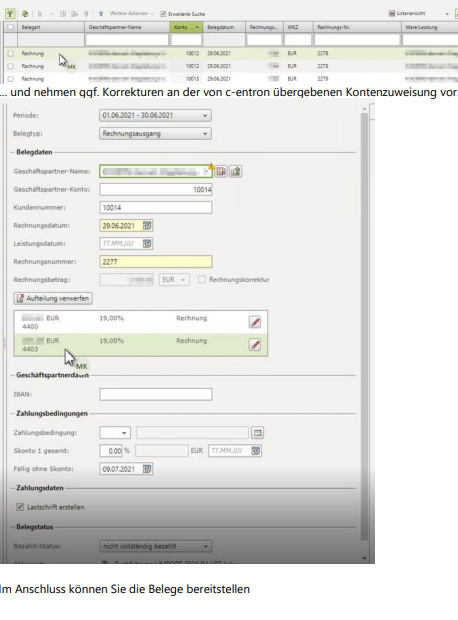
To check the default account assignment from c-entron, it is best to use the advanced search function
Select the desired invoice.
Change log:
Starting with version 2.0.2102:
In DATEV connect Online, the file is now exported to the document directory by default (found in Address master -> Open document -> Files)
• For outgoing invoices, the name is checked (the invoice number must appear in the name) and the data type (it must be a .PDF). The latest file that meets these criteria is then used. If no file meeting the criteria is found, an invoice is generated using the standard report and stored in DATEVconnect Online.
• For incoming invoices, the system checks whether there is more than one file available
if so, the user must select which one to export.
o If exactly one exists, it is used.
From version 2.02104.x:
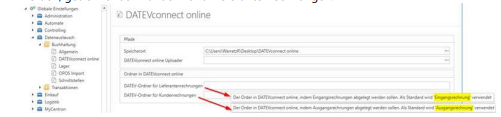
New settings have been created for DATEVconnect online (under Global Settings - Data Exchange - Accounting - DATEVconnect online). With these settings, you can specify in which folder the documents are to be stored in DATEV, separated by customer and supplier invoices
From version 2.02106.x:
In DATEVconnect, the field length for the posting text is limited to 60 characters, similar to the ASCII interface. Anything beyond that is now truncated