%20(1).png)
Receipt entry
In the "Document Entry" module, you can transfer additional incoming invoices (e.g., "fuel receipts," "travel expenses," etc.) to c-entron and transfer them to your accounting department via the accounting export of supplier invoices.
Requirements
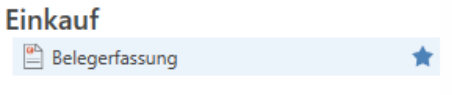
The "Document Entry" module can be found in c-entron.NET under the modules listed under Purchasing.
Rights:
The "Document Entry" module requires the following permissions to be displayed:
Basic shopping menu
Inventory
NOTE: You can always select "Right-click -> Show required rights" on the respective module. The rights required to display and start the displayed module will then be shown.
Settings:
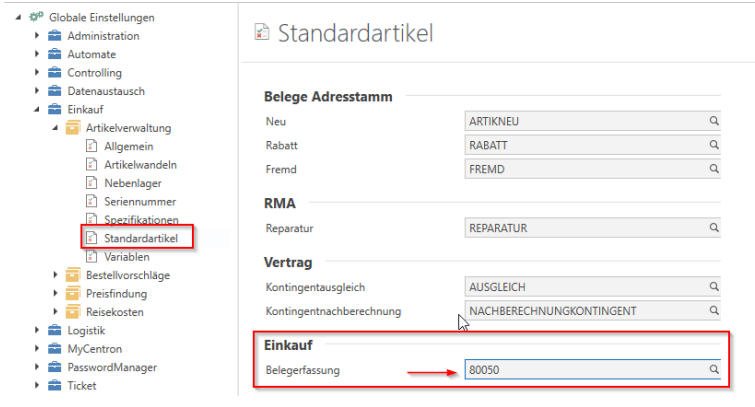
You must assign an item for "document entry" in the global settings under "Purchasing -> Item management -> Standard items." This item will then be used for all items on your incoming invoice.
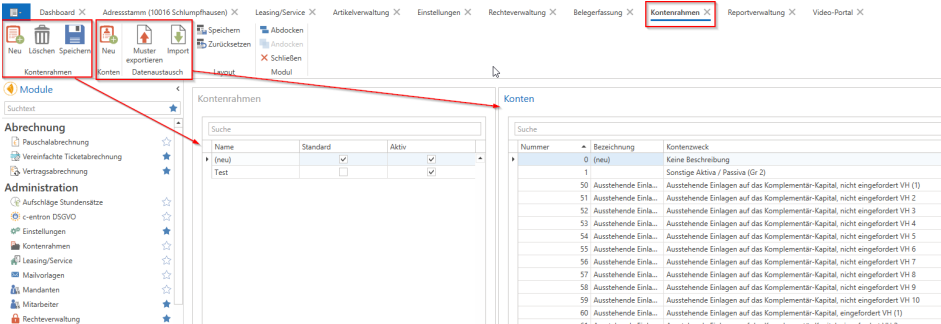
You must also have a "standard chart of accounts" stored. You can manage your charts of accounts from the document entry module using the "Chart of accounts" button.

Here you can right-click in the "Chart of accounts" field or use the button "New" create a new chart of accounts in the ribbon in the "Chart of accounts" area. Give it a name and set it as "Standard"now you can add the accounts you use or need to this chart of accounts. You can do this manually by clicking on "New" (in the "Accounts" area) or by importing an Excel file. You can create an Excel file for this purpose by clicking on "Export template." Currently, a template based on "Datev SKR 04" is created here. If you use this, you can generate this template file and then import it directly.
Using document entry
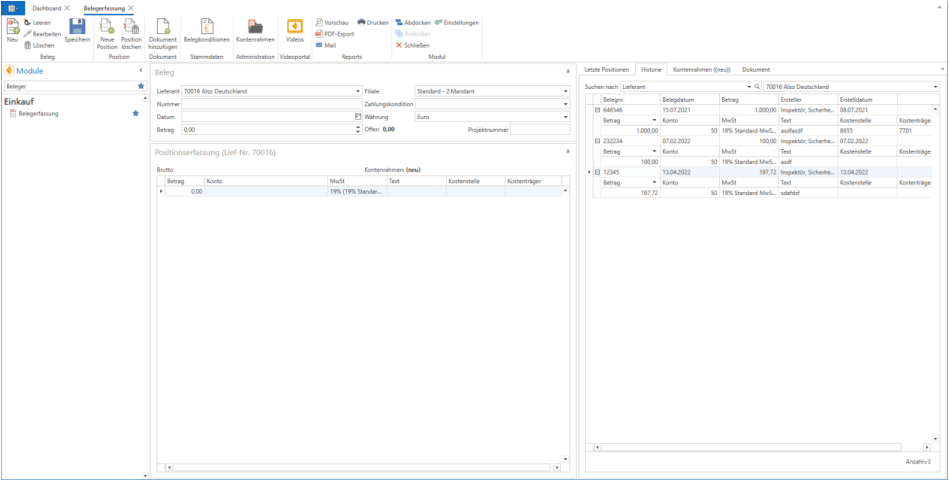
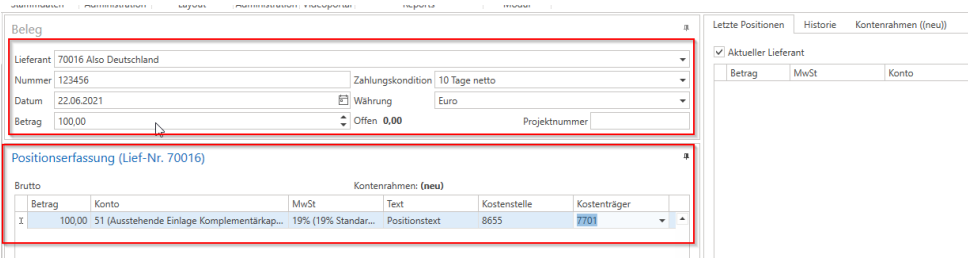
If you want to enter a new incoming invoice, click on "New" in the top left-hand corner of the document entry screen. Then select the Suppliers from which you want to enter and post this supplier invoice.
Enter the "Invoice number”
If you have stored a default condition for "Payment terms invoice" in the address master for this supplier under "Conditions" in the "Supplier" tab, this will be automatically preselected when you select this supplier. Otherwise, please select the desired Payment terms.
Then enter the Invoice date, which Currency and the Total gross amount and, if applicable, a Project number.
You can then enter the individual items below. Assign these to the respective Amount (always gross), which you desire for this purpose Account from your chart of accounts, which VAT (If none are available here, the required VAT rates can be created in the VAT management for the country of the respective supplier), which Cost center and the Cost bearer and enter under "Textenter the position text you want.
Once all items have been entered, the system checks when saving whether the total of all items matches the total gross amount in the document header. If this is not the case, the difference appears in the header area under "Open: xx,xx"in this case, please check the amounts for each item again and correct them. The document can only be saved once the "open" amount is 0.00, i.e., once the total amount has been completely divided up.
By clicking on "Savethis "supplier invoice" is now created, which you can find in the address master under "Documents" in the "Supplier invoice" tab ("Show completed" must be activated).
The item is inserted into each position for "document entry" and is assigned the values you have entered.

In the right-hand window of the document entry screen, you can select the "Last positionsdisplay the most recently entered items with the respective details that you last entered for this supplier.
In the History you can select the filter you want in the "Search for" field and, depending on the filter type, select the filter from a drop-down menu or enter it as free text.
In the "Chart of accounts" displays the accounts stored in your standard chart of accounts again.
