%20(1).png)
down payment module
Down payment module - Down payment invoices on behalf of the customer
In orders, it is now possible to use the new "Down Payment Invoices" tab to display an overview of existing down payment invoices and remaining amounts, as well as to create new down payment invoices from this overview. By clicking on the [Final Invoice] button in the menu bar/ribbon under Tools, all unprocessed items, delivery notes, and existing advance payment invoices are processed into a final invoice.
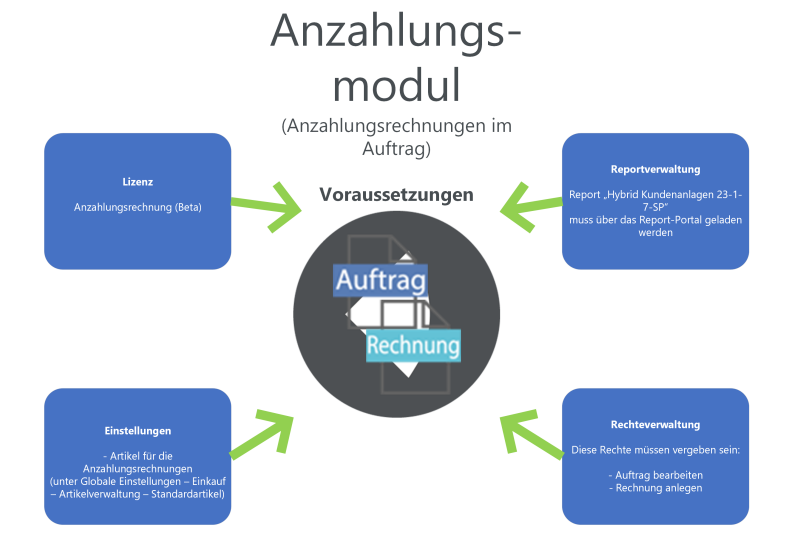
In order to use advance payment invoices, you should check the following points in advance, which we have listed for you as a checklist:
settings
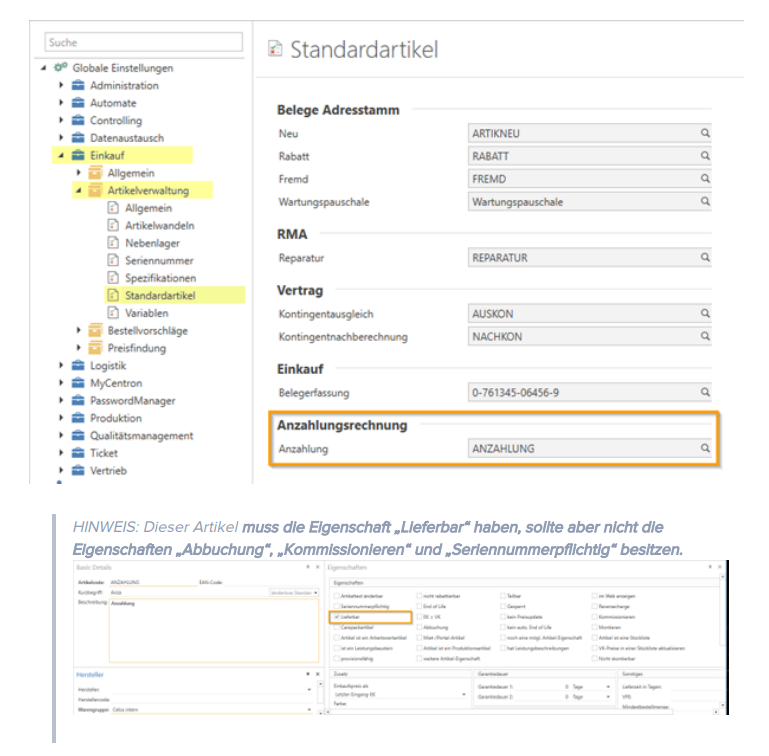
Has the item been stored for advance payment invoices in the global settings – Purchasing – Item management – Standard items?
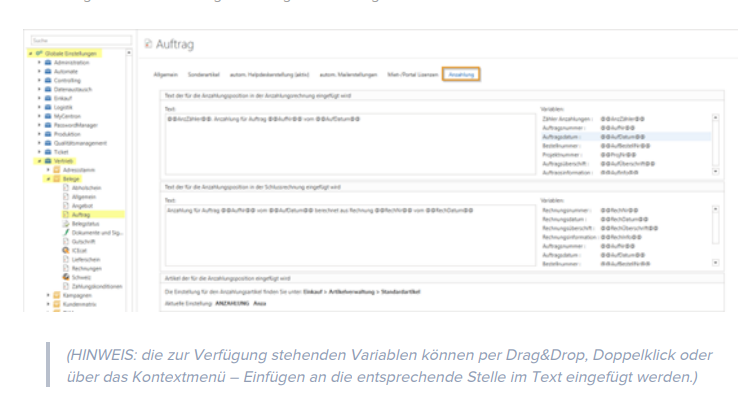
Has a text been stored for the down payment invoice/final invoice in Global Settings – Sales – Documents – Order in the "Down Payment" tab?
report management
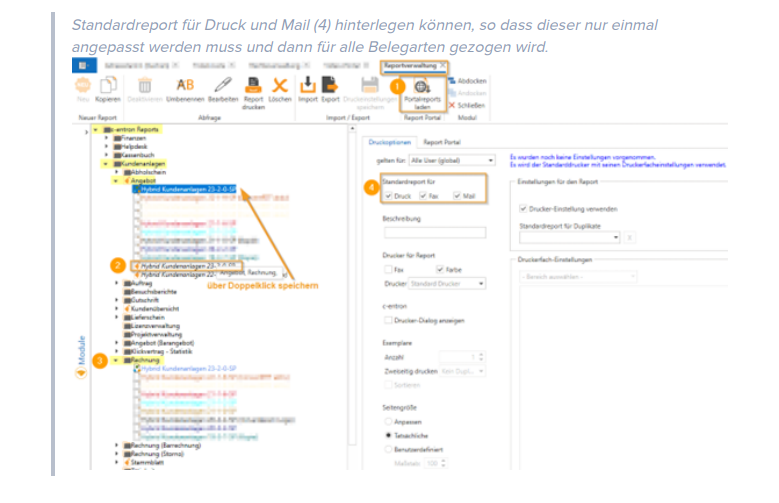
Has the new report "Hybrid Customer Installations 23-2-0-SP" been loaded via the report portal (usable from release v2.02306.x)?
NOTE:
New hybrid reports loaded via [Load portal reports] (indicated by the c-entron symbol) are ALWAYS stored in the Offers (2) report group. The "Hybrid Customer Systems 23-1-7-SP" is already available here, which you can then link to the other document types (using drag and drop with the [Alt] key) (3) and save as
rights management
Does the user have the rights listed below in rights management?
Process order
create invoice
address database
In the order overview, you can use the new "Down payment invoices" tab (1) to display an overview of existing down payment invoices and the remaining amounts.
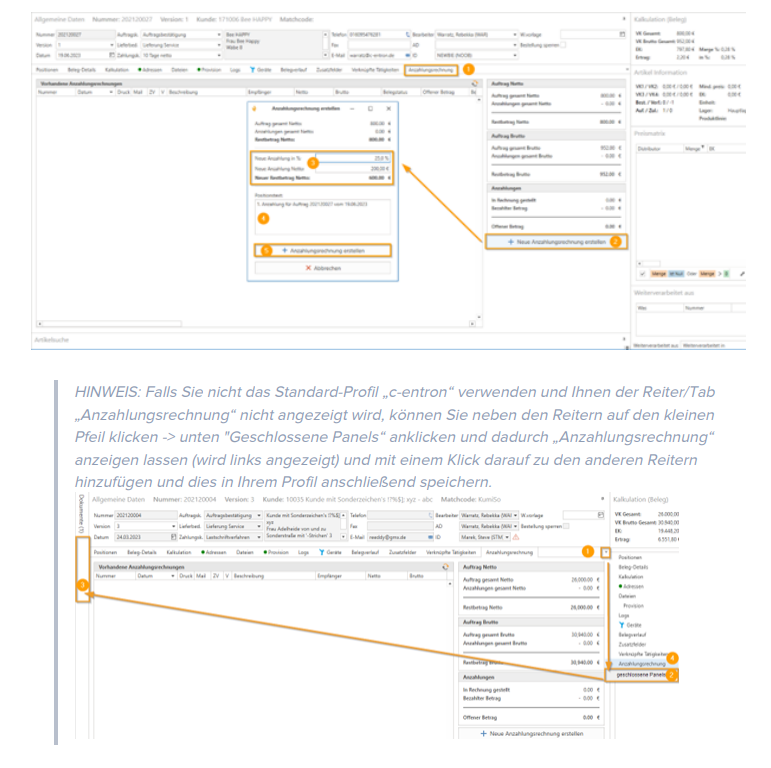
In this tab, you can also create new down payment invoices using the [Create new down payment invoice] button. (2)
A window/dialog box will now open in which you can enter the deposit as a percentage or amount (3). (The other value will be calculated automatically.)
The position text (4) now reads "1st down payment for order xy from (date of creation)". You can still edit this text at this point.
For further advance payments, the item text is pre-filled with "2nd advance payment for order xy from (date of creation)," "3rd advance payment for order xy from (date of creation)," which you can also customize.
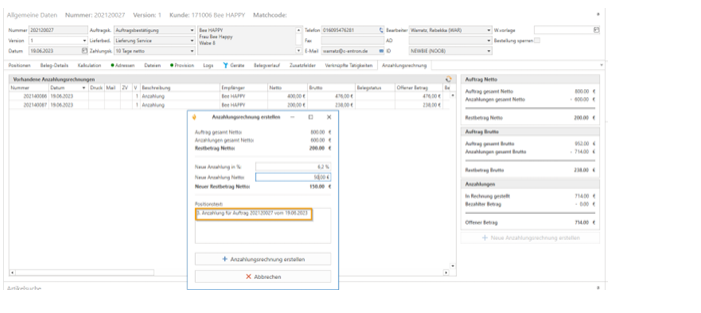
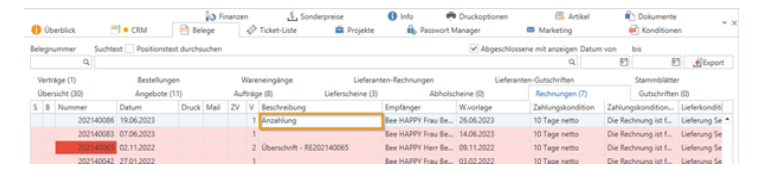
After clicking the [Create deposit invoice] button (5), an invoice is created that automatically has the heading DEPOSIT at the top (even if a heading already exists here).
This can be seen in the invoice overview in the "Description" column.
The down payment invoice is now generated automatically without opening the document. A waiting indicator has been added to inform the user about the progress during this process.
NOTE: The invoice can be opened directly from the order by double-clicking on the invoice in the overview of "Existing advance payment invoices."
The payment terms are transferred from the original order to the corresponding down payment invoice. If you attempt to create a new version for an existing down payment invoice, a warning message is displayed, as editing is not normally intended:

In addition, a warning message is displayed when an attempt is made to convert a delivery note into an invoice that originates from an order with down payment invoices. This warning serves to indicate that delivery notes are usually processed together with down payment invoices in the final invoice.

NOTE: If delivery notes are converted into invoices in advance, there is a possibility that the amount in the final invoice will be negative.
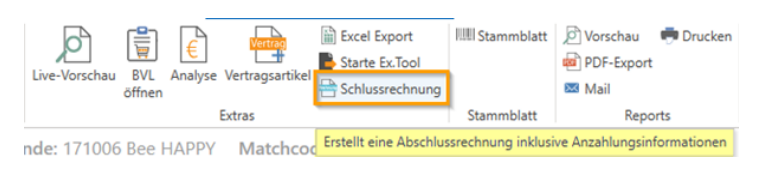
By clicking the [Final Invoice] button in the menu bar/ribbon under Tools, all unprocessed items, delivery notes, and existing down payment invoices are processed into a final invoice.
Keywords (internal): Pro forma, pro forma invoice, prepayment