%20(1).png)
Dynamic contract
Dynamic contracts / Dynamic contract data
If a contract stipulates that services and items are to be billed cyclically, with quantities and, in some cases, prices varying from one billing period to the next, this is referred to as a dynamic contract. The best example of this is the Office365 licenses you manage, which are billed monthly based on user numbers. Reliably tracking the respective consumption quantities and manually maintaining the quantities to be billed in the contracts before billing represents a considerable administrative effort and also harbors major sources of error.
To minimize this administrative effort, c-entron offers the option of importing contract data—i.e., the number of items and, if desired, the price—and billing the imported data.
Contract configuration and billing behavior
In principle, imports can be assigned to any existing contract and billed through it. However, for various reasons, it may be advisable to maintain and use a separate contract type for these transactions.
The main interactions to consider are those between billing conditions and billing items. The contract can be set with a fixed billing interval (e.g., monthly); if this is set, the contract will be billed monthly, even if the import for the respective contract has no data or if no imports or multiple imports have been made. If an import is still carried out, the data it contains will be billed in the following period – the period of use is identified via the import configuration (see below).
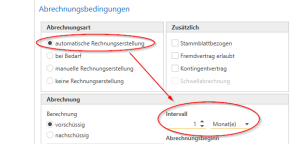
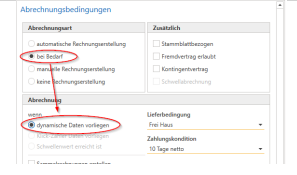
Requirement-based billing is often used in conjunction with the setting "if dynamic data is available." In this case, the contract is proposed for billing as soon as data has been imported. This can also be several times a month if multiple imports are made.
If you use multiple imports, you can wait until all imports have been completed and then settle them collectively.
If no data is imported for a contract, it will not be billed if demand billing is set.
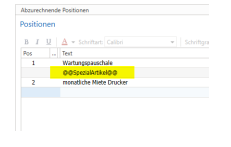
It is possible to bill additional, fixed services together with the import data. These are treated as usual, i.e., for each billing interval, the items from the contract positions are invoiced with the set quantity. If the contract is based on usage billing, additional positions are billed with each billing.By default, the imported data is inserted at the bottom of the list, i.e., after all free texts and other item positions. If you want the import data to be inserted at a different location, you can control this with the variable "@@SpecialItem@@". This can be inserted as a free text position at the desired location and is replaced by the import data during billing.
Data imports
C-entron offers two modules for data import: "Dynamic Import – Contracts" and "Static Data Import – Contracts." The functionality is very similar in both cases. Both import modules target the same database table and are billed in the same way.
Dynamic import – Contracts
Dynamic import involves receiving an xlsx file from a distributor that contains the data to be billed and configuring an import interface that matches the distributor's table structure. To do this, call up the interface management
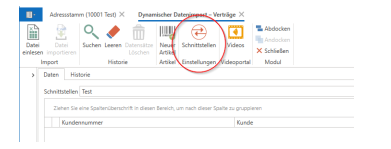
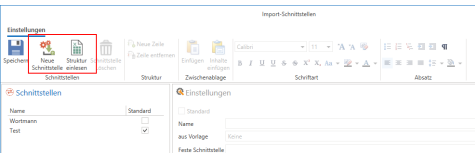
To set up a new interface, click the button, assign a name, and then import the table structure.
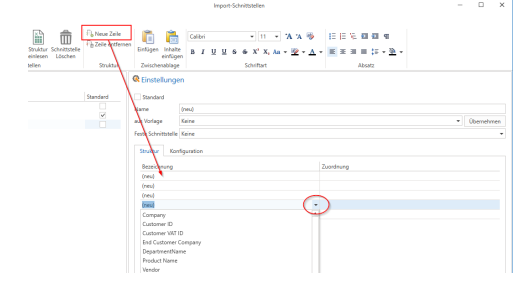
After importing, add the required number of new rows (corresponding to the required table columns) to the interface. Use the drop-down menu for each row to select the column name from the Excel table so that you can match it with the c-entron data fields in the next step.
Assign the c-entron data fields in the right-hand column using the drop-down menu.
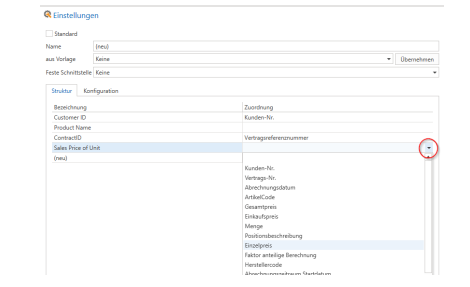
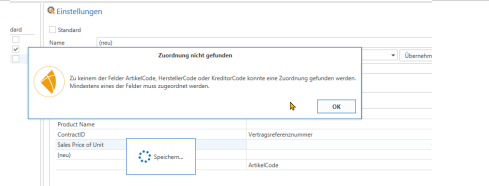
The c-entron will alert you to mandatory fields that you have not yet assigned when saving.
At least two values are required:
1. A c-entron customer number or a c-entron contract number
2. A c-entron item code or a manufacturer code maintained in c-entron. However, it makes sense to also import quantities
Once you have completed the matching process, switch to the "Configuration" tab.
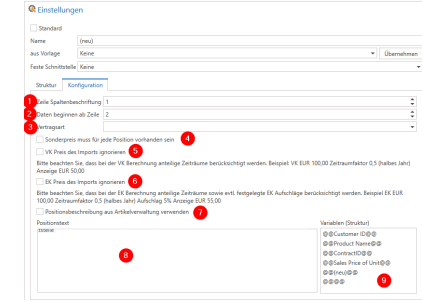
Specify in which row of the table the column labels can be found (this may be relevant before you import the structure) (1) and where the data to be imported begins in the table (2).
Ideally, you can maintain information with the distributor about which contract you want to use to bill the customer for the data, and you will receive a column in the import file in which this c-entron contract number is specified. This simplifies matching and also allows you to maintain several separate contracts for a (major) customer to which data is imported. If the distributor does not offer this option, you can select a contract type (3) for each interface to which data is imported. During import, c-entron will then search for the customer and their contract of the specified contract type using the customer number (mandatory field in this case) and assign the import data to this contract. In this case, the customer must have exactly one contract of the
targeted contract type. Do not select anything here if the contract number is maintained in the import list
There are three options available for the sales price to be used. By default, c-entron uses the sales price from the import that has been assigned to the c-entron "unit price" field. This price can be ignored and replaced with the item price from the c-entron item master (5), or it can be overwritten with a customer-specific special price (4)
For your own evaluations, it may be appropriate to overwrite the purchase price from the import with your purchase price from the article master (6).For the item description used in billing, you can also use the item description from the c-entron application (7) or configure the item text yourself (8) using the variables (9) created from the structure of the imported Excel table.
Once the interface has been configured and saved, it will be available for future use and can be used to read and import contract data. So, read in the Excel table. If errors occur as a result of the interface configuration and a mismatch with the table, the import module will display them on the right-hand side. In such a case, the import will be canceled and reset.
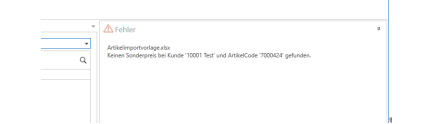
If the table was read without errors, the c-entron displays the read data as it would be imported and billed
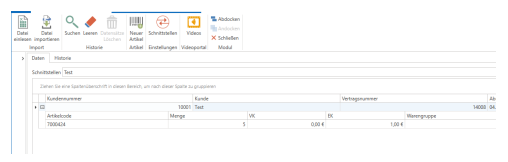
If you now notice an error (e.g., incorrect sales price), you must check the table and/or interface settings and re-import the data after making a correction. If the data is correct, you can import the file.
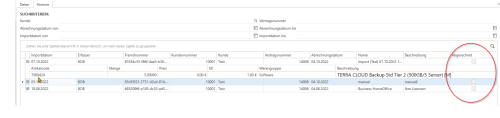
If you only notice an error after the import has been completed, you can identify the incorrect import via the import history, delete it via the context menu, and re-import the corrected data. If the import has already been invoiced, a credit note must be created
Static data import - Contracts
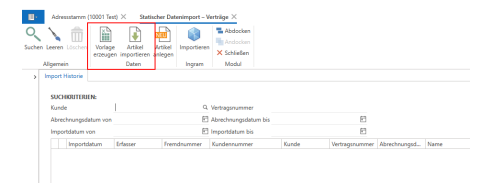
Unlike dynamic import, with static import the import table structure is not specified by the distributor, but by c-entron. You can create a template of the importable Excel table and enter the desired import data yourself. Do not change the format of the Excel table. The template contains two additional worksheets with explanations and examples