%20(1).png)
EGIS shopping cart via BVL
(available from v2.0.2405.x)
Two new functions have been integrated into the BVL, which can be accessed via the "New EGIS Shopping Cart" and "Display EGIS Shopping Cart List" buttons in the "Documents" section of the menu bar/ribbon in the BVL (order proposal list).

Note: These buttons will only be displayed when Settings in c-entron were made.
Features:
New EGIS shopping cart:

Clicking on "New EGIS Shopping Cart" creates a shopping cart for the selected items (marked) in the EGIS system. The shopping cart can then be processed manually or automatically in the EGIS portal, e.g., selection of the distributor, price optimization for the items in the shopping cart based on the available offers.
EGIS Show shopping cart list:

The "EGIS Shopping Cart List" button can be used to access shopping carts that have already been created in the EGIS portal. This function opens a dialog box in which all existing shopping carts are displayed. From the dialog box, it is possible to transfer the EGIS distributors to the BVL or delete the shopping cart in the EGIS portal by right-clicking (RMT).
Requirements and settings:
Requirements:
You need the EBC license (you the EBC license (EGIS Business Connector), which is used for content and article searches. You can obtain this license directly from SYNAXON/EGIS.
The article must be published in c-entron EAN code or Manufacturer code have deposited.
The article must be available at EGIS.
Settings in c-entron:
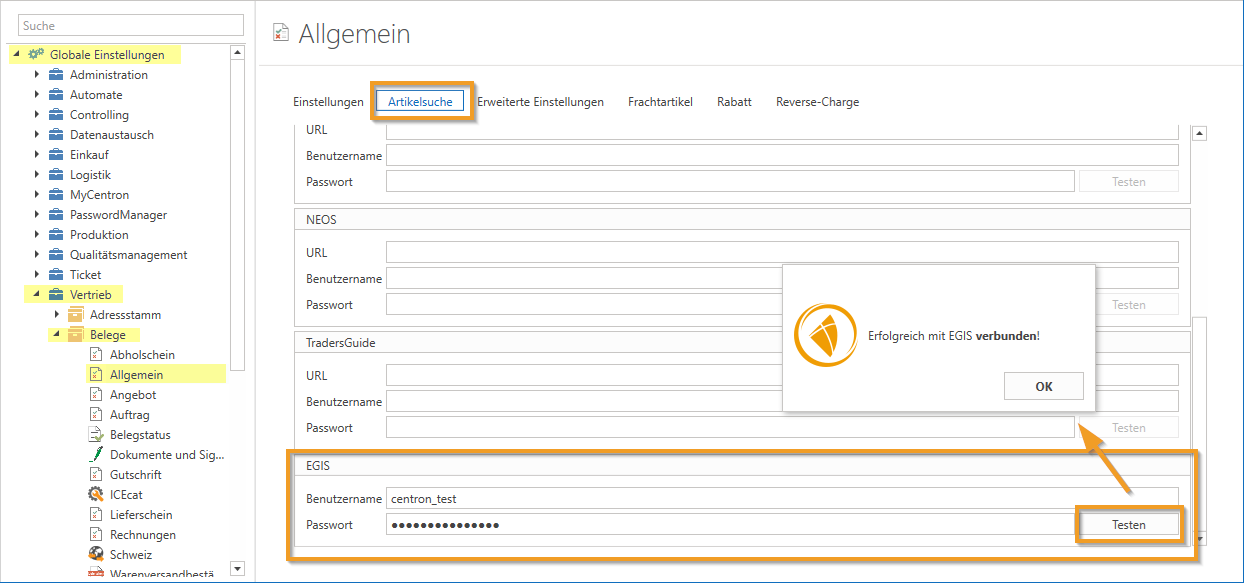
Open Global Settings → Sales → Documents → General.
Switch to the tab "Article search" and find the section "EGIS."
Wear the Username and that Password for EGIS access and save the settings.
About the button "Testing" you can check whether the connection to EGIS has been successfully established.
Workflow:
Creating an EGIS shopping cart:
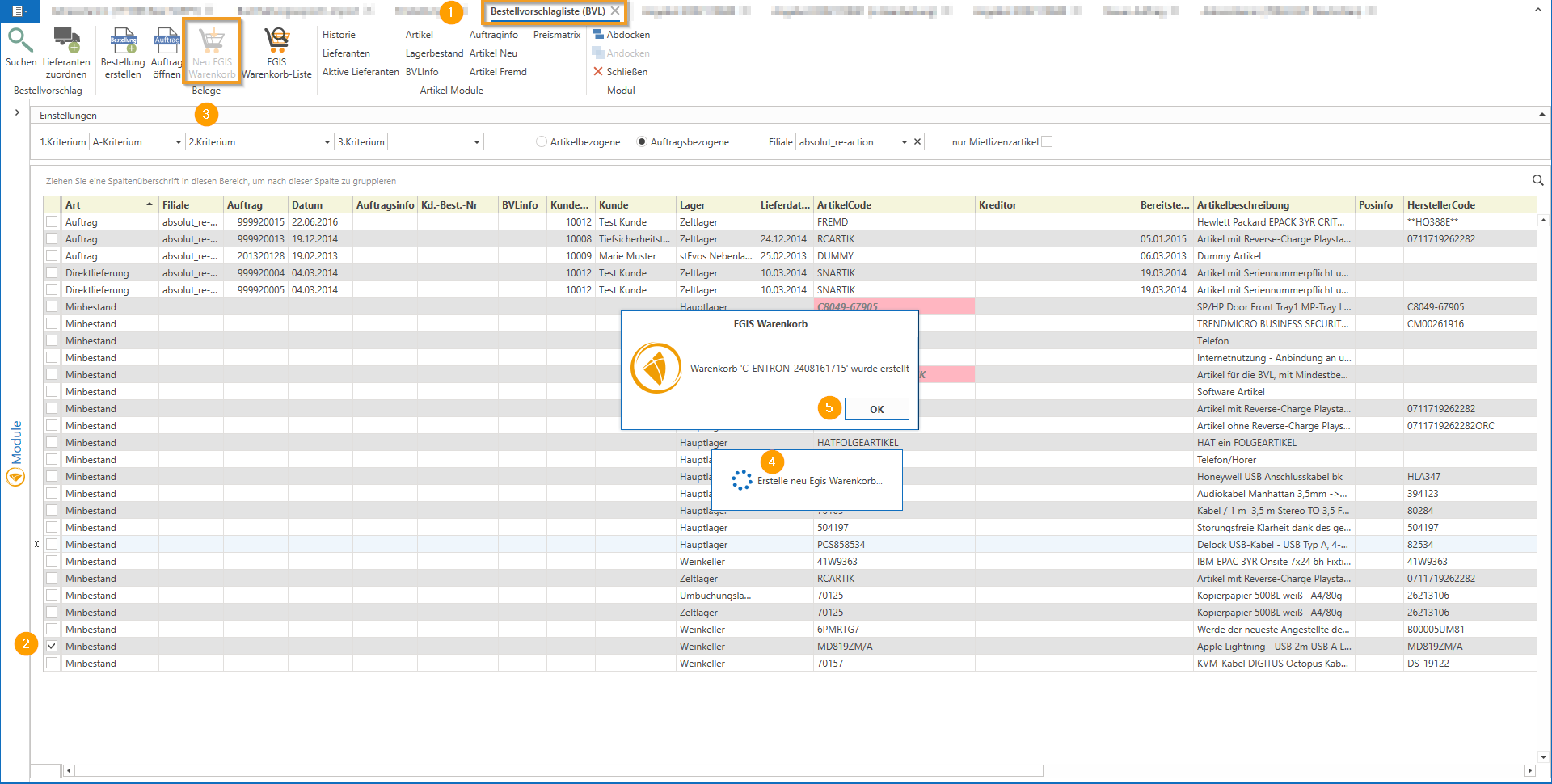
1. Open the Order suggestion list (OSL).
2. Select the desired items.
3. In the menu bar/ribbon, click on the button under "Documents." "New EGIS shopping cart."
4. A shopping cart is created in the EGIS system for the selected items. This shopping cart automatically contains optimized prices (as described in the note) based on the available offers.
5. Click "OK“
Optimization in the EGIS portal:
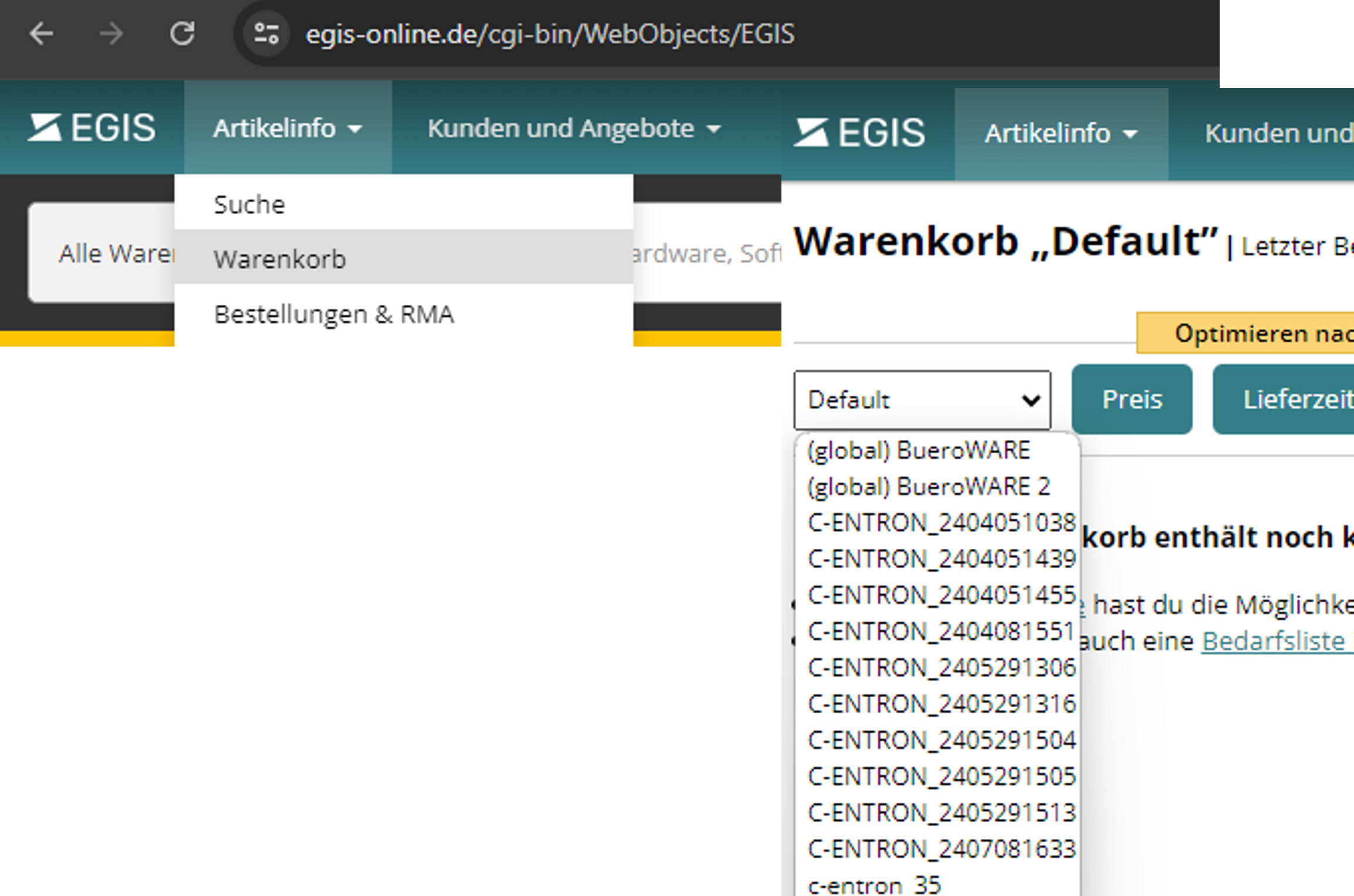
Navigate to the EGIS portal "Product information" and then on "Shopping cart."
Here you can view your shopping cart after Price, delivery time or Suppliers optimize.
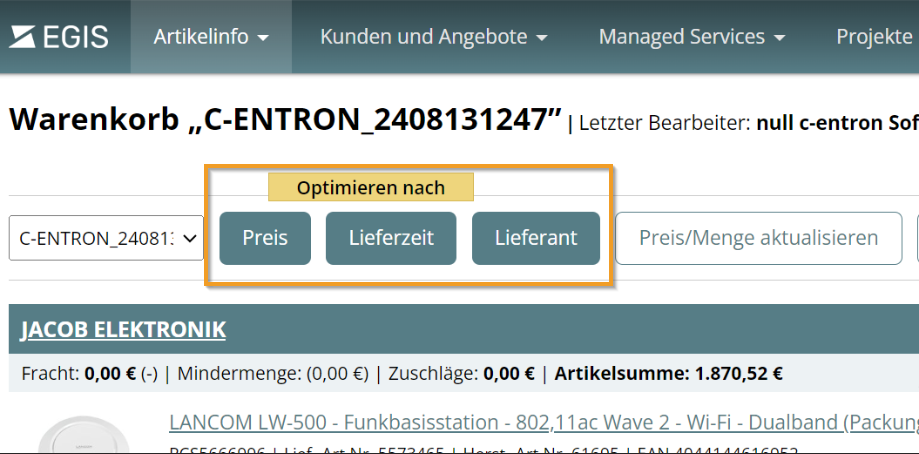
The optimized shopping cart can then be accessed via the function "Display EGIS shopping cart list" be read back into the BVL.
Note: Price optimization occurs automatically when transferring items. Further optimizations must be made directly in the EGIS portal.
When an order is placed via EDI, it is executed at the optimized conditions at the corresponding distributor.
Viewing and editing EGIS shopping carts:
Click on the menu bar under "Receipts" on "Display EGIS shopping cart list."
A dialog box opens showing all the shopping carts that have been created.
To transfer EGIS distributors to BVL, right-click on the desired shopping cart and select the option "Transfer distributor in BVL from shopping cart" from.
A window with the created shopping carts is now displayed. When a shopping cart is clicked, it shows the items with the EGIS data and the "Distributor" selection, as well as the c-entron data next to each item.
You can use the "EGIS Distributor" for all items in this shopping cart by right-clicking on the shopping cart with "Transfer distributor in BVL from shopping cart" take over. (Prerequisite: see "Additional information").
4. You can also use the "Remove shopping cartremove the shopping cart from the EGIS portal (a dialog box will appear, which you must confirm).
Additional information:
In the above example of item PCS1234839, which appears several times in the BVL, the EGIS shopping cart with the "Best Price" option shows the price of EUR 31.18 at Jarltech. The key factor here is that the distributor (1) suggested by EGIS, which offers this best price, is also created in your system and the "External supplier number from EGIS is stored. In addition, the vendor must be stored in the address master as "Manufacturer" be marked.
If these requirements are met, the distributor is correctly recognized (2) and automatically transferred to the BVL. Otherwise, neither the price nor the distributor can be stored or transferred in the BVL.
This function allows you to optimize the BVL directly ("on-the-fly") for the best price, even in the item-related view. A green smiley icon indicates when an item has been successfully optimized by the shopping cart import.
If an order is then created with these values and transmitted to EGIS via EDI, the order is placed at exactly the specified price with the relevant distributor.
Since this feature is new, there are still some inconsistencies due to software changes on both sides.
.