%20(1).png)
Employees - additional hiring options
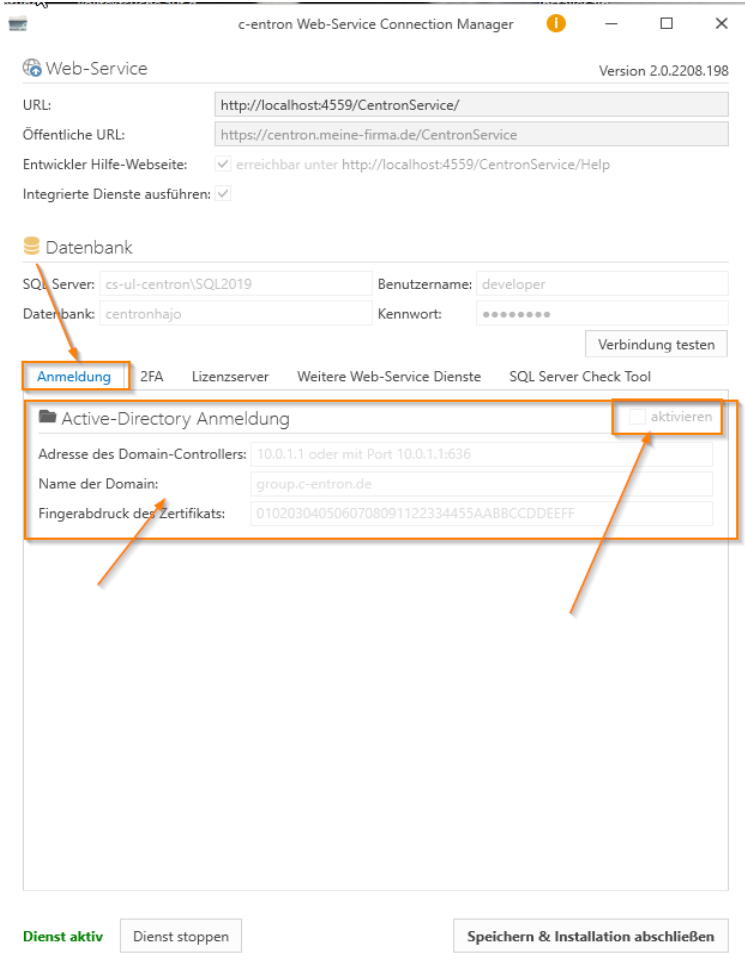
Use Windows authentication for the c-entron
You can configure the c-entron to control user login to c-entron products via Active Directory.
To do this, check the box for Windows authentication in the settings of the c-entron WebService Connection Manager under the "Login" tab.
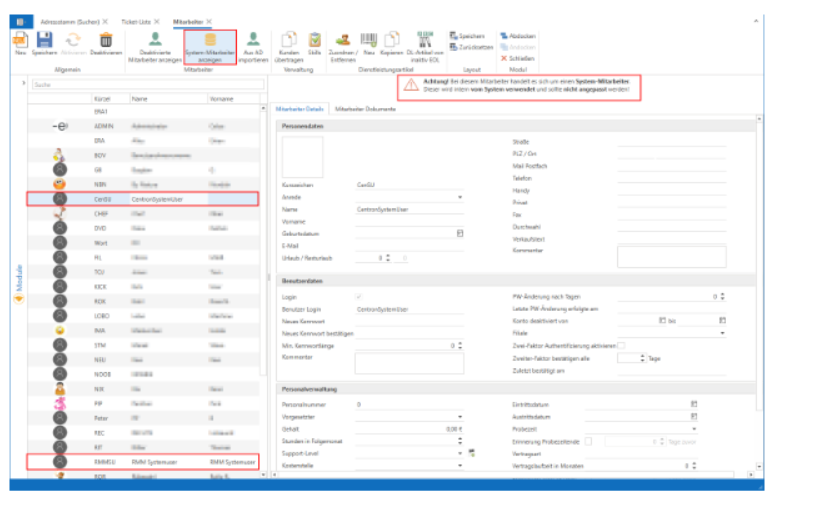
System users hidden by default in employee management
(from release 2.0.2203.x)
System users are used internally by the system and should not be modified.
System users are now hidden by default and can be displayed by clicking the [Show system employees] button. In addition, the message "Attention! This employee is a system employee. They are used internally by the system and should not be modified!" is displayed for system users, and the "Login" checkbox is deactivated.
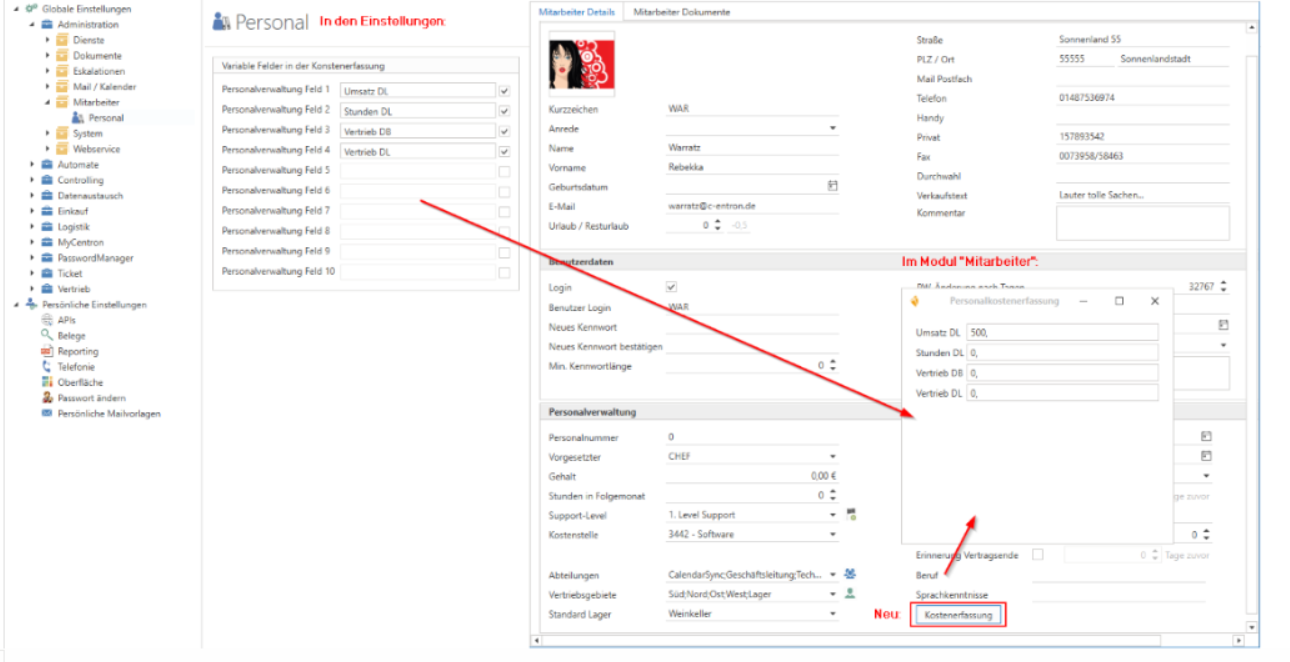
Personnel cost recording
In the Global Settings under Administration - Employees - Personnel, you can define the variable fields for cost recording and use the checkbox to decide whether these are displayed to the employee.
The [Cost Entry] button has been added to the employee management system so that these can now also be maintained.
Clicking on it opens a dialog box/window where the target values can be entered.
Sales territory management in the "Employees" module
·This is used to assign customers to employees.
·These employees can then only see and process certain customers.
·c-entron customers used this for branch offices or for external colleagues who only process assigned customer tickets or view or create quotes and invoices.
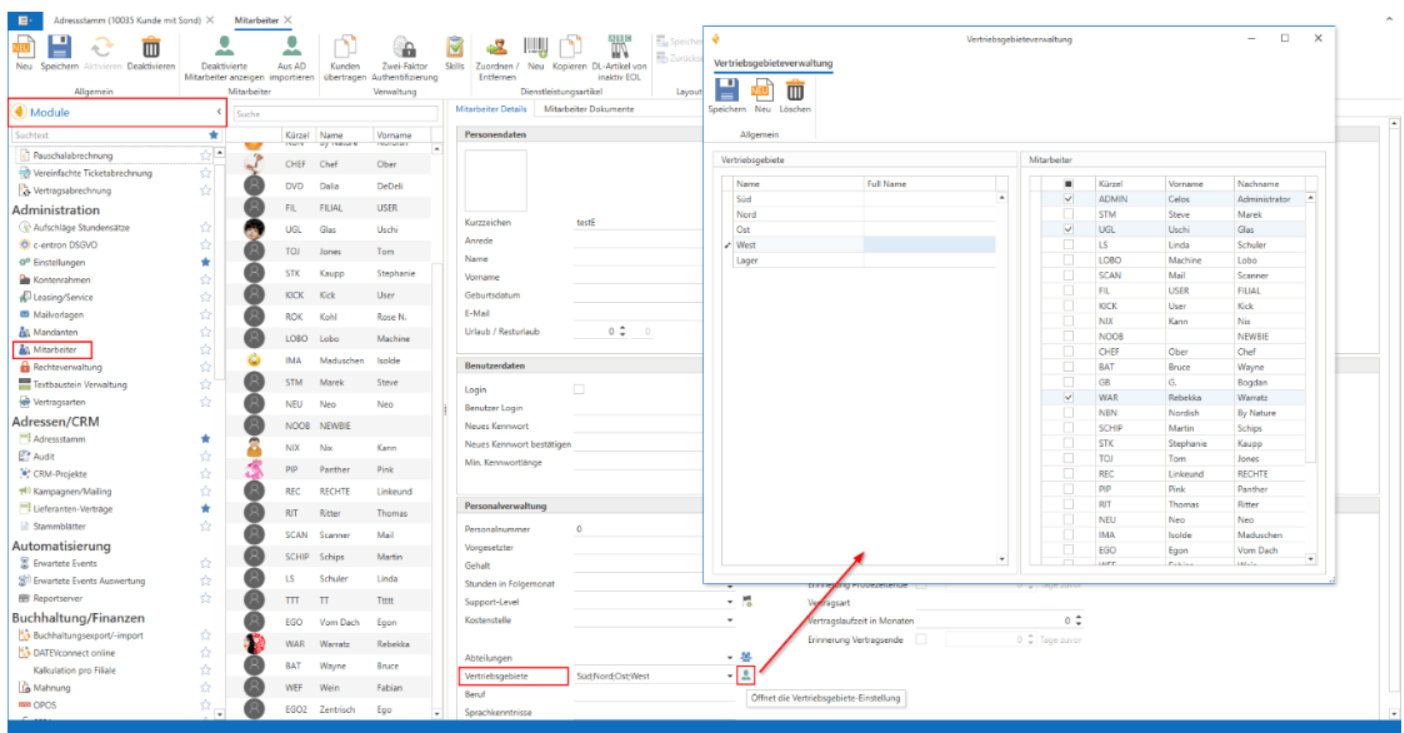
Manage sales territories
·First, adjust the sales territories in the "Employees" module under "Sales territories" in "Sales territory management." You can open "Sales territory management" by clicking the button behind the display of sales territories for any user.
·You can create, name, modify, and/or delete sales areas here as you wish using the [New] button and the [Delete] button.
·Then [Save]
Assignment of sales territories to employees
·To assign employees to a sales territory, select a sales territory and check the boxes on the right-hand side depending on which employees should have access to this territory.
(NOTE: The employee may only see customers who are assigned to the same sales territories. Only if the employee is assigned to "all" sales territories may they also see customers who are not assigned to any sales territory.)
·Then [Save]
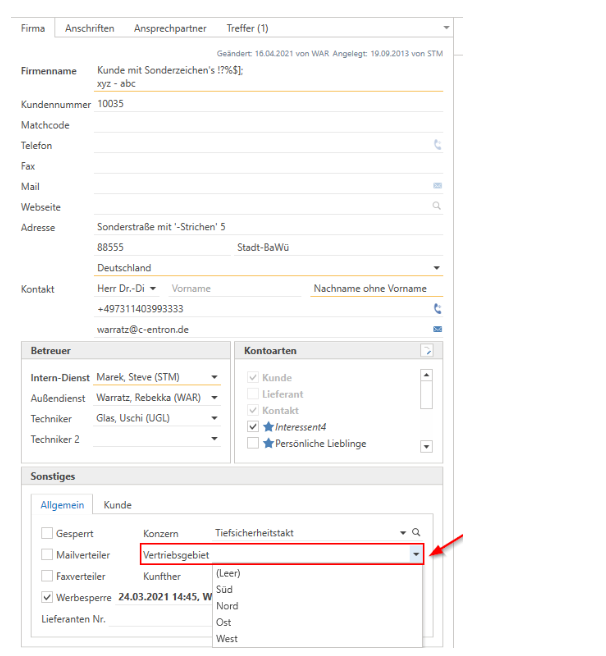
Allocation of sales territories at the customer's premises
·Go to the customer or address master
·Select the desired customer
·Under Other, select the desired sales area and save it
Done!
When the c-entron user logs in, only the assigned customers are displayed in the following modules
c-entron.Net
c-entron Service Board
c-entron Service Board Online
c-entron iSuite
c-entron Outlook Addin Pro