%20(1).png)
Escalation Server
(As of: April 2026)
Available as a subscription: Ultimate
Re:
⚙️ Administration
📦 Sales
💬 Support/Service
The "Escalation Server" module in c-entron enables the automatic monitoring and escalation of tasks based on due dates and priorities. By taking working hours and flexible escalation levels into account, the module is ideal for optimizing internal processes and reliably meeting service level agreements (SLAs).
Requirements
Licenses
The escalation server requires an active license for the add-on module.%20_%20Web-Service%20Version%202.0.2605..png?inst-v=f50ad907-06af-450f-af4d-3de914effef4)
Required settings
For the escalation service to work, the "Run integrated services" option must be enabled in the c-entron WebService.%20_%20Web-Service%20Version%202.0.2605..png?inst-v=f50ad907-06af-450f-af4d-3de914effef4)
Required permissions
The escalation server settings are accessible only to users with the appropriate administrative privileges (Main Menu > Administration > Settings).%20_%20Web-Service%20Version%202.0.2605..png?inst-v=f50ad907-06af-450f-af4d-3de914effef4)
Configuring Escalations
To ensure that the escalation server functions properly, under Global Settings → Administration → Escalations → Escalation Type the The "Escalations Disabled" property is not enabled be and must define active escalations, including:
- Working hours for the escalation calculation,
- Escalation levels with specified times for escalation.%20_%20Web-Service%20Version%202.0.2605.1614%20_%20.png?inst-v=f50ad907-06af-450f-af4d-3de914effef4)
How the escalation mechanism works
The escalation mechanism monitors a task's to-do list and ensures that an automatic escalation occurs once defined deadlines have passed. This escalation is based on the due date for tickets or similar criteria, such as follow-up dates for other task types. The escalation distinguishes between the person in charge (processor), the office staff member (IDM/ID), and the field staff member (ADM/AD), depending on the to-do entry and priority.
You can configure this setting under Global Settings → Sales → Documents → General:
%20_%20Web-Service%20Version%202.0.2605.1614%20_%20.png?inst-v=f50ad907-06af-450f-af4d-3de914effef4)
Establishment of escalation deadlines
The escalation time settings determine how many hours after the due date a task moves to the next escalation level. Once the escalation level is reached, a notification is sent to the designated recipients. Negative values can also be entered for the first escalation level to trigger an escalation before the actual due date.
Example of a standard escalation: A ticket with a "Standard" priority and a due date of November 14 at 11:00 a.m. will be escalated at 7:00 p.m. on the same day, given an escalation window of 8 hours.
Example of early escalation: A ticket with the priority "immediate" and a due date of November 14 at 5:00 p.m. will be escalated as early as 4:00 p.m. if the deadline is set to -1 hour.
Each subsequent escalation level builds on the previous one, ensuring continuous monitoring and escalation.

Note: For a priority to be displayed and configured in the escalation server, there must be at least one ticket with that priority; only then can that priority be escalated.
A new help desk escalation type can be created under "Ticket → Help Desk → Priorities" be deposited.
%20_%20Web-Service%20Version%202.0.2605.1614%20_%20.png?inst-v=f50ad907-06af-450f-af4d-3de914effef4)
Working Hours and Escalation Calculation
To prevent escalations from occurring outside of business hours, escalation times are calculated within specified working hours. These working hours define the periods during which an escalation is actively calculated and processed.
Examples of escalations during working hours:
A ticket with a "Standard" priority and a due date of November 14 at 11:00 a.m. would be escalated at 7:00 p.m. if the escalation window is set to 8 hours. However, if business hours are set from 8:00 AM to 6:00 PM, the escalation calculation pauses at 6:00 PM and resumes the next day at 8:00 AM. The escalation therefore occurs on November 15 at 9:00 AM.
You can also specify whether the escalation calculation should be active on weekends. This is controlled by the "Sat" and "Sun" options in the working time settings.
Configuring Escalation Emails
Specific recipients for notifications can be defined for each escalation level. The recipient groups and their settings are as follows:
The editor's supervisor: The supervisor is automatically assigned by the HR system and corresponds to the assigned user of the task.
Plant Manager: The operations manager's email address must be entered manually in the escalation settings.
%20_%20Web-Service%20Version%202.0.2605.1614%20_%20.png?inst-v=f50ad907-06af-450f-af4d-3de914effef4)
It is important to maintain the sender address for escalation emails to ensure that the messages are delivered correctly. The content of the escalation emails is included in the Email Template Management managed. These templates can contain various variables to dynamically adapt the message content to the specific process and recipients, thereby ensuring personalized communication.
%20_%20Web-Service%20Version%202.0.2605.1614%20_%20.png?inst-v=f50ad907-06af-450f-af4d-3de914effef4)
Database Trigger
The triggers “triToDoListeDel” and “triToDoListeEsk” must be enabled on the ToDoListe table (screenshot: MSSQL Management Studio):
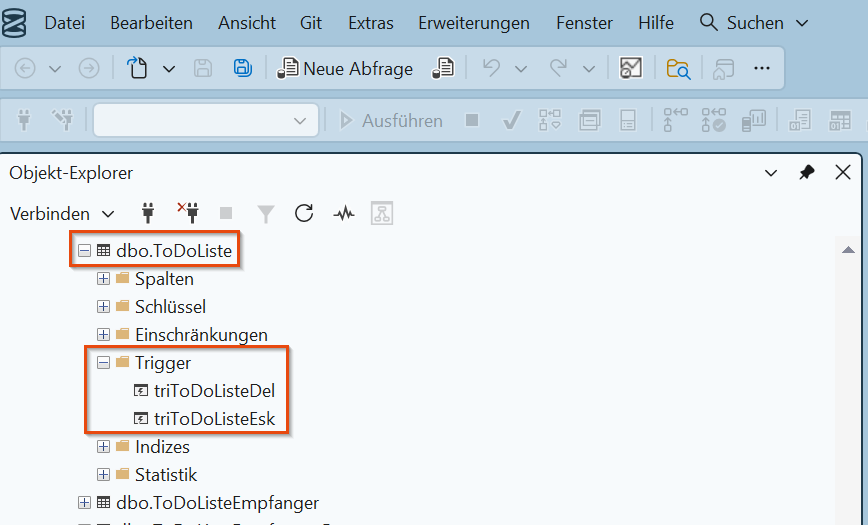
The "Escalations" table must contain the appropriate entries
SELECT * FROM EskalationenThese are generated by the triggers mentioned above
If there are no recent entries here because one or both triggers were disabled, you can "correct" this using the following script, for example:
UPDATE ToDoListe SET termin = termin +1 where Art = 4...and then this script from:
UPDATE ToDoListe SET termin = termin -1 where Art = 4This updates the schedule entries for the license reminders, and the trigger that is now active then creates the necessary entry for the escalations.