%20(1).png)
FAQs About the c-entron.NET Address Database
(As of June 2026)
Available as a subscription: Core · Pro · Ultimate
Re:
📦 Sales
⚙️ Administration
Question
What are the possible reasons why an account (customer/vendor/contact) or document cannot be found in the address master, the "Special Prices" tab does not appear, or a saved special price is not applied to the customer?
Short answer
In most cases, active filters, missing user permissions, sales territory assignments, or an incomplete saving process prevent accounts, documents, and special prices from being displayed or applied correctly. Carefully checking the search, permission, and save settings will resolve the issue.
Solution / Overview
1. Account (customer / supplier / contact) not found
Please check the following points:
- Is the checkbox for the account type you're looking for (or all three standard account types) checked?
%20_%20Web-Service%20Version%202.0.2605.1947%20_%20.png?inst-v=f50ad907-06af-450f-af4d-3de914effef4)
- In the "Results" tab: Are the checkmarks next to "Standard Address Only" and "Standard Contact Only" unchecked?
%20_%20Web-Service%20Version%202.0.2605.1947%20_%20.png?inst-v=f50ad907-06af-450f-af4d-3de914effef4)
- In the "Results" tab: Is the "Show only deactivated" checkbox selected (in case the account has been deleted)?
%20_%20Web-Service%20Version%202.0.2605.1947%20_%202.png?inst-v=f50ad907-06af-450f-af4d-3de914effef4)
- In the "Company" tab → "Miscellaneous" section → "General" field: Is the "Locked" checkbox selected (for locked accounts)?
%20_%20Web-Service%20Version%202.0.2605.1947%20_%20.png?inst-v=f50ad907-06af-450f-af4d-3de914effef4)
- In the global settings under "Sales → Address Master → General," have you checked the Migration Wizard, enabled any missing account types, and converted the data?
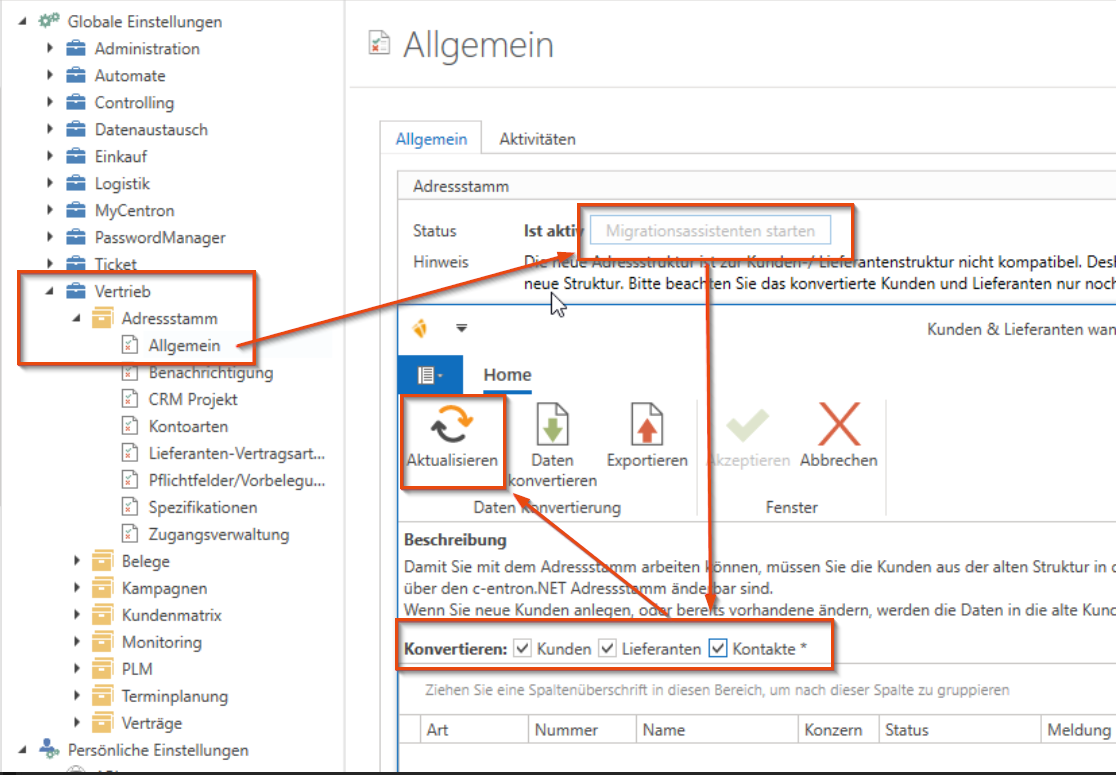

To do this, you must log in to c-entron.NET via a database connection.
- In Employee Management, under the "Human Resources" → "Sales Territories" section, was it verified whether the user in question is assigned only to specific territories?
%20_%20Web-Service%20Version%202.0.2605.1947%20_%20.png?inst-v=f50ad907-06af-450f-af4d-3de914effef4)
Note: If an employee is assigned to at least one, but not all, sales territories, only customers assigned to one of those sales territories will be displayed. Only if the user is assigned to all existing sales territories (or none) will customers who are assigned to “any” or “no” sales territory be found (in the address master for this customer under “Miscellaneous” in the “General” tab).
- Have you checked in the Rights Management section under "Main Menu: Sales → Customers → General Customer Settings" to see if the restrictive right "View only own customers" has been assigned to any of the user's rights groups?
%20_%20Web-Service%20Version%202.0.2605.1947%20_%20.png?inst-v=f50ad907-06af-450f-af4d-3de914effef4)
2. Document not found
Please check the following points:
- Are there any active filters set in the document window (Search text (1), "Show completed" (2), Date from/to (3), Range filter (4))
), which filter out the document I'm looking for?
__%C2%AF%20_%20Microsoft%20Teams.png?inst-v=f50ad907-06af-450f-af4d-3de914effef4)
- Is the number of documents displayed higher than the actual number of documents? (Note regarding restrictive law)
%20_%20Web-Service%20Version%202.0.2605.1947%20_%20.png?inst-v=f50ad907-06af-450f-af4d-3de914effef4)
- Has the rights management system checked whether either of the restrictive rights—"only own" or "only own branch"—is active for the user in question?
%20_%20Web-Service%20Version%202.0.2605.19.png?inst-v=f50ad907-06af-450f-af4d-3de914effef4)
3. The "Special Prices" tab is not displayed
For the "Special Prices" tab to be visible in the address master, two conditions must be met:
- Is the account being accessed a customer (not a supplier or contact)?
- Does the user have the "View Customer Finances" permission in the permissions management section?
%20_%20Web-Service%20Version%202.0.2605.19.png?inst-v=f50ad907-06af-450f-af4d-3de914effef4)
4. Special prices for customers are not saved
Special prices use their own storage mechanism:
- After configuring the special price, was the checkbox at the end of the row checked?
- Was the special price explicitly saved using the checkbox—and not just saved as part of the account in general?
%20_%20Web-Service%20Version%202.0.2605.19.png?inst-v=f50ad907-06af-450f-af4d-3de914effef4)
Background

The c-entron.NET address master features a multi-level permissions and filtering system: Account type checkboxes control which account types are visible during a search. Sales territory assignments in employee management limit the displayed customers to the territories assigned to the user—only users assigned to all or no territories can view accounts without a territory assignment. Restrictive permissions such as “view only own customers” or “view only own branch” in permission management further limit the display to personally managed accounts and documents. Special prices are managed in a separate line cache and require explicit confirmation via the line checkbox—general account storage does not automatically handle this.
Common Mistakes
Common causes or misunderstandings include:
- The "Account Type" checkbox is not selected – the account is maintained under a different type (Vendor, Contact)
- Active filters (date, search text, range) limit the display of documents or accounts
- The user is assigned only to specific sales territories—accounts in other territories are hidden
- The restriction "view only own customers" is active – only customers managed by the user can be found
- The "View Customer Finances" option is missing – the "Special Prices" tab is permanently hidden
- Special price not confirmed via the checkbox – only the account was saved
Tip
When troubleshooting issues in the address master, it is advisable to proceed systematically: first check the account type checkboxes and active filters, then the sales territory assignment in Employee Management, and finally the restrictive permissions in Permissions Management. This allows you to quickly narrow down the cause without having to check all areas at once.
Related Topics
Address Master Settings and Permissions Management – see the system documentation