%20(1).png)
inventory
training manual
To carry out the inventory
As of November 7, 2025
Table of Contents
requirements
basic requirements
Reports
Database backup
checklist
Conducting the inventory
Create new inventory
Create groups
Evaluate orders
Count items
Complete inventory / partial inventory
Check before performing the inventory
Perform and complete inventory
1. Requirements
a. Basic requirements
Current version of c-entron.NET
SQL Server 2019 or later
b. Reports
Which reports do you need for inventory?
In c-entron.NET, you can download the latest reports via the Report Portal.
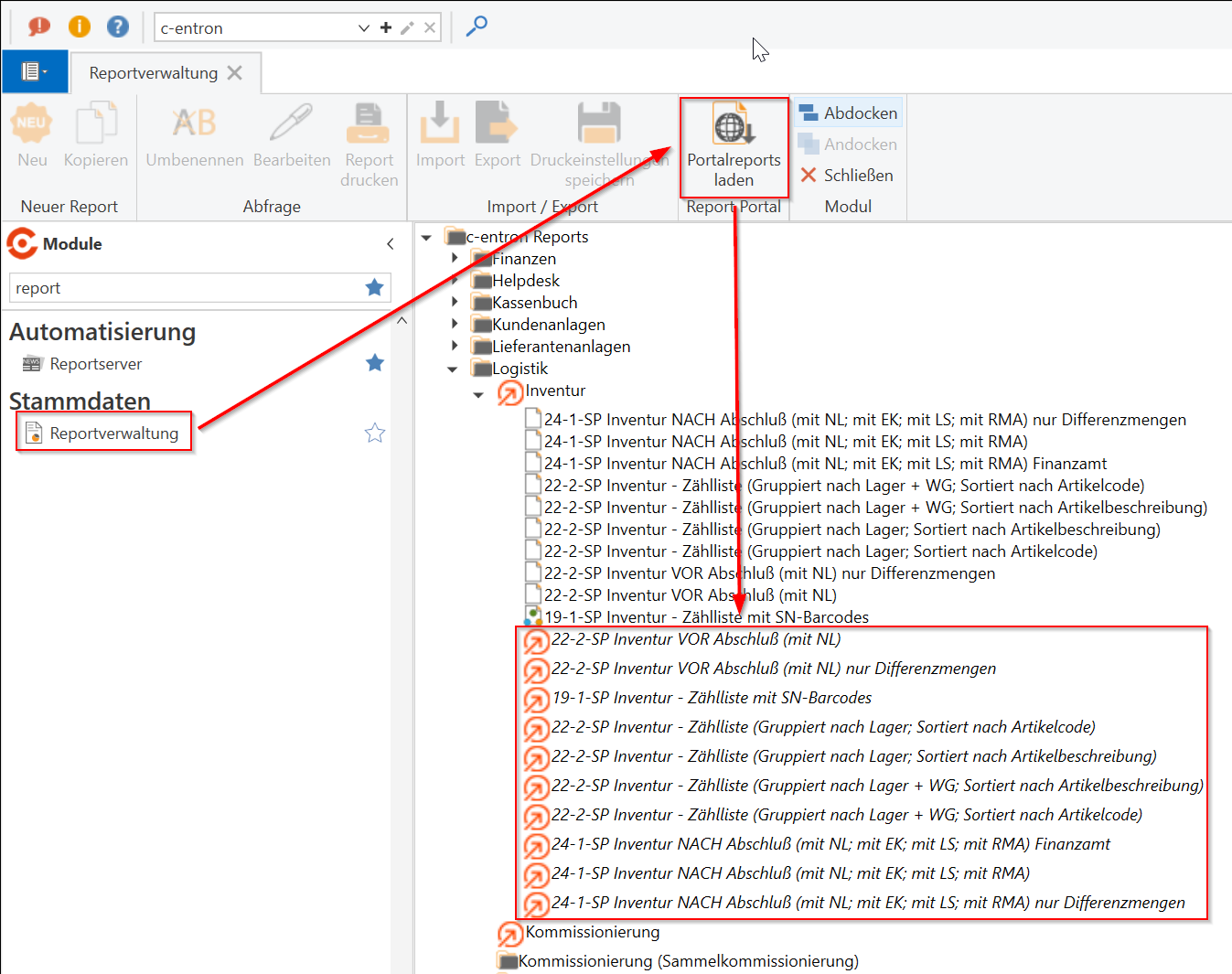
Please note that older reports may no longer work with the current version.
c. Database backup
Create a database backup (PLEASE NOTE: an inventory cannot be undone) and check that it is functional, e.g., by reimporting the backup as a "test database."
Before the inventory can be performed, you will also be asked whether you have created a database backup.
Recommendation: It would be best to create a backup once all items have been counted.
2. Checklist
basic requirements
☐ Is the current version of c-entron.NET installed?
☐ Is the SQL Server on which the c-entron database is set up 2019 or later?
☐ Were the inventories corrected in advance, if necessary?
☐ All required reports are imported into c-entron.NET.
☐ 22-2-SP Inventory BEFORE closing (with NL)
☐ 22-2-SP Inventory BEFORE closing (with NL) only difference quantities
☐ 19-1 -SP Inventory - Count list with SN barcodes
☐ 22-2-SP Inventory - Count list (Grouped by warehouse; Sorted by item code)
☐ 22-2-SP Inventory - Counting list (Grouped by warehouse; Sorted by item description)
☐ 22-2-SP Inventory - Count list (Grouped by warehouse + WG; Sorted by item description)
☐ 22-2-SP Inventory - Count list (Grouped by warehouse + WG; Sorted by item code)
☐ 24-1-SP Inventory AFTER closing (with NL; with EK; with LS; with RMA) Tax office
☐ 24-1-SP Inventory AFTER closing (with NL; with EK; with LS; with RMA)
☐ 24-1-SP Inventory AFTER closing (with NL; with EK; with LS; with RMA) only difference quantities
☐ Was a database backup created BEFORE creating the inventory?
☐ Has the database backup been tested, e.g., by importing it into a test environment?
The inventory
☐ Has a new inventory been created in c-entron.NET?
☐ Have all the necessary groups been created for all the warehouses to be considered?
☐ Have all items been recorded by/under the respective groups?
☐ Recommended: Was another backup of the database created after all items were recorded and before the inventory was carried out?
☐ Before [performing inventory], the plausibility of the recorded items was checked in the overview of the "Inventory" module (quantity, expected, and difference plausible?). If necessary, also with the report "Inventory before completion with difference quantities"?
☐ Has it been clarified whether a partial inventory or a complete inventory should be carried out?
☐ Have all desired warehouses been counted and selected before [Performing inventory]?
☐ After [Performing inventory], are all items marked as "Completed" in the overview?
☐ Was the inventory completed by clicking [Finish inventory]?
Conducting the inventory
1. Create new inventory
Create a new inventory by clicking on "New inventory" and give it a meaningful name.
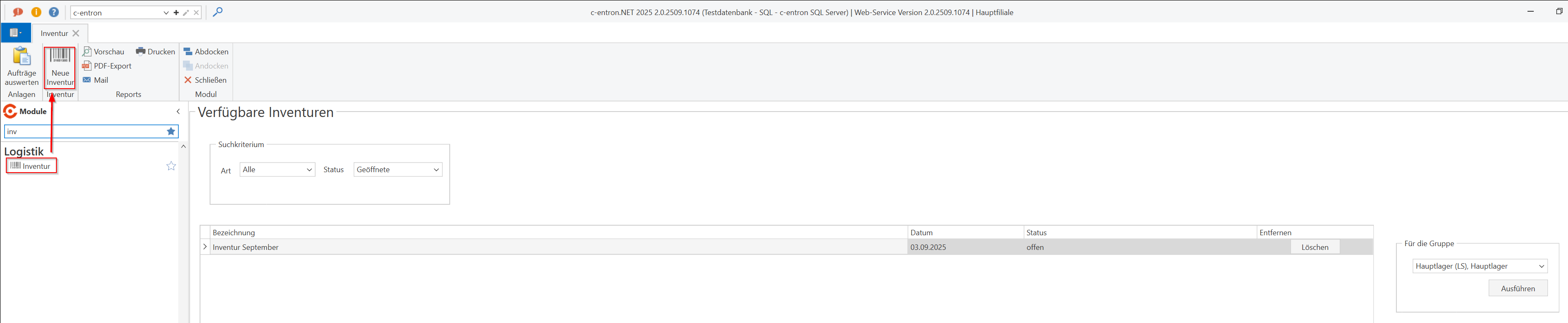
Please note that during inventory, no stock entries may be made via delivery notes, collection notes, goods receipts, invoices, credit notes, or goods receipt calculations.
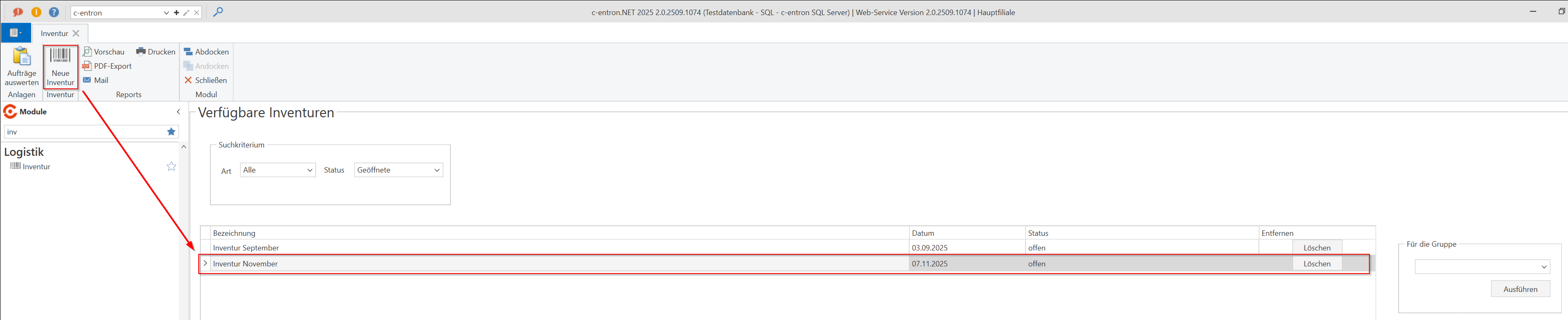
2. Create groups
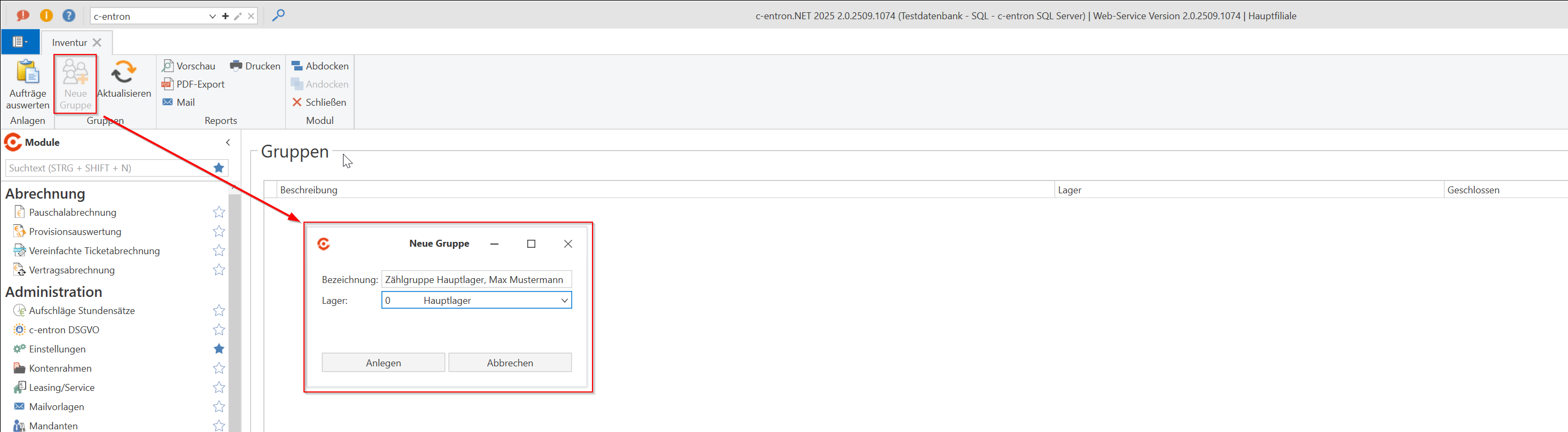
Open the inventory with a double-click and store groups there.
We recommend creating at least one group per warehouse. For a better overview, enter the abbreviations of the employees who are to carry out the inventory in the description (e.g., main warehouse inventory - XYZ-ZYX).
You can create as many groups as you like for each warehouse.
3. Evaluate orders
Using the "Evaluate orders" function, you can transfer open orders with goods that have already been picked directly to inventory.
Select all relevant orders and then click on "Update."
Please note, however, that the goods should be stored separately to prevent double counting.

Separate groups are listed in the inventory for the evaluated orders.
4. Count items
Select a group, either by double-clicking on the group or by clicking on the "Continue" button to proceed to the item count.
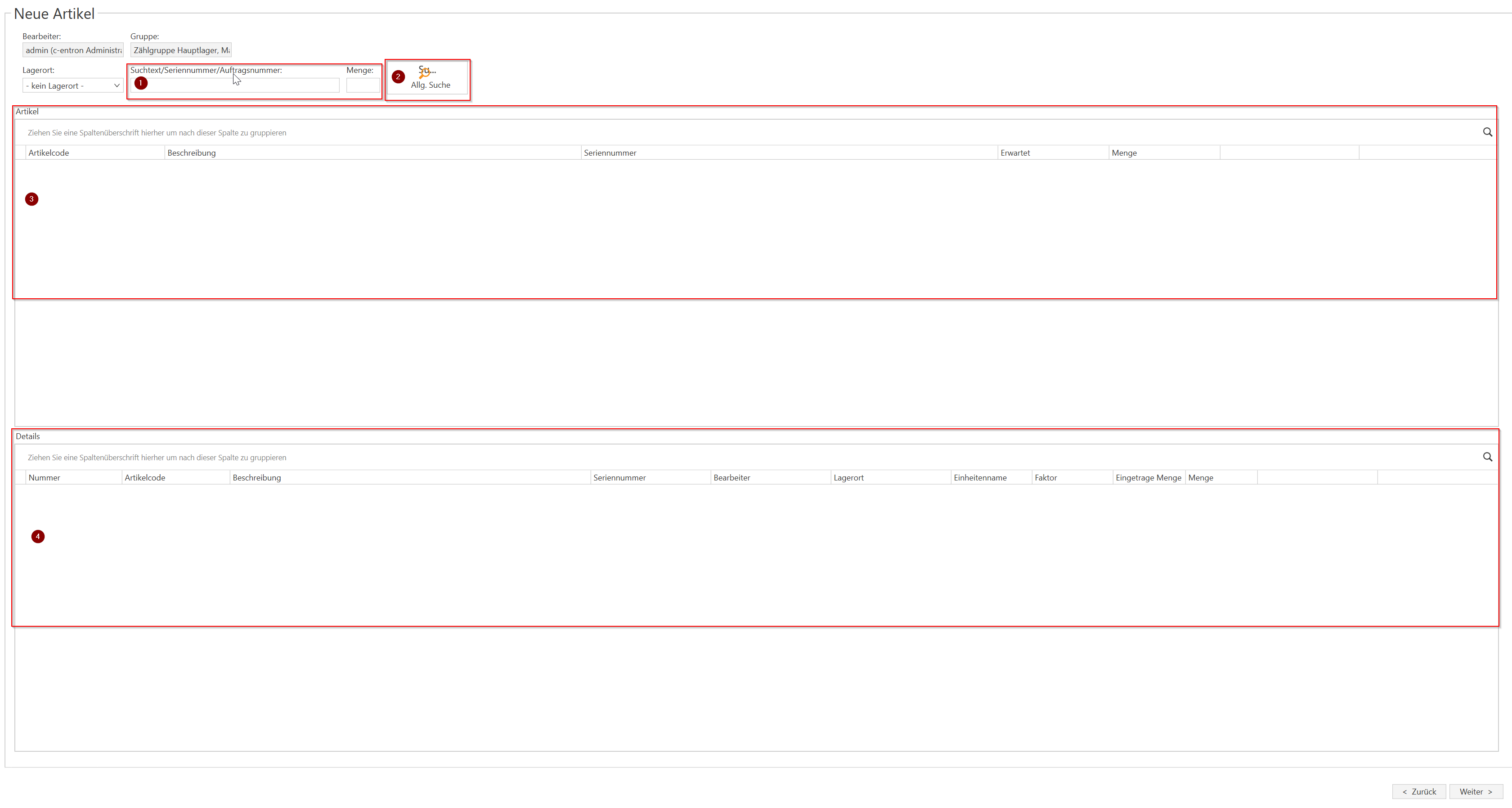
Under point 1 of the screenshot, you can search for an item and then enter the quantity.
Under point 2, you can choose whether you want to use the search function or scan a serial number (when scanning serial numbers, you cannot enter a quantity, as each serial number is recorded as a single item).
The items you have added are displayed in the field under point 3.
Under point 4, you will see the details of the counted items.
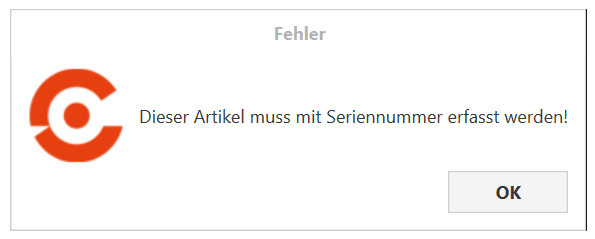
Please note: Items that require serial numbers must also be searched for/selected by serial number in the inventory. If you search for an item that requires a serial number using the item number, you will receive the following message:
If you have created multiple counting groups for different warehouses, repeat this step for all counting groups to record all items there as well.
5. Complete inventory / partial inventory
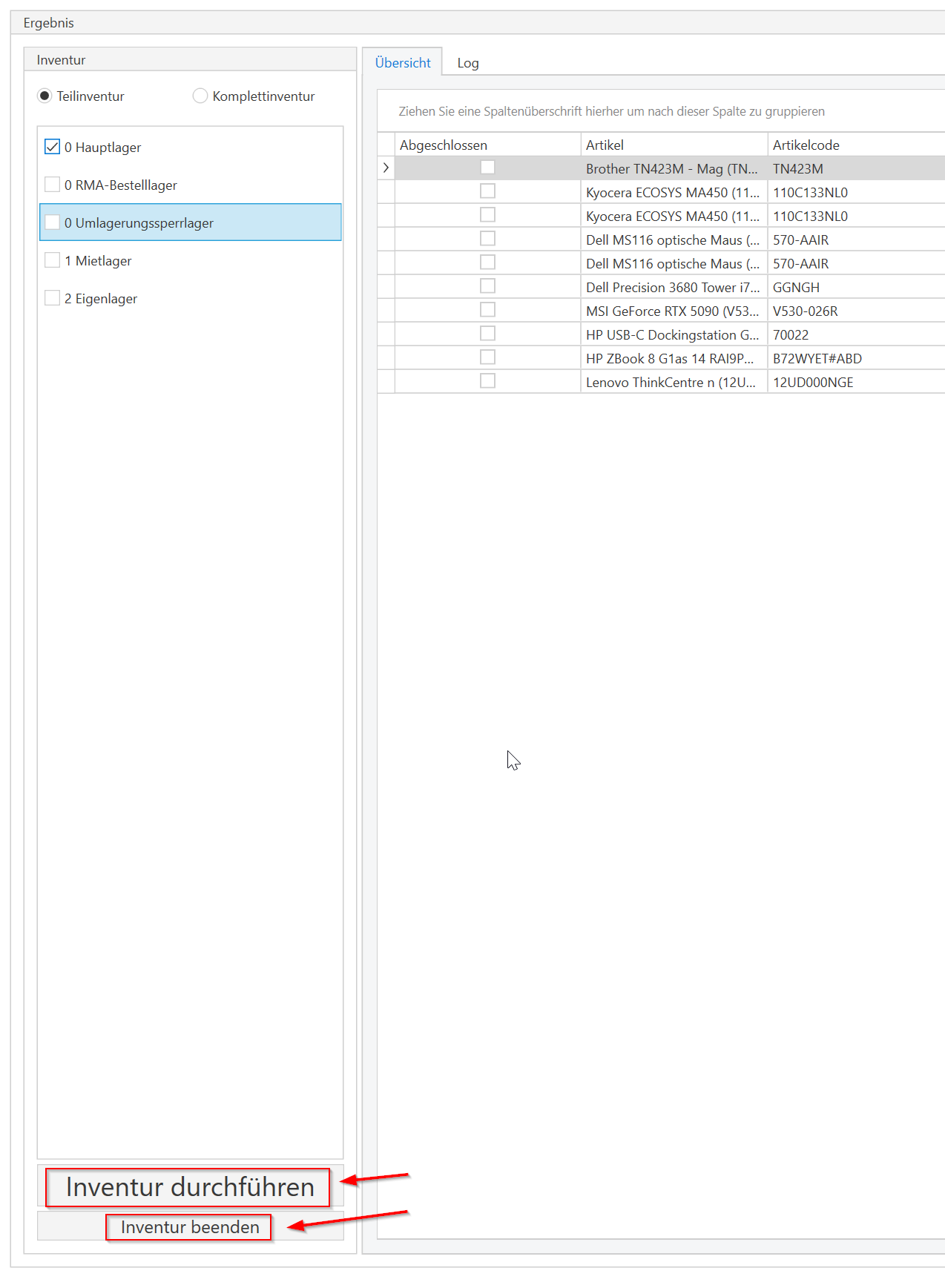
Here you can choose whether you want to perform a "complete inventory" or a "partial inventory."
Complete inventory: This is the classic closing inventory at the end of the fiscal year. ALL stocks in the selected warehouse(s) are set to 0, and then the stocks of the counted/recorded items are entered.
ATTENTION: If you perform a "complete inventory" of your warehouse [Perform inventory] WITHOUT having recorded any items, your warehouse will be set to quantity 0 and all serial numbers will be considered "lost during inventory." Your warehouse value will then be $0.00! An inventory that has been performed cannot be undone!
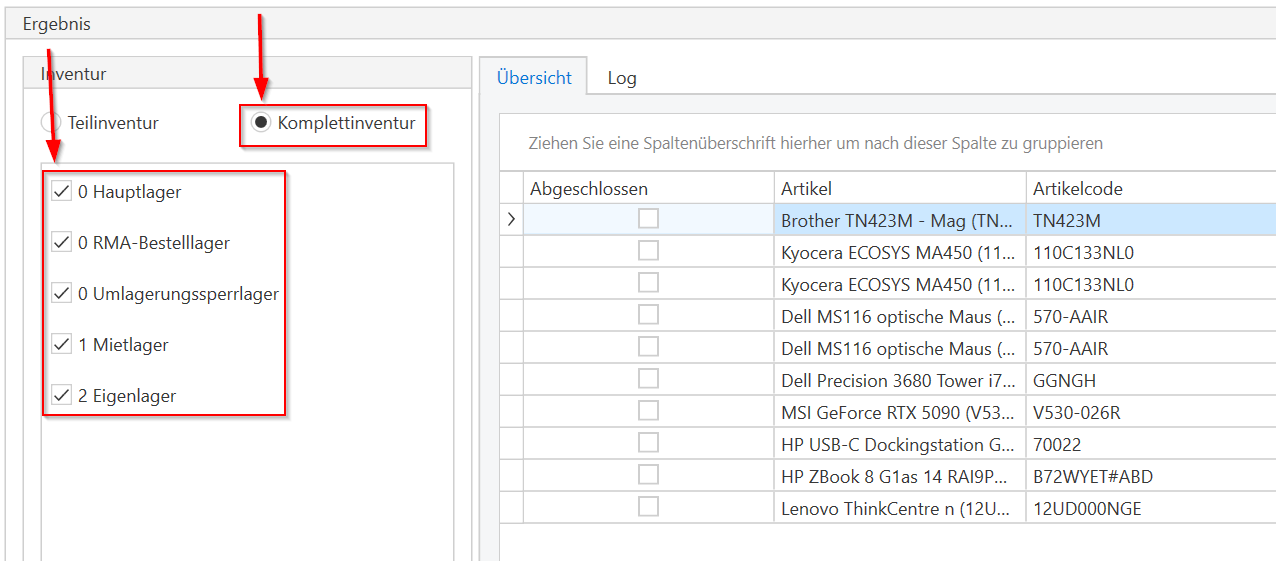
Partial inventory: Only stocks of counted items are changed/adjusted. Stocks of uncounted items remain unchanged. This function is intended for correcting stocks of items in everyday use or for adjusting stocks of individual warehouses accordingly.
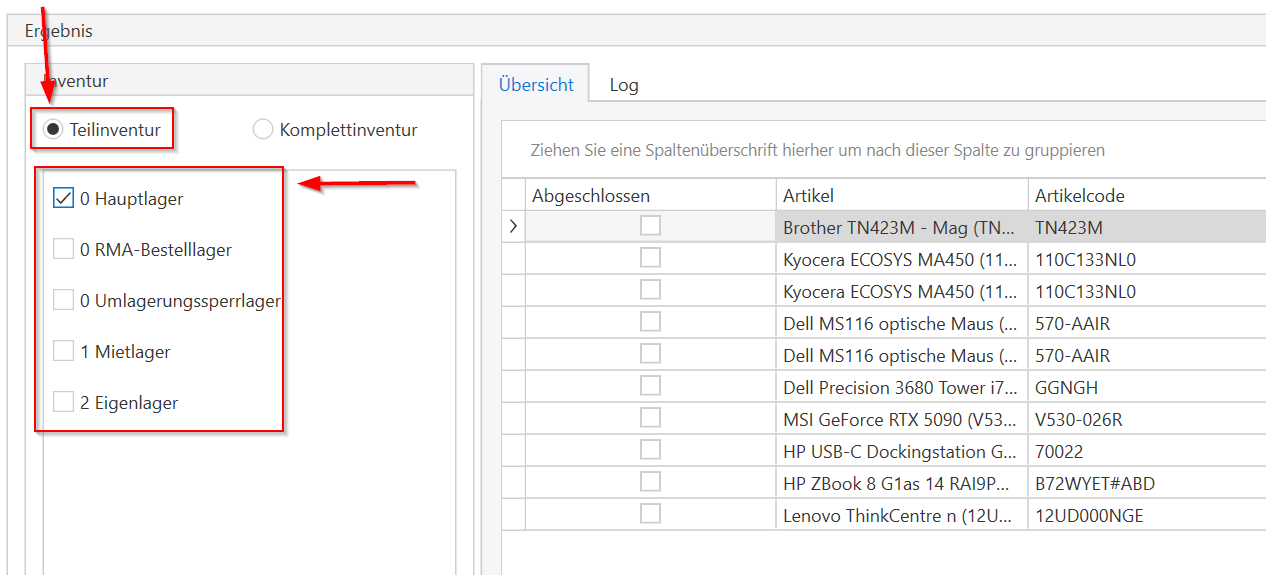
6. Check before performing the inventory
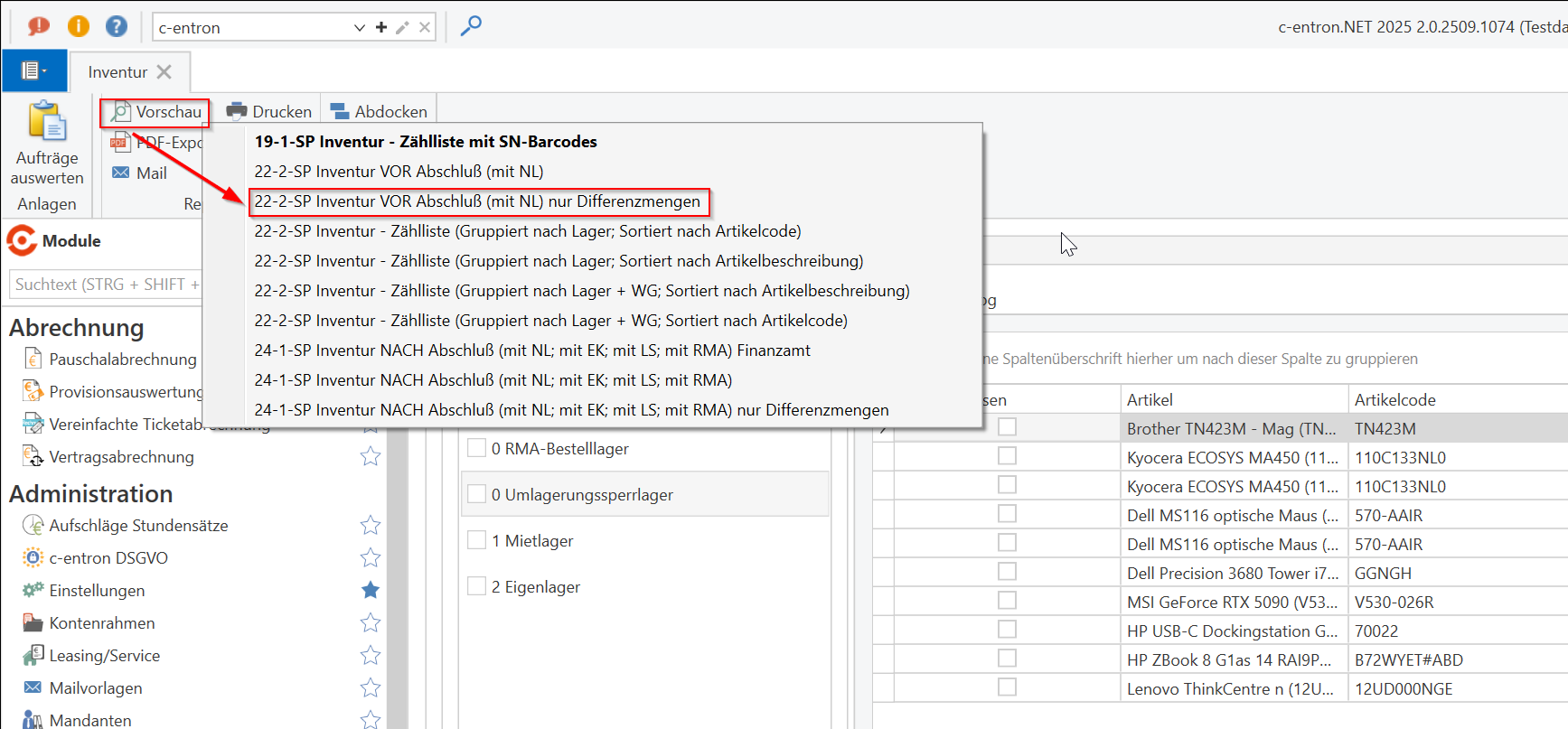
Please use the report "Before closing with secondary storage (difference quantities)" to check whether there are any large differences for items.

After entering the items using the context menu, you still have the option to change items.
It is also possible to add items that were previously forgotten.
For better comparison with the report, you can export the recorded items to Excel here.
7. Perform inventory and finish:
[Perform inventory] executes the stock postings for the selected warehouses, depending on the inventory type set.
[Finish inventory] closes the inventory, regardless of whether the counted items were posted via [Perform inventory]. This means that the inventory is no longer displayed in the list of open inventories or is only displayed via the filter Status "Closed" or Status "All." A finished/closed inventory can be reopened in the overview of "Available inventories."