%20(1).png)
Management Information
Management Info: Faster and easier to use
In the Management Info section of c-entron.net, you'll find a redesigned and refined interface with improved performance when opening the module. Specifically, the data is no longer loaded immediately, but only after clicking [Refresh] (arrow icons) in the menu bar. Loading occurs in the background, and the data is populated gradually, meaning the interface remains responsive while loading.
The "General" view has been renamed "Current Values," and clear tabs have been added. In addition, inventory details are now always visible under "Current Values."
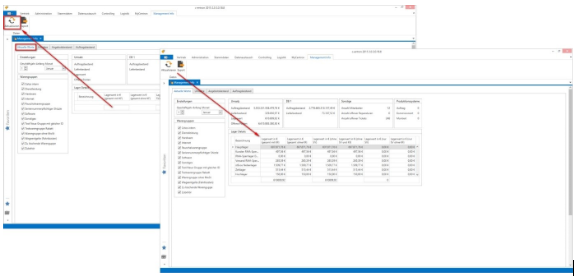
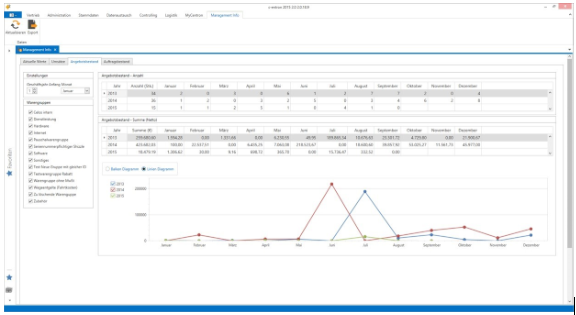
You can now create graphical reports in the form of bar charts in the "Sales," "Quotation Inventory," and "Order Inventory" tabs, and you can switch between line and bar charts.
The "Profit" and "Revenue" tabs have been combined into a single "Revenue" tab.
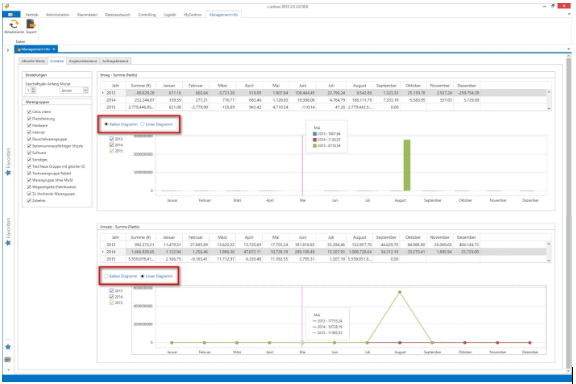
You can hide individual series in the charts.
On the left side next to the charts, you can check the boxes to select which data should be displayed in the chart. This works for both line and bar charts.
Example: Only the checkboxes for 2013 and 2014 are selected, but not 2015—the green bar/line (for 2015) is hidden in the chart.
Quotes and Orders
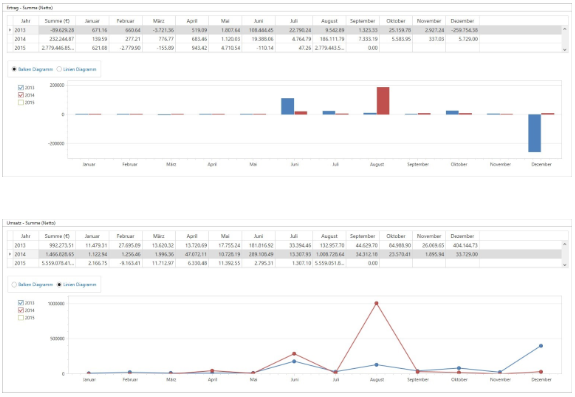
The view in the "Quotes" and "Orders" tabs has also been updated so that the number of quotes or orders is now displayed above the total (net), and the chart showing the total appears directly below it.
List of offerings with a line graph:
Order Backlog with Bar Chart:
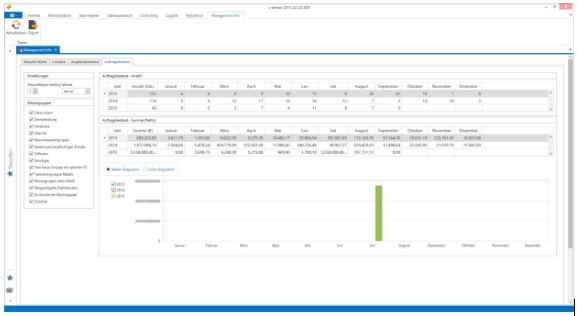
The currency symbols are set to the default country for the primary client as specified in the registered database, which means that a user in Germany sees the “€” symbol, while users in Switzerland see “CHF”.
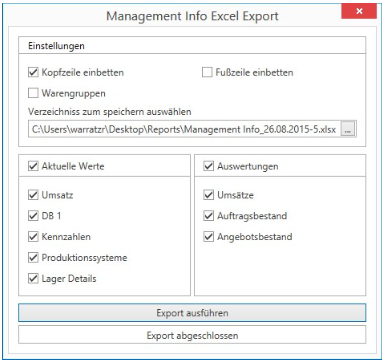
Excel export with various options
Under "Settings"
- for the data to be exported,
- Footer and header (including the creation date and creator of the Excel file), which can be embedded
- Product categories
- the directory where the file should be saved
Under "Current Values," you can check the "All" box or select individual items
- Revenue
- DB1
- Key figures
- Production systems
- Bearing Details
Under "Reports," you can select "All" or individual items
- Revenue
- Inventory
- Order backlog
Right-click to select "Select All" or "Deselect All"
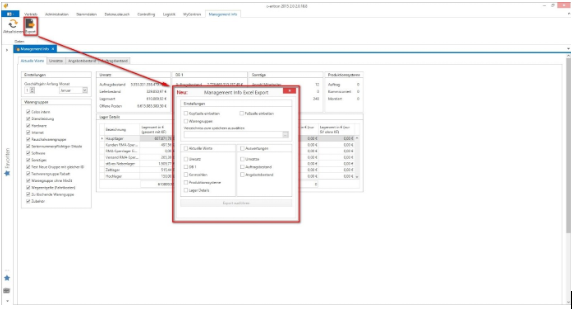
Clicking [Export] creates the export file in the specified directory, and the progress is displayed at the bottom of the window. Once the export is complete, the message [Export complete] appears.