%20(1).png)
Modern Authentication V7 - English
Important information about Modern Authentication from Microsoft
Please note these changes in our current BETA release version and make the specified settings/changes.
IMPORTANT:
This BETA version is the first steponly* for sending emails.
USER LOGIN/SSO VIA AZURE AD IS NOT INTEGRATED HERE!
The login is not part of the policy, which comes into effect on October 1!
The user login is currently in development and will be implemented soon.
Setting up standard authentication in Exchange Online | Microsoft Docs
In c-entron.NET:
New setting for sending mail.
New settings for modern authentication have been stored in c-entron.NET.
We need four values here, as shown in the screenshot below.
You can obtain the application ID, directory ID, and secret client key value from your Exchange. The "Default sender email address" setting is used to store an email address that serves as a "fallback."
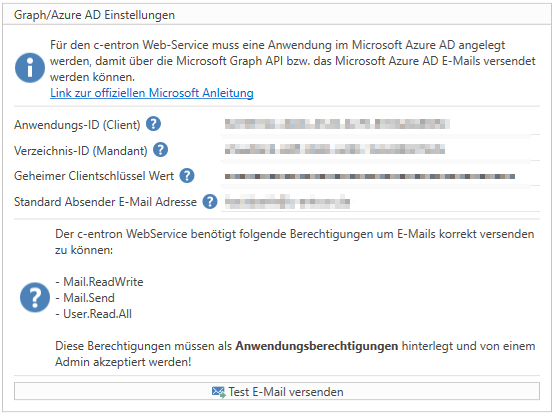
These settings only become active when emails are sent via the web service (this also applies to emails sent via the integrated services).
If the settings specify that email delivery is to be managed via Outlook, the settings described above are no longer applicable (except for integrated services).
Settings in Exchange:
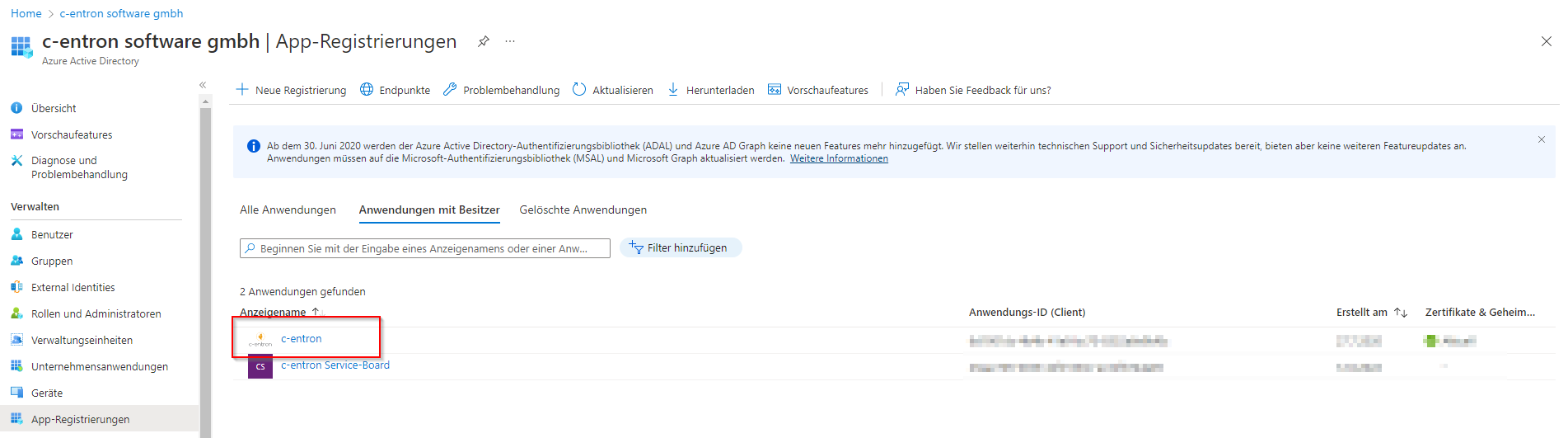
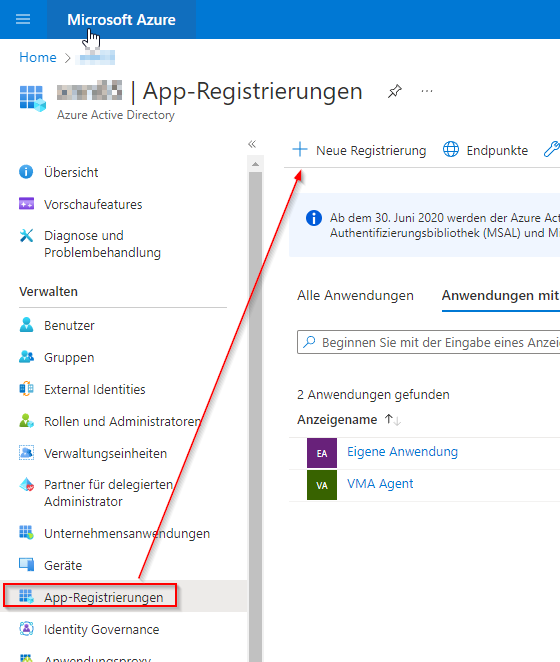
Create an app registration by selecting your organization in Azure AD and then creating a new registration using the + symbol.
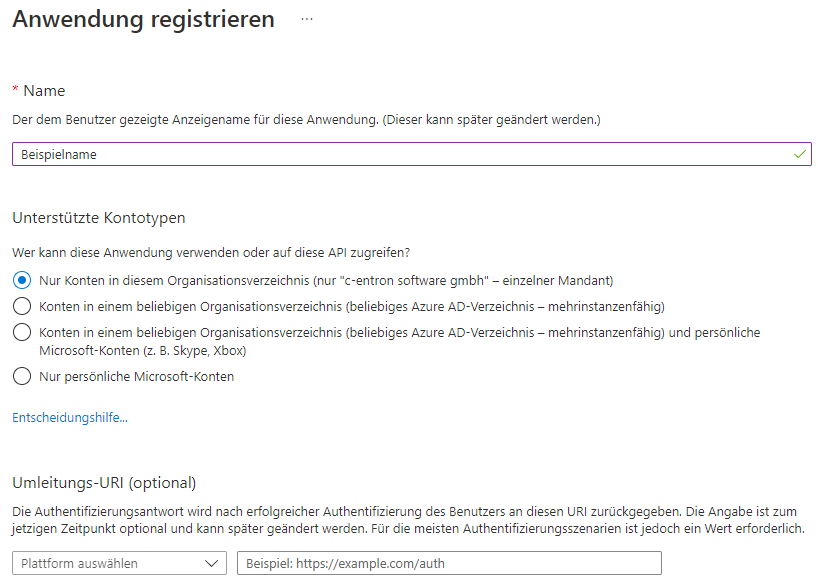
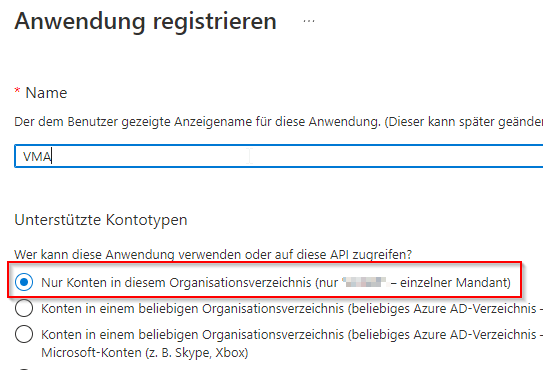
When creating the account, select "Only accounts in this organization directory" and continue with the creation process.
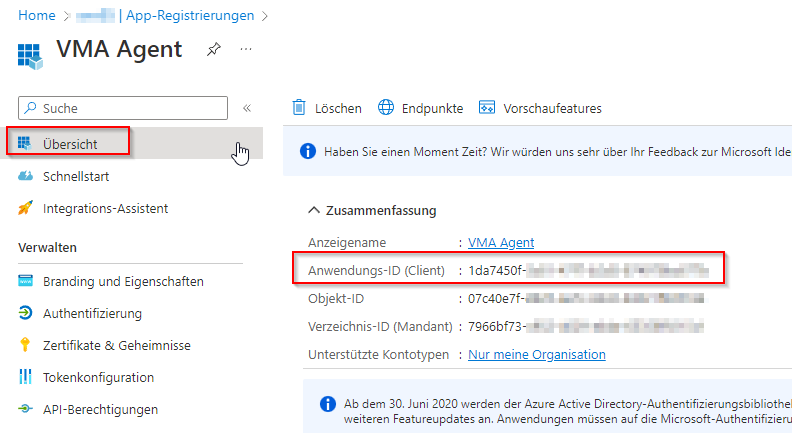
After creation, you will receive an overview of the data we need in the c-entron.NET settings (here, the application ID and the directory ID).
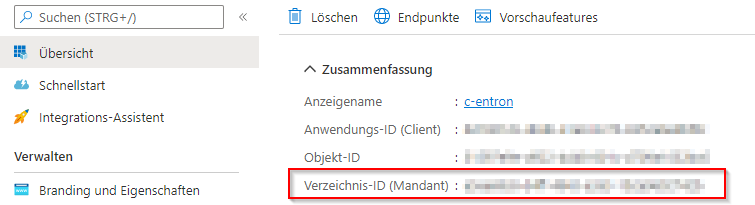
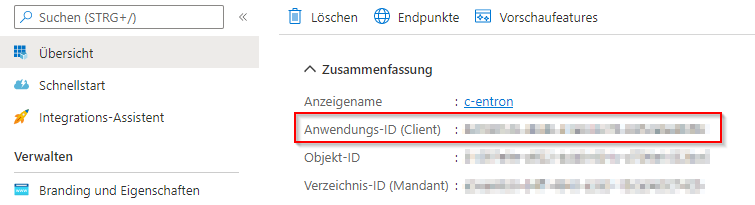
We then need a "secret client key" here.
You can create these under Certificates and Secrets

IMPORTANT: The secret key value is only visible when created; after that, this value is encrypted and can no longer be viewed (if the value was not accepted, a new key must be created).
This key is also encrypted after being stored in c-entron.NET and can therefore no longer be read.
Store API permissions in Azure AD:

Required rights for sending emails from c-entron.NET and for the web service:
Mail.ReadWrite
Mail.Send
User.Read.All
Additional permissions required for calendar synchronization in c-entron Agent:
Calenders.ReadWrite
full_access_as_app
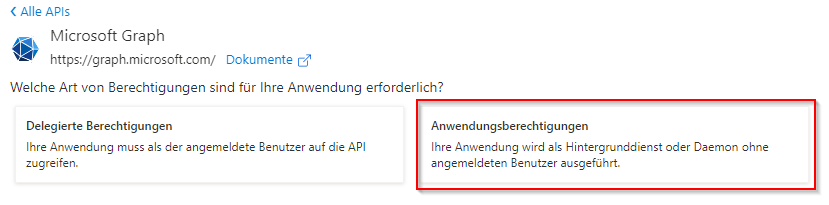
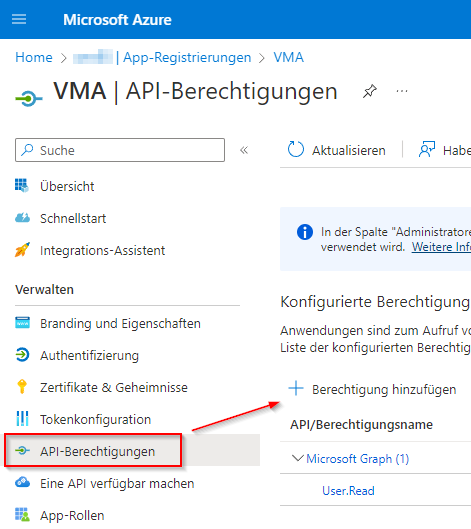
You can set the necessary permissions via the API Permissions item.
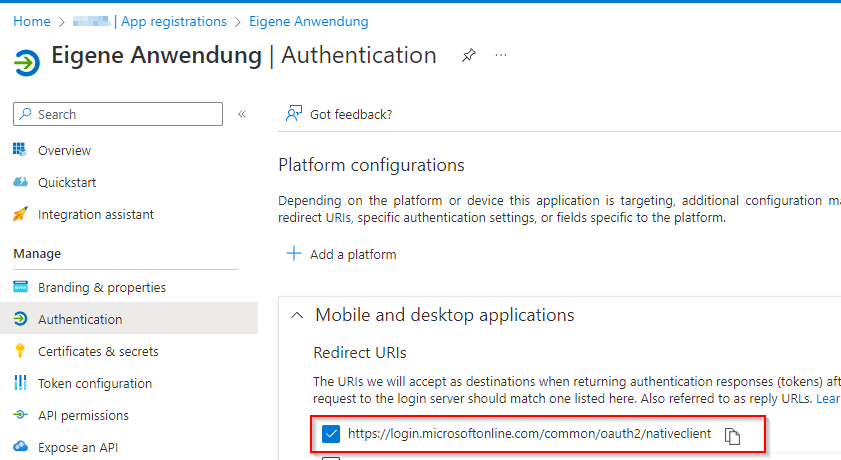
IMPORTANT: When creating the attachment, be sure to select "Application permissions" and not "Delegated permissions."
On the service board:
Settings options in the Service Board
The settings for sending emails can be found in the usual place in the Service Board (Settings -> Manage Resources) and now offer three options:
Option 1: Microsoft 365
Option 2: Custom Azure AD configuration
Option 3: Own server
Option 1: Microsoft 365
Simply select Microsoft 365 here.
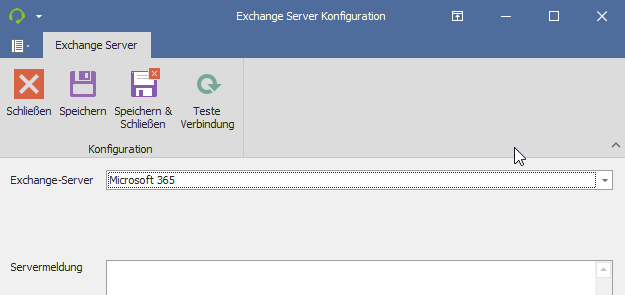
This is a predefined option in which you cannot set your own settings.
Note: Once this option is saved, a pop-up window will appear with the Office login to verify and save it.
Option 2: Custom Azure AD configuration:
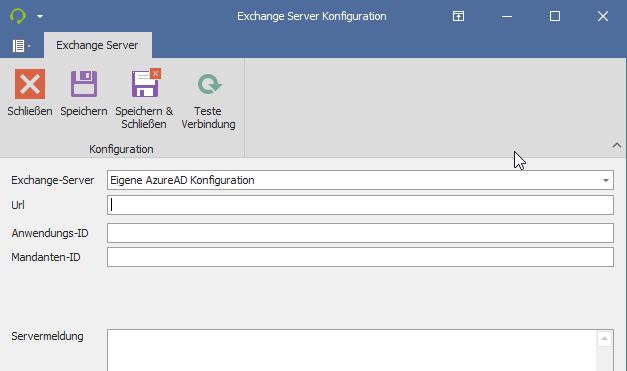
The application ID and client ID required for the c-entron.NET settings are specified here
Note: Here, it is recommended that a separate application ID be created and stored in Azure AD via the app registration for Service Board, just like c-entron.NET.
Option 3: Own server:
Slightly different in appearance, but practically the same as the previous Exchange setting.
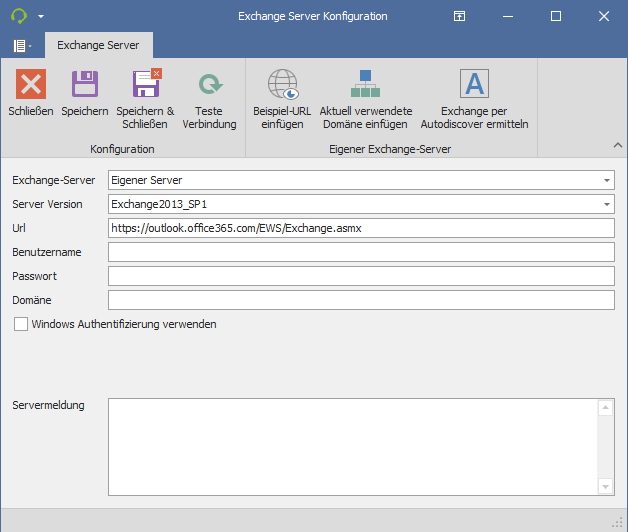
Please also provide a reply address.
Virtual Mail Assistant (VMA):
New law "VMA Login" required
Logging in to VMA now requires the "VMA Login" right. This right must also be assigned to the user who is logged in to the c-entron agent is registered.
Configuration for Microsoft 365
Disable Microsoft security settings
IMAP requires delegated authorization. However, MFA must be disabled for the user in question. This is not possible with the standard security settings, as these enforce MFA for all users.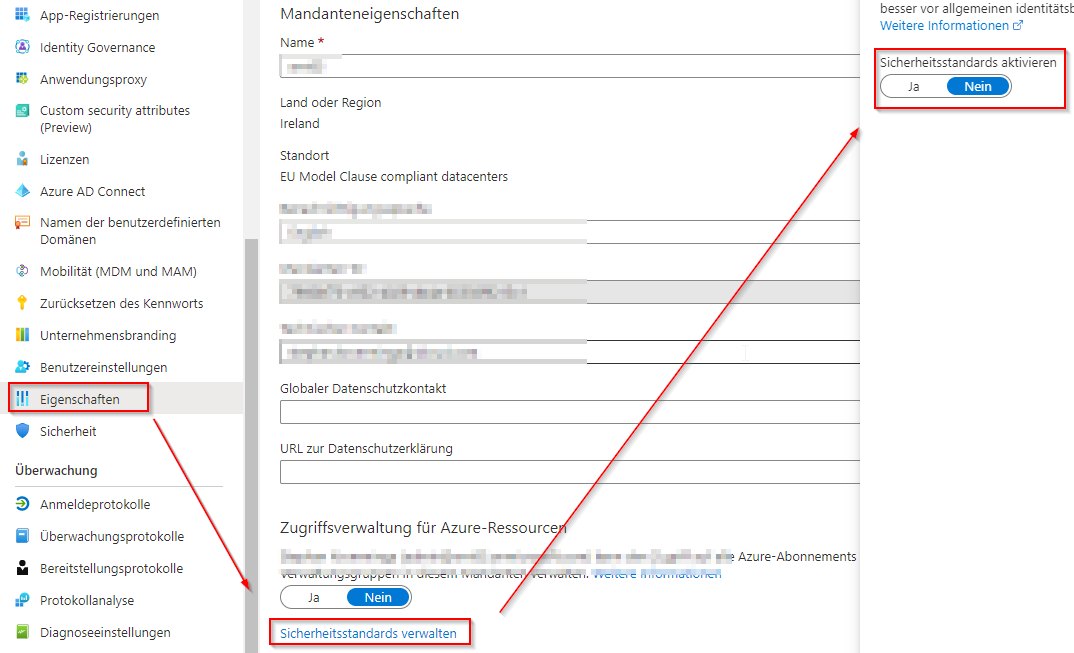
Register application
Default selection for a client
Add permissions
Required permissions
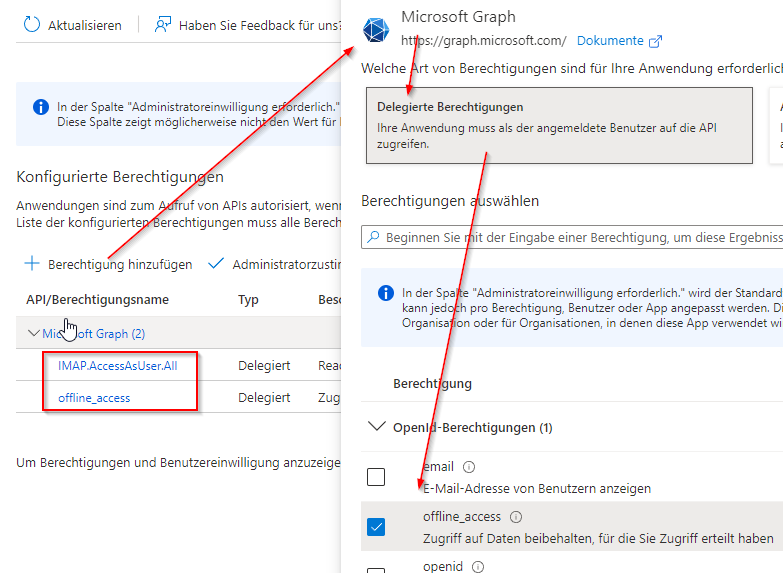
Microsoft Graph – Delegated permissions
IMAP.AccessAsUser.All
offline_accessGrant administrator approval for permissions


Set up client key
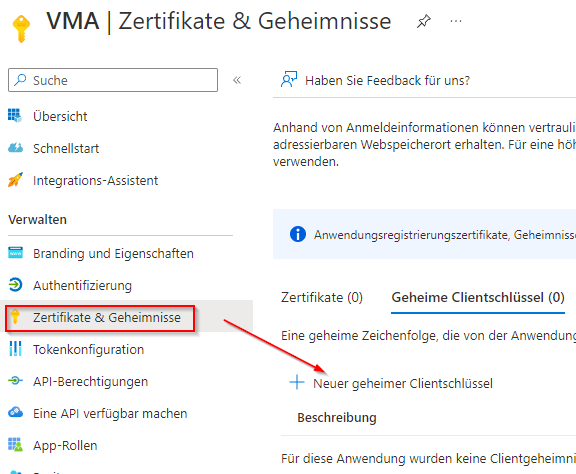
The key must be copied and saved for insertion into the VMA. Once you leave the Azure page, the key can no longer be viewed and must be recreated.
Set up VMA
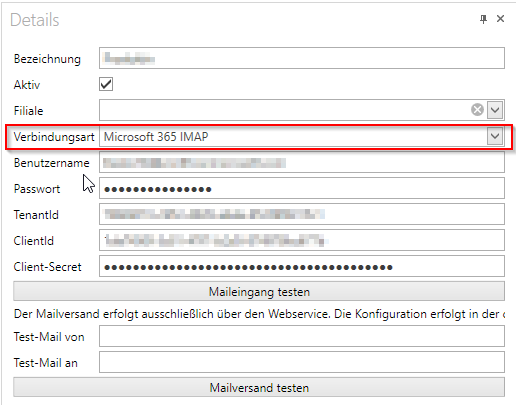
- Select Microsoft 365 IMAP
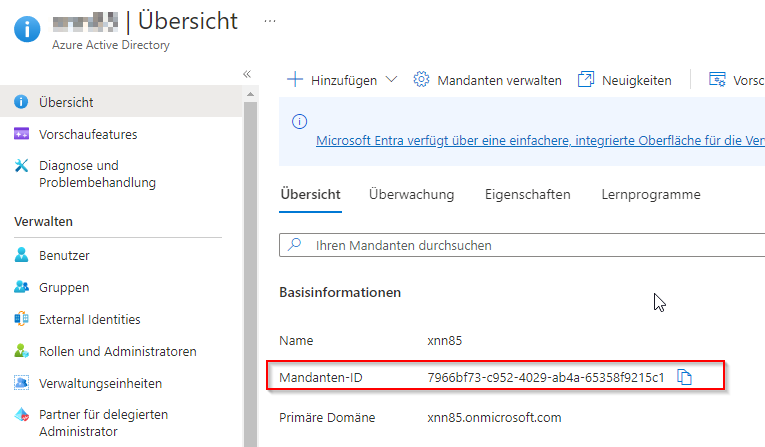
- Username and password for the mailbox that the VMA should access- TenantId is the tenant ID of Azure
ClientId is the application ID of the Azure app created earlier
Client secret is the client key created earlier
namely this one: (however, it can no longer be read at this point and may need to be recreated if you have not noted it down previously)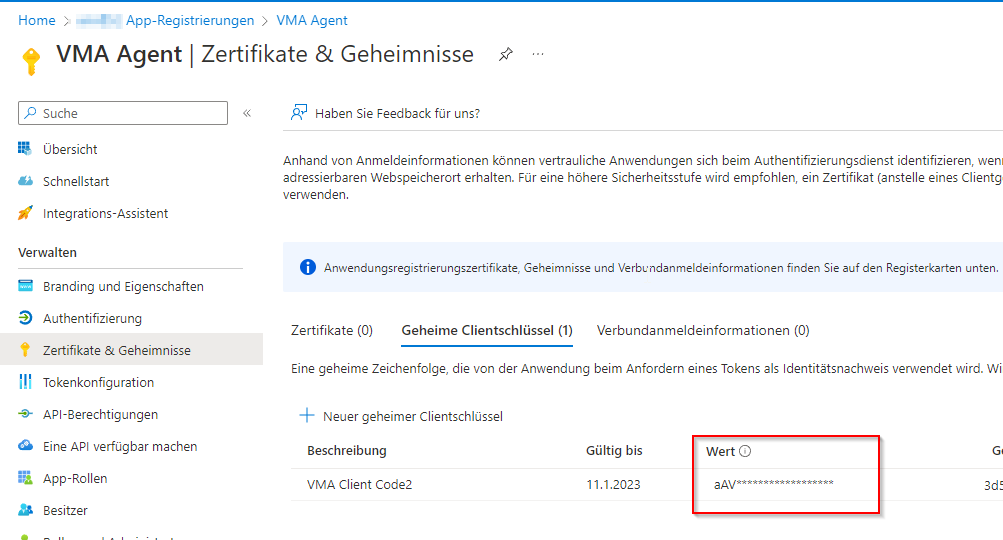
Please note that the user registered in c-entron requires the "VMA Login" right.
Calendar Sync:
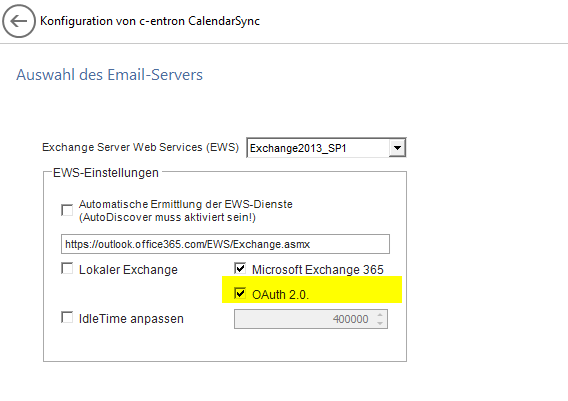
For calendar synchronization, you do not need to register a separate app as described at the beginning of this white paper.
However, two additional Azure AD rights are required for calendar synchronization
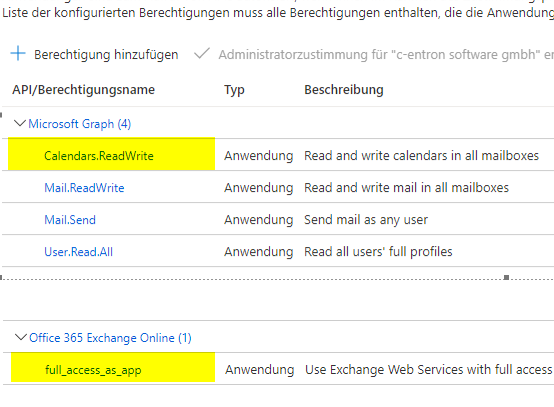
If these rights are additionally set, you can activate "OAuth 2.0" in the calendar sync configuration in the c-entron agent