%20(1).png)
Module bar
The c-entron module list offers user-friendly navigation through the various modules.
After opening, the Dashboard module appears by default. If the area appears to be empty, it is not, as can be seen from the tab displayed in the upper area—no containers have been dragged into the dashboard yet.
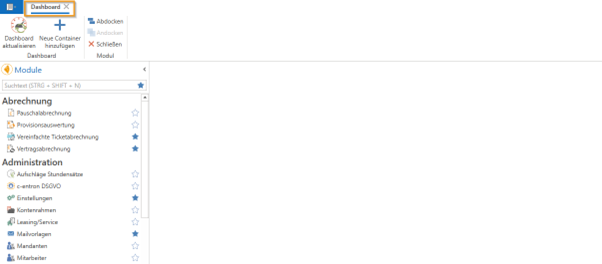
The module list is structured by topic, for example, by billing, administration, addresses/CRM, and other modules. Employees can view different modules based on their permissions. Permissions for a module can be checked and assigned by right-clicking and selecting "Show required permissions."
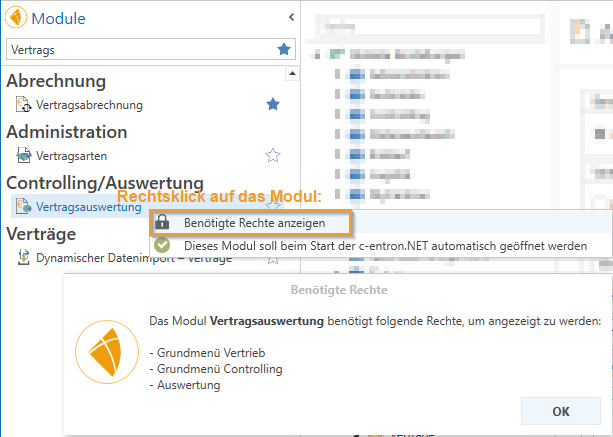
You can navigate the module bar by scrolling or search for a module using the search bar above the modules.
The arrow icon can be used to "collapse" the module list in order to focus on the module or work area.
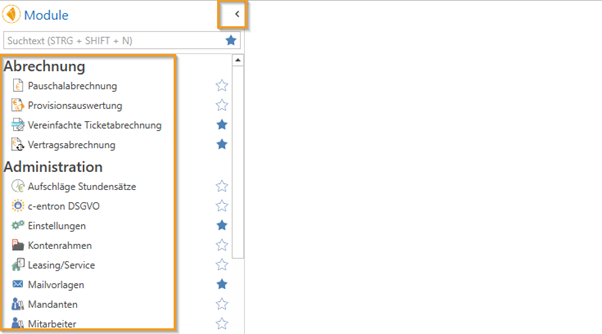
Favorites
You can mark individual modules as favorites using the star behind the module, which will then turn blue. By clicking on the star in the search bar, only your favorite modules will be displayed, giving you faster access to the modules you use most often. You can now access them directly via the search field and asterisk.
Automatic start of modules
Frequently used modules can be opened automatically via Autostart immediately after starting c-entron (this happens in the order in which the modules were added).
To add these to the autostart, right-click on a module in the module list and select "This module should be opened automatically when c-entron.NET is started."

Removing the autostart function works in the same way—right-click on a module in the module list and select "This module should not be opened automatically when c-entron.NET starts."

Personal settings
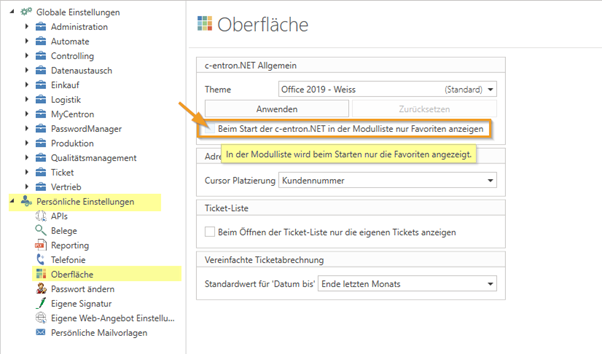
In the personal settings, you can specify whether the module list with favorites is displayed at startup.
Undocking
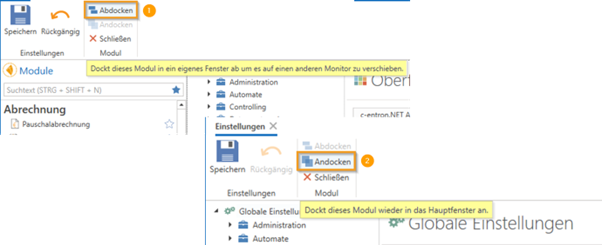
Modules can be undocked into their own window using the [Undock] button and moved to another screen. If you want to dock an undocked module back into the main window, simply click the [Dock] button.
Information/icons in the quick access bar
In the upper section, you will find information about the versions of c-entron and the WebService.

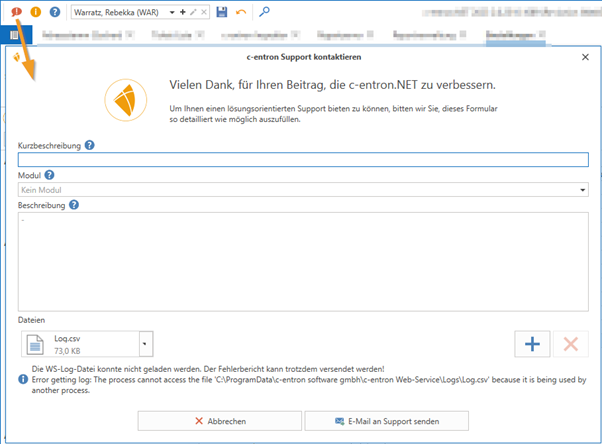
The quick access bar also offers the following via the "Exclamation mark symbol" Access to support, where you can create tickets.
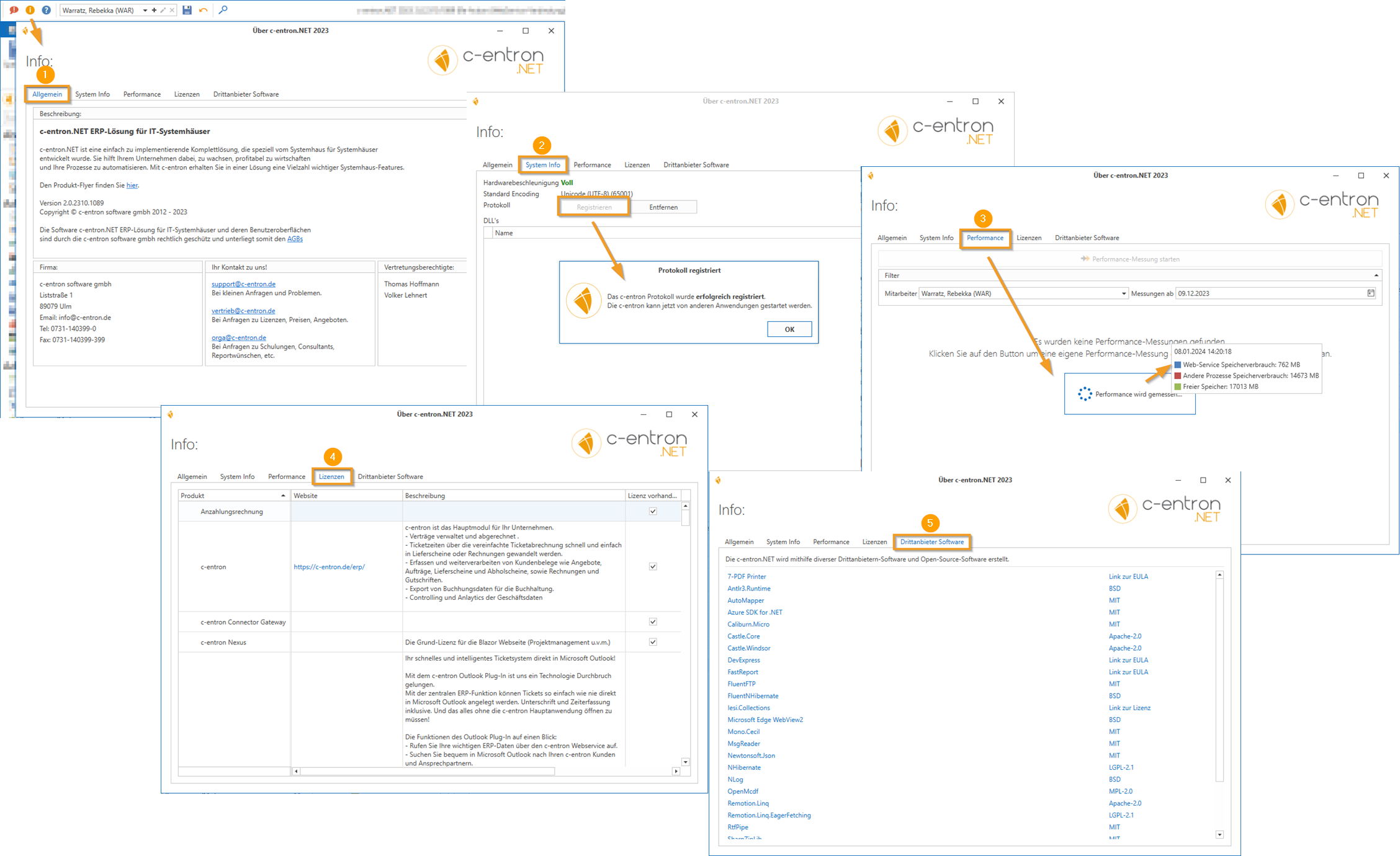
About the orange "Info icon" can be found in the "General" tab (1) general information, while the "System info" (2) offers the option to register log files.
Example:
If you have entered "2.0.2006.9999" as the "Valid until version" and want to use a 2.0.2007 version, you will receive the following message when you log in:
"You do not have a license for c-entron version 2.0.2007.123. You may only use version 2.0.2006.9999 at most."
In the Tab "Third-party software" (5) contains a list of all third-party software and open source software used to create c-entron.NET.
The quick search, i.e. the c-Navigatorenables efficient navigation through modules and functions.

This means that with c-Navigator, you can use keyboard shortcuts to dive into a context-based search directly from the c-entron screen and jump directly to the desired tasks or menu items, making c-entron even easier, faster, and more efficient to use.
You can also access this overview by clicking on the "blue question mark" (?) in the open window/dialog box (open with CTRL+SHIFT+A):
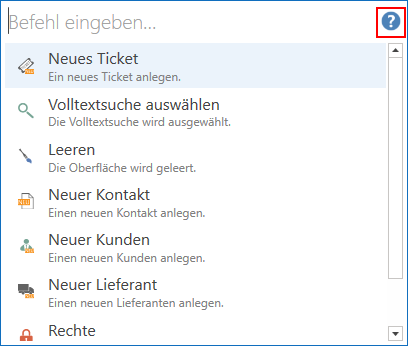
A detailed description of the available commands in the individual areas can be found in the separate description "c-Navigator - Available commands via CTRL+SHIFT+A in the individual areas.