With the "MSP Collector" and "MSP Evaluation" modules, you can import your distributor's "MSP/cloud billing" and compare it with your existing customer contracts. In addition to the "comparison/evaluation" option, you also have other advantages. You can "update" the contract items directly based on the imported data and, if necessary, "adjust/recalculate" any differences from the last invoice (e.g., if the contract was billed in advance) with the next contract invoice.
Required license:
You need the license for this "MSP module."
Rights:
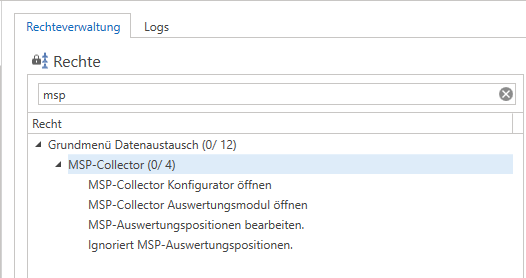
In the rights management section, you will find 5 new rights for the modules that you can assign to your test users. Simply search for "MSP" and they will be displayed immediately.
"MSP Collector" – is generally required for the MSP modules
"Open MSP Collector Configurator" is required to open the "MSP Collector" module, e.g., to execute imports and create new imports.
"Edit MSP evaluation items" – required to open the "MSP evaluation" module and "edit" the evaluation.
"Ignore MSP evaluation items" – required so that the user can select the "ignore" option in the MSP evaluation.
Settings:
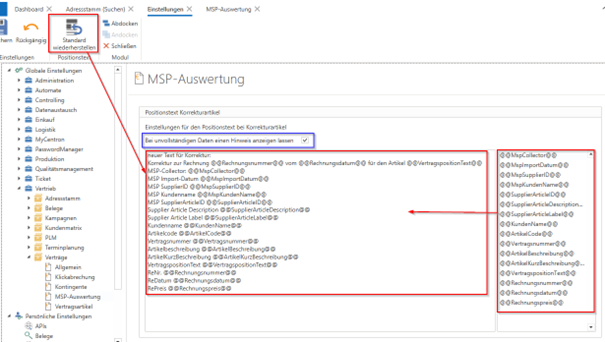
You can define a "Position text for correction items" in the "Global settings" under "Sales -> Contracts -> MSP evaluation." Several variables are available for this purpose in the right-hand area, allowing you to define the position text for these positions according to your requirements.
Using the "Restore default" button in the ribbon bar, you can automatically predefine the field with a "sample text" suggestion and easily change it if necessary.
(For more information on the option of "correction articles," see the "MSP evaluation" section.)
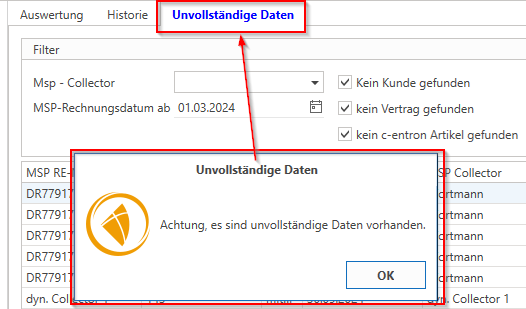
In addition, you can activate the setting "Display a message if data is incomplete." This causes a pop-up to appear when you "Reload" the evaluation if there is data in one of the imports that has not yet been completely recorded, e.g., some customer or article data from the import has not yet been assigned to the corresponding c-entron customer or article. Or the assigned article could not be found in any contract of the assigned customer. This serves as a check to ensure that no data is "lost" or cannot be evaluated.
MSP Collector:
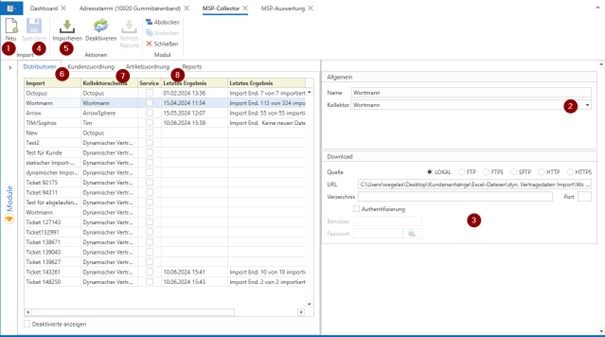
In the module "MSP Collector" you can find in the tab "Distributors" configure the settings for the respective import (currently only possible manually – may later also be possible via "service"). To do this, create a new template (1), assign it the name you want and select the prepared interface here, e.g., from "Wortmann" (or the supplier you want and provided by us) (2). Enter the access data for the FTP, SFTP, or other source (3) and save it (4).
Note: Wortmann only uses the OpenTrans format. This may need to be "converted" first in Wortmann.
You can also use a "own" interface create it in MSP Collector, where you can import an xlsx or csv file.
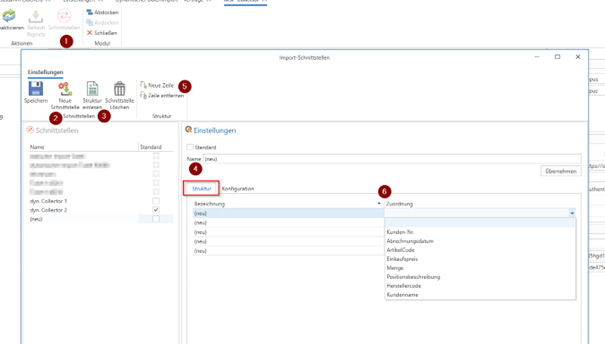
To do this, open the "Interfaces"-Configuration (1).
Select "new interface" (2) and hereby create a new interface to which you assign a specific Names (4) may be awarded.
You can via "Import structure" (3) You can also select the file to automatically import the column descriptions or via "New line" (5) also manually enter the lines for the "Structure" and enter the column name of the file as the "Description." Each column must now have a c-entron "Allocation" (6) be assigned.
At least the fields "Customer No.," "Item code," or "Manufacturer code" (the manufacturer code must be available in c-entron) and "Quantity" must be assigned, and either the "Purchase price" or the "Ignore purchase price of import" setting in "Configuration" must be active (in this case, the current purchase price of the respective item from the item master is used).
The additional classifications serve as an aid to identification.
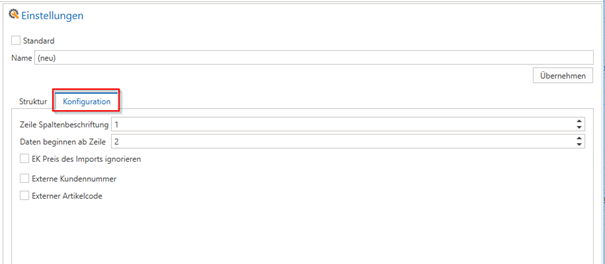
In the "Configuration" in the interface, you can set the row in which the "column label" is contained and the row from which the data to be imported begins.
In addition to the setting for the EK, you can also define here whether it is a "external customer number" and a "external article code" if this is not active, the imported customer number is automatically assigned as "c-entron customer number" or "c-entron item code." If these are external customer numbers or external item codes, i.e., they do not correspond to the c-entron data, you must assign them once in the MSP Collector—as with the "standard collectors" mentioned above.
Once you have created such an interface, it will be available for selection in the MSP Collector and you will only need to specify the "file path" as "URL" simply click on the three dots "..." at the end of the URL line. You can also "save" this as an "Import" setting.
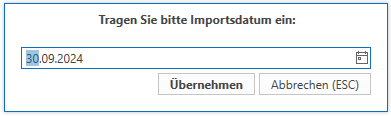
Note: If you select "Settlement date" assigned, the first date "found" is used as the "MSP invoice date" if you have not assigned one here, you will be asked for a date during import. This helps you to identify the import records in the MSP evaluation, assign them to an import, and filter them, but also to check them. If you start an import for a collector/interface and select a date for which there is already an import for this interface, a message appears stating that data already exists for this date and asking whether this "overwritten" this allows you to prevent multiple imports or "overwrite" an existing "incomplete" or "incorrect" import.
(Alternatively, you can also use interfaces from "Dynamic Data Import – Contracts" if you have already used them. These are displayed automatically if they are available. To do this, simply enter the file path as a "URL" and the data can be imported directly (based on the import settings). With this import, customers and items do not need to be "assigned" (screenshot points 6 and 7), as they are automatically recognized via the assignment in the dynamic import interface. You can import Excel files and CSV files using dynamic imports
In the tab "Distributors" it displays your created imports, the corresponding schema, and two "Log" columns with the respective last result.
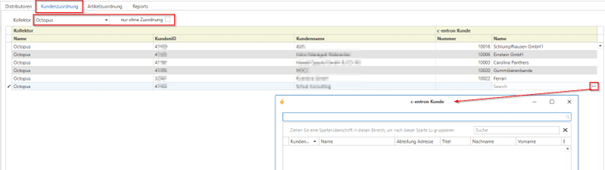
You can then use the data import (5) and in the tab "Customer assignment" (6) Assign the c-entron customers to the displayed "Import Customers" (only necessary once per import customer).
In the tab "Item assignment" (7) You must then assign the c-entron items you use to the Wortmann items. You can also assign multiple c-entron items to a single Wortmann item.
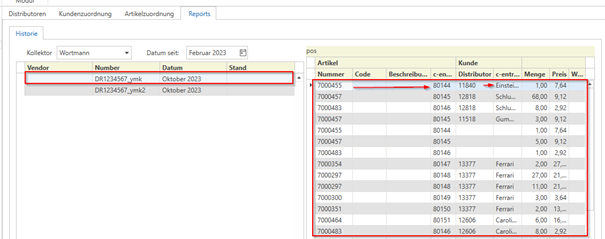
In the tab “Reports” you can track the imported data and its assignment to each import.
Here you can see the data from the import and the c-entron items and customers found through your assignments.
MSP evaluation
In the module “MSP evaluation” you can compare the imported data with the "recognized" contract items (based on the assignment of customers and items in MSP Collector) and the last contract invoice.
You always start the evaluation by clicking on "Reload" (button at the top left).
In this context, "always" refers to "incomplete data" checked, and if incomplete data is found based on your filter settings, the tab will appear in "blue font."
If you have activated the corresponding setting for the "Note," a pop-up will also appear with a note stating that "incomplete data" is present.
"Evaluation"
In the area "Filter" you can set which imported data is displayed.
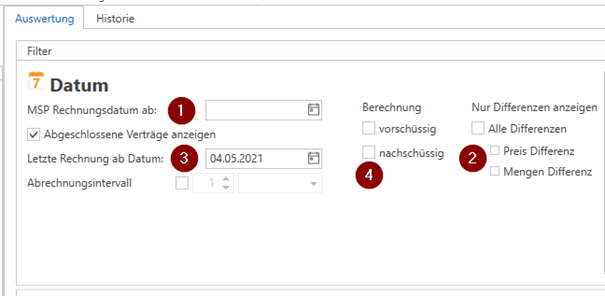
The "MSP invoice date from" (1) filter filters all data whose "MSP invoice date" greater than or equal to the selected date. This allows older imports to be excluded.
In addition, you can choose to display only the data that has a "Difference" or have a specific difference (2).
You can also filter by specific contracts. By default, only data for open contracts is displayed. However, you can also choose to "display closed contracts" (3) and filter by contracts whose "last invoice date" was created. This ensures that contracts that were concluded x years ago are not displayed, but rather those that were billed again "after the selected date" – for example, to include all concluded contracts that were billed again "in the current year."
You can also filter the contracts by a specific billing interval (3) or a specific billing (4).
You can use the "Column Editor" (right-click on a column name) to make the columns that are most helpful to you visible or hide columns that are not needed—e.g., to identify differences between the "purchase price" and the "quantity" between the import and the contract and/or the last invoice (here, for example, you can also right-click on the respective column name to set "conditional formatting" and display the column in color if, for example, the value is "greater than and/or less than 0").
You can also "transfer the purchase price and/or quantity from the import" to the contract for all "selected items." To do this, use the item filter to display only items with a difference (in purchase price and/or price) in order to obtain this data more quickly/exclusively, if necessary, or you can filter the displayed contracts using the "calculation" or "billing interval" filters.
In addition, you can transfer the "quantity difference from the last invoice" or a "manual quantity" as an additional "adjustment/correction item" to the next invoice in order to "recalculate/adjust" the quantities that were over- or under-invoiced or the manual "desired quantity" with the next invoice. Example: You bill contracts "in advance" and therefore only receive the actual "consumption" with a month's delay. You can now have the "quantity difference from the last invoice" or a "manually selected quantity" added to the contract billing as an additional item in the next billing.
In the standard c-entron format, the columns containing the "import data" are displayed in green, the contract columns in light blue, and the columns containing the "last invoice" data in dark blue. The columns containing the "differences" are displayed in "red font on a red background" as soon as a difference is found. This is intended to make it easier to distinguish between the "data sources."
You can customize the "grouping" and also the sorting/display of the columns according to your preferences and needs—e.g., group by customer -> item.
Selectable settings:
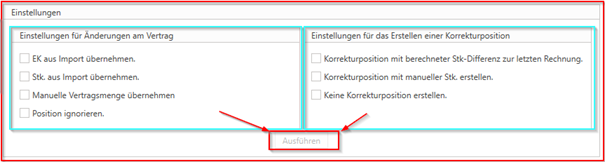
Settings for changes to the contract:
"Transfer CO from import" – In this case, the "EK MSP" (from the import) is transferred to the contract position.
"Transfer items from import" – in this case, the "Stk. MSP" is included in the contract as the new quantity.
"Transfer manual contract quantity" – here you can manually enter the desired new quantity "per item" (e.g., if you want to divide a "total quantity from import" among several contract items with the same article).
"Ignore position" – In this case, no changes are made to the contract, but the "reconciliation" is "confirmed" and this item will no longer be displayed for "decision" in the future.
The selection "EK from import..." can be combined with "Pcs from import..." or "Apply manual contract quantity." No "new version" of the contract is created for any changes, but a "log entry" is created in the contract for each change to an item (EK or Stk). This allows you to see the "previous" and "new" values for each item at any time.
Settings for creating a correction position:
- "Correction item with calculated quantity difference from last invoice" – The quantity displayed in the "Difference from last RE" column will be settled with the next invoice (positive or negative).
- "Create correction position with manual piece count" – The number of items entered in the "Compensation item quantity" column under "Hand" will be offset in the next settlement (both positive and negative).
- "Do not create correction position" – No item will be added for correction in the next billing cycle.
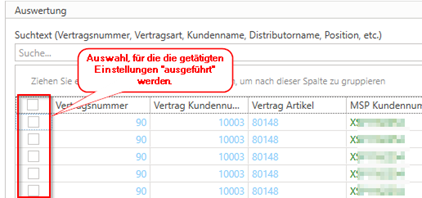
For both decision groups, a selection must be made, which can then be executed by clicking on the "Execute" button or the "Start clearing" button in the ribbon bar and must be confirmed again. All items that you have "selected" (first column as "Selection/Checkbox") will be "processed."
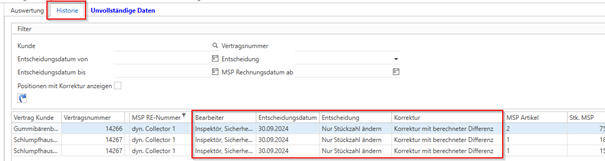
All items for which a decision has been made can be found in the tab "History" can be viewed and "filtered" according to the same areas as in the evaluation.
This means that you can always see who made which "decision" and when.
Contract settlement:
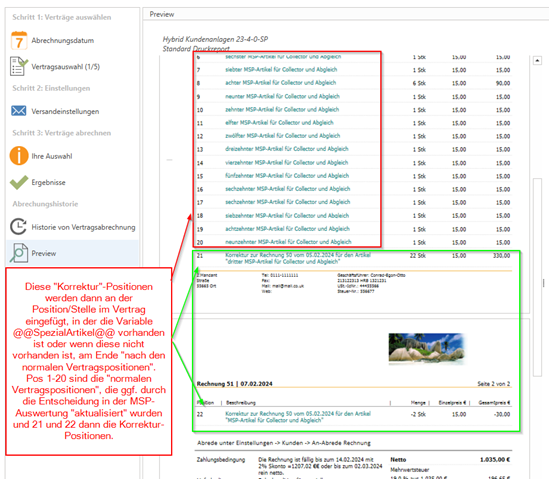
If "Correction positions" if items have been transferred, they will be displayed under "Contract selection" in the next contract settlement. A drop-down "+" will be displayed here, under which you will find the information and items that you have transferred in the evaluation or that are to be inserted and settled in this settlement.
By removing the check mark next to the description (here "Correction from MSP evaluation, date + time"), these items would not appear on the invoice. However, the selection is made exclusively for "all items" of this "decision," which is why it is not possible to select only "certain items."
These items are then inserted into the invoice. If your contract items contain the variable "@@SpecialItem@@", they are inserted at this point; if the variable is not present, they are inserted "after the normal contract items" as specified in the contract (see the following image).
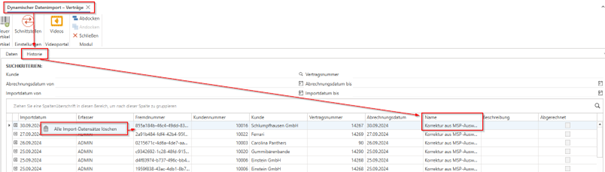
If you have ever created "correction items" by mistake, you can find these corrections in the "Dynamic Data Import – Contracts" module and delete them by right-clicking on them.
Note: All items with the same "external number" will be deleted. So if you have created correction items for several contracts, all items with the same external number will be deleted.
JavaScript errors detected
Please note, these errors can depend on your browser setup.
If this problem persists, please contact our support.
%20(1).png)