%20(1).png)
MSP in c-entron - Advantages, requirements, article settings (in multiple boards 2)
What are the advantages of the MSP module?
Until now, employees always had to understand which services or expenses, etc., had to be booked to which contract.
This is changing: you can now add service descriptions (tasks, activities, additional services) to items – employees simply select their "services" from a catalog and do not need any "background knowledge" or information regarding billing.
Thanks to these "service modules," employees do not need to have any knowledge of commercial and contractual agreements, such as ..
How long can such work take?
Is this service included in the service package sold, or does the customer pay extra for it?
Which contract should be selected for this?
Additional benefits:
There are various evaluation options regarding:
Customers
Contract
Service descriptions (all or individual customers)
Deviations from the planned time specification and the time actually recorded
In addition, commissions for MSP services can be defined
Requirements:
All you need is the "MSP" license for c-entron.NET.
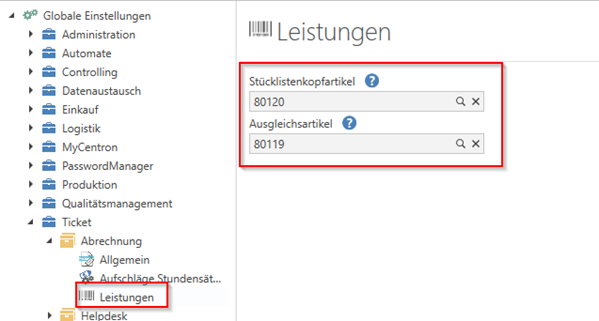
In the global settings, two items must be assigned under "Ticket -> Billing -> Services":
"Bill of materials header item" – Here, you must select an item that has the "is a bill of materials" property enabled. This is then used as the bill of materials header for billing, to which the recorded times and, if applicable, compensation items are then assigned.
"Compensation clause" – Here, an item must be selected that serves as "compensation" for the respective "services" within the above-mentioned "bill of materials."
To do this, simply create two new items – these must be created in the "Service product group" and, if necessary, in a new/separate sub-product group (e.g., "MSP special items"). Basically, the settings for these two items are secondary – it is sufficient if both items have the "available" property activated and the item for the bill of materials header is still defined as "is bill of materials."
Article settings for the service descriptions:
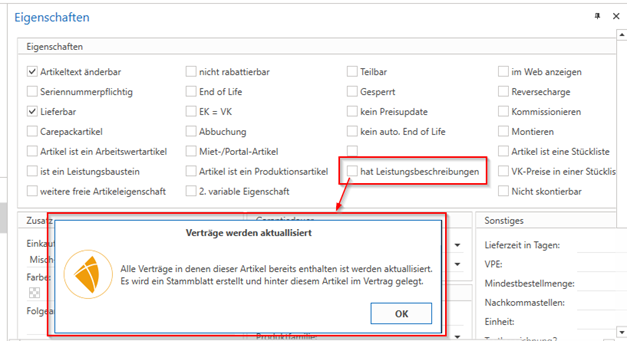
Now you can create the items you want or modify existing items. To do this, you can check the "has service descriptions" box in the "Properties" for the respective item.
A message appears stating that this will also be automatically adjusted for existing contracts. If you have already used items that were/are assigned to your contracts, these will be automatically adjusted to the "service descriptions" and "MSP master sheets" will be created for each item of each contract (more on this later).
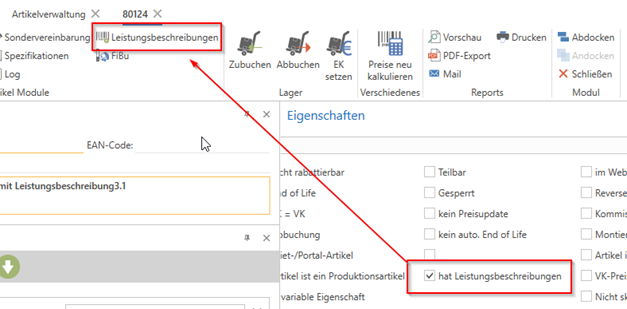
The "Service descriptions" section will then appear in the article in the "Article modules" area.
Here you can now manage the service descriptions for this item and, if necessary, "categories" for the service descriptions.
In the "Service description categories"-Administration, you can define the categories and subcategories you want. If, for example, you work with many services, the service you are looking for can be grouped much more quickly by the respective category and thus found more easily.
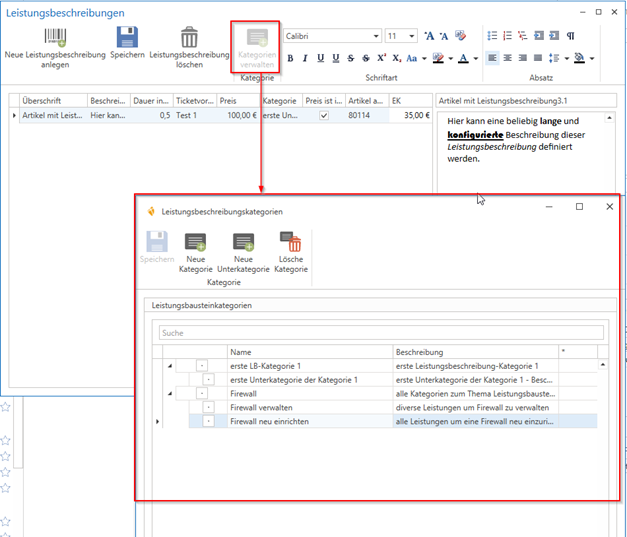
You can also assign a separate icon to each category and subcategory. To do this, simply navigate with the mouse to the first column of the desired category and insert the respective icon, e.g., via "(File) Open."
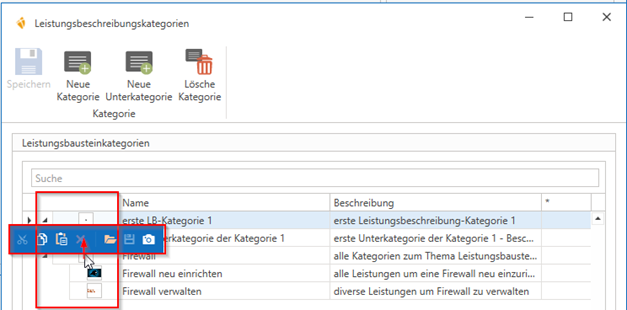
The first service description is automatically created when the "has service module" property is activated for the item. This then also directly receives the "item description" as the "description."
However, you can also store multiple service descriptions for an item.
To do this, click on "Create new service description."
Now you can fill in the fields:
Headline: when an item is described for the first time, the item description is entered automatically. You can also change this or enter text that identifies the service in additional descriptions.
Description: Here you can enter a relatively long description for this service description in the large field on the right and configure the font settings you want. However, this is for information purposes only and will not be displayed elsewhere.
Duration in hours: Here you can enter the duration in hours (not minutes -> 45 minutes are therefore 0.75 hours) planned for this activity for your evaluations and as a guideline for the technicians.
Ticket template: You can assign a template from your c-flow ticket templates for this purpose, which will be automatically applied to the ticket when it is created by selecting these services, along with the forms and checklists assigned to it. (However, if a "service" is added to an existing ticket at a later date, the ticket template can no longer be used. This is only possible when creating the ticket.)
Price: Here you can define the price ("value") of this activity, which is set for the technician (e.g., for any commissions) and/or for the customer for this service (see also "Price is included").
Category: You can assign one of your service categories here so that you can easily "find" this service when making your selection (if you define a large number of services, for example, these can be "categorized" for later selection—e.g., "firewall," "AD," etc.).
Price includes: This allows you to control whether this service and its "price" should be charged to the customer or not. If you check this box, this price will always be fully "offset" for the customer, as this service is already included in the contract.
Select item: Here you can select an item that will then be used for this service in the invoice. If you do not select one here, the item for which this service description is stored will be used.
EK: Here you can enter the estimated "EK." This can be used, for example, if you commission via "coverage amount" and is therefore also part of the "evaluation" in connection with the above-mentioned "price" (value) of this service.
If you now change one of the existing service descriptions or add a new service description to existing items that already have at least one service description, a query appears asking whether this should also be updated in the existing master sheets.
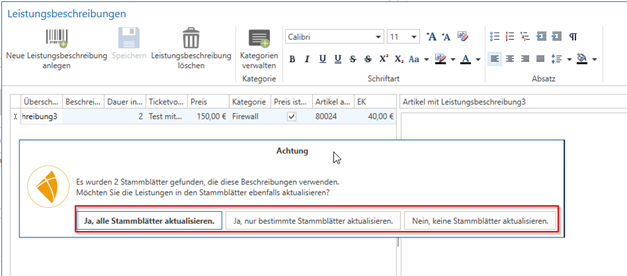
Here you can choose between
"Yes, update all master sheets" (this service description will be updated or added to all master sheets that have this service description)
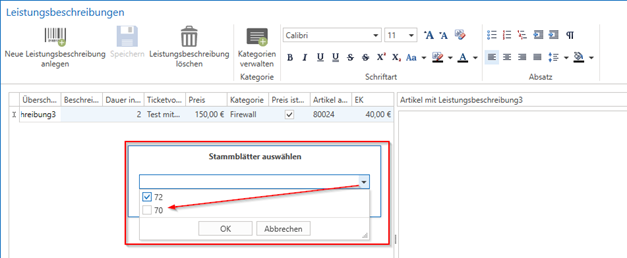
"Yes, update only specific master sheets" (a selection menu will then appear, allowing you to choose which master sheets this should be applied to—all (MSP) master sheets for this article are available for selection here)
"No, do not update master sheets" (this new or modified service description will only be transferred to new contracts/MSP master sheets – existing ones will remain unchanged)