%20(1).png)
My day
My day and employee workload
For better documentation of working hours for each employee
Rights:
For My day no rights are required.
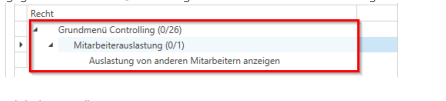
For the Staff utilization the "Employee Utilization" right is required under the Controlling main menu and, if necessary, "Display Utilization of Other Employees" is also required.
Global settings:
Under Global Settings – MyCentron – My Day, you can configure the settings for My Day and employee utilization.
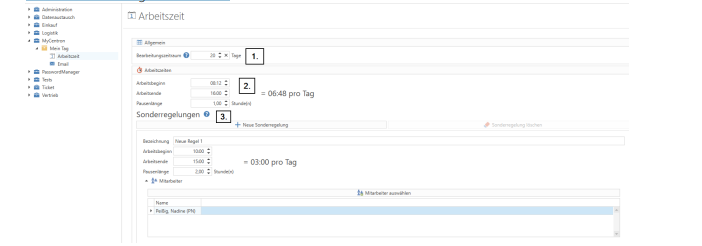
1. The processing period indicates how far back in time actions can be processed. If a day is beyond this limit, it can no longer be processed by the employee.
2. These are the default settings for working hours.
3. Special regulations allow different working hours to be set up for certain employees.
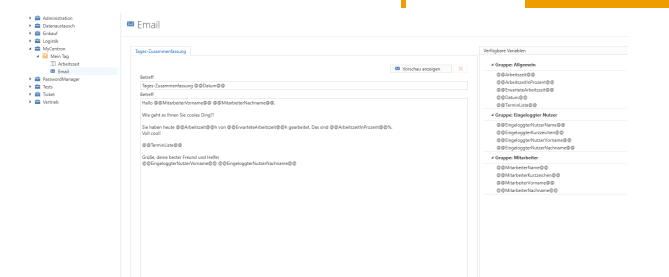
The daily summary email is sent when you select "Send email" in the employee workload section. You can view a sample email with data by clicking on "Show preview."
Personal settings:
Under the "APIs" tab (available from version 2.0.1903.8), TeamViewer access must be entered here in order to be able to load TeamViewer actions
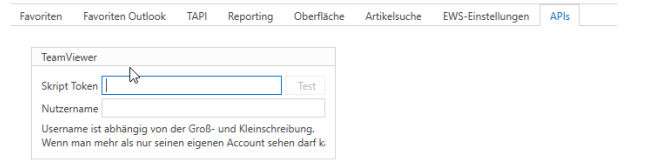
To do this, each user must have their own TeamViewer user account so that connections can be assigned. This can be set up here:https://login.teamviewer.com/nav/hom
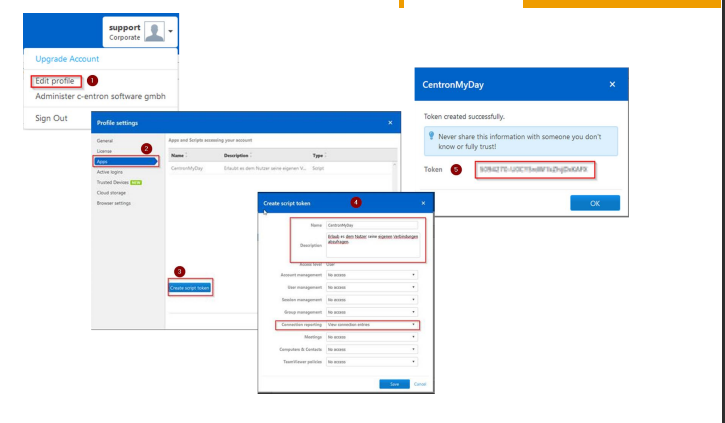
My day
The My Day module allows employees to better document their day. Several data sources are used for this purpose: ticket times, telephone calls (in conjunction with the TAPI server) when the document or customer modules were open, TeamViewer sessions, and appointments from Outlook (in conjunction with calendar synchronization). Employees can also create and edit their own appointments
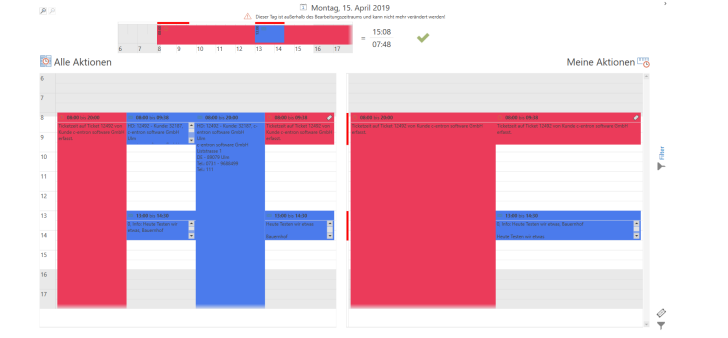
The main interface consists of two parts: All actions for the day from all data sources are displayed at the bottom left. However, since this often does not represent the actual work done during the day, employees must decide at the end of the day which actions were relevant. This can be done using the "Transfer to TimeLine" button. Once an action has been transferred to the TimeLine, it is displayed on the right-hand side and at the top center. For good documentation of working hours, employees should update this every day. They should also manually add any appointments that were not automatically recorded.
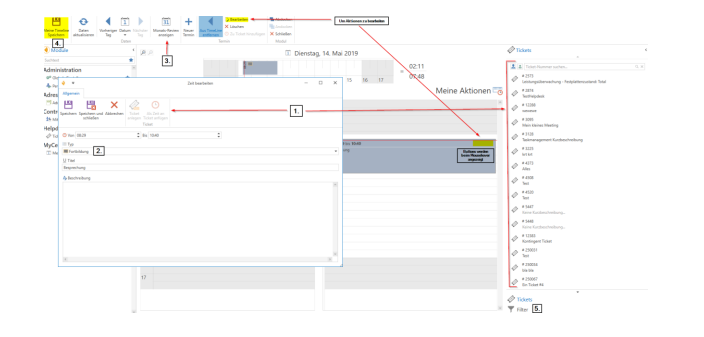
1. Actions can be linked to ticket times, or a ticket can be created and automatically filled with a time. If an action is linked, it can be opened directly via My Tag. This link is not displayed in the ticket.
2. The type can always be changed freely. The only exception to this is the "ticket time" type.
3. The monthly review shows the actions for an entire month
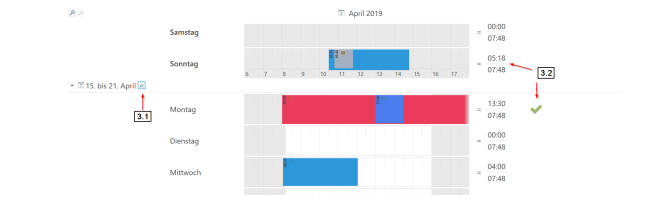
3.1 A chart can be opened here showing the distribution of actions for this week
3.2 Shows how much of the expected working time has been recorded in actions. If the expected working time has been fulfilled, a green check mark is displayed. This can also be displayed as a percentage using the "Summary in percent" button in the ribbon
4. To save the actions and the timeline, you must always press the "Save my timeline" button.
Employee utilization
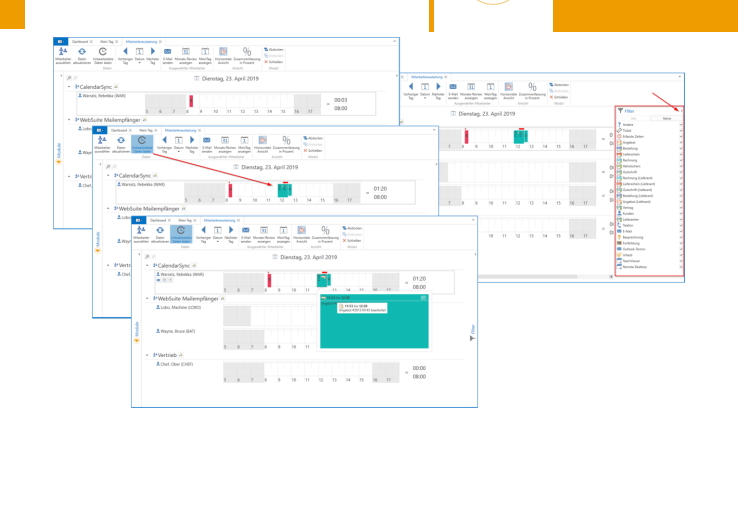
The Employee Utilization module allows you to view the actions of multiple employees and thus obtain an overview of the working hours of groups of employees. However, only the actions of an employee that have been actively transferred to their TimeLine are displayed here.
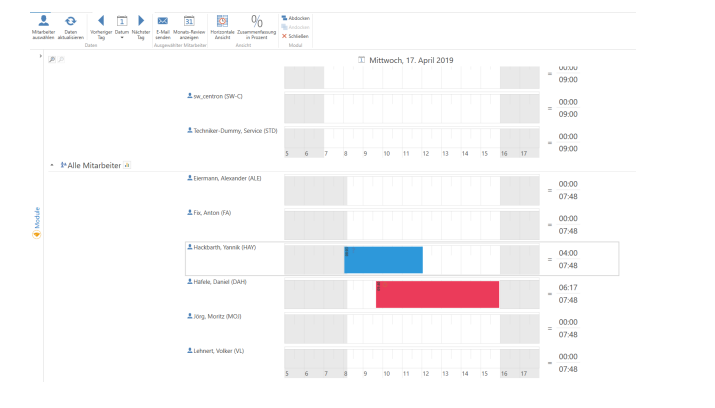
The [Load unprocessed data] button allows the supervisor to view the employee's data that is not stored in the timeline (the data to be displayed can also be selected using the filter on the right)