%20(1).png)
Order picking - Overview
Order picking in c-entron.NET
The picking module is designed to assist users with picking by quickly and easily generating an overview of orders that can be picked and making it easy to pick the items for the order.
Rights management
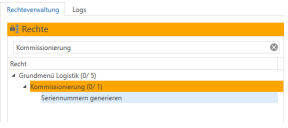
To view the picking module, you need the "Basic Logistics Menu" and picking rights
Report
There is a new report for picking, which can be downloaded in the report management system by clicking the [Load portal reports] button and is stored under Logistics – Picking.
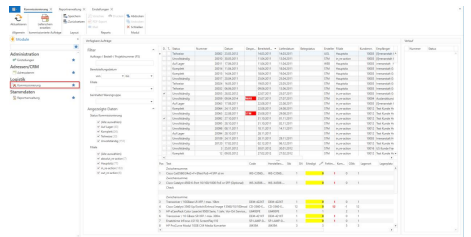
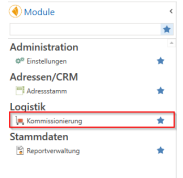
The "Picking" module is located on the left under the "Logistics" category
To load the orders, first click on [Refresh].
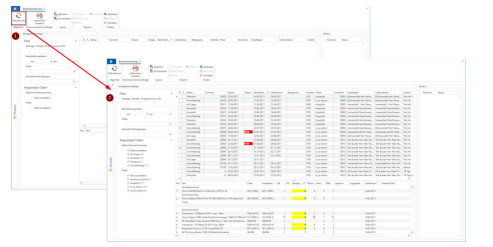
Only active orders with at least one item are considered for picking.
The following additional filter options are available on the left:
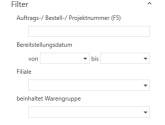
Order/purchase order/project number
This field can be used to search for an order directly by its number.
Deployment date
Filters orders based on the provision date.
Branch
Using the filter, orders can be loaded for a specific branch only.
Includes product group
Only orders containing items from the selected product groups will be considered
This data is reloaded by clicking [Refresh].
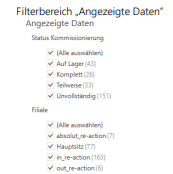
Once the data has been loaded, it can be further restricted either via the table or using the predefined filter area "Displayed data." The numbers in brackets indicate how many orders are affected. -> These are reloaded immediately.
Explanation of the picking status
In stock: The goods are in stock for the order.
Complete: The order has been fully picked.
Partial: The order has been partially picked.
Incomplete: There is not enough stock for the order.
The data overview also shows immediately whether it is a direct delivery or whether a partial delivery is possible.
Picking
To pick items, for example, "All stores" and "All product groups" were selected in the filter, [Refresh] was clicked, and then "In stock" was filtered in the displayed data
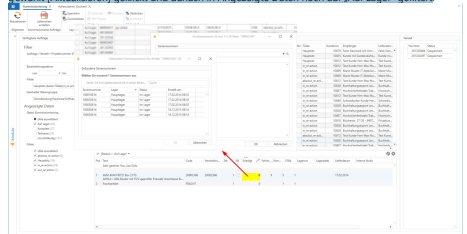
The order to be picked is marked and the quantity is entered in the yellow fields (1) in the item area at the bottom.
If the item has a serial number, a window opens directly in which the serial number can be assigned (2). Once the serial number has been assigned, the quantity entered, and this confirmed by pressing Enter, the picking process is complete and saved.
An entry is then made in the process on the right (3) and the status changes to "Saved."

Blocked orders (identified by the abbreviation in red) cannot be picked.
Double-clicking opens a selected order from the overview, and a selected item in an order can be opened by pressing [F12].
In addition, a delivery note for the selected order can be created directly from the picking process using the [Delivery note] button, or a report showing the items to be picked can be generated.
IMPORTANT: In order for an item to be picked, the "Pick" checkbox must be selected in the item master data
Be set in articles