%20(1).png)
Performance records
The Performance Records module enables you to display and process your employees' performance in a report-based format.
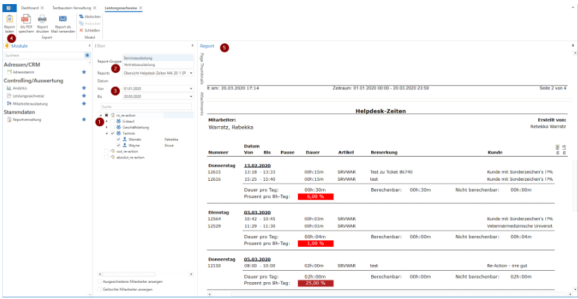
The Performance Records module can be found on the left under Controlling/Evaluation.
In the Filter section, you can use the tree structure (1), which is sorted by branches and departments, to select the employees who are to be listed in the evaluation.
Departments that do not contain any employees are not displayed. Multiple selections across departments or branches are possible, but the report must also be able to display this.
You can expand the employee selection using the buttons below the tree.
The desired report (2) can be selected from the respective report group (service utilization or sales utilization). When the report group is changed, the selection of reports changes accordingly.
Under Date (3), you can select the desired time period. A period of one month is selected by default.
Clicking on [Load report] (4) loads the report with the selected parameters and then displays it on the right under Report (5).
The requested report can be further processed using the [Save as PDF], [Print report], and [Send report as email] buttons. The standard methods of c-entron .Net are called up for printing and sending.
Report - Service utilization of performance records
The report "Overview of Helpdesk Times MA 17-x SP" is available in the report portal for the service utilization of the service records.
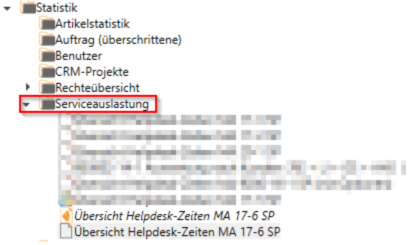
To do this, simply download the report via [Load portal reports]. You can then find it under Statistics – Service utilization and save it here (by double-clicking on the downloaded report).
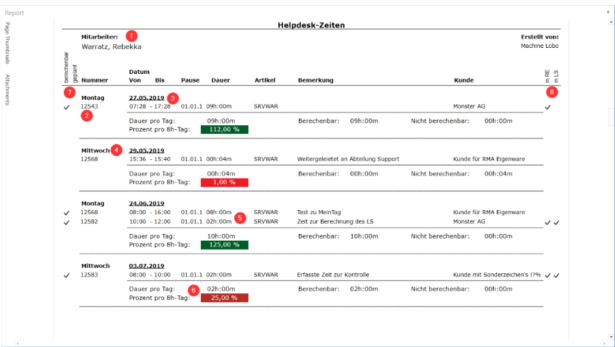
This overview shows the services provided, broken down by employee (1).
Please provide the ticket number (2), date (3), day of the week (4), and times worked (5).
A color scale and a percentage (6) indicate whether the daily target has been achieved.
It can also be seen here whether a time is calculable or planned (7) and has been included in a delivery note or invoice (8).
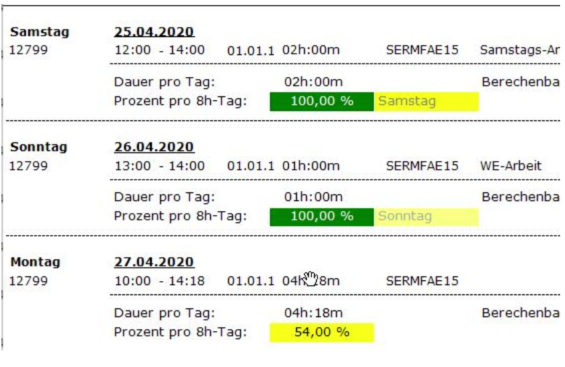
In the report "Overview Helpdesk Times MA 17-6 SP," Saturday and Sunday work is now always displayed in green with 100%, and "Saturday" or "Sunday" is displayed in yellow behind the percentage value to highlight this in color. However, public holidays cannot be displayed.