PLM (Product Lifecycle Management) greatly simplifies license and product management for your customers within c-entron.NET, as you now have the option of easily sending a reminder email or a (new) quote (including from quote templates) to your customers from within PLM.
PLM license
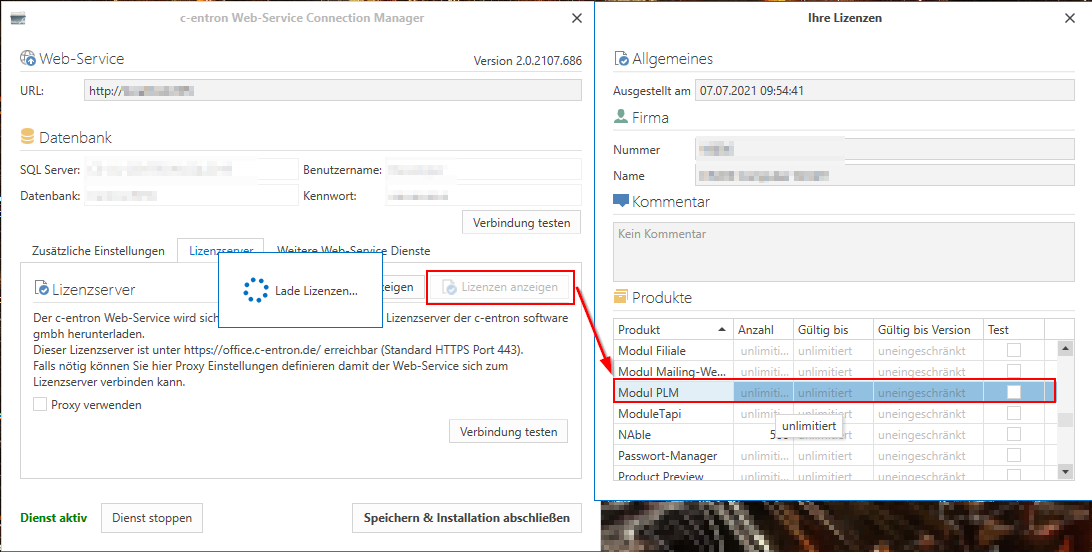
NOTE: You can view which licenses you have in use in the c-entron connection Manager by clicking on [Show licenses]
Permissions
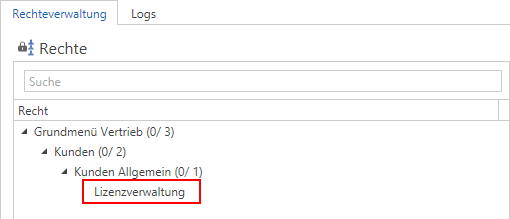
You can check this in the rights management section of c-entron.NET (just click on the [Rights] button in the menu bar):
Settings PLM for the to-do lists message
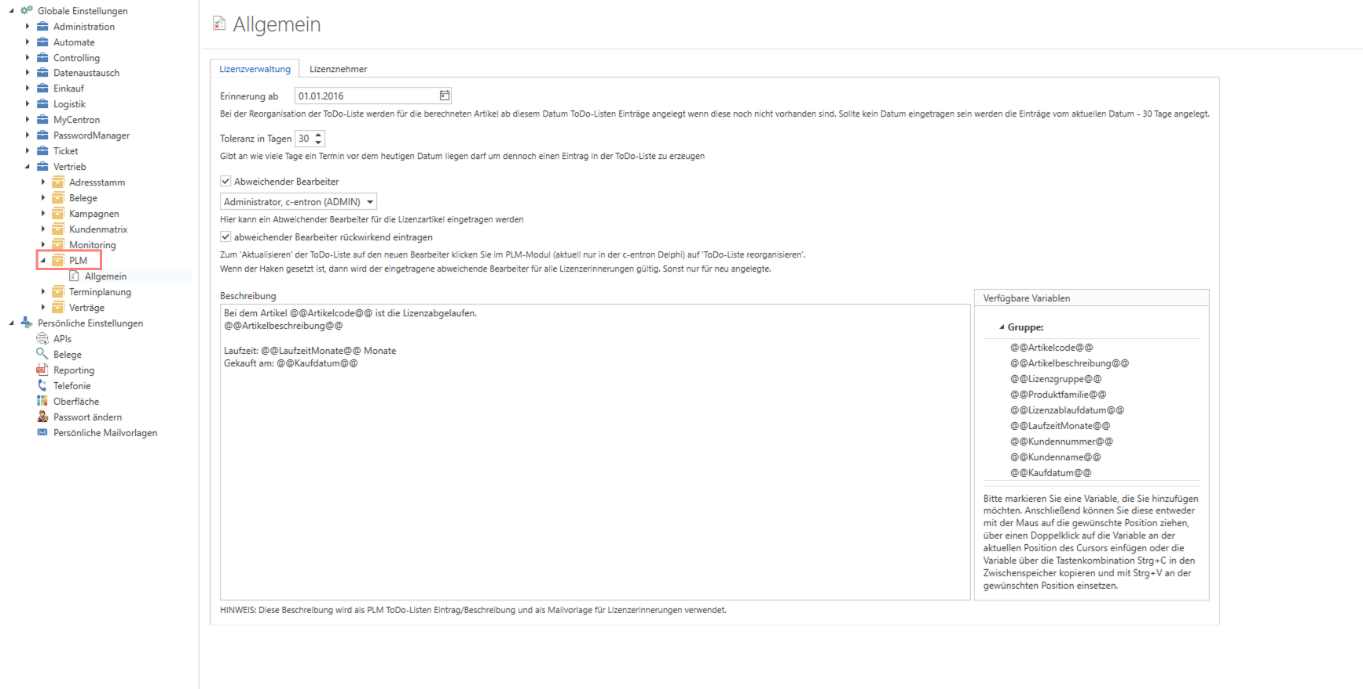
You can find these under Global Settings – Sales – PLM – General (or simply click the [Settings] button in the menu bar).
"Memory off"
A reminder date can be specified, which should be entered when reorganizing the to-do list. If this date field is empty, entries will be created for the current date minus 30 days.
"Tolerance in days"
Specifies how many days before today's date a deadline may be in order to still generate an entry in the to-do list.
"Different processor"
A different processor for the license items can be entered here.
Reminders in the to-do list are only displayed to this editor.
"Enter different processor retroactively" – currently not yet implemented in c-entron.NET (only relevant for Delphi)
"Description"
The message used as a PLM to-do list entry and as an email template for license reminders can be preconfigured under "Description" using placeholders. Placeholders for values such as the item code, item description, expiration date, etc. are already available.
Tip: It is best to create an employee named "Licenses" and assign them as the alternate processor. This alternate processor never leaves the company, so this "employee" will have all to-do entries related to license reminders in the future.
Email templates
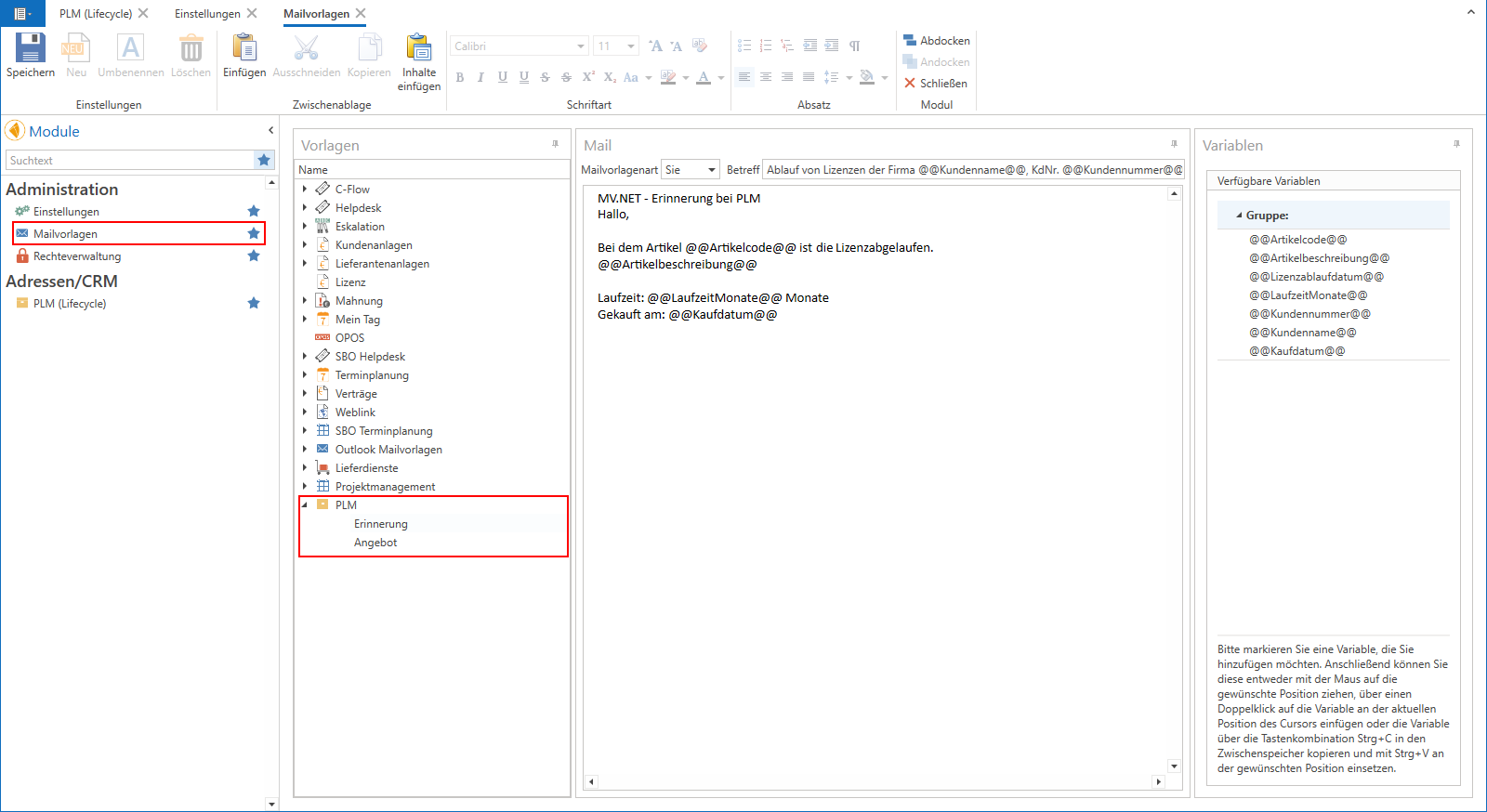
You can store these under PLM in the mail templates.
Reminder
The email sent via the [Send reminder email] button can be sent to customers can be preconfigured at this point using placeholders.
Offer
The email sent via the [Send quote email] button can be sent to customers can be preconfigured at this point using placeholders.
PLM module
The "PLM (Lifecycle)" module can be found on the left under Modules under Addresses/CRM.
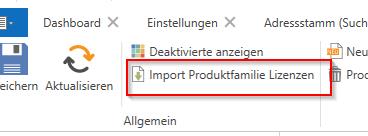
IMPORTANT:Since a new structure for PLM has been built into c-entron.NET and there is currently no way to import the data automatically, it is necessary to Button [Import Product Family Licenses] in the menu bar/ribbon to import the license data for the selected product family. Then click the [Refresh] button in the menu bar/ribbon and the data will be available.
Create product family group
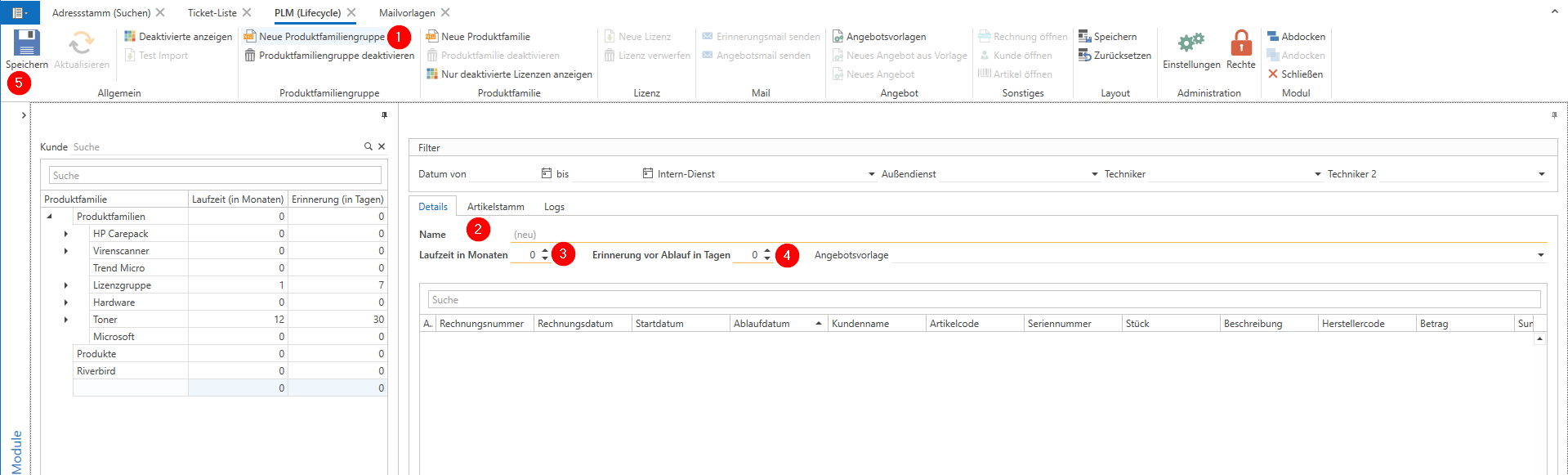
In order to be able to assign articles to product families later, these must first be created. To do this, open the "PLM (Lifecycle)" module under "Addresses/CRM" and then click on the Button [New Product Family Group] (1). An input field appears on the right.
Here, under the "Details" tab, you can enter the name (2), the term in months (3), and the reminder before expiration in days (3). (The required fields are also underlined in orange here.) Finally, don't forget to click [Save] (5).
Create product families
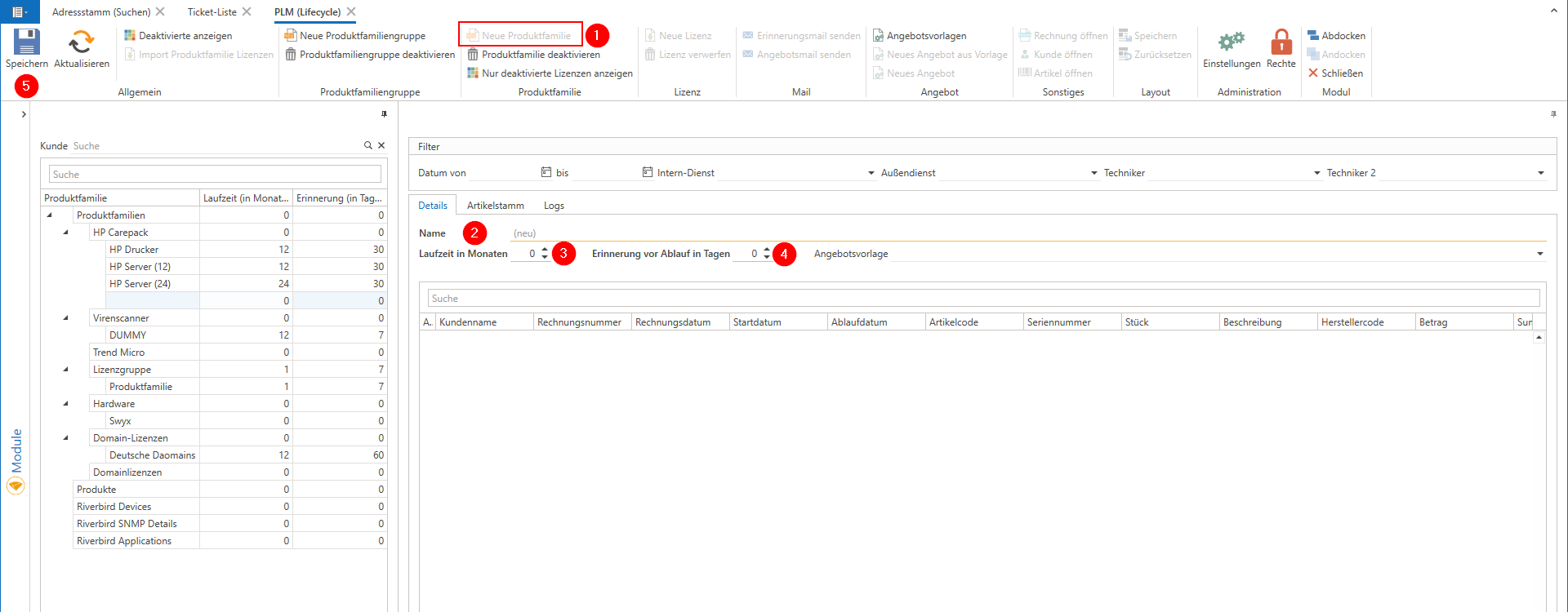
The product families are also created using the [New Product Family] button.
To do this, please select the desired product family group and then click on the Button [New product family].
Here, too, you can enter the name (2), the term in months (3), and the reminder before expiration in days (3) under the "Details" tab. (The required fields are also underlined in orange here.) Finally, don't forget to click [Save] (5).
Assign the item to product families
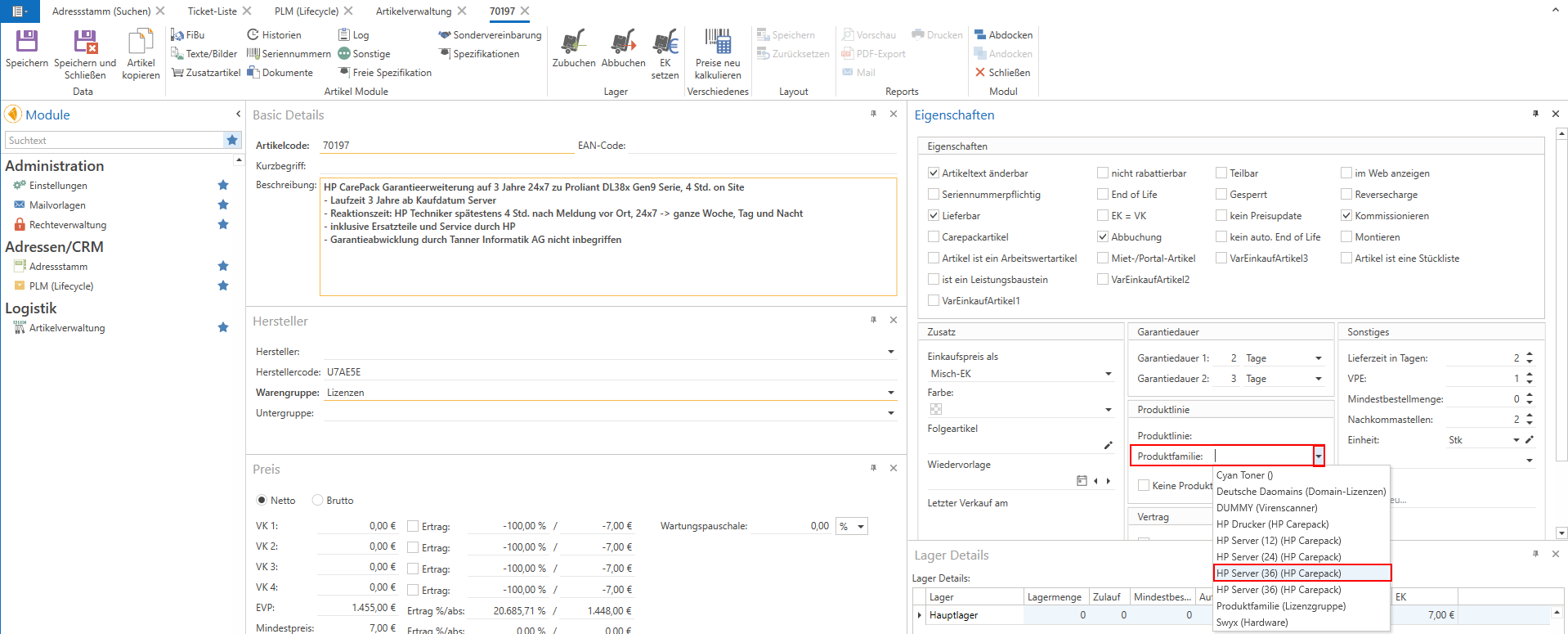
To use the PLM function, please assign the item to a product family in item management.
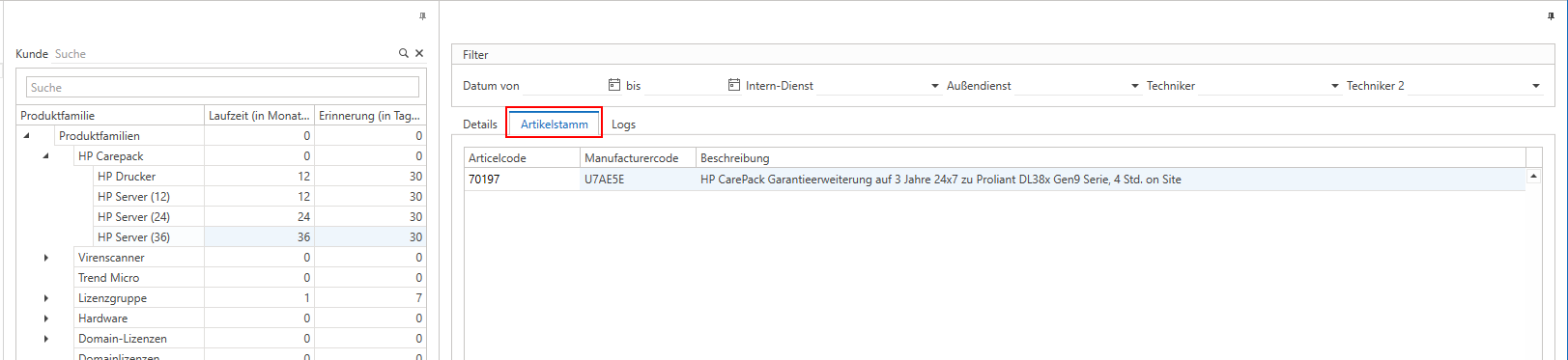
These then appear in PLM in the Article Master tab
For the Riverbird product families, data from the Riverbird tables is automatically imported every day between 2:00 a.m. and 5:00 a.m
The Riverbird product families
For the Riverbird product families, data from the Riverbird tables is automatically imported every day between 2:00 a.m. and 5:00 a.m
Riverbird Devices
All devices except virtual machines/devices from the Riverbird tables are displayed here.
Riverbird SNMP Details
All SNMP (Simple Network Management Protocol) details from the Riverbird tables where the "PLM-relevant" checkbox is selected in Riverbird are displayed here.
Riverbird Applications
All applications from the Riverbird tables are displayed here.
PLM functions
Details tab
Here you can define the name, duration, and reminder before expiration.
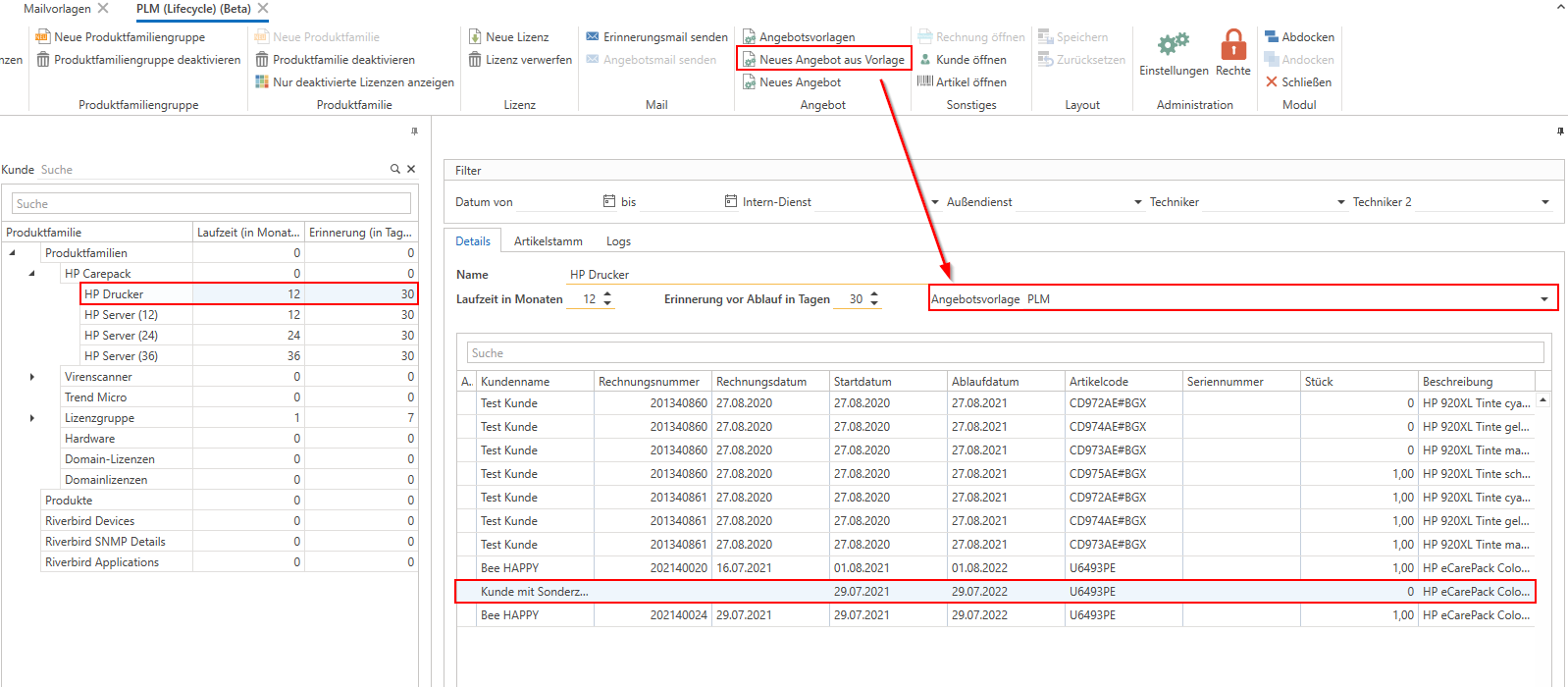
You also have the option of adding a quote template here.
All licenses that contain this article are listed here.
You can find out more here about right mouse button/context menu
Discard license
Rejects the license for this article
Send offer email
enables you to send an offer to the customer
Send reminder email
enables you to send a reminder email to the customer
New quote from template
enables a new offer (based on a template) to be sent to the customer
New offer
enables a new offer to be sent to the customer
Open invoice
opens the corresponding invoice
Open customer
opens the corresponding customer
These functions/buttons can also be found in the menu bar.
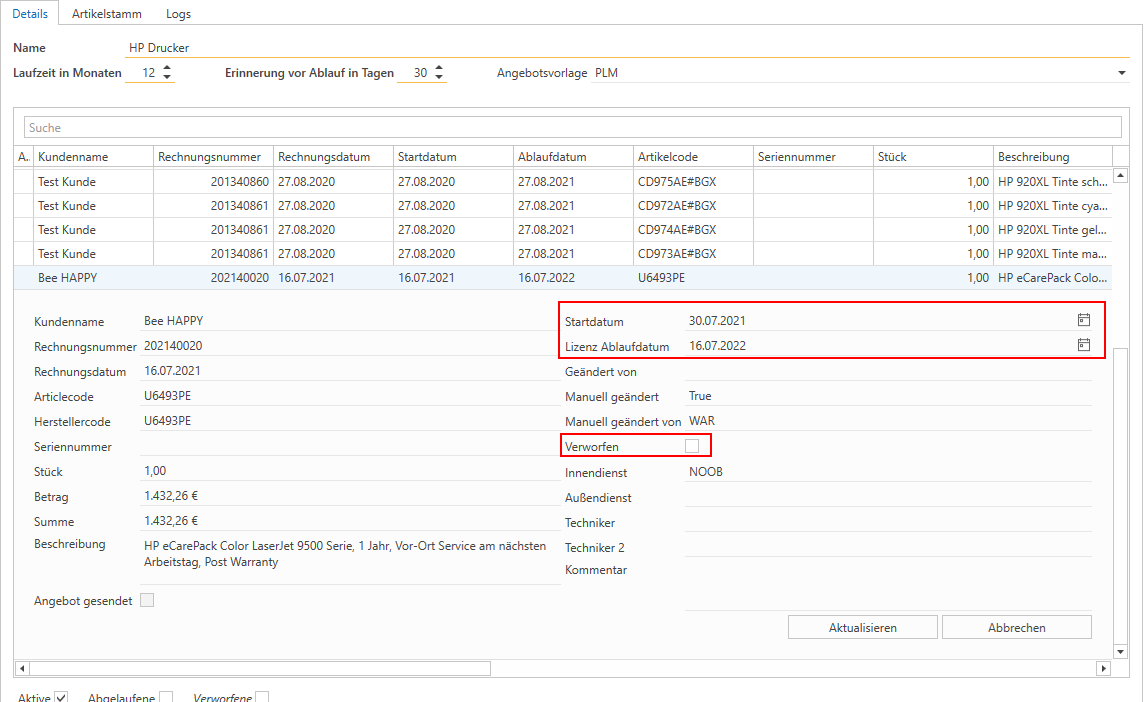
About Double-click can the Licenses in detail can be viewed:
In an existing license, only the start date (if this is changed, you will be asked whether the expiration date should also be adjusted), the expiration date, and the check mark next to "Discarded" can be edited.
This can then be saved by clicking [Update]. Clicking [Cancel], on the other hand, will not save the changes.
Tab Article master
All items assigned to this product group are listed here.
You can do this by right-clicking/in the context menu
Open in article management
- opens the selected item in item management
Rider Logs
The log is used to track which action was performed by whom and when.
Settings in the ribbon
[New License] button
To do this, select a product family and click the [New License] button.
The Customer Search window will now open, where you can search for the customer to whom you want to assign this license.
This opens the details window, where you can assign an item to the license via "Item code."
[Send reminder email] button
About the button [Send reminder email] you now have the option of sending a reminder email directly to your customer using the email template you have saved.
[Send quote email] button
About the button [Send offer email] you now have the option to send a quote email directly to your customer using the email template you have saved.
[Offer templates] button
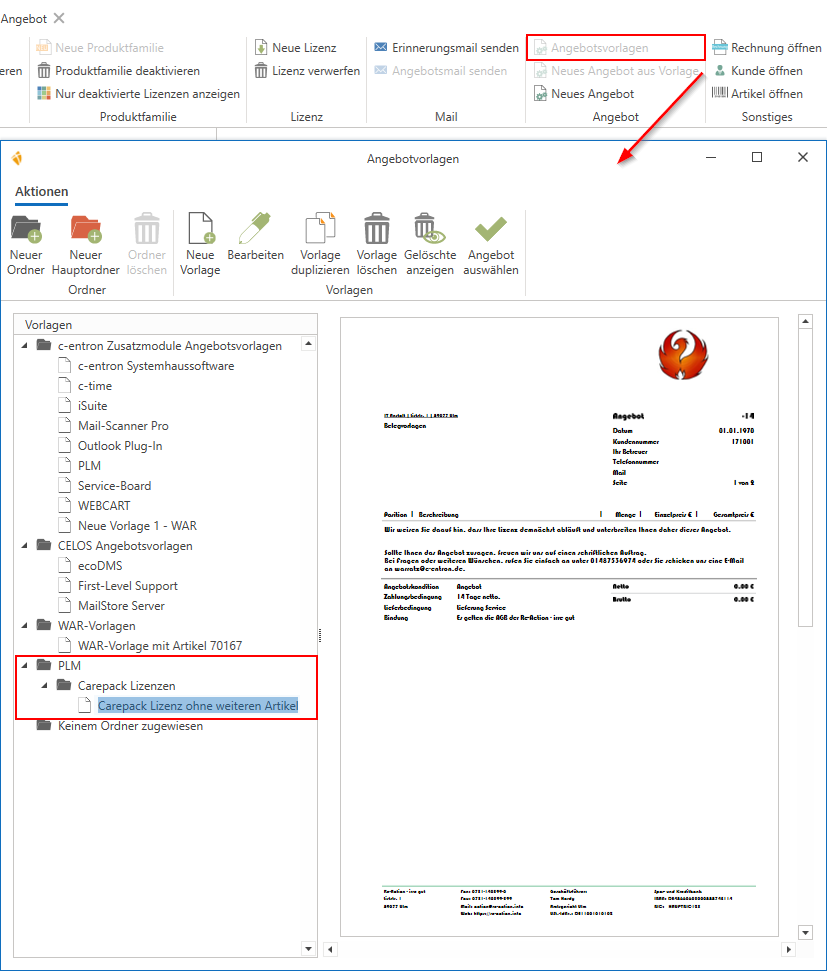
This button can be used to select offer templates for a future offer and/or create a new offer template.
To do this, you can create the PLM folder using the [New main folder] button and then create a new template using [New template]. Copy a selected template using the [Duplicate template] button, customize it as desired, and then use the selected template by clicking [Select quote]—just as you would in the address master.
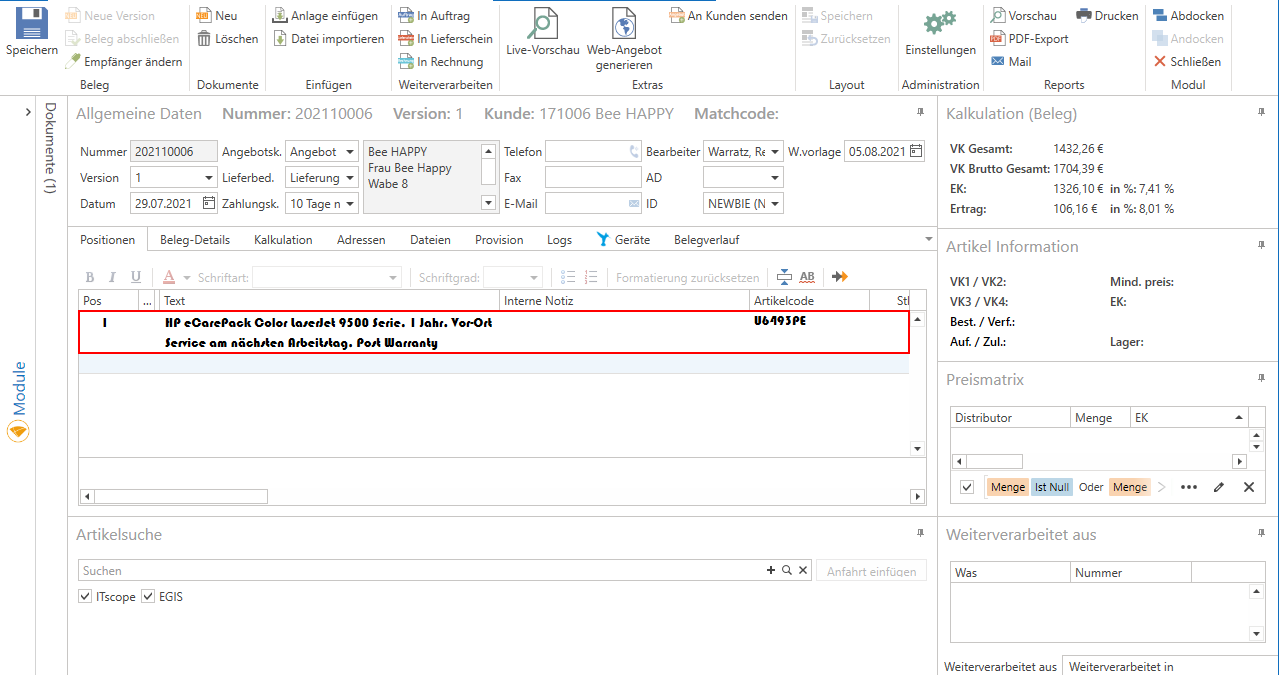
Once you have done this, you can still edit and customize the offer that is now open according to your preferences before you [Save] it.
Button [New quote from template]
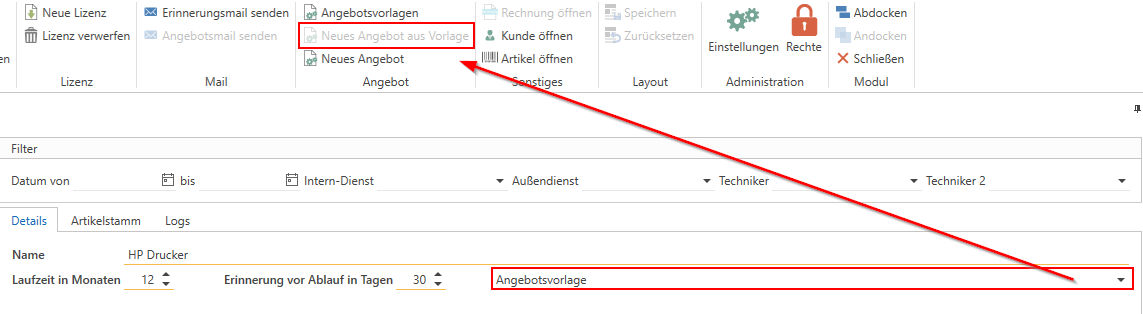
About the button [New offer from template] a quote will be created for you from the quote template preselected in License with the license item for the customer marked at the bottom of the list.
This button is only active if an offer template is also stored with the license.
[New offer] button
The [New Offer] button creates an offer with the license item for the customer marked at the bottom of the list.
JavaScript errors detected
Please note, these errors can depend on your browser setup.
If this problem persists, please contact our support.
%20(1).png)