%20(1).png)
Product groups
Product group management - general
Product groups are the central tool for classifying and evaluating groups of items (e.g., printers or services) in a summarized form. They serve as a template for item creation and usually contain the revenue and expense accounts for financial accounting (default value).
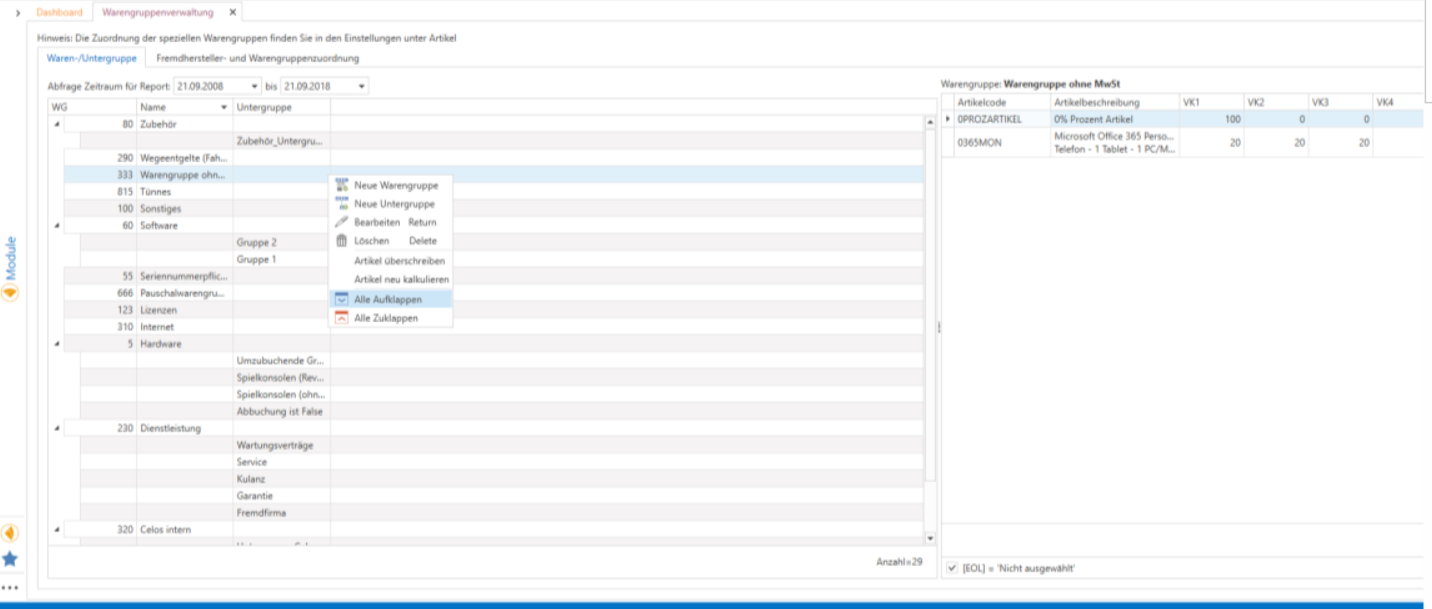
TIP: Individual functions can be executed quickly using the right mouse button. It is also possible to expand and collapse entire product groups/subgroups using this function.
The menu bar and its buttons:

With the button [Edit WG/UGa window opens to edit the selected product or subgroup.
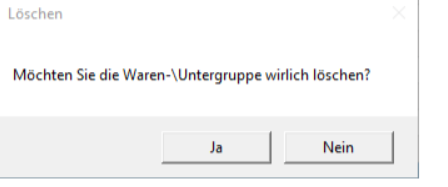
By clicking the button [Delete WG/UG] the selected product or subgroup will be deleted, but this must still be confirmed to prevent accidental deletion of a WG/UG.
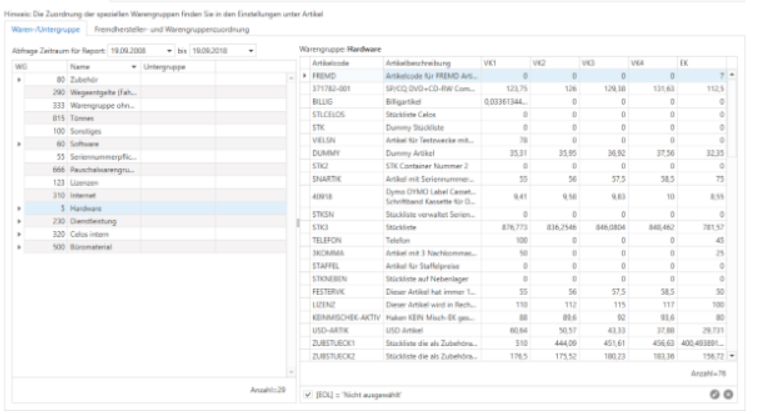
By clicking [Change room reservationn] All product groups are displayed again on the right and a message appears stating "Transfers can be made using drag and drop," which must be confirmed with [OK].
The button [Show/Hide Article] displays the articles relating to the selected product subgroups on the right:
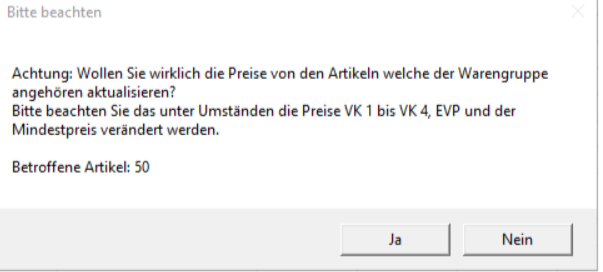
The [Recalculate items] button recalculates the items – A message appears indicating that the prices VP 1 to VP 4, MSRP, and the minimum price may change, and the number of items affected is displayed:
The [Overwrite item] button applies the settings from the product/subgroup, whereby you can still select which items are to be overwritten based on the
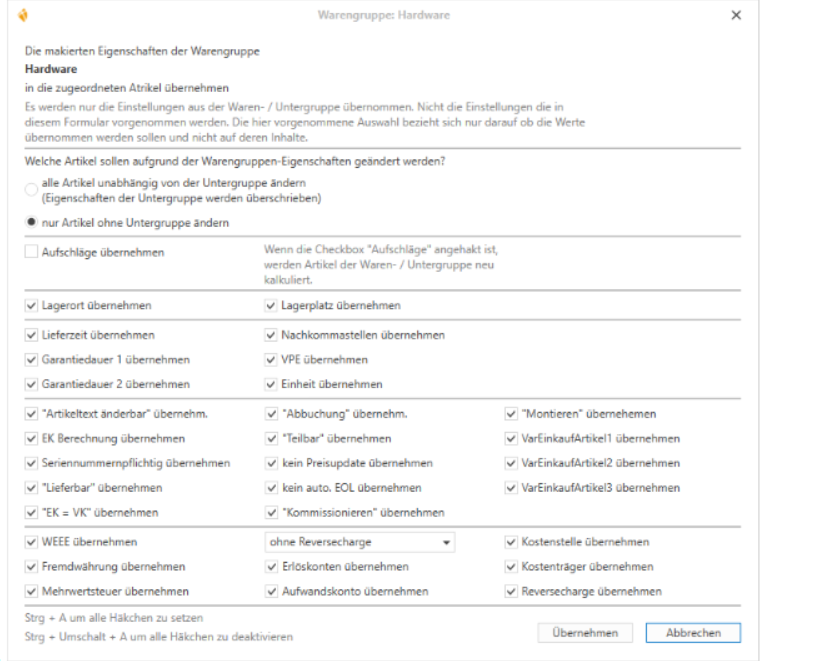
Product group properties are to be changed
The Reports section has not yet been released.
In the Layout section, layout settings can be saved in private or public profiles. This function is deactivated in the standard profile c-entron, as no layout changes can be saved in this profile.
[Settings] opens the settings for "Special product groups" under Global settings.
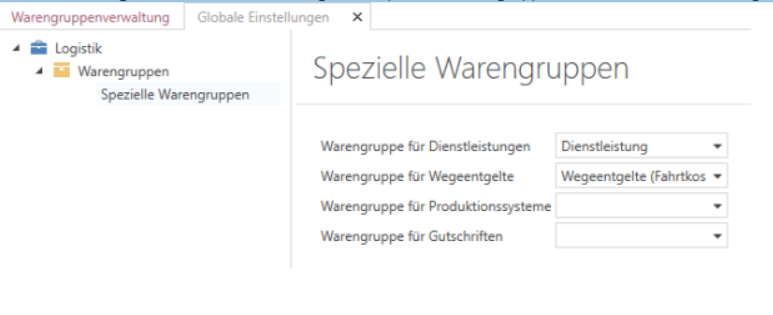
Create product group
Procedure for creating a new product groupe
The creation and use of product groups should be considered strategically. As a general rule, the following always applies:
"All items that I want to evaluate specifically in a superset are assigned their own product group."
However, when applying this principle, it is important to remember that, depending on the business area, less is more. If you have a core area such as HP, IBM, FSC, etc., you should create separate entries for all relevant product lines, such as notebooks, servers, desktops, etc., for each manufacturer.
The use of sub-product groups only makes sense if you then apply them specifically in corresponding precise evaluations. As a standard, normal product groups are preferable to sub-product groups, as they can be inserted more quickly when creating articles.
Creation of new product groups:
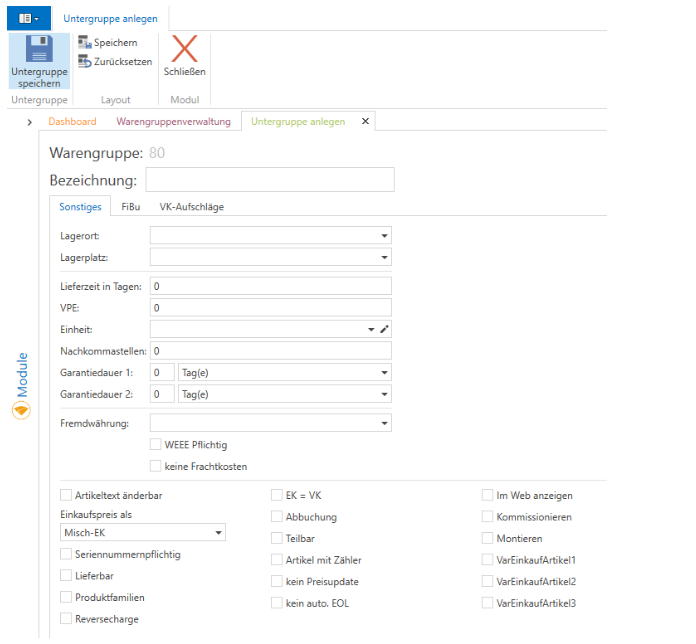
A new product group can be created using the [New product group] button.
What causes this window to open:
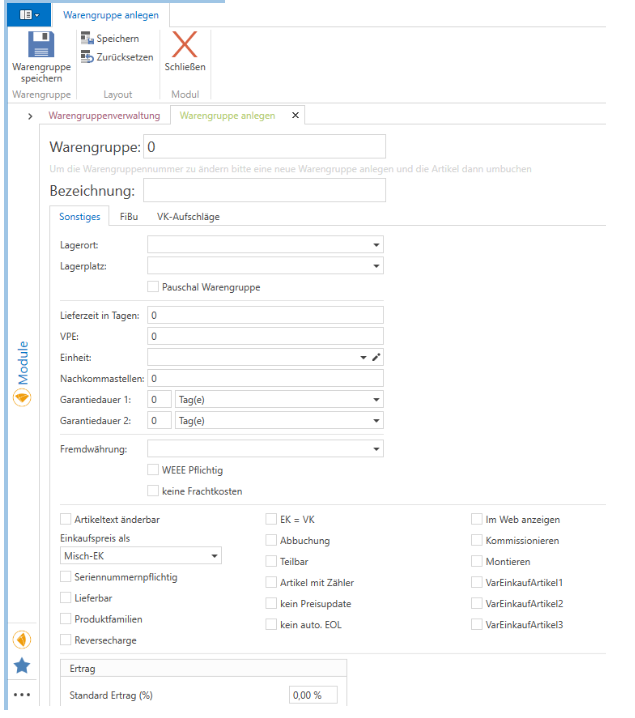
Product group & description:
The Product group number is only relevant for evaluations. The designation plays the central role. This is visible in the asset modules and the article master.
To enter the key data for the product group, the following fields should be filled in.
It is possible to specify the storage location and storage bin if working with different warehouses.
In addition, whether it is a flat-rate product group that is required for flat-rate billing.
Delivery time in days:
This information specifies the expected delivery date of goods from your supplier.
PU:
The packaging unit indicates the value of an item. This function can be used, for example, for services to determine the number of hours of a daily rate.
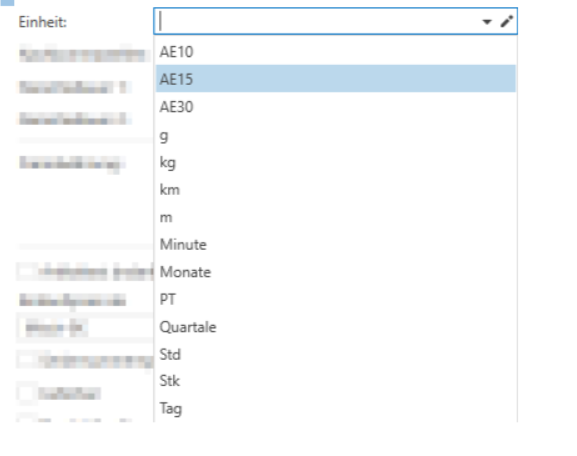
Unit:
Now you can specify the unit in which the stock level is to be managed.
These can be selected from the drop-down menu:
Decimal places:
Number of decimal places the price of the item should have, which are used to calculate the amounts in the investment modules.
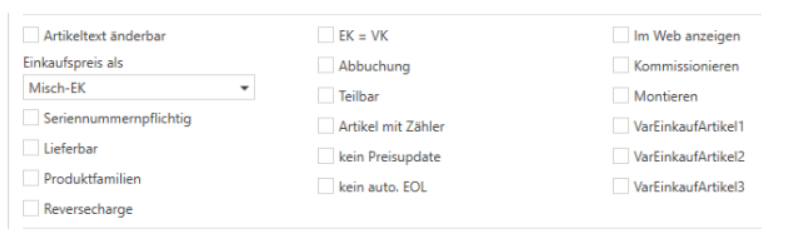
Article text can be changed
In rights management, you can assign global rights for changing article texts in the plant modules. With this setting, you can define whether the sales employee is still allowed to edit the text of this article.
View on the web
The setting is a selection criterion and serves to enable this article to be transferred to an external program.
Serial numbers for goods issued
Items marked with this symbol may not be delivered without an assigned serial number. Please note that invoices without a SN cannot be printed in the standard version.
Available
This setting determines whether an item is an auxiliary item (e.g., new item or third-party item). These items cannot be included in an order, delivery note, or invoice.
EK = VK
With this setting, every position in the sales order is automatically equated with the purchase order.
Debit
The inventory management is marked using the Debit check box.
Divisible
This setting is mostly used for service items, i.e., for goods that are divisible (goods sold by the meter, time units, etc.)
Picking
This checkbox determines whether an item is visible in the picking module.
Assemble
This switch can be used for report displays. It can be displayed whether the item is to be further processed in production.
Product families Mandatory
If this option is active, a product family must be stored in the article. This option is a mandatory field for the "License Management" module.
No price update
If this option is enabled, this item will not be included in automatic price updates.
No car. EOL
If this option is activated, this item will not be included in an automatic EOL run. In the Financial Accounting tab, you must specify the accounting numbers in order to transfer the data to financial accounting for each item for invoicing.
The cost centers and cost objects can be entered as default values directly after the item
And the other freely definable item properties (which can be defined under Administration – Settings – Purchase Items under the "Variables" tab.
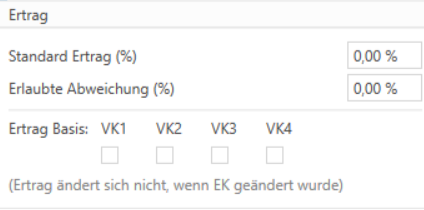
Yield:
The surcharges are used for quick calculation of goods in the article master or goods receipt. This value could be used as default values.
It is possible to create multiple price-linked markups for product groups. This allows you to apply a higher percentage markup to cheaper items than to more expensive ones. To do this, first select any product group and then click on the Markups tab. You can specify any number of price-linked markups in the table.
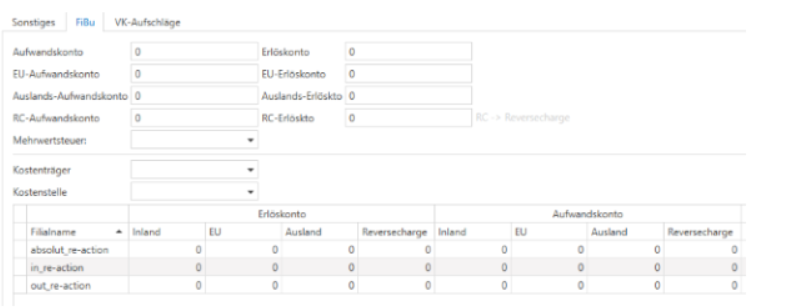
Revenue account / Expense account:
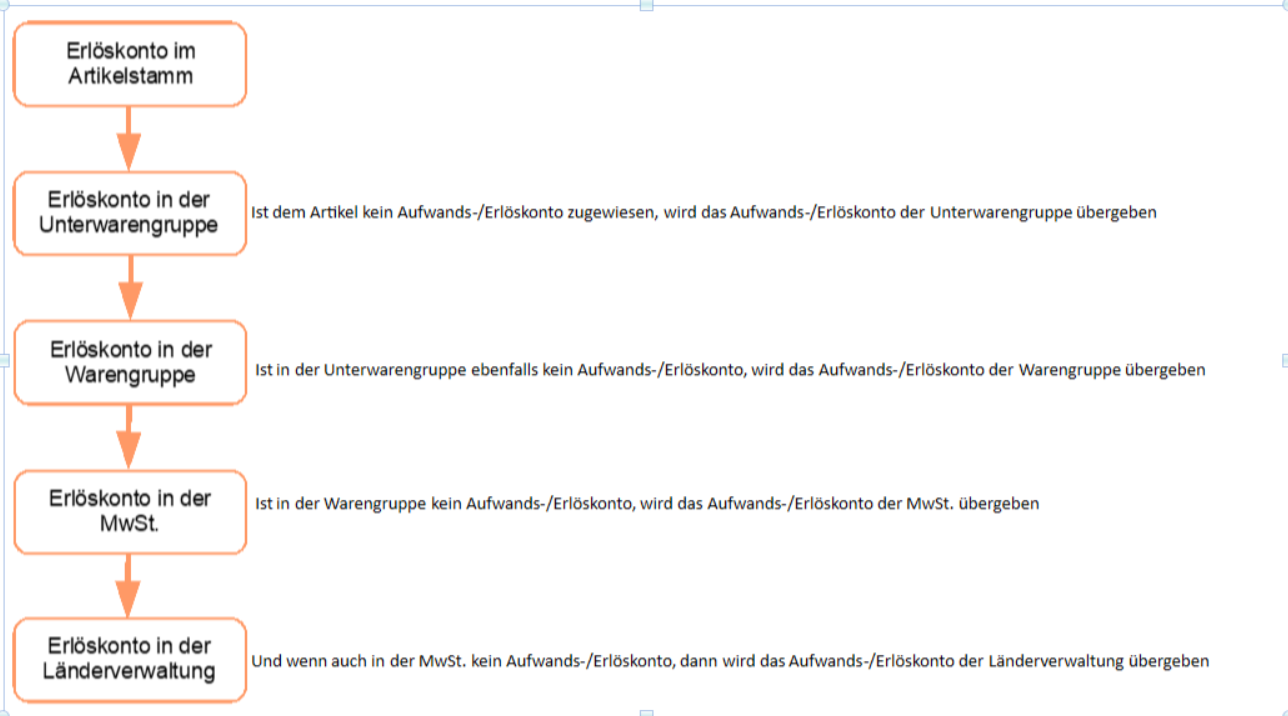
A revenue account can be assigned to a product group. All items and subgroups in this product group are initially assigned this revenue account. This applies until subgroups or items are assigned their own revenue accounts. These override higher-level revenue accounts.
Financial accounting branches
Under the Financial Accounting Branches tab, assign the appropriate revenue accounts to the branches you have created in branch management. To do this, edit the fields in the Revenue Account column.
UK surcharges:
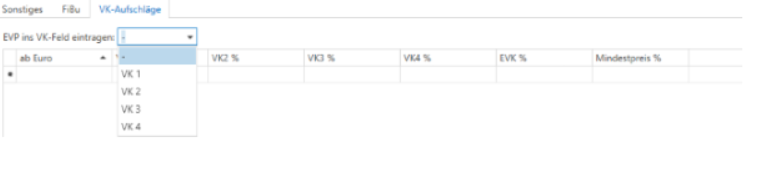
The markups are used for quick calculation of goods in the article master or goods receipt. This value could be used as default values. It is possible to create multiple price-linked retail prices for product groups. This allows you to apply a higher percentage markup to cheaper items than to more expensive ones. To do this, first select any product group and then click on the Retail Price Markups tab. You can specify any number of price-linked markups in the table.
To save your entries, click [Save Product Group].
Create subgroups
A new subgroup can be created using the [New subgroup] button.
Then enter the name of the subgroup in the Name field.
Fill in/select all other data (as when creating a new product group).
Edit product group/subgroups
To edit a product group/subgroup, click on the product group/subgroup to be edited, click on [Edit PG/SG], and proceed as described above.
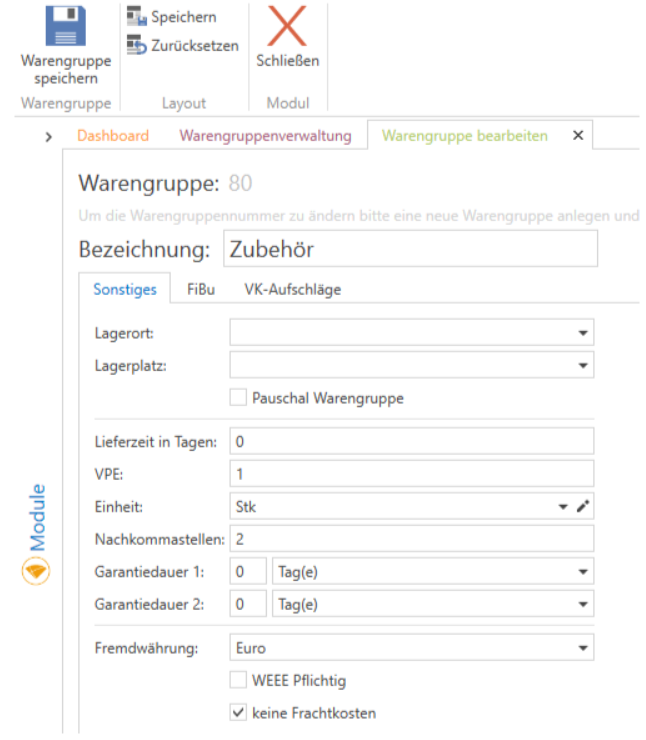
The [Save product group] button is used to update the accounts for items that have already been created and belong to the product group.
Delete product groups/subgroups
The [Delete WG/UG] button can be used to delete product groups/subgroups if no items have been stored yet. A query will then appear asking whether you really want to delete them. If items have been stored, a message will appear stating that this product group/subgroup cannot be deleted.
Revenue and expense accounts in c-entron.NET
Sales of goods and services are recorded in revenue accounts, while purchases of goods and services by a company are recorded in expense accounts.
Each item can be assigned a specific revenue account to which the sale or purchase is posted when an invoice is entered. For example, account 8300 for revenue with 7% sales tax or 8400 for revenue with 19% sales tax.
However, the respective account number is not fixed and may vary depending on the tax advisor. It depends on the so-called chart of accounts, which suggests the account numbers.
Your tax advisor can tell you which chart of accounts you need to use. (We only provide "SKR 04" in the "Chart of Accounts" module.)
In the "Product Groups" module, you can assign a revenue and expense account (also for individual branches) to entire product groups and/or sub-product groups in the "Financial Accounting" tab and update these for the items using the [Overwrite Item] button:
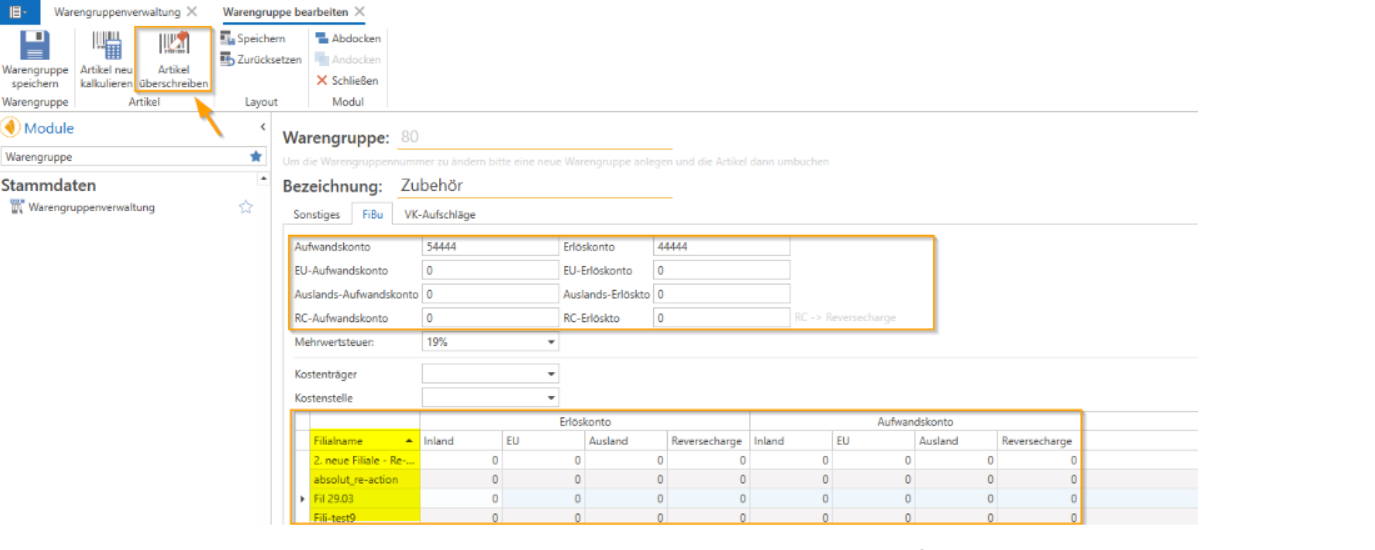
The accounts stored here are automatically pre-assigned to the respective product group and/or sub-product group when new items are created and can also be customized at the item level.
When exporting accounting data, these are then transferred to your accounting department with the export file.
The order is as follows:
Note: For creditors abroad, a check is made to see whether they have entered a VAT ID number. If this is not the case, they are treated as private individuals and the corresponding domestic revenue account is used.