%20(1).png)
Report server
Report server - (licensed module)
The report server makes it possible to send emails with attached reports to employees, supervisors, and customers on a regular basis.
Benefits and advantages
With the c-entron report server, you get a wide range of predefined reports. This module is particularly suitable for sales, management, department heads, employees, and customers. Predefined reports are already available for evaluation, such as recorded times, recorded offers, utilization, statistics, controlling, daily KPIs, and much more.
The report server can automatically send reports to employees, supervisors, or even customers at freely definable daily, weekly, and monthly intervals. This adds significant value to day-to-day business
Scope of services
• Send automated reports on freely definable
Time periods
Weekly periods
Monthly periods for employees
Supervisors or customers
you receive predefined reports - Evaluation of recorded times - Recorded offers
Capacity utilization
Statistics
Controlling
Daily KPI
and much more
take advantage of the option to send emails with attached reports to customers on a regular basis
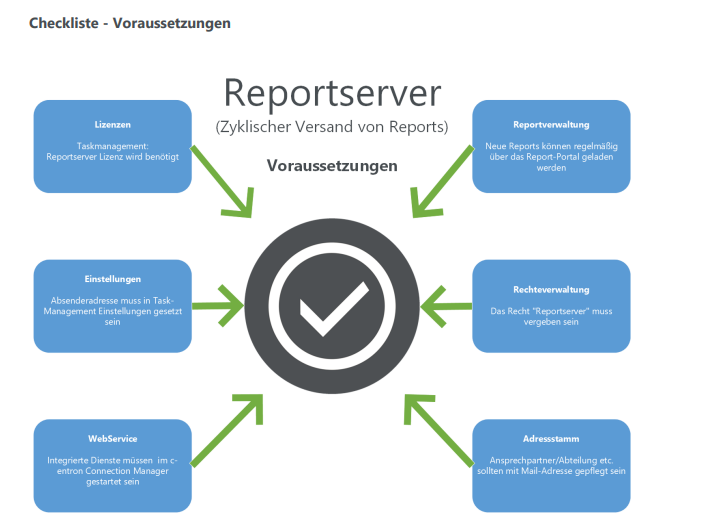
Before you can use the report server, you should check the following points, which we have listed as a checklist:
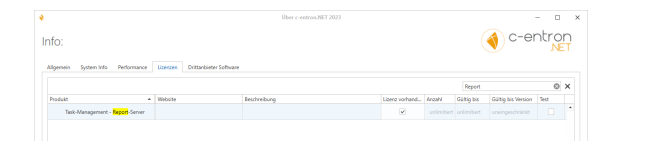
• License: Do you have a "Task Management – Report Server" license? (If you do not have one, please contact our sales department.)
(NOTE: You can view which licenses you are using in c-entron under the orange (i) Info icon in the top left corner under the "Licenses" tab or Global Settings – Administration – System – c-entron Licenses or in the c-entron Connection Manager by clicking on [Show licenses] or in c-entron under Global Settings.
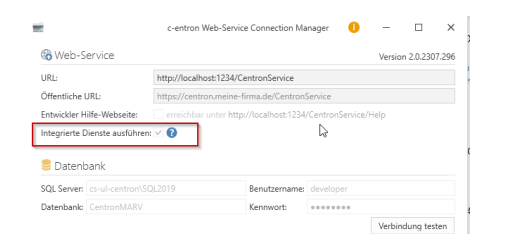
• Integrated services
Are "Integrated Services" active in the c-entron WebService Connection Manager (i.e., is the checkbox selected)?
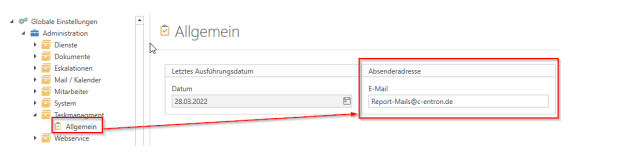
• Sender address: Has a sender address been entered in Global Settings - Administration - Task Management - General?
NOTE: The address entered here must also be "authorized" for the selected "WebServiceVersandart" (under Global Settings - Administration - Mail / Calendar - General -> here you can choose between "SMTP" and "Exchange") - i.e., it must be assigned to a user or entered in the "allowed sender addresses."
• Rights
Does the user have the "Report Server" and "Basic Administration Menu" rights in the rights management (this is automatically added to the administrator group)?
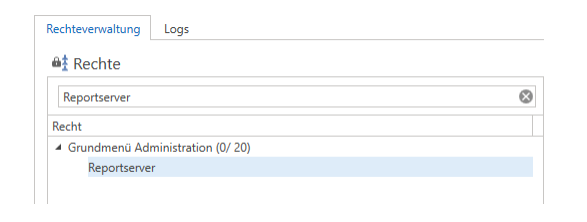
• Recipients' email addresses
is the email address maintained in the address master for contact person/department, etc., so that an email can be sent to them?
"Report Server" module
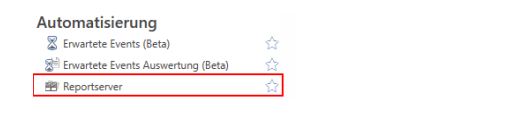
The "Report Server" module can be found on the left under Modules under Automation.
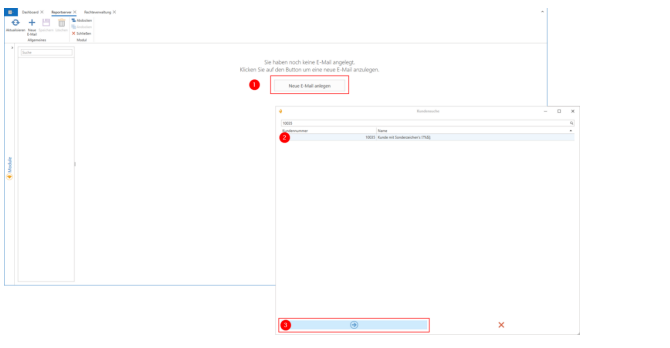
When you first open the module, you will be prompted to create a new email using the [New email] button (1), which will open the "Customer search" window. Once you have selected the customer here (2), continue by clicking the arrow button (3) at the bottom left:
You will now see the following view
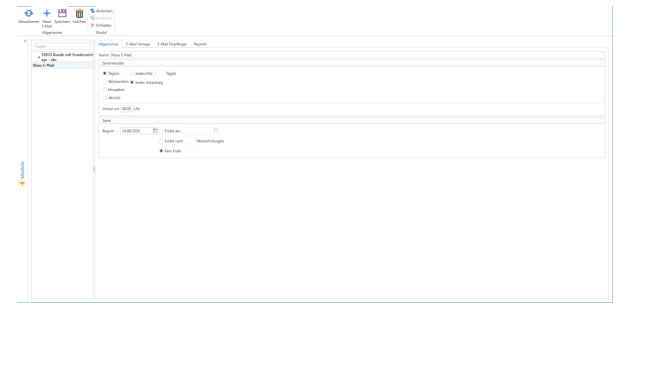
On the left, you now have a list of the "emails" you have created, grouped by customer.
On the right-hand side, you can now configure the selected email
"General" tab:
Name: For display purposes only in the module itself
Series pattern: When this email should always be sent•
Series: In which period, i.e., start and optional end
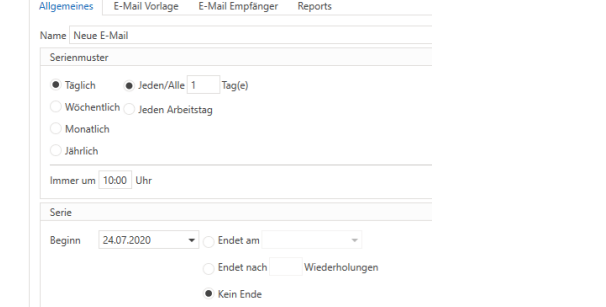
Rider
"Email template": Here you can set the subject and content of the email.
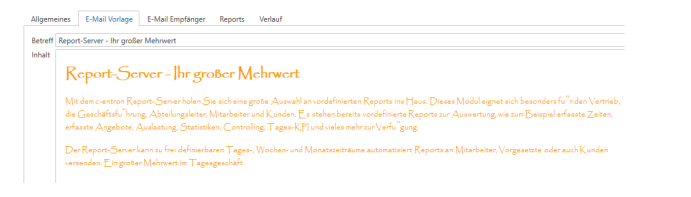
"Email recipient" tab:
Separate email and report per recipient

The "Separate email and report per recipient" setting allows you to specify whether an email should be generated for all recipients stored here (a separate email is NOT generated for each recipient) or whether each recipient should receive their own email with a report generated specifically for them
Recipient selection:
Here you can specify who should receive the email – a selection can be made using the drop-down menu
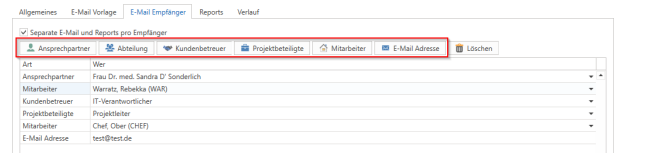
You can choose between:
Contact person:
A designated contact person for the customer•
Department: Select one of your own departments
Customer service representative:
Selection of a customer advisor (ADM, IDM, etc.) for the selected customer
Project participants:
Choice between project manager or project team member
Staff
Selection of one of your own employees • Email address: A permanently stored email address
The [Delete] button deletes the selected recipient.
Reports tab:
The reports from the new "Report Server" report group are displayed here, and you can select which reports should be attached to the email
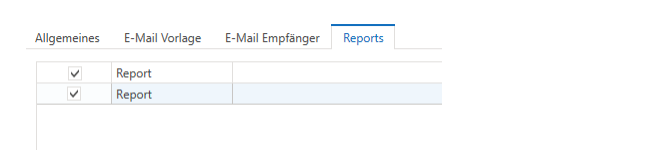
Note: For performance reasons, experience has shown that no more than 4 reports should be used per "task." Instead, it is recommended to create several smaller tasks, with each task containing up to 3 reports. This ensures reliable delivery of the reports.
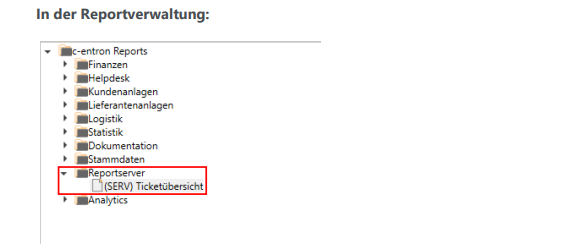
NOTE: If the "Report Server" report group is not displayed, it may be that no reports are available here yet. In this case, please check the box "Display report groups without reports."
These parameters are available for these reports, allowing you to cover a wide range of uses:
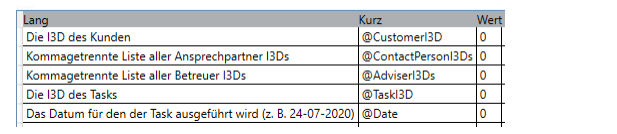
@ContactPersonI3Ds and @AdviserI3Ds refer to the "email recipients" that you have created in the other tab, "Email recipients." This means that you can also create reports that list, for example, all "closed tickets from the recipient."
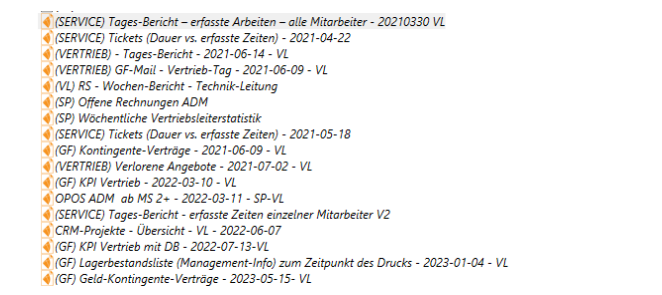
Various sample reports are now available to you in the report portal

As of 06-2023, these reports are available to you via the report portal
To load the portal reports, please click on the button "[Load portal reports]"
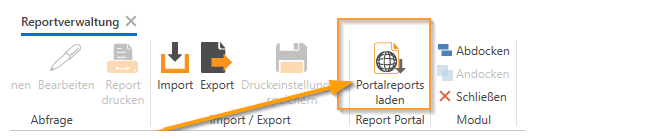
NOTE: Please note that this process may take some time. The loading process is complete when the loading indicator in the lower right corner disappears.

To save a desired report, select it, double-click on it, and answer the subsequent query with [Yes, save report].