%20(1).png)
RMA / Workshop
(available from release 2.0.2305.x - as of 06-2024 - with release v2.0.2405.x)
The c-entron now offers the module "RMA / Workshop" for the structured return of goods (returns).
With the help of the RMA / Workshop module (RMA - Abbreviation for Return Mmerchandise Aauthorization or Return Mmaterial Awith authorization, a ticket can be created to process the RMA case.
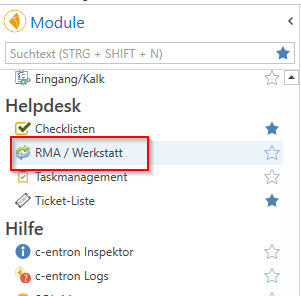
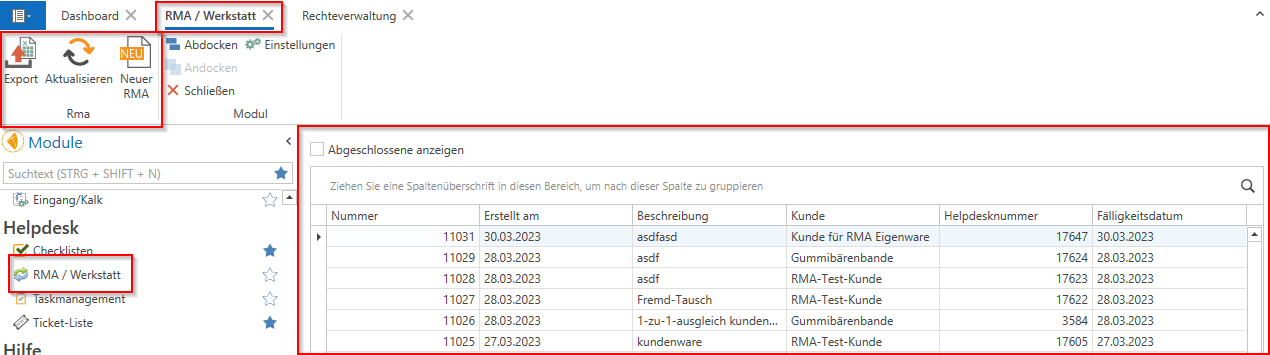
The module "RMA / Workshop" can be found in the modules under Helpdesk.
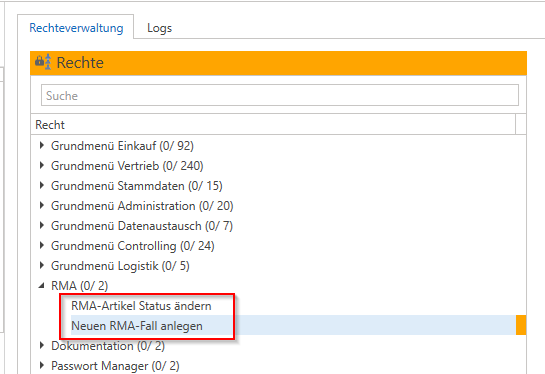
NOTE: For this to be displayed to the user, the right "Create new RMA case" must be assigned.
Settings
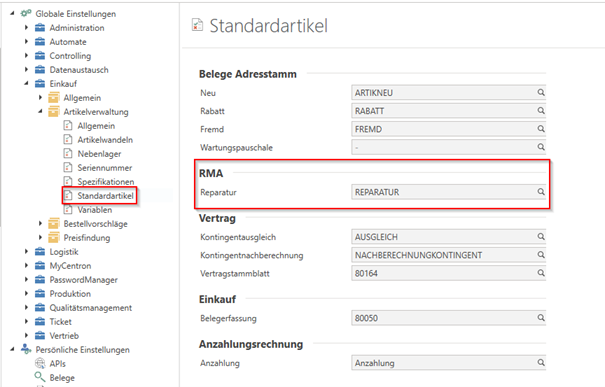
Under Global Settings – Purchasing – Item Management – Standard Items a "repair" item must be defined under RMA (this is required for RMA cases involving "third-party items" – this is not yet included in the BETA phase).
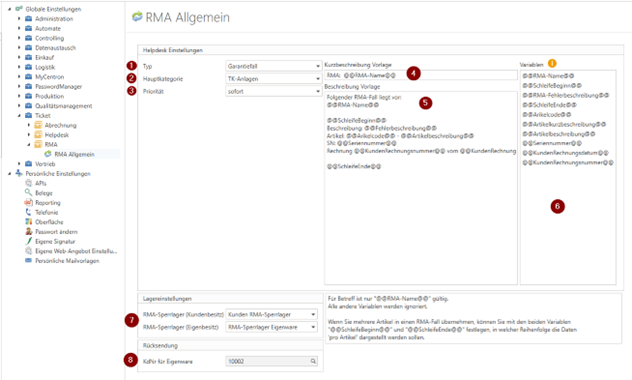
Under Global Settings – Ticket – RMA General further settings can be made.
You can in these "Helpdesk settings“ one Ticket type (1), a Main category (2), a Priority (3), as well as a Brief description (4) and Description (5) Preselect for the newly created RMA tickets.
Storage settings: (7)
For correct inventory management, it is important to assign items to the correct warehouses.
You can store one warehouse for "customer goods" and one for "own goods." If you have not yet assigned or created any warehouses here, you can create a new secondary warehouse for RMA customer goods and RMA own goods in the global settings under "Purchasing -> Item Management -> Secondary Warehouses" and then assign them to both cases.
Customer number for own goods (8)
Since ticket logic always requires a "customer," you must assign a customer here for whom the tickets for RMA own goods will be created. By default, this is customer 10002 - "Customer for RMA own goods," but this can be stored variably.
NOTE: Only "own goods" RMA cases can be recorded in the "Customer for RMA own goods" section.
We therefore recommend keeping a separate "Customer for RMA Own Goods." If you define your own company as a "customer for RMA own goods," you cannot enter "customer goods RMA tickets" for your company, which leads to difficulties, especially if you purchase, deliver, and invoice (purchase price = sales price) via c-entron inventory for your company and then want to map an RMA case from this inventory.
Rights
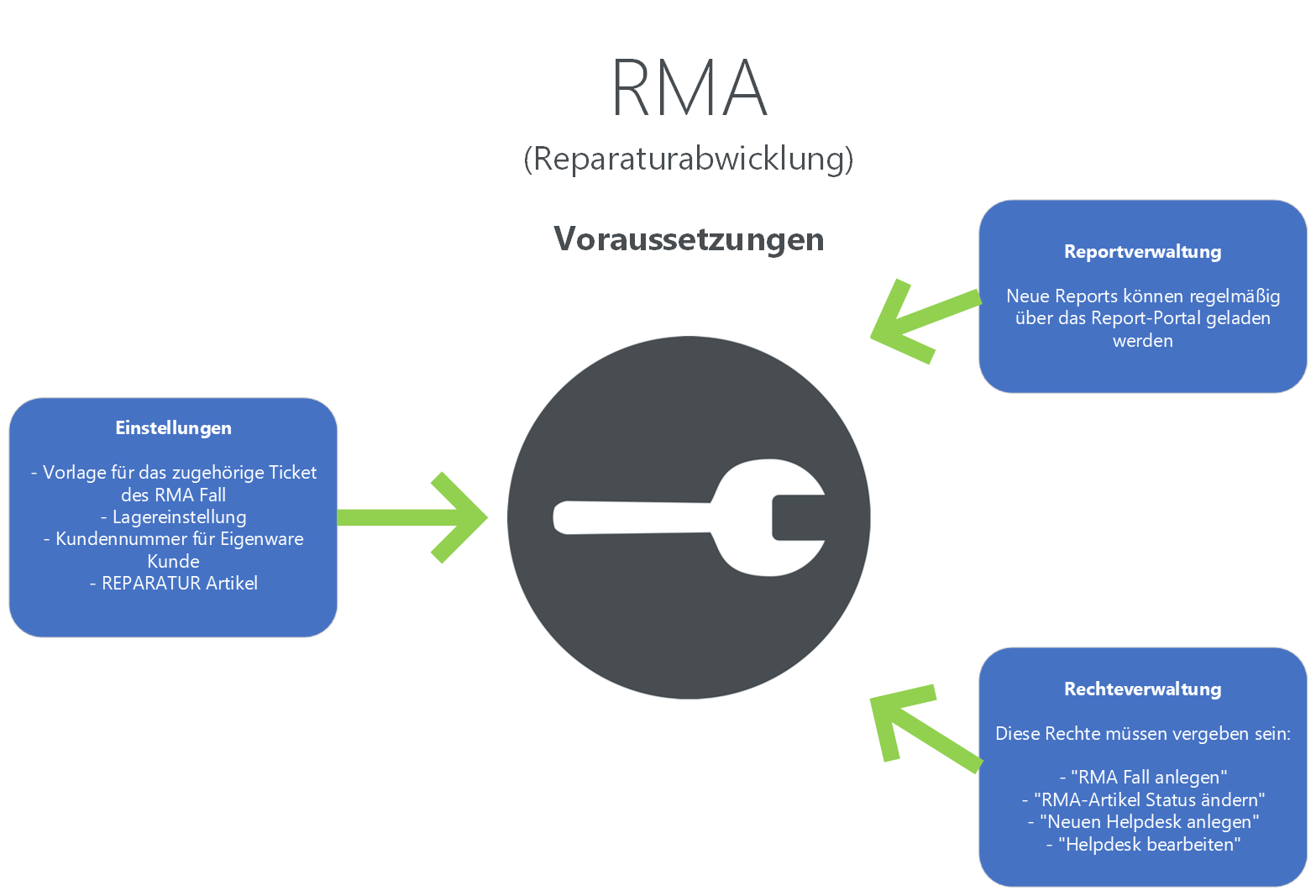
The following two rights are examined:
"Edit RMA case" (previously: "Change RMA item status")
-> If this right is not assigned to the registered user, nothing can be "changed or saved" in the "RMA" area of the ticket and no "action" can be entered. It is therefore purely "read-only" access.
"Create new RMA case"
-> If this right has not been assigned to the logged-in user, the "New RMA" button in the "RMA / Workshop" module will be grayed out.
The rights can be found in the "RMA" rights group (these are not "new" rights).
"RMA / Workshop" module
Here you can see all "open" or "closed" RMA cases.
For the "RMA number," you can define a number range for "RMA numbers" in the client administration in the "Number range administration." These are independent of the "ticket number."
Using the buttons at the top left, the displayed and, if applicable, grouped, sorted, or filtered "list" of RMA cases can be "exported" to an Excel file.
You can also refresh the list display and create a new RMA case.
Creation of an RMA case
Select item:
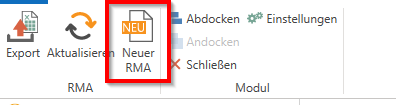
To do this, click on "New RMA" in the "RMA/Workshop" module, and a new RMA case and a new ticket for it will be created.
Alternatively, you can click on the "Create RMA" button in an existing ticket and create the RMA case on the existing ticket. In this case, however, the "Default settings for a new RMA ticket" cannot be taken into account.

The RMA attachment window will now open.
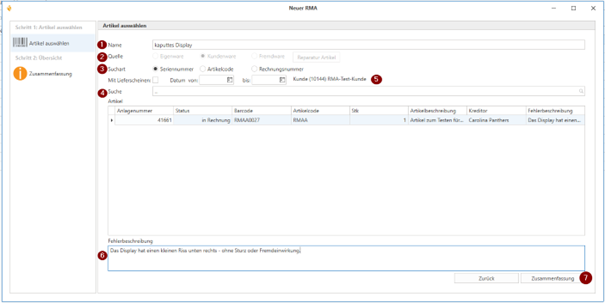
"Name(1): Here you can assign a "name" that will then be displayed as a "description" in the RMA list.
"Source(2): Then select whether it is "customer goods" or "own goods."
If you select "Third-party goods," you can choose your "Repair item" if it is an item that is not available as a "Own item" and therefore cannot be found in the item search (point 4). (This is usually already available in your database and stored as a "repair item." You can check and store this in the global settings under "Purchasing -> Item Management -> Standard Items.") For "Third-party goods," you must always search for a "customer" for whom this RMA case is to be created.
"Search type(3): You can now specify whether you want to search by "serial number," "item code," or "invoice number," for example.
You can also narrow down your selection using the "Date from" and "Date to" fields (based on the document date) or the "Customer Search" function. Then enter the "Serial number," item code, or invoice number directly in the "Search" field and start the search Search (4) (Press Enter or click on the "magnifying glass" icon at the end of the line). You can also extend the search to include items in open delivery notes by selecting "with delivery notes."
Then select the document, item, and/or serial number from the list displayed. The "customer" and "invoice data," as well as the "vendor" (if a supplier invoice exists for the selected serial number) are automatically "recognized" and transferred by the serial number. (If automatic recognition of the supplier is not possible, you can select it later from your suppliers in the lower section of the "RMA ticket area")
You can, of course, also add multiple items, serial numbers, etc. to an RMA case. The item(s) selected for this RMA case will then appear in the "Items" field. You can then enter the error description for each selected item.
"Error description(6): Here you can enter the error description, which will then be automatically transferred to the "return shipment" to the supplier. This always applies to the item selected above (if, for example, several items are included in an RMA case).
"Summary(7): Click on "Summary" to view an overview of this case.
The "Summary" section displays an overview of the information relating to the RMA case that has been entered.
RMA - Ticket
The "new ticket" is now created with the details you may have preselected in the global settings and can be changed as desired.
now "save" the ticket. (This is important, as otherwise not all RMA actions will be available beforehand.)
The item is now transferred to the "Customer RMA blocked stock" and the serial number (if available) is given the status "in Helpdesk."
NOTE: The virtual RMA warehouses have no effect on warehouse/goods value or on the mixed purchase price calculation.
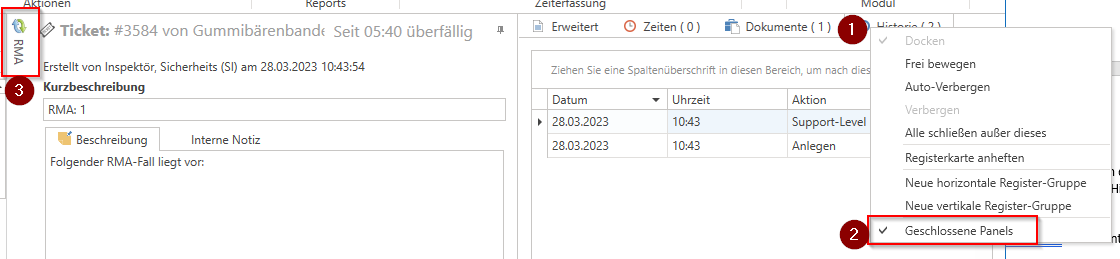
NOTE: If you are not using the standard "c-entron" profile and therefore do not see the "RMA" tab in the ticket, you can display the "RMA tab" on one of the tabs (e.g., "History") by "Right-click -> Closed Panels" to display the "RMA tab" and add it to the other tabs with a simple click, then save this in your profile.
RMA actions
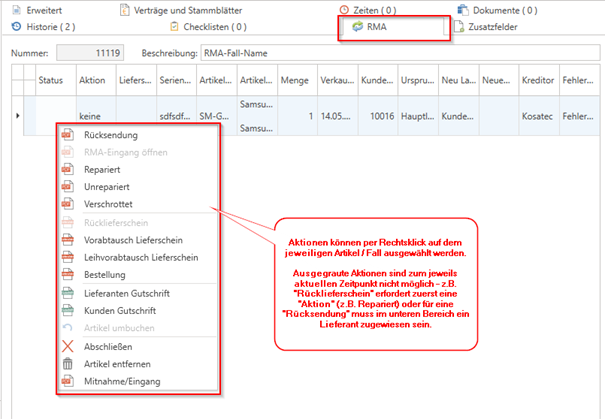
The "RMA" tab now displays the item(s) for this RMA case. You can perform the desired "RMA action" by right-clicking on the item. Once at least one "action" has been performed, a "+" button appears next to these items, which you can click to expand. This now displays all "actions" that have been performed.
Returns:
This allows you to create a "return" to the supplier. If the supplier has not been assigned automatically, you can do this in the "RMA" tab in the ticket using the search function at the bottom. Only when a "supplier" has been assigned can the "return" be clicked; otherwise, it will be grayed out.
In the "Return" window, the "Shipping method"(1) and the "Package number(2) a mandatory field (specified – underlined in orange).
You can select the respective shipping method from your "Shipping Methods" (currently still managed in the "Settings" of c-entron delphi (classic) and will follow in c-entron.NET) and enter the package number.
You can also use a "Shipping date" and a "Return dateenter " (3).
In the "Product information"(4) it shows you the data for the "Suppliers(from the WEK - for serial numbers for which a WEK has been created) and that of the "customers" (if "customer goods").
The "error description" from your RMA case is automatically transferred to the additional information (5) and can be changed here if necessary. Click on the "check mark" to transfer all items (6). Under "Accessories," you can enter any additional items you are sending, e.g., a "charging cable" or other items (as free text).
If, for example, you have already received an RMA number from your supplier in advance, you can also enter this in the "Vendor RMA No." field.
You can then "save" this return (7).
There are currently no reports for "Mail," "Print," and "Printing" (8), but these will follow, so that you can also print or email this "return slip" if necessary.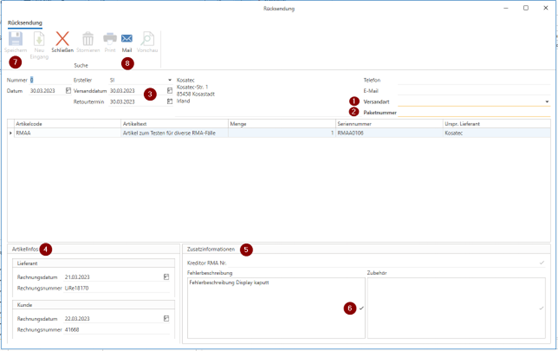
You can also reopen this "return" at any time in the "expanded actions in the RMA tab" by double-clicking on the "return" and creating a "return receipt" for it. To do this, click on "New Receipt."
Now the window opens "Entrance."
In this "Returns Inbox," you can now enter the supplier's "LS number" (1), the "LS date" (2) and a "description" in the "additional information" (3) (e.g., what the supplier may have "communicated") and also enter the "accessories" supplied as free text.
Weighting and a "mandatory field" is now the "Action" (4) made by the "Supplier."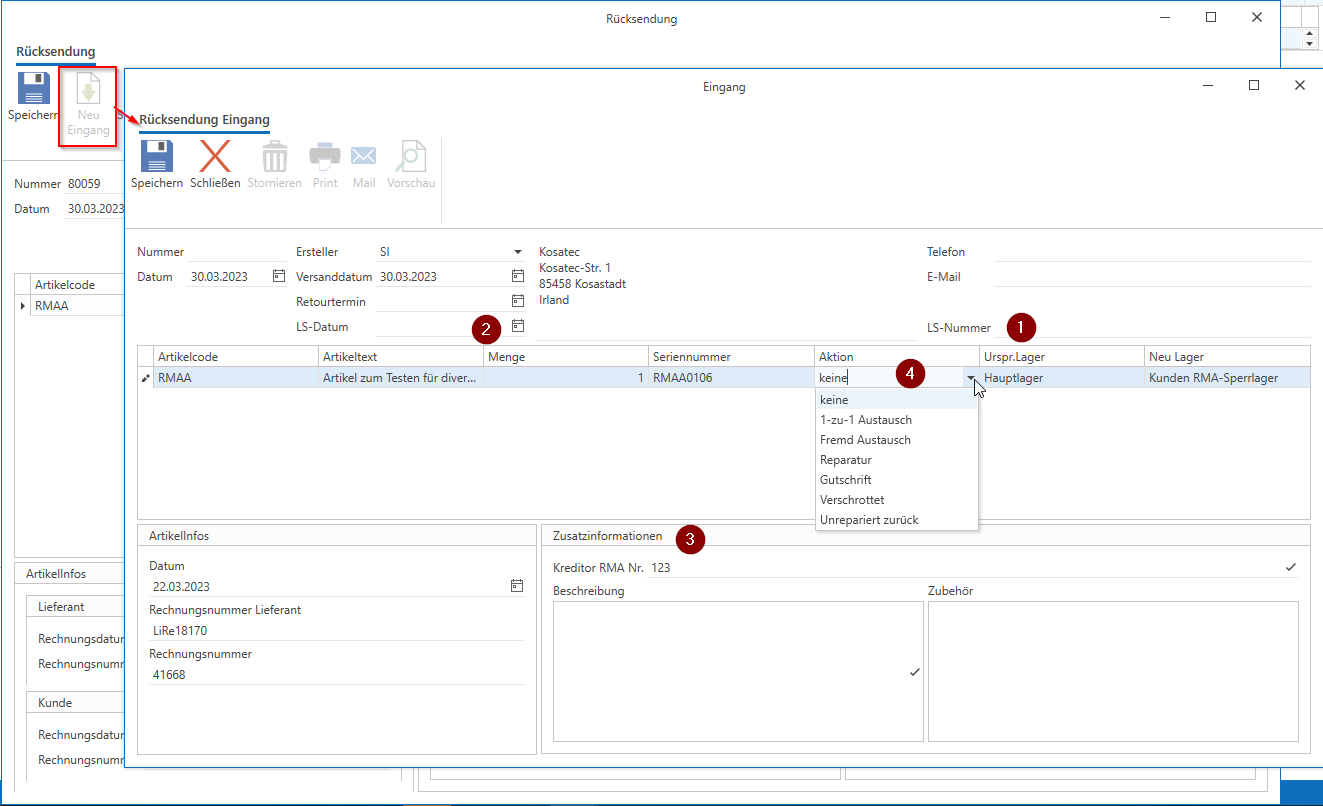
1.1 "1-to-1 exchange": The supplier has "replaced the defective device," but the new device is "the same item." During this process, the serial number (if available) is set to "scrapped" status and an additional field appears in which you can enter the new serial number. This is then given the status "in help desk" because it is currently still in the RMA case. You can select the "quantity" and also the "new warehouse" to which the item should be posted – by default, it remains in the "customer goods/own goods blocked warehouse."
1.2 "External exchange": The supplier has "replaced the defective device," but has replaced it with a "different item." During this process, the serial number (if available) is set to "scrapped" status and an additional line appears where you can "search for and assign" the new item (using the "item text or code") and enter a new serial number if necessary. This is then given the status "in help desk" because it is currently still in the RMA case. You can select the "quantity" and also the "new warehouse" to which the item is to be posted – by default, it remains in the "customer goods/own goods blocked warehouse."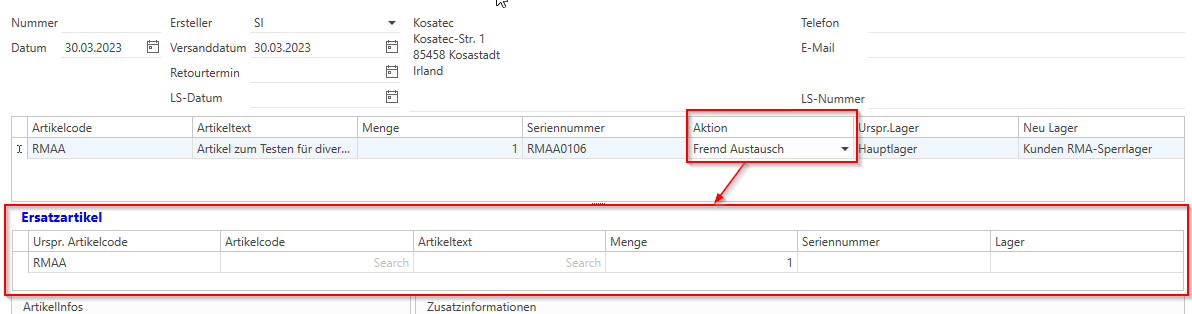
1.3 "Repair": The supplier has "repaired" the item or returned it in working order. The item or SN does not change in this case.
1.4 "Scrapped": The supplier has disposed of the device and the serial number is set to "scrapped" and is therefore no longer assigned to the "blocked stock."
1.5 "Returned unrepaired": The supplier returned the device "defective" or only "unrepaired."
You can then save the "Returns Receipt" and confirm the security query regarding the selected "Quantity," "Action," and "New Stock," or, if necessary, click "Cancel" again and make changes.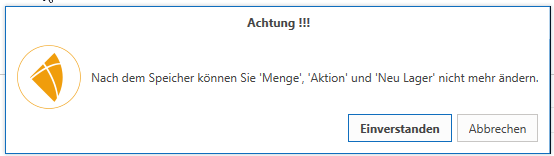
A "Cancel" the return receipt can be entered as long as no "return delivery note" has been sent to the customer. After that, it is grayed out because these "goods" have already been sent to the customer. A "cancelled" return receipt is always displayed in "italics and red" in the "Actions" section of the RMA. If an "exchange" has been made, the new serial number is set to "deactivated" so that it is no longer assigned to any warehouse. You can then create a "new receipt" again.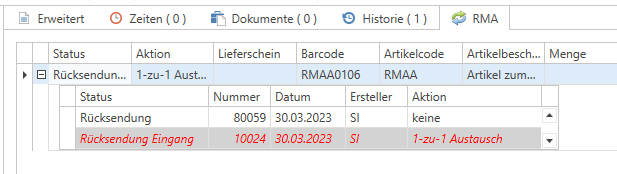
Open RMA entry:
Once you have created an RMA entry, you can "open" it using this selection.Fixed:
The item has been repaired and can now be returned to the customer, for example, with a "return delivery note." (For own goods, a later version will include the option to return the item to the original warehouse.)Unrepaired:
The item has not been repaired and can now be sent back to the supplier as a "return" or "scrapped."Scrapped:
The item is removed from the RMA warehouse and the serial number is set to "scrapped" if necessary.Return receipt:
The item (whether "repaired" or "replaced") can now be returned to the customer. The delivery note to the customer opens and the "old/new" serial number (the new one for "replacement," the "original" one for "repair") is automatically assigned. The delivery note has a large note in the header indicating that it is an "RMA" delivery note. When you "save" the delivery note, a query appears asking whether the delivery note should be "closed."
"Yes": the delivery note is "closed" and the item or serial number is written back into the "original invoice."
"No": the delivery note remains open and can be transferred to the customer in a new invoice.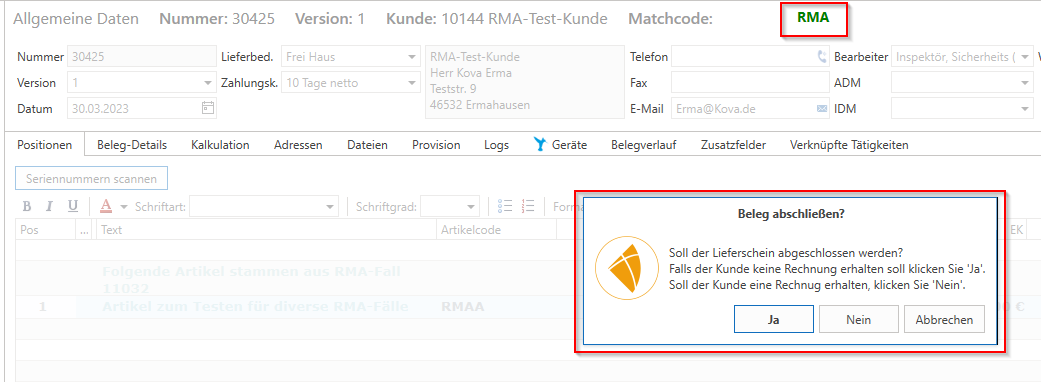
Advance exchange delivery note:
This is a "return delivery note" that can be created before actions such as "returns," repairs, etc. are carried out, and it follows the same logic as the "return delivery note," with the exception that it can be created "in advance" (e.g., if you send the customer a "new device" from your warehouse, which the customer then keeps)in this case, the same "query" appears when saving the delivery note regarding the "completion," and the new SN can thus also be transferred/exchanged directly into the "old invoice." The "old" SN of the defective device can then be scrapped or included in a return shipment and processed as usual. However, a "return delivery note" is no longer possible, as the customer has already received the new goods "in advance."Advance exchange of loan items Delivery note:
With this delivery note, a "loan device" can be sent to the customer in advance. In this process, regardless of the query described above as to whether the delivery note should be "closed," the item not be transferred to the original invoice, but remains in this "delivery note." If, after repair or replacement, the new item is then returned to the customer via a "return delivery note" (or a credit note is created, etc.), the "advance loan exchange delivery note" can be transferred back to a "pickup note" at any time, and this "loan item" can thus be posted back to the original warehouse.Order:
You can now create a new "RMA order" for this RMA case and then process it as usual in a goods receipt. The ordered item is posted to the RMA warehouse and can be "transferred" from there as usual or transferred to a "return delivery note."Supplier credit note:
You can create a "supplier credit memo" (without stock posting) here. This does not affect the stock level, as it is written off by actions such as "scrapped."Customer credit:
You can create a "customer credit note" here. This does not change the stock level, as it is written off by actions such as "scrapped."Transfer items:
This allows you to transfer the repaired or replaced item to a warehouse of your choice and thus release it as "available stock" (e.g., if the customer has already received their new device in advance via "advance exchange delivery note").Lock/Unlock:
This allows the "status" of the RMA case (note: not the ticket) to be changed to "closed" or "open." This affects the display in the "RMA / Workshop" module for "open" and "also closed" items.Remove item:
If you have multiple RMA items in this RMA case, you can remove the selected items from this RMA case.Pickup/Receipt:
This process merely creates an action entry to document, for example, the time of the actual removal or receipt of the item.
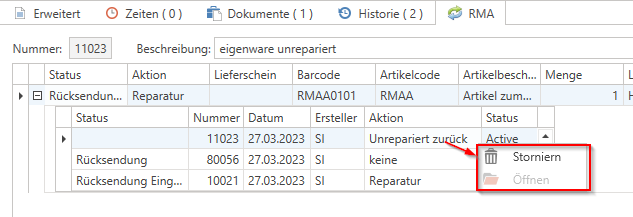
Some "actions" can also be "cancelled" in the "expanded RMA actions" by right-clicking on them. This is useful, for example, if you have selected the "wrong" action or have selected "Repair" but the item could not be repaired. "Cancelled" actions are displayed in "italic red font."
Documentation:
In addition to the sequence of "actions" in each RMA case, the following is documented:
In the "Serial number details” you can follow the exact procedure.
Here, it is also shown, for example, that after a "repair" and a "return delivery note" to the customer, the SN is posted back to the "original RE" because the return delivery note was saved with "Yes" (complete).
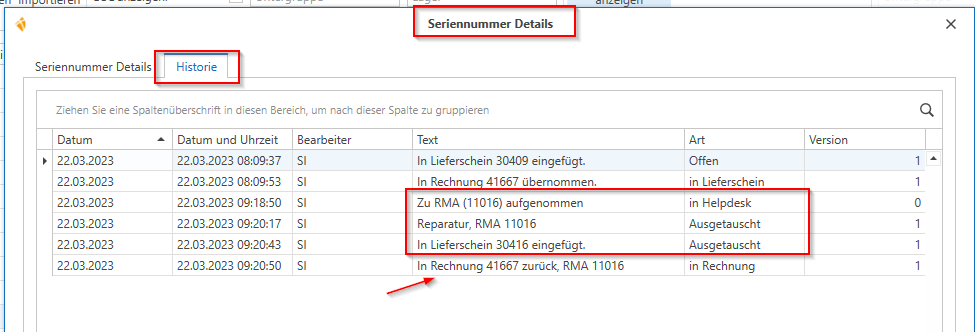
In the item log, you can also see when the item was posted to which "warehouse."
Example:
RMA ticket created: Item is booked into the RMA warehouse
Return created: Item is transferred from the RMA warehouse to the "shipping warehouse."
Return receipt created: Item is transferred back from "Shipping" to "RMA Warehouse."
-> This could now be transferred back from the RMA warehouse to the invoice, for example, by means of a "return delivery note," and thus debited from the RMA warehouse again.
FAQs about RMA can be found here: FAQs about RMA