%20(1).png)
SEPA - English
SEPA direct debit
What settings need to be made to generate a SEPA direct debit file?
In the c-entron.NET module Document Conditions, click the [New] button to create a new document condition. Enter the debit note description as a short text here, which can be selected later.
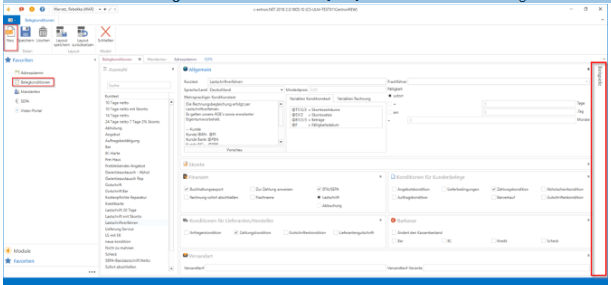
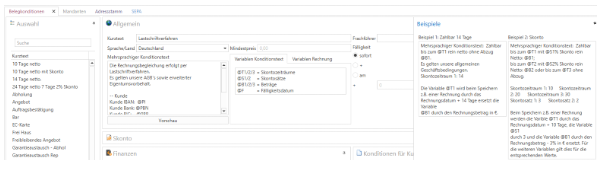
It is important to enter a condition text for the direct debit. Using the "Language/Country" drop-down menu, you can enter a different condition text for each language if documents are also to be created in foreign languages. Click on [Examples] to see a list of possible condition texts.
The following variables can be used in the condition text for the SEPA direct debit procedure:
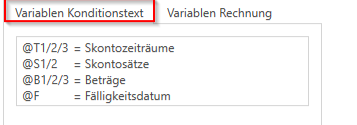
These variables can be incorporated into invoices:
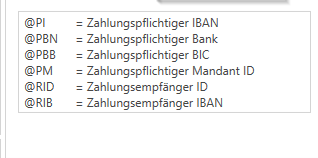
ATTENTION: All variables mentioned here can only be used in customer systems.
The due date can be used to control when an invoice becomes due. These settings are also a prerequisite for the c-entron dunning process to function correctly.
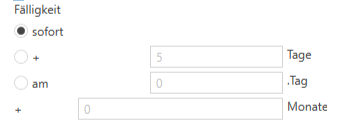
Under Finances, DTA/SEPA must be checked. Invoices that are to be processed via the SEPA direct debit procedure require a payment term for which this check box is activated. This causes the document to appear in the SEPA export file. If the term is a basic direct debit, "Direct debit" must be selected. If it is a company direct debit, the "Debit" field must be selected

Under Terms and conditions for customer receipts payment terms still need to be checked.
Then save the entries by clicking [Save].
In the Mdata management must necessarily be one's own Creditor ID, which you received from the bank, and that own bank account be selected for printing.
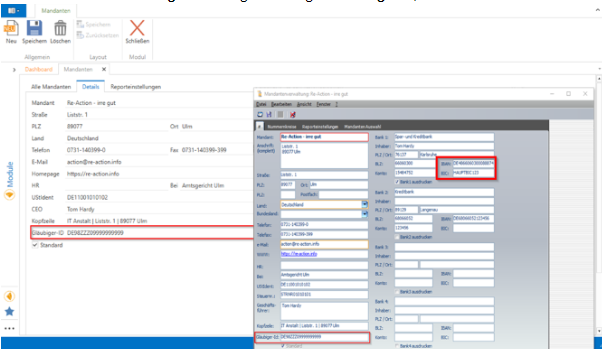
In the next step, open the address master in c-entron.NET, select the desired customer, then select the "Finances" tab and enter the relevant details in the bank details section.
This is where you enter the bank details of customers that are required for SEPA direct debits, and one of the bank accounts must be defined as the default.
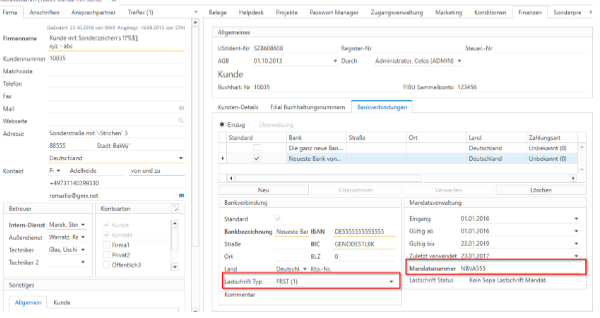
The type of direct debit must be specified. First is considered the default.
• FRST(1): First collection of a direct debit using the mandate issued by the payer for regular direct debits instructed by the payee. – After the first collection, the type is automatically changed to ->
• RCUR(2): Follow-up direct debit converted, in which the mandate issued by the payer is used for regular direct debits instructed by the payee. There are also the following types:
• OOFF(3): One-time direct debit. The mandate issued by the payer was only for a single direct debit.
• FNAL(4): Last direct debit mandate management: Here, the mandate (direct debit authorization) issued for the respective bank account can be maintained, as well as the necessary mandate number.
Valid until: will be extended by c-entron for 2 years after the last use.
The mandate number is the same as the customer number (this can be customized if the customer has multiple mandates)
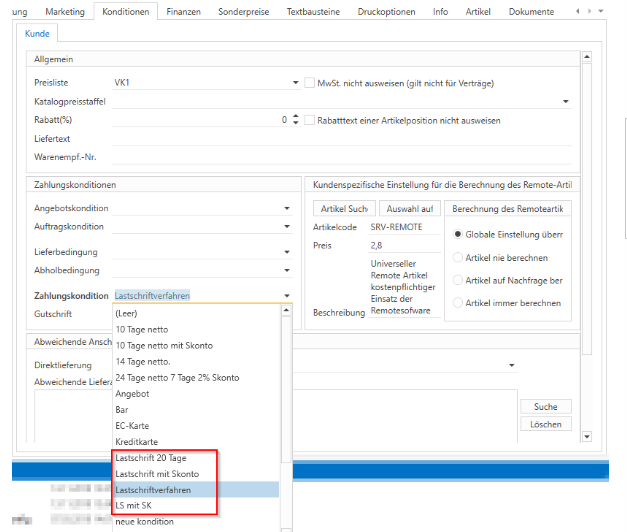
In the "Terms" tab, a direct debit term must also be selected for the customer under payment terms and saved.
If a default bank account is stored in the Document Conditions module, the mandate and payment terms will be filled in on the invoice document. If these are not yet stored for a document being processed, they must be stored for the document with a new version.
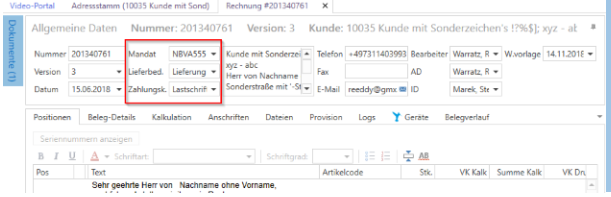
The preview of the invoice now shows the condition text that was previously defined for the payment terms.
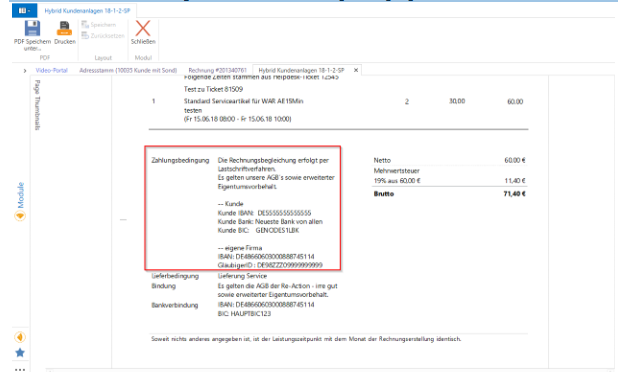
In the SEPA module itself, the settings must be selected in advance for the default presets. To do this, click the [Settings] button:
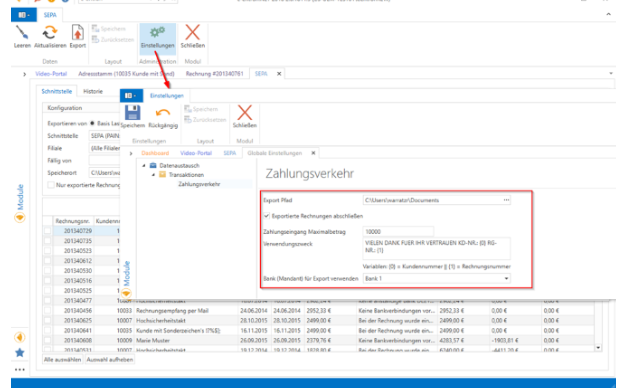
Here you can select the export path where the export file should be saved. You can also choose whether the invoice should be closed after exporting. (We recommend using OPOS import to ensure that payment has been made, but if you do not want to use this, you can close the invoice directly here.)
A maximum amount can be specified for incoming payments so that larger amounts can be managed internally, and a purpose can be specified (to give customers the opportunity to see for themselves who made the debit and why). Here, it is possible to insert customer numbers and invoice numbers using the variables {0} and {1}.
Furthermore, the client bank connection must be selected.
Saving secures the entries and they are predefined the next time the SEPA module is opened.
An example of how to use the SEPA module:
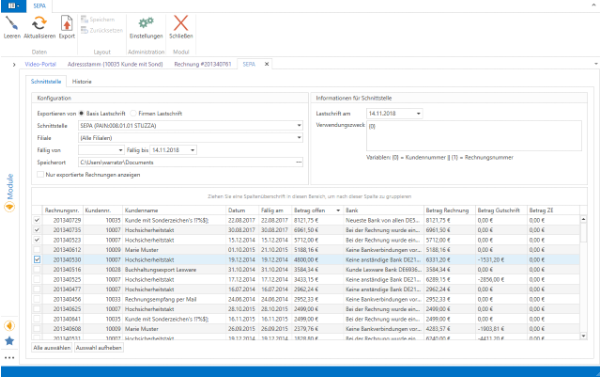
The previously configured settings and intended use can be viewed as before.
In the Configuration section, select which type of debit note you want to export and click [Update].
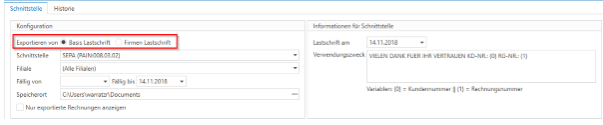
The SEPA interface specifies the country format in which the file is generated. (03.02 for Germany, 01.01 for Austria, and 01.02 for Switzerland)

You can also filter by all or specific branches, which means that after clicking [Refresh], only invoices for the selected branch(es) will be displayed.
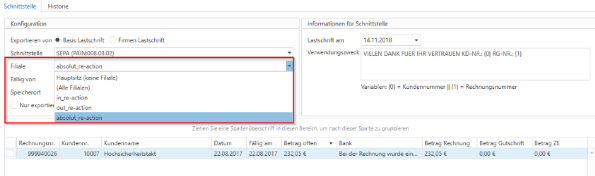
The storage location and intended use can be manually adjusted again for this export. Once all settings have been made, simply select the desired invoice and click [Export].
After successful export, this file can be viewed, whereby the data can be seen explicitly and the variables, customer number, and invoice number used are shown under "Intended use."
If the "Close invoice" checkbox was selected in the export settings, the invoice will be marked as closed.