%20(1).png)
Set up and bill RMM items
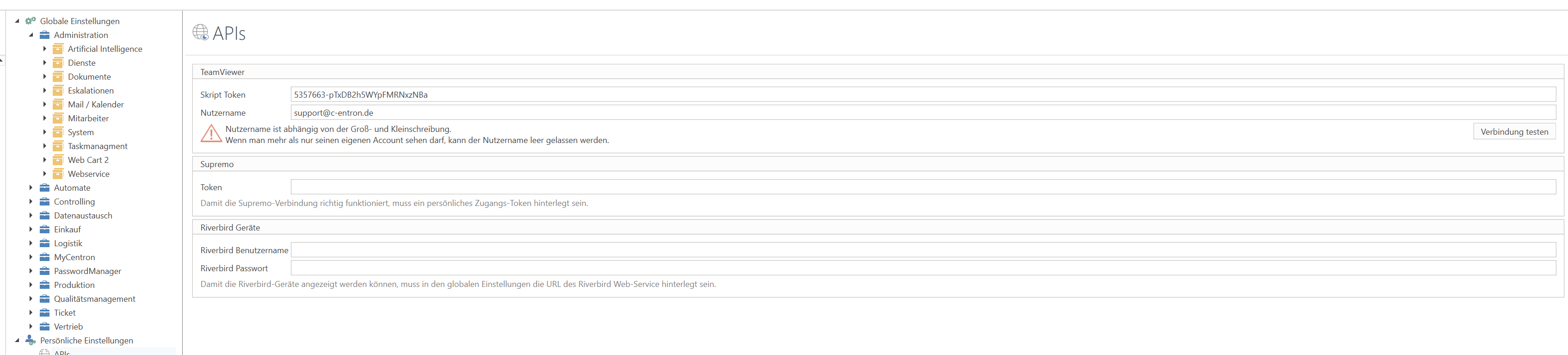
To activate the basic function, both the "c-entron WebService URL" must be stored in the RiverBird client and, conversely, the "RiverBird WebService URL" and RiverBird login information must be stored in the c-entron.NET be deposited.
Administration → System → RiverBird Web Service

Personal settings → APIs
Services recorded via RMM activities in Riversuite can be entered in c-entron
be settled by means of contracts.
To do this, you must first create standard items in c-entron that represent the activities
in an appropriate manner. The article itself is initially the revealing element.
Please also note key product characteristics such as inventory management and unit.
In the second step, this article is assigned to an RMM function. To do this, in the
Article management: Select the menu item "RMM Articles."
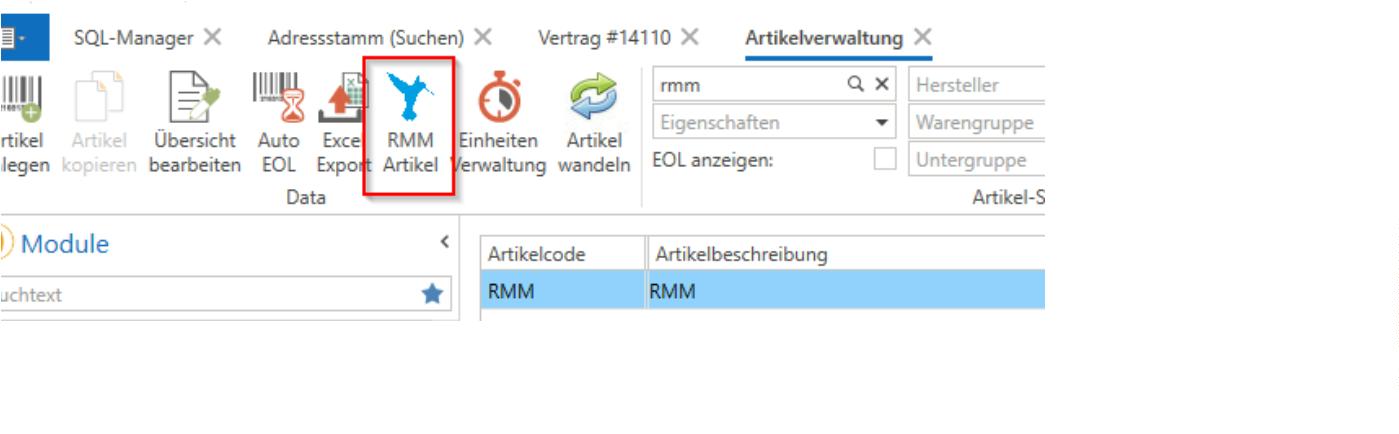
You can then assign the link via "Add new links." Search for the
select the desired item and assign the "item type," i.e., the RMM activity.
An item can also be assigned to multiple activities if these are not differentiated
conversely, however, an article type can only be assigned to one c-entron article.
In addition, you can use "RMM Article Type" and "Applies to" (Required field) differentiated. Currently
the options "Server" and "Workstation" are possible, as well as "not specified" ("not
assigned).
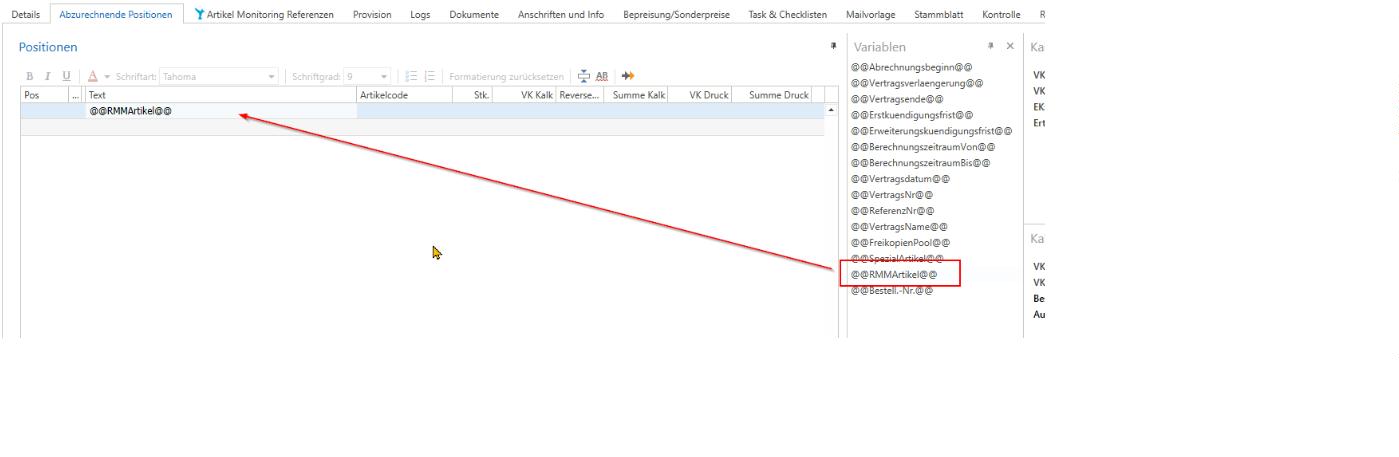
In the contract, use the variable @@RMMArticle@@ under the items. When
When settling the contract, the variable is automatically replaced by the contract
assigned monitoring activities.
These are linked to the contract via the "Article Monitoring References" tab
Monitoring established.
The contract does not need to be re-versioned for this link; please refer to the separate
Memory function "Save references".
Each reference line created must be filled in, and each reference can only be used once per contract
be entered.
Item code, item type, and "Applies to" (1) are automatically filled in and are derived from the
Configuration of RMM items (see above).
You can enter EK (3) and VK (2) manually. If you do not enter anything, the c-entron uses the
normal pricing based on article master data and special prices. Graduated prices are not
taken into account.
The info field (4) can be filled with free text.
The contract quantity (5) can be adjusted in conjunction with the two checkboxes "Underbooking" and "Overbooking."
"Consider" (6) and "Consider overbooking" (7) can be used. Set as
If you enter a value for the contract quantity and activate underbooking, the maximum amount will be
Contract quantity billed. Enter a value as the contract quantity and activate
Overbooking: at least the contract quantity will be billed.

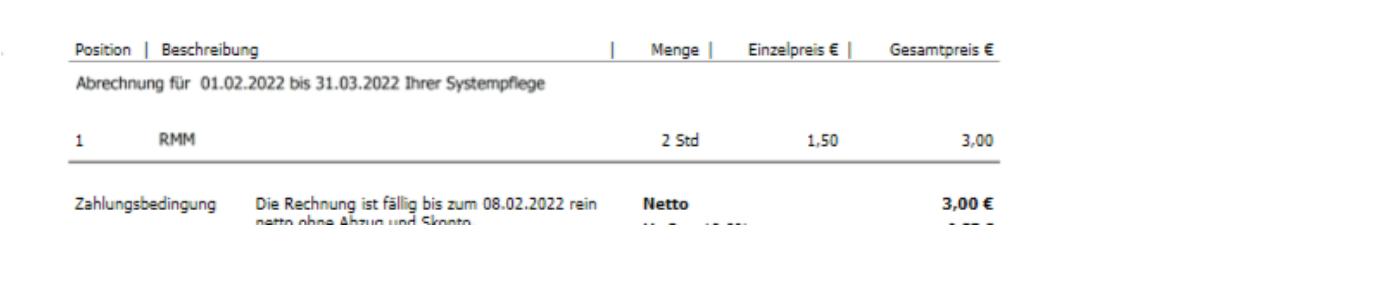
Now you can settle the contract. The c-entron calculates the following using the references you have set
the moving average value of each linked item per billing period (total number
the registered activities divided by the number of days in the billing period on which
Activities were recorded) and invoices this value as a number of units at the rate specified in the contract
stored price.