%20(1).png)
Supplier invoice (goods receipt calculation)
You always trigger WE calculation via goods receipt.
(This means no WE calculation without goods receipt)
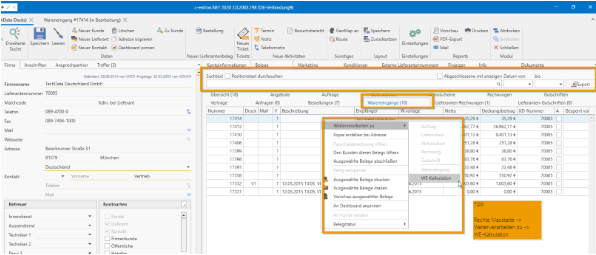
You can now search for the supplier in the address master or click directly on the Goods Receipt button to get an overview of all open goods receipts. All goods receipt documents that have not yet been completed with the GR calculation (posting of the incoming invoice) are displayed here as open.
At the top of the documents, you will find a full-text search function. By checking the "Search item text" box, you can search all goods receipts for specific keywords.
Transfer of goods receipt to GR calculation
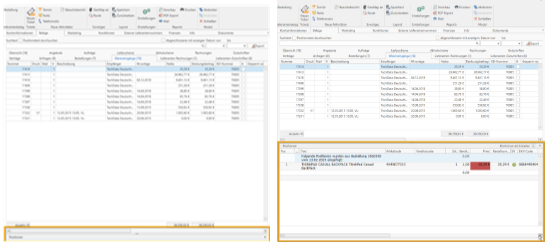
To preview the selected document, please select the "Items" function in the lower section.
Now select one or more goods receipts and right-click to select Create GR calculation.
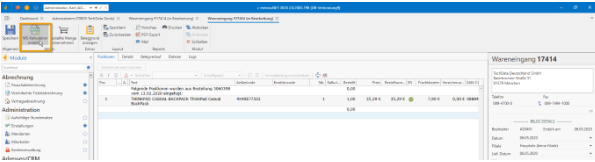
You can also open the goods receipt and use the "Create GR calculation" button directly in the document.
Before the goods receipt is converted into a goods receipt calculation, a window appears. This shows you all items that are in the goods receipt. You can either accept all items if all items have been calculated or only individual items.
To do this, select:
Apply selected
Everyone takes over
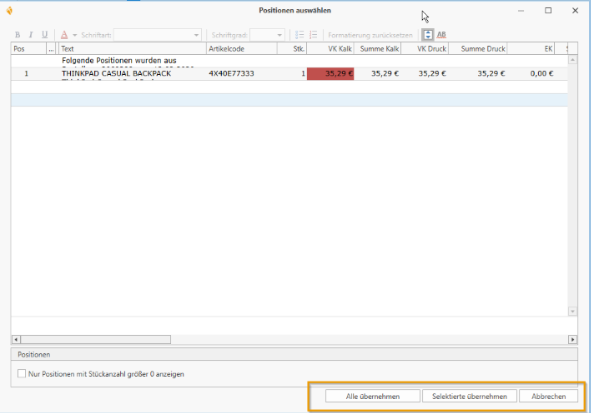
Create WE calculation
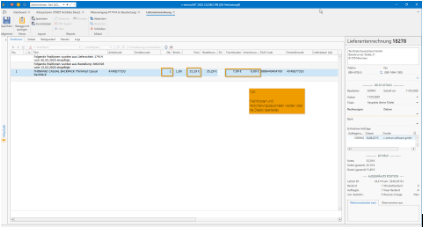
Almost all columns can also be edited in the WE calculation. However, most adjustments relate to the following points:
Positions
Number of items
If you use late booking, the goods are now booked into the warehouse as soon as you enter the quantity (for items requiring a serial number, the SN must also be booked in at this stage. See chapter on serial numbers)
Prices
First, check the prices of the individual items and enter any discrepancies (EK). Depending on the settings, the purchase prices are written back to the documents (quote – order) and the article master.
Supplier invoice (right-hand side)
There are two mandatory fields in the supplier invoice (invoice number and invoice date). Without these, the WE calculation cannot be posted and completed.
Invoice no.
Please enter the invoice number of the supplier invoice here. This is a mandatory field and must not be left blank.Date
The date of the supplier invoice is also a mandatory field and must therefore be transferred from the incoming invoice.
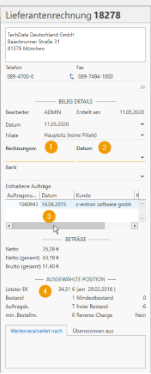
If the order was placed on an order-related basis, the number, name, and date indicate the connection to the orders.
The last purchase price entered is displayed here with the date. This is an information field and serves as a price guide
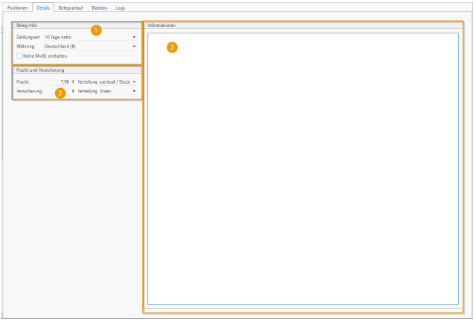
Details
Document information
If the terms and conditions are already known when the goods are received, they can be entered here.
If the terms and conditions are stored in the supplier's system, they will be automatically stored here.
Freight and insurance
If it is already known at the time of receipt of goods that freight and/or insurance must be paid, this can be noted here.
If the conditions for freight and/or insurance are stored in the supplier, they are already stored here atomistically.
Information
Information about logistics can be stored here. Use CTRL+F11 to use the c-entron shortcut.
Document history
The document history graphically shows how the various documents are linked (quote -> order -> purchase order -> tickets, etc. -> goods receipt)
Files
Attached files (email, PDF) are displayed here. These can be stored manually or automatically in conjunction with the c-entron VMA.
Logs
Every change made to the WE calculation is logged here. This allows you to track who made which changes and when at any time.
Save/post WE calculation
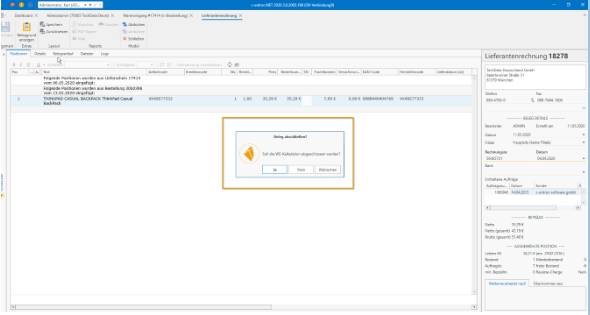
When saving, a message appears asking whether the WE calculation should be completed. Click "Yes" if everything is correct and there are no obstacles to transferring the data to your accounting software. Click "No" if you want to continue editing the WE calculation later.
Once the WE calculation has been completed, it cannot be reversed. The document is now stored in the Accounting Export module and can be exported. (See chapter Accounting Export)