%20(1).png)
The API article import
In order to get the article import running for the API, a correct and up-to-date URL is required first.
To generate this URL, go to the URL https://pricelist.api.de/
Configure your API price list here:
If you need assistance with configuration, please contact your API representative
Authentication:
User ID: Your customer number/user ID
Password: Your personal password
Authentication method: simplePromotion:
Promotion: FullIndividual SKU: no entry
Output format:
Format: csv
Charset: utf-8
Content Type: text/plain
Delimiter: ; (we recommend using the standard semicolon delimiter)
Limit: No entry
Decimal separator: , (we recommend using the standard decimal separator comma)
Content-Disposition-Filename: Here you define the file name of the import file
Options: Everything can remain disabled here.Format:
Standard: Default
After you have made the appropriate settings, click on the [Generate download link] button.
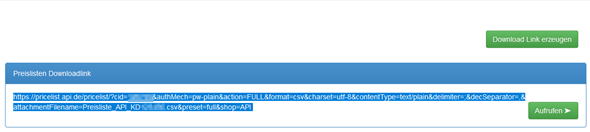
You will now receive your individual download link. Select it and copy it to the clipboard:
In the c-entron article import module, enter the settings as follows:
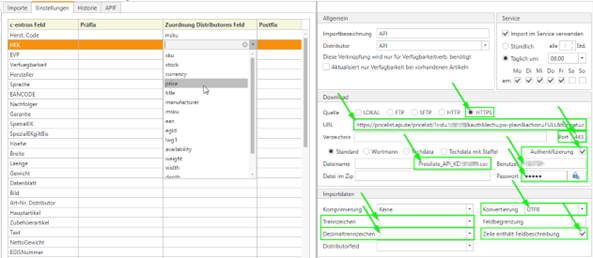
Download:
Source: HTTPS
URL: Here you can now enter the download link you just created from the
Paste clipboard
Port: 443
File name: Here you can now enter the file name that you used in the API configuration
individually selected and specified under "Content-Disposition-Filename:".
Authentication: Enable
User: Your API customer number/UserID
Password: Your personal API password
Import data:
Compression: none
Delimiter: Here, you can now enter the delimiter that you have individually selected in the API configuration and specified under "Delimiter:".
Decimal separator: Here, you can now enter the decimal separator that you have individually selected in the API configuration and specified under "Decimal separator:".
Conversion: Here, you can now enter the file encoding that you selected individually in the API configuration and specified under "Charset:".
Line contains field description: Activate
Now save the changes with [Save import]. You can then download the import file with [Download] and assign or check the fields in the "Settings" tab.
NOTE: With regard to automatic, cyclical imports, we recommend that you contact your API support representative to clarify when and at what interval is the best time to import the data.