%20(1).png)
Ticket area in c-entron.NET
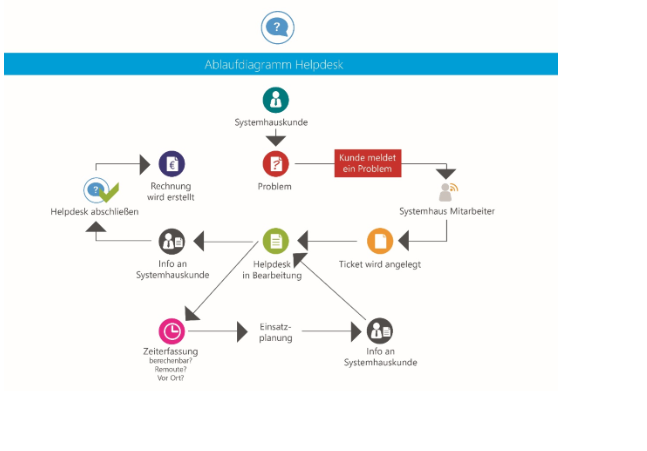
The Helpdesk module can be opened via Address Master -> Helpdesk or via Helpdesk - Ticket List.
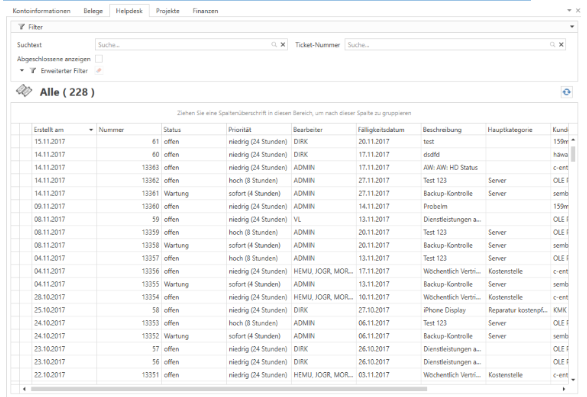
Clicking on the "Helpdesk" tab gives you an overview of all open tickets.
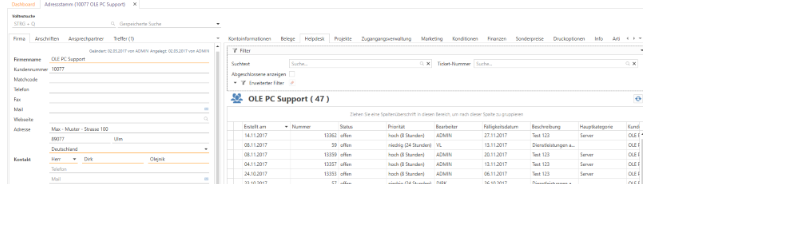
You can narrow down your search by customer, for example, by selecting the customer in the address master and then clicking on the "Helpdesk" tab
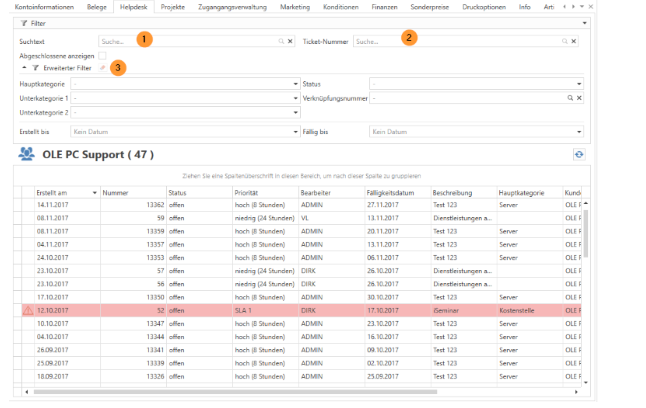
You can further narrow down your search results using the search text (1), the ticket number (2), and the advanced filters (3).
Create a help desk
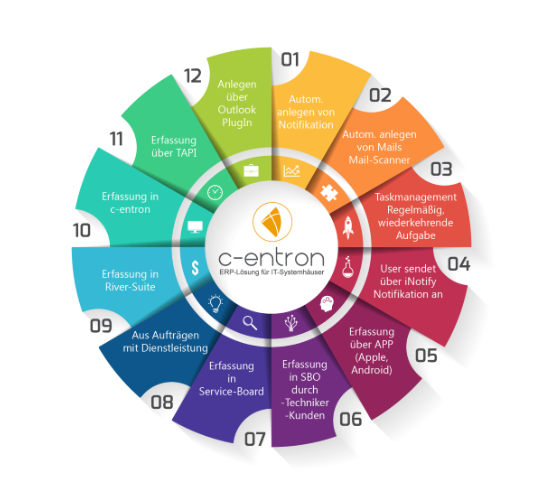
Edit help desk
1.General information
After opening or creating a ticket, the following window opens.
This ticket window contains general information such as ticket number, due date, brief description, detailed description, link number, ticket details, contact person, and address.
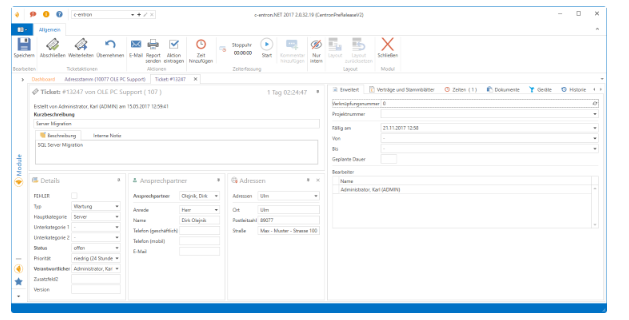
The fields "Error, Additional Field 2, and Version" are variable and can be hidden or set as mandatory fields in the c-entron.NET settings.
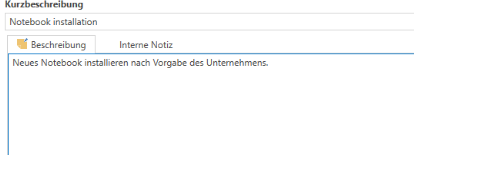
The brief description should be a concise statement of the facts, as it will appear in the help desk overview. The detailed description serves to explain the problem in detail so that it can also be understood by third parties.
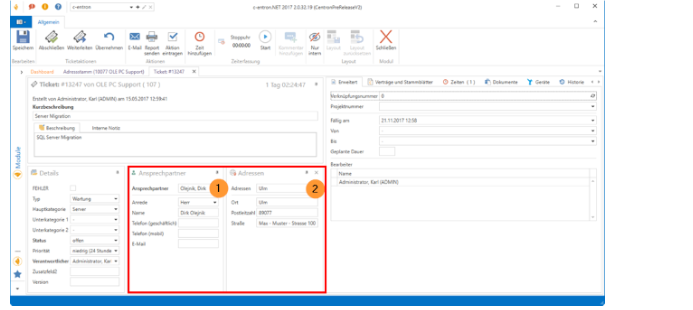
The lower section contains customer information such as the customer's contact person and address.
The default contact person is automatically stored. This can be changed by clicking on the drop-down menu (1).
This field contains the name of the person responsible and, depending on the settings, this person will be notified when the ticket is closed.
If the customer has multiple addresses, the address can be selected by clicking on the drop-down menu (2).
Ticket details
The ticket details are displayed in the lower left area of the ticket window:
- Type
- Main category
- Subcategory 1
- Subcategory 2
- Status
- Priority
- Person in charge
The ticket details make it possible to specify the helpdesk more precisely.
These details can also be used to filter or create evaluations.
The Type provides information about the type of help desk. Example: It concerns an installation, troubleshooting, or consultation.
The Categories also serve to provide a more precise specification, e.g., hardware -> server -> RAM.
The content can be selected via a drop-down menu (1).
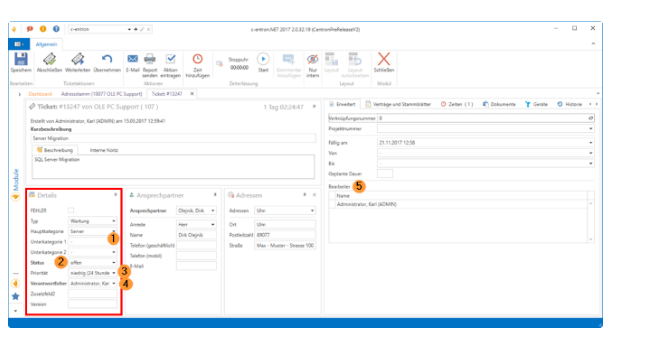
Similarly, a Status (2), a Priority (3) and one responsible employee (4).
The Status provides information about the current status of the help desk.
The Priority controls the due date. This means that, depending on the priority, a help desk ticket must be processed more quickly or more slowly. If a help desk ticket is not completed before the due date, the person responsible and the agent (5) receive an entry in the to-do list.
3.Helpdesk Details / Settings
The content for type (1) and categories (2) is maintained in the helpdesk settings of c-entron.NET.
The priority, required fields, and status can also be changed there.
Business hours can also be taken into account when specifying the due date.
4.Taskbar
At the top of the bar, you will find the Add time button (1), the stopwatch (2), and the time overview (3) on the right.
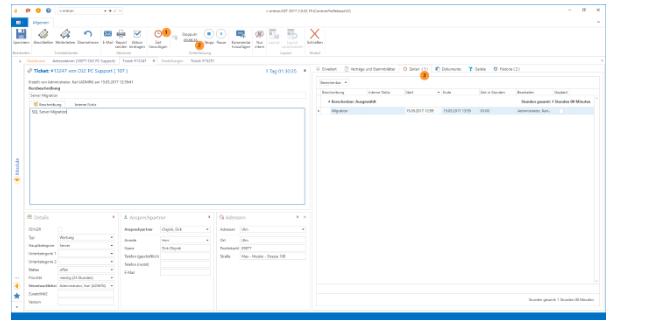
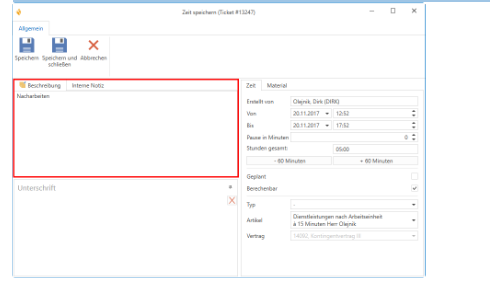
1.The duration of the time to be recorded can now be entered using the Add time or Stopwatch buttons. Adding a stopwatch adds the exact time stopped, e.g., 9:16 a.m. to 10:14 a.m. When adding time manually, the start and end dates can be selected.
The symbols (1) – 60 minutes and + 60 minutes can be used to add or subtract a period of time from the Bis field.
2.The breaks (2) can be entered here.
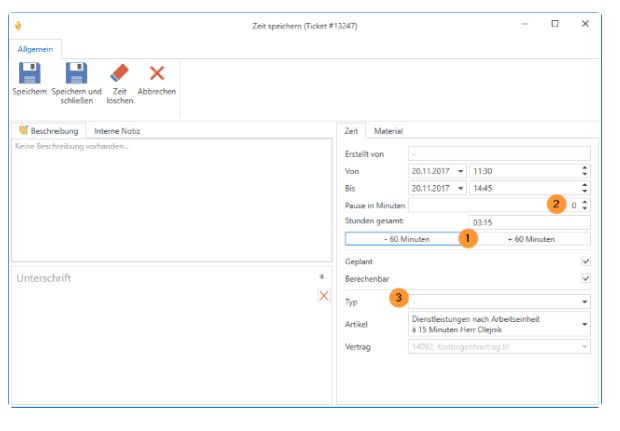
If you now select Type (3) on site, c-entron will take over the travel item and travel time stored for the customer.
There will be two items on the invoice:
·The time that was recorded
·The arrival article
The travel time should be recorded separately, as it may vary due to traffic jams or special agreements with the customer, for example.
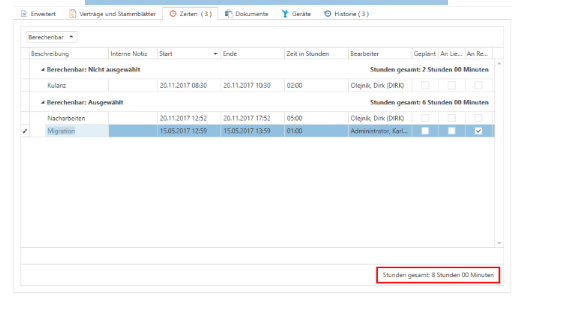
4. All helpdesk times are displayed in an overview in the lower section:
·Total:
Sum of all times (whether calculable or not)
·Predictable:
Total of all times that can be calculated
·LS created:
Total of all times that have already been transferred to a delivery note
·Calculated:
Total of all times that have already been calculated or invoices that have already been created
·Unpredictable:
Total of all times that cannot be calculated
·Break:
Total number of breaks recorded in this help desk
5.Depending on the settings, the contents of the Description field can be printed on the invoice. This could be, for example, the work that has been carried out.
6.The "internal note" is only available in the help desk and serves as an additional option for storing information that is used exclusively internally.
In addition to the actual time, it is also possible to take lead times into account—for example, the time that elapses between the problem being reported and the help desk being created. This can be found in the settings.
In addition to the comments already mentioned, actions (1) can also be entered.
This refers to information that is not assigned to a specific time, such as an attempt to reach the customer by phone.
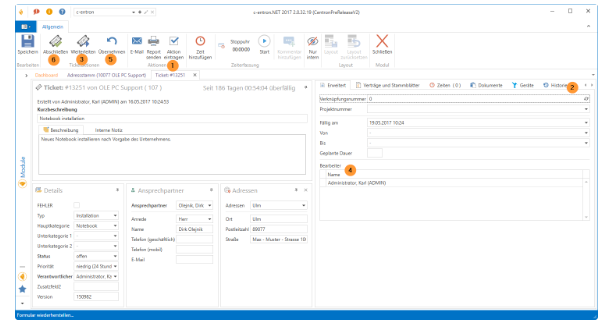
This information can be viewed again at a later date under the History file (2).
The ticket is forwarded to one or more employees using the forward button (3).
In addition to receiving information by email and an entry in the to-do list, the employee(s) are stored as the person(s) responsible for processing the task (4).
If the helpdesk is forwarded to several employees, an employee can use the Take over button (5) to register as the sole processor. This also deletes the to-do list entry for the other employees.
The ticket is completed by clicking the Complete button (6).
To inform customers and employees about the current status of the help desk, it is possible to forward this information to the relevant persons.
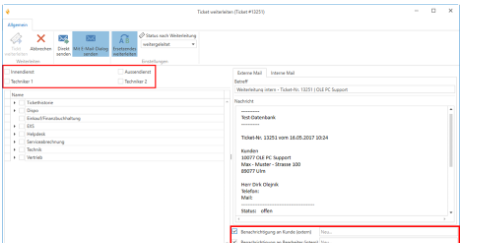
The default settings for these emails can be maintained in the c-entron.NET settings.
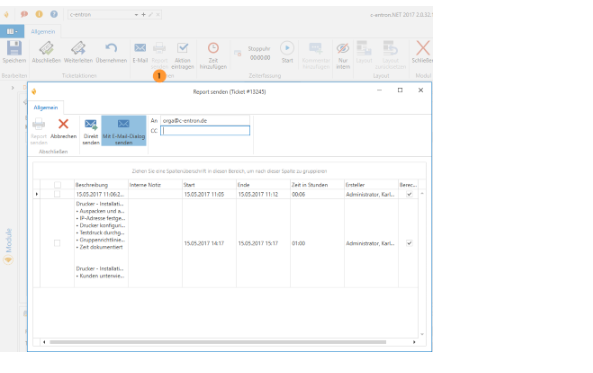
Another item in the taskbar is the reports that can be generated from the help desk.
A report/performance record can be created from the ticket and sent, for example, if a technician has been on site at the customer's premises and wants to send this record.
5.Other
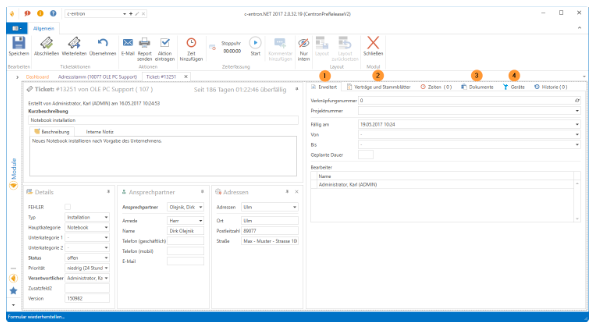
Under the Advanced tab (1), a project number can be selected from a drop-down field, the due date and planned duration can be adjusted, and the ticket handler is displayed.
In the Contracts and Master Sheets file (2), customer contracts and master sheets can be added to a ticket.
Invoices, information, emails, etc. can be stored in the Documents (3) file.
The customer inventory is displayed in the Devices (4) section. This requires the use of Riversuite software from Riverbird GmbH.