Adjusting and maintaining VAT rates in the c-entron software is quick and easy. Although the standard VAT rates are already set up, a few settings need to be made to ensure that everything works correctly in the receipts and in the accounting.
Value Added Tax Module
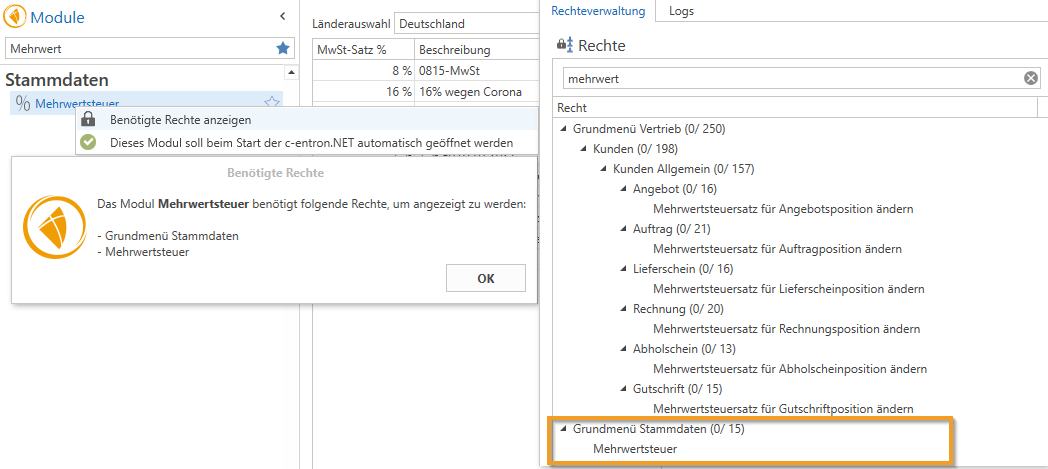
To access VAT management, enter "Value Added Tax" (VAT for short) in the module list area or scroll to the master data and select "Value Added Tax" there.
Rights
The VAT module requires the following rights to be displayed:
Basic menu Master data
Value added tax
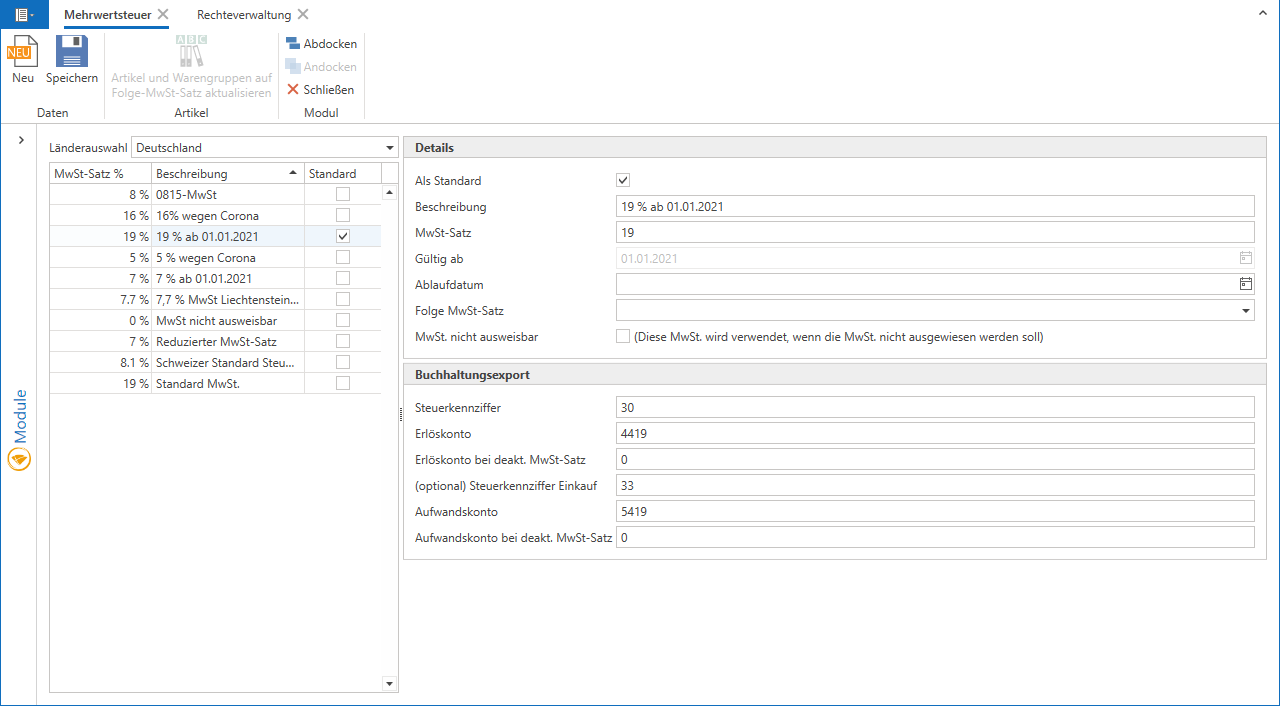
Value added tax administration can be divided into different areas:
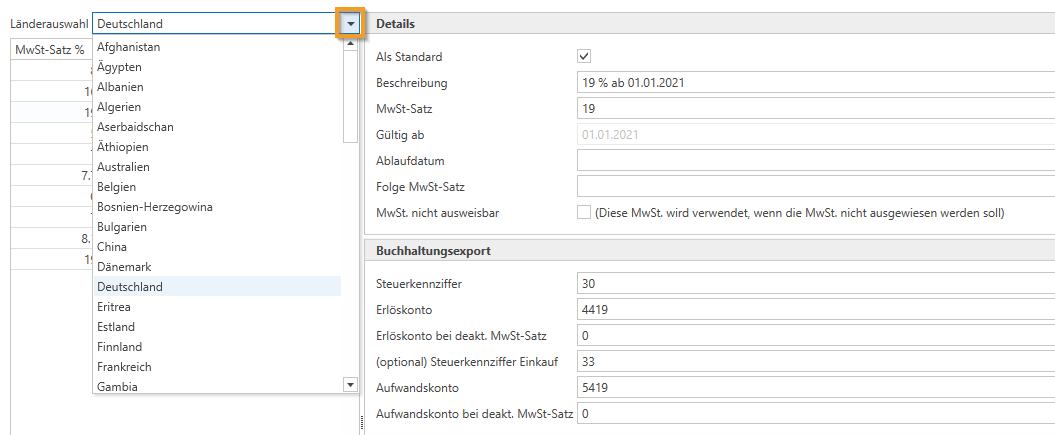
Country selection:
Once a country has been selected, a selection of the standard VAT rates for that country will appear.
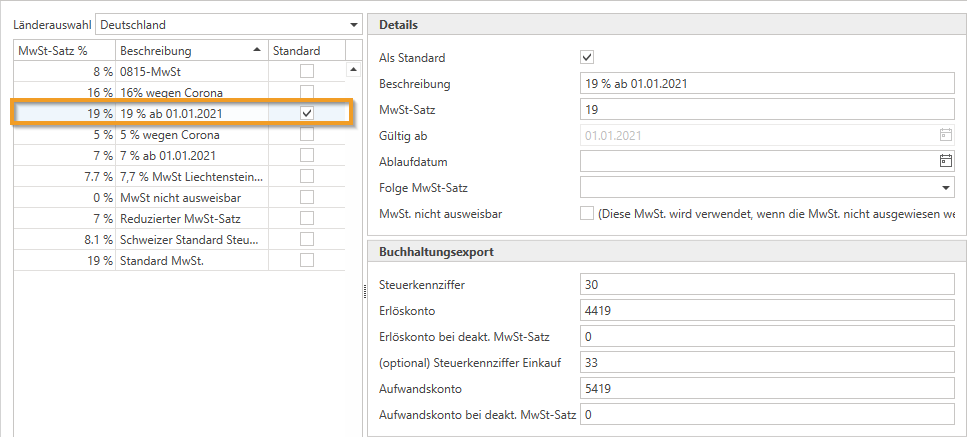
Details:
Under Details, you can create and edit any number of different VAT rates.
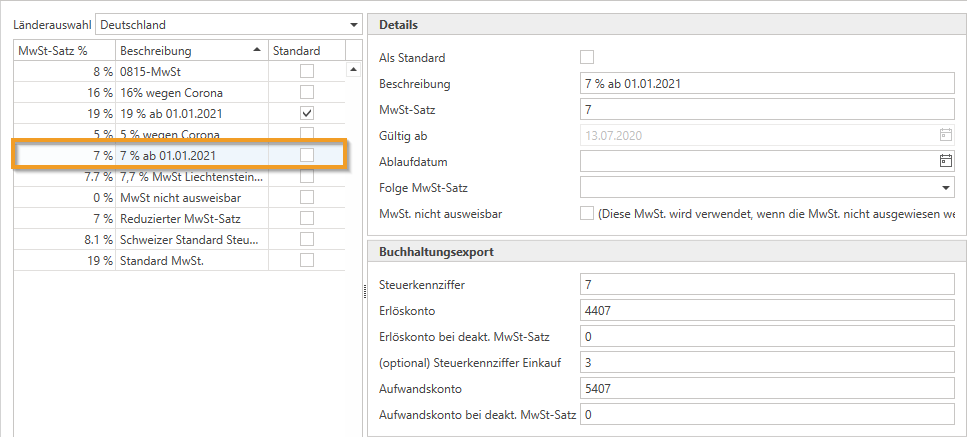
A VAT rate must be created as a default. This VAT rate is used as the default value for items unless a different VAT rate has been entered for the product group or sub-product group. There must also be a 0% VAT rate. You can edit the descriptions of the VAT rates and enter the percentage rates. You can also define validity dates and follow-up VAT rates in case the VAT rates change.
The typical three VAT rates (for Germany) are 19%, 7%, and 0%.
The 19% value-added tax rate is marked as standard and is used most frequently.
NOTE: Standard means that this rate is automatically applied if no other rate is stored for the item, product group, or sub-product group.
The 7% value-added tax rate although less frequently required in the IT industry, it is still available and can be used if necessary.
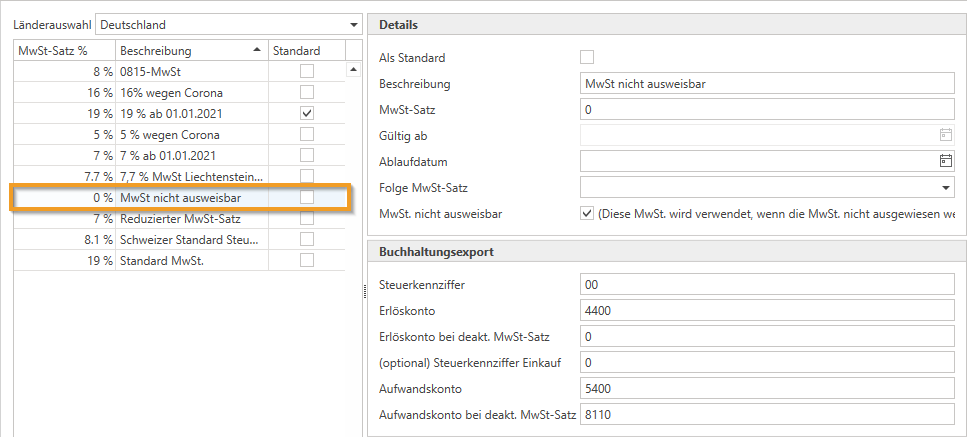
The 0% VAT rate is important for selling goods abroad or purchasing goods from abroad where no VAT is to be shown. In c-entron, it is possible to deactivate VAT generally at customer level, but also per document or even per item in the document.
NOTE: The 0% VAT rate must be created, as it is used when no VAT is to be shown.
Periods of validity:
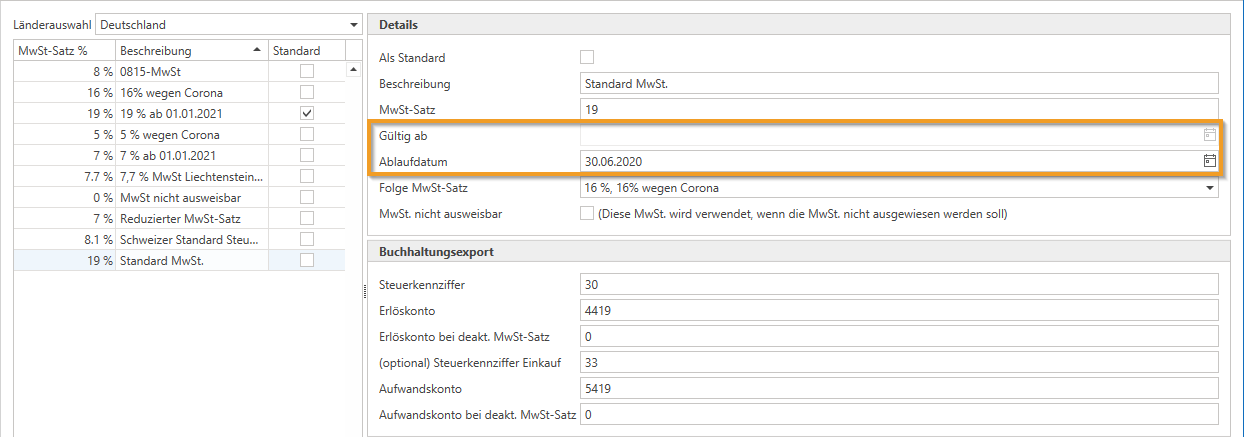
This section allows you to set validity periods for VAT rates.
If you need to do this, enter an expiration date for the current VAT rate and a valid-from date for the new VAT rate. Make sure that a follow-up VAT rate is stored to ensure a seamless transition.
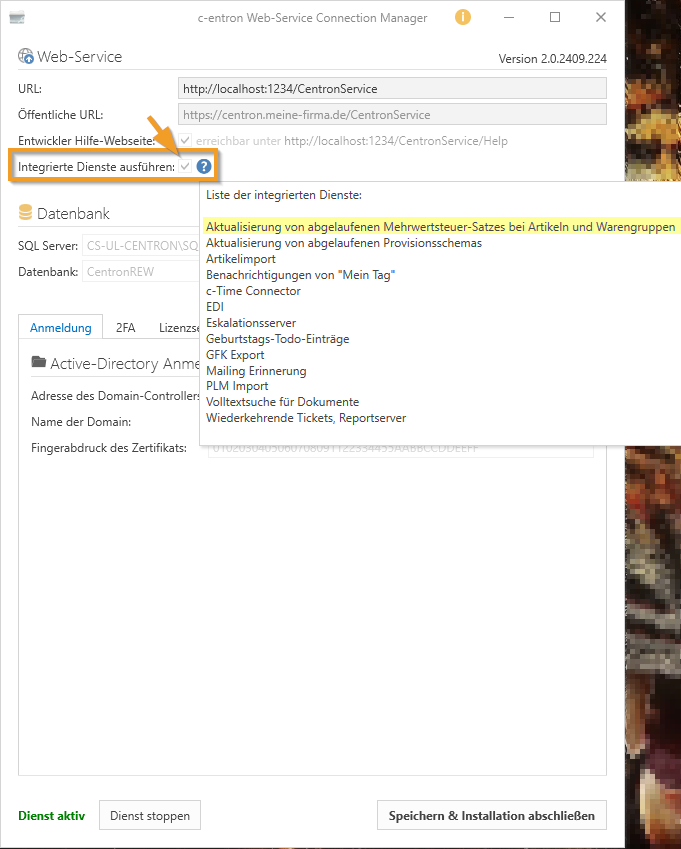
NOTE: To ensure that these are updated automatically, the checkbox for "Run integrated services" must be selected in the c-entron WebService Connection Manager. The web service then checks daily whether a VAT rate is expiring and has a follow-up VAT rate, and then overwrites all items with the old rate with the new one on the expiration date.
Further information on this topic with examples can be found in the example "Change in VAT rates in Switzerland from January 1, 2024" at cards/0a12c031-f4f4-4f51-8223-05c8155695e7
Accounting export:
In the Accounting Export section, you can store accounting export accounts for domestic, EU domestic, and non-EU foreign countries.
Tax codes: Some accounting systems that do not work with automatic accounts require a corresponding key (also known as a BU code) to recognize the VAT rate. This can be entered here to ensure correct allocation. An overview of the tax codes (BU) can be found at: DATEV Help Center
Revenue and expense accounts: The accounts specified in the standard system for financial accounting (Fibu) are entered here.
Please note: Accounts stored in the article master overwrite those specified here. A deactivated VAT rate uses the revenue account entered here if VAT has been deactivated in an invoice.
Address master and documents:
In the address master, you can set whether VAT should be shown for each customer and supplier. There is a checkbox labeled "Do not show VAT," which is particularly important for international transactions. This setting is automatically applied to the documents. In the documents themselves, you can deactivate VAT globally for the entire document or individually for each item.
TIP: You can assign your employees individual rights to change the VAT in customer receipts. You can find these in the rights management section below:
Basic menu Sales
Customers
Customers General
Offer
Change VAT rate for offer item
Order
Change VAT rate for order item
Delivery note
Change VAT rate for delivery note item
Invoice
Change VAT rate for invoice item
Pickup slip (0/13)
Change VAT rate for pickup slip item
Credit (0/15)
Change VAT rate for credit memo item
Proper maintenance of these areas ensures that all VAT information is correctly recorded and processed in c-entron. This ensures that accounting runs smoothly and all legal requirements are met.
Chart of accounts extension – for VAT (not) subject to customs duty.
If there is a lot of trade with foreign countries (EU and third countries), it is necessary to be able to post amounts to different tax codes.
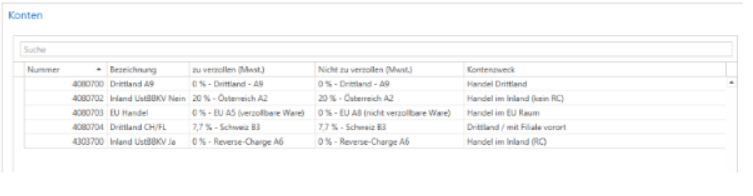
It is currently possible to define separate revenue accounts for domestic/EU/third countries and reverse charge, and it is now possible to store the revenue/expense accounts in the VAT module of the chart of accounts so that they are included in the accounting export.
Chart of accounts module
In the "Chart of Accounts" module, VAT can now be stored for revenue/expense accounts:
Product groups
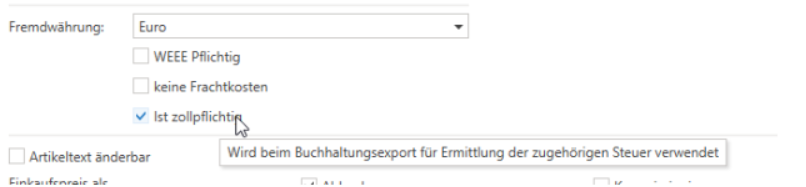
The product groups and sub-product groups have been expanded to include the new setting "Subject to customs duties." This setting is used for accounting exports.
Accounting export
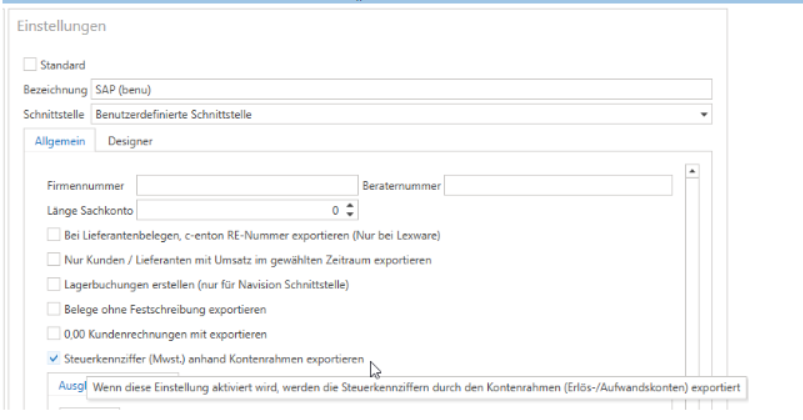
There is a new checkbox in the settings for the accounting export interfaces: "Export tax code (VAT) based on chart of accounts."
This is currently only supported by the "Custom interface" interface type. If necessary, this can also be extended to other interfaces.
A new check for "user-defined interfaces" has been added to the accounting export. If there is no tax code for an entry, it is reported as an error.
JavaScript errors detected
Please note, these errors can depend on your browser setup.
If this problem persists, please contact our support.
%20(1).png)