%20(1).png)
Additional fields
In (customer) receipts
(available from release 2.0.2201.195)
Under Global Settings – Administration – System, it is now possible to create additional fields for customer documents. Additional fields are user-defined fields that can be attached to documents and cannot be represented by the standard fields of a document. These can have different editors (e.g., text field, number field, file, link), a name, and a category. When a document is further processed, the value from a field is transferred if the target document has an additional field with the same name, category, and type.
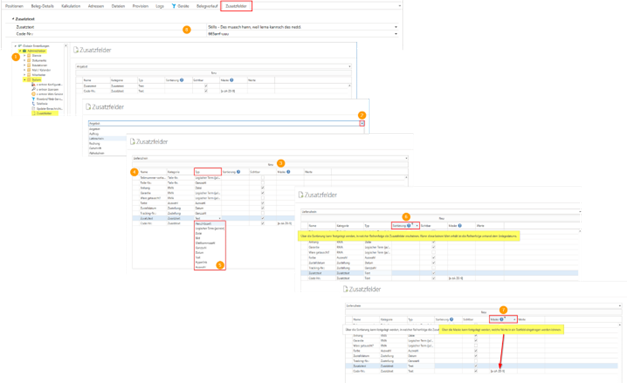
Explanation of the individual fields
Name:
Enter a name for the additional field here
Category:
Fields can be grouped by category
Type:
Here you can select the field type: "Encrypted," "Logical term (yes/no)," "File," "Image," "Floating point number," "Integer," "Date," "Text," "Hyperlink," or "Selection."
Sorting:
The sorting function can be used to specify the order in which the additional fields appear. If no value is specified, the order is based on the creation date.
Visible:
Can be activated by checking the box so that this additional field is displayed in the preselected document.
Mask:
The mask can be used to specify which values can be entered in a text field.
Examples:
- To allow only positive integers: ^[1-9][0-9]*$
- For positive decimal numbers: ^[1-9][0-9]*(\.[0-9]+)?$
- A simple validation for email addresses: ^[a-zA-Z0-9._%+-]+@[a-zA-Z0-9.-]+\.[a-zA-Z]{2,}$ - German landline number: ^0[1-9]\d{1,4}-\d{1,12}$
- German mobile phone number: ^(0|\+49)[1-9]\d{1,14}$
Values:
Here you can enter the values if you have used "Selection" as the type
Examples:
- Color selection: Red; Green; Yellow; Blue; Purple; Pink; Pale Blue
- General selection: This; That; The other
Is a required field:
If this option is enabled, the document can only be saved once this field has been filled in or a selection has been made.
Examples of how to use additional fields in customer documents:
These additional fields can be used, for example, to include additional information for government orders (such as internal process numbers, specific deadlines, or to include a tracking number or even a link to a DHL package in the document).
(For example: I send the invoice here and immediately include the DHL tracking number—of course, this is not standard for every report, but it could be done with an additional field)
Or simply more interesting links on a specific topic.
How to load the additional fields of a document into a report:
The relevant tables are:
ModuleCustomProperties
ModuleCustomPropertyPossibleValues
ModuleCustomPropertyValues
To load the values for a document, proceed as follows:
SELECT * FROM ModuleCustomPropertyValues WHERE ObjectI3D = <document i3d> AND ObjectKind = <document type> (Document type is from CentronObjectKindNumeric)
To find the data type/header/category for each value, you can use ModuleCustomPropertyI3D from ModuleCustomProperties for a value
If a property has DataType '11', the possible answers can be loaded from ModuleCustomPropertyPossibleValues
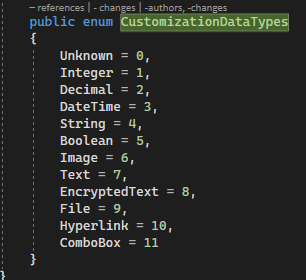
The data type can then be used to determine which column the value is in (Integer => ValueInteger), etc.
In (supplier) documents and contracts
(available from release 2.0.2211.460)
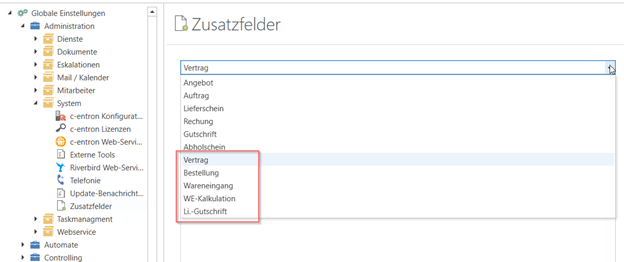
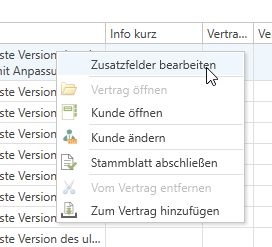
The additional fields are now also available for contracts and supplier documents. As with customer documents, these are also displayed in the document overview. They can be edited directly either in the document or in the document overview by right-clicking on "Edit additional fields."
In addresses
(available from release 2.0.2312.x)
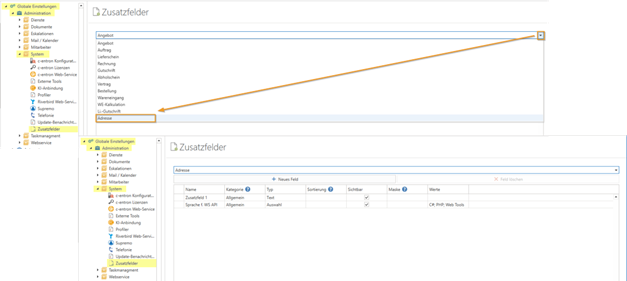
Additional fields are now available for addresses, which can be stored under Global Settings - Administration - System - Additional Fields. As with the additional fields for documents, these can have different editors (e.g., text field, number field, file, link), a name, and a category, and are then displayed in the address master in the new "Additional Fields" tab and in the address hit overview in individual columns (with the name of the additional field).
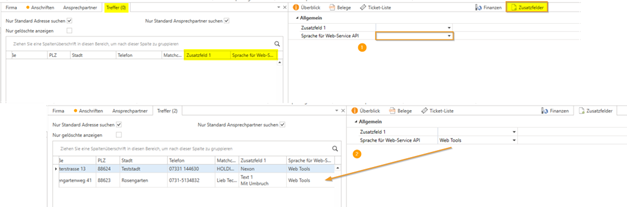
The latest feature allows you to search these additional fields in the address master. The "search text" is searched for in these additional fields. This means that you can enter a value directly in an additional field, trigger the search, and the customers with the entered value will then be searched for.
Example:
Additional fields for master sheets
(available from v2.0.2405.165)
In the global settings, under "Administration -> System -> Additional fields," there is now a new option called "Master sheet," which you can use to create one or more additional fields for master sheets, as in other areas, and these can also be declared as "mandatory fields."
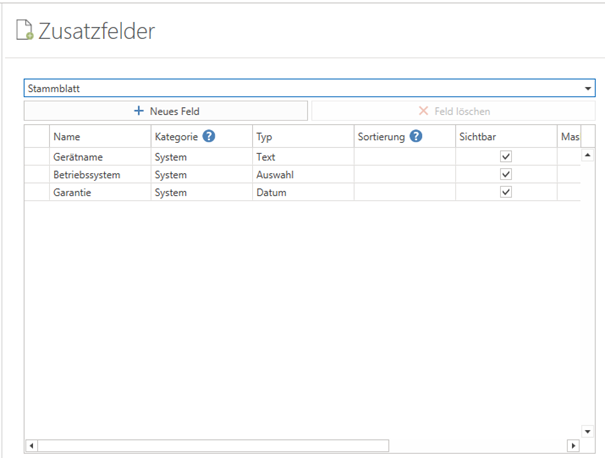
You will then find the "Additional fields" column in your master sheets, which you can also save in your profile.
For each additional field, you will also find a column in the master sheet overviews (separate module and in the address master), and you can use this in the master sheet, ...
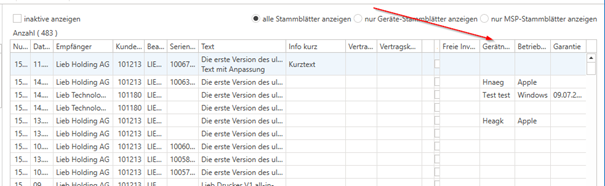
... but you can also edit it directly in the overview by right-clicking.
FAQ:
Problem:
The "Additional fields" tab is not displayed in the personal profilet
Solution:
If the "Additional fields" tab is not displayed in your personal profile but is displayed in the standard "c-entron" profile, click on the small downward arrow on the right-hand side of the tabs, select "Show closed panels," click on the tab (which may then be displayed at the top left of the document), and save the layout. - now, when you reopen the "Additional fields" tab in your personal profile, it will also be displayed.